
How to use repeats, 1st/2nd endings, and DS/DC al codas in Band-in-a-Box®
This tutorial covers the following topics:
- Overview
- Quick tips to solve the most common problems
- About Fake sheet mode
- Edit Repeats and Endings dialog
- How to create a repeat
- How to create a 1st/2nd ending
- How to create a DS/DC al coda/fine
- How to display and print lead sheets with repeat symbols
Last updated: Friday, 09 November 2018
Overview
The Band-in-a-Box® framing controls (chorus begin bar, chorus end bar, number of choruses to repeat, and tag ending) are the standard controls used for setting the structure of your song. There is more information about song structure in Band-in-a-Box® here. However, most lead sheet style printouts contain 1st/2nd endings, repeats, and coda markings. Band-in-a-Box® 2004 and higher support the entry, display, and printout of songs using these symbols.
Note 1: Unless you only have one chorus, a repeat sign will always appear at the end of your chorus, indicating how many times the chorus is repeated. This repeat sign is distinct from the repeats referred to in this tutorial.
Note 2: You should download the latest update for your version of Band-in-a-Box® from our Software Updates page
Quick tips to solve the most common problems
- Download and install the latest update for your version of Band-in-a-Box® from our Software Updates page.
- When creating a repeat, it is usually best to input your entire song in linear form, the way it would look if you didn't have any repeats. Then, define your repeats, ensuring that the "generate (insert) new bars" setting in the Repeats and Endings dialog is unchecked.
- To print out your song so that the printout displays your repeats etc., you need to print from the Lead sheet window with Fake sheet mode enabled.
About Fake sheet mode
When you create a repeat using the methods discussed in this tutorial, you are adding bars to your song. If you repeat bars 1 through 8 so that these bars play twice, the repeated bars will be bars 9 through 16. Fakesheet mode allows you to hide bars 9-16 from view; they are still there and Band-in-a-Box® will play them, but you will only SEE bars 1 through 8.
The Fake sheet mode setting is found on the main Band-in-a-Box® screen underneath the song title window.

If the 'FakeSh' box is checked (fake sheet mode enabled), Band-in-a-Box® will hide all of the repeated bars so you can't see them. If the 'FakeSh' box is unchecked (linear mode; fake sheet mode disabled), Band-in-a-Box® will show every bar in your song in linear form, including all repeated bars. In other words, if you play your song while looking at it in linear mode, the cursor will move from top to bottom without jumping around at all. The bars that would be hidden in fake sheet mode are shown in light grey when you aren't in fake sheet mode.
Note: you can globally enable/disable the display of repeats/endings in the Opt. | Preferences | Display dialog.
Edit Repeats and Endings dialog
The Repeats and Endings dialog is accessed by right-clicking on the chord sheet window, or by going to the Edit menu and selecting Repeats/codas/1st-2nd endings.... You first specify the type of repeat/ending on the left side of the dialog, then type in the bar numbers on the right side of the dialog. The [Edit List] button will bring up a dialog that shows all of the currently defined repeats in your song.
An important setting to understand is the "Generate (insert) new bars" checkbox. When you use the 'Repeats\codas\1st-2nd endings' command, you need to tell Band-in-a-Box® if you want it to generate new bars for the repeat, or if you want it to use bars that are already in your song. In the 'Edit Repeats and Endings' dialog, if "generate (insert) new bars" is checked, Band-in-a-Box® will create as many new bars as are needed for the repeat, and will automatically insert the chords in those bars for you. If "generate (insert) new bars" is unchecked, Band-in-a-Box® won't create any new bars; it will use the bars in your song immediately following the section that you have told it to repeat. Not setting this correctly is the most common mistake made.
If you are having trouble, the easiest thing to do is to type your whole song out in linear form, then generate the repeat/1st-2nd ending etc. with the "Generate new bars" setting unchecked.
For example, say you typed in the chords C - F - G - C in bars 1 through 4, and you want to tell Band-in-a-Box® to repeat this section so that it plays twice. You could do one of the following:
- First Method
- Open the Repeats and Endings dialog.
- Enter the following data...
-Repeat begins at bar: 1
-# bars in single repeat: 4
-Repeat: 2 X - Put a checkmark beside "Generate (insert) new bars".
- Press [OK-Make Repeat].
If you view your song in linear mode, you will see that Band-in-a-Box® has generated four bars for you (bars 5 to 8) with the chords C - F - G - C.
- Second Method
- Before making the repeat, type the chords C - F - G - C in bars 5 through 8.
- Open the Repeats and Endings dialog.
- Enter the following data...
-Repeat begins at bar: 1
-# bars in single repeat: 4
-Repeat: 2 X
- Make sure there is no checkmark beside "Generate (insert) new bars".
- Press [OK-Make Repeat].
The final result is the same as the first method, but this time no new bars were created.
Notice that if you were to use the first method, but you had left "Generate (insert) new bars" unchecked, bars 5-8 would be empty (no chord symbols). You would see this if you viewed your song in linear mode.
Note: Both the first or second method will work well for Repeats and 1st/2nd endings. for 1st/2nd/3rd endings, 1st/2nd/3rd/4th endings, and D.s/D.C. al coda/fine, the second method should be used - in other words, type out your whole song in linear form first.
How to create a repeat
Here are two examples of how you can create a simple repeat.
-
Example 1: Simple 2X Repeat
Let's say we have the following 32 bar song:
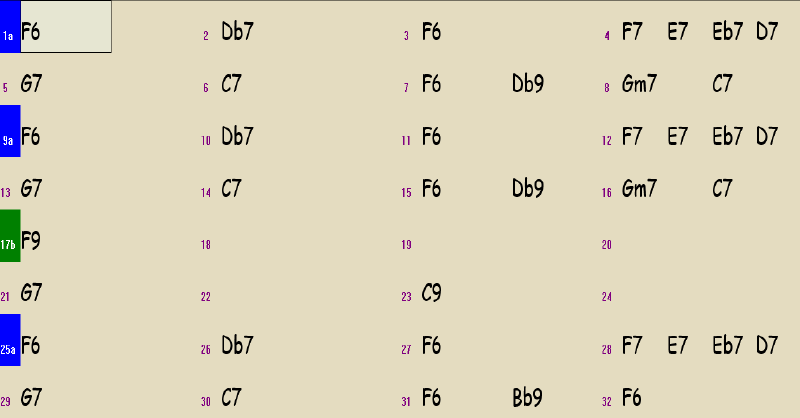
Notice that bars 1-8 are the same as bars 9-16. We can define a repeat for these bars the following way:
- Open the Repeats and Endings dialog and select "repeats" as the repeat/ending type.
- Enter the following data:
-Repeat begins at: 1
-# bars in a single repeat: 8
-Repeat: 2X (this means "play it twice")
- Make sure that 'Generate (insert) new bars' is checked.
- Press [OK - Make Repeat].
Notice that Band-in-a-Box® has inserted the additional eight bars (with the chords) for you. These are bars 9 through 16. Also, notice that your song is now 40 bars long in total (32+8)
-
Example 2: Simple 2X Repeat
Let's say we would like to enter the same song as above, but we want Band-in-a-Box® to insert the repeated bars for us. Here's what we could do:
- Type in all of the bars in the song, not including the repeated section - 24 bars in total, like this:

- Once you have done that, open the Repeats and Endings dialog and select "repeats" as the repeat type.
- Enter the following data:
-Repeat begins at: 1
-# bars in a single repeat: 8
-Repeat: 2X
-Make sure that 'Generate (insert) new bars' is checked. - Press [OK - Make Repeat].
Notice that Band-in-a-Box® has inserted the additional eight bars (with the chords) for you. These are bars 9 through 16. Also, notice that your song is now 32 bars long in total (24+8)
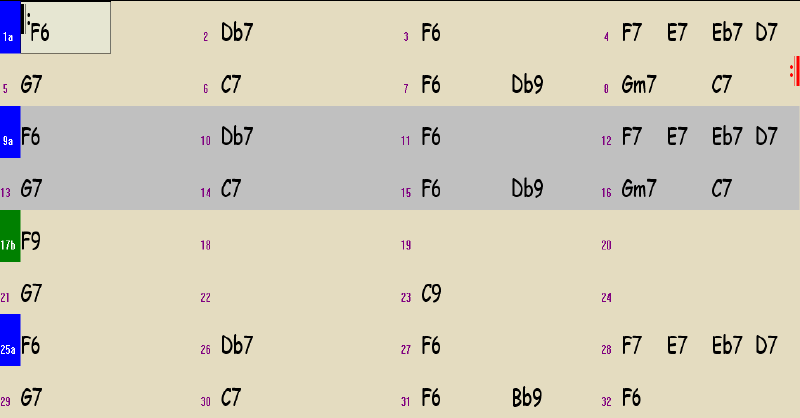
The end result for examples 1 and 2 are exactly the same. We can enable or disable fake sheet mode.
Here is what it looks like with fake sheet mode enabled. Notice that the repeated bars are hidden from view.
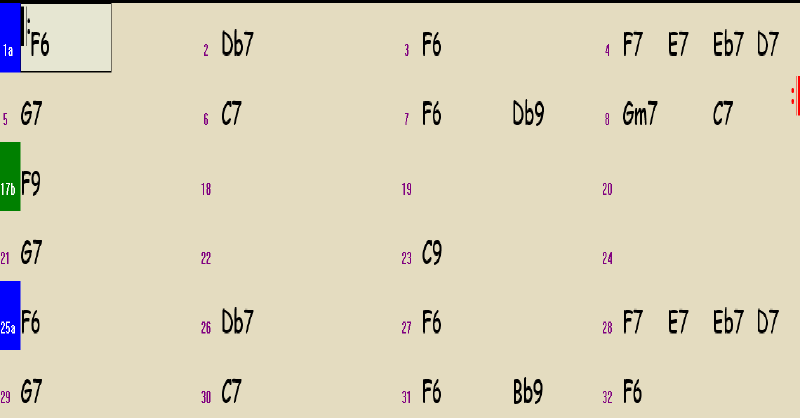
And here is what the song looks like when we disable fake sheet mode. Notice that we can see ALL of the bars in the song, the repeated bars being the gray bars:
- Type in all of the bars in the song, not including the repeated section - 24 bars in total, like this:
How to create a 1st/2nd ending
Say we have a 32 bar song in AABA format, like this one:
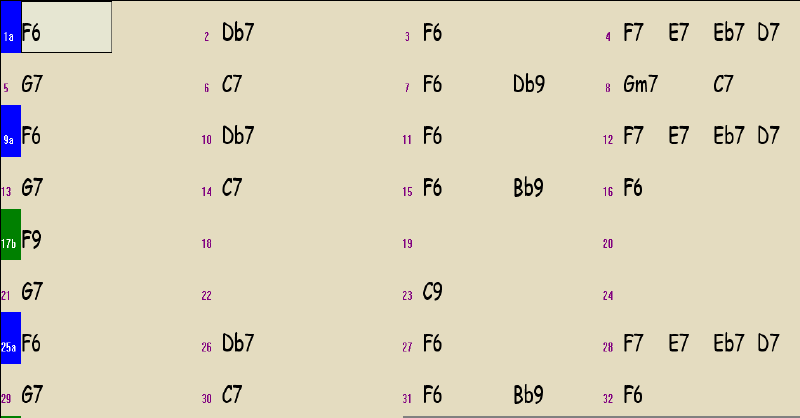
Notice that bars 1-8 are the same as bars 9-16, with the exception of the last 2 bars of each (7-8 and 15-16 are different). We could create a 1st-2nd ending where the 1st ending is bars 7-8, and the 2nd ending starts at bar 15.
-
Example 1: 1st/2nd Ending
Let's assume that we have already entered a song as in the screenshot above, and we want to define a 1st-2nd ending for bars 1-16:
- Open the Repeats and Endings dialog and select "1st/2nd endings" as the repeat/ending type.
- Enter the following data:
-Repeat begins at: 1
-1st ending begins at: bar 7
-1st ending lasts for: 2 bars
-endings type: 1st/2nd endings
- Make sure that 'Generate new bars' is unchecked.
-
Press [OK - Make Repeat].
-
Example 2: 1st/2nd Ending
Still working with the same song, assume that we would like Band-in-a-Box® to generate the new bars for us.
- Input your song, but don't type in the bars that will be repeated, like this:
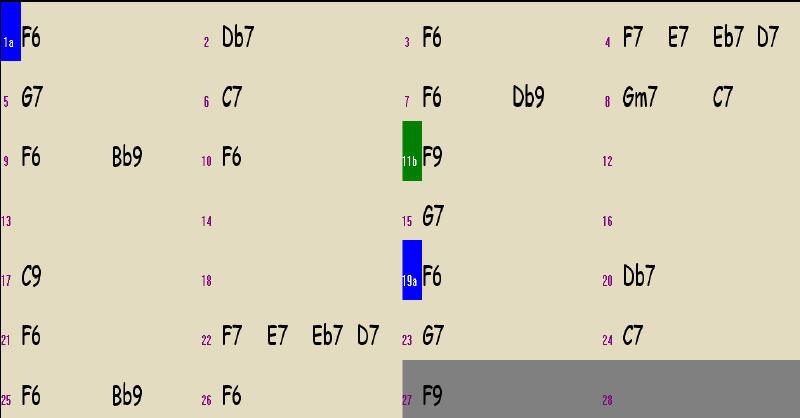
Notice that the way we have entered the song, the 1st and 2nd endings are adjacent; the 1st ending occupies bars 7-8, and the 2nd ending occupies 9-10.
- open the Repeats and Endings dialog and select "endings" as the repeat/ending type.
- Enter the following data:
-Repeat begins at: 1
-1st ending begins at: 7 bars
-1st ending lasts for: 2 bars
-endings type: 1st/2nd endings
- Make sure that 'Generate new bars' is checked.
- Press [OK - Make Repeat].
The end result is exactly the same as example 1, but this time, Band-in-a-Box® has generated the bars for us.
Here is what the song now looks like when we view it in fake sheet mode:
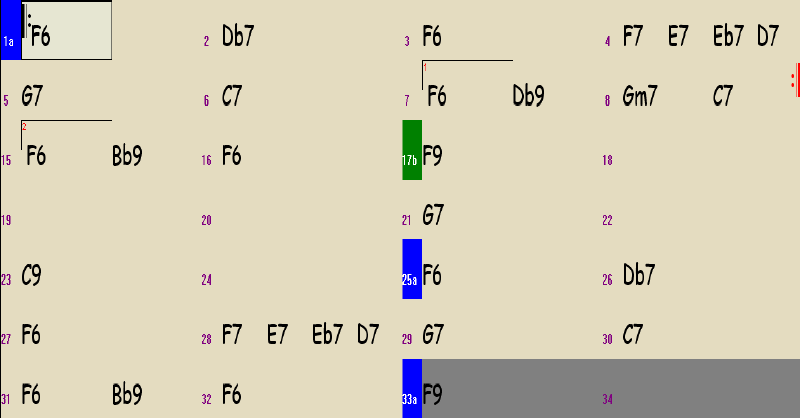
And here is what the song looks like when we disable fake sheet mode. Notice that we can see ALL of the bars in the song, the repeated bars being the gray bars:
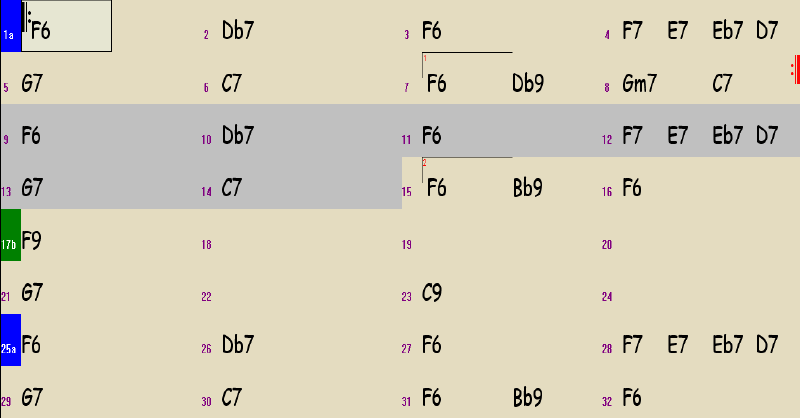
- Input your song, but don't type in the bars that will be repeated, like this:
-
Example 3: 1st/2nd/3rd Ending
For 1st-2nd-3rd and 1st-2nd-3rd-4th endings, you should type out all of the chords in your song in linear form, so that your song is exactly how you want it to be played, but without the repeats. For example, say we entered the following 24 bars:
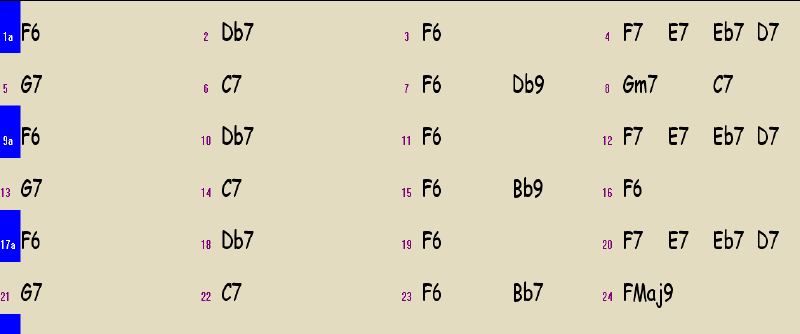
Notice that bars 1-8 are the same as bars 9-16 and 17-24, except that the last two bars of each section (bars 7-8, 15-16, and 23-34) are different. We could set up a 1st-2nd-3rd ending like this:
- Open the Repeats and Endings dialog and select "1st/2nd endings" as the repeat/ending type.
- Enter the following data:
-Repeat begins at: 1
-1st ending begins at: bar 7
-1st ending lasts for: 2 bars
-endings type: 1st/2nd/3rd
-2nd ending lasts for: 2 bars
- Make sure that 'Generate new bars' is unchecked.
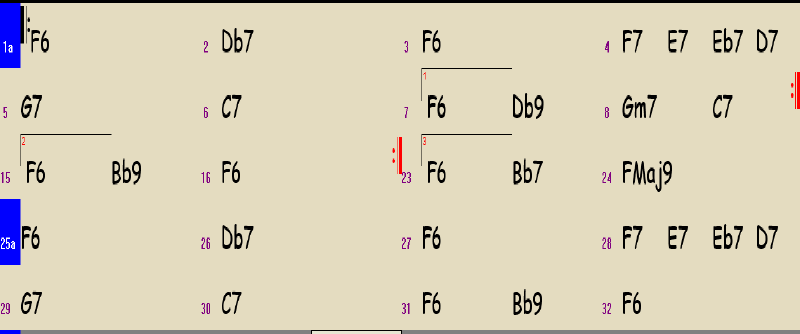
- Press [OK - Make Repeat].
We end up with the following, when viewed in fake sheet mode:
How to create a DS/DC al coda/fine
Some definitions
- A coda is a short closing section at the end of a song. In Band-in-a-Box®, note the distinction between a Coda and a Tag ending: If your song has more than one chorus, the coda would occur at the end of every chorus, while the tag would only occur at the very end of the song.
- D.C. (Da Capo) al Coda: Repeat from the beginning of the song. When you get to the first coda sign, jump to the second coda sign and play to the end. The second coda sign marks the start of the coda section.
- D.S. (Dal Segno) al Coda This is the same as D.C. al coda, except that instead of repeating from the beginning of the song, you repeat from the D.S. sign.
- D.C. al Fine Repeat from the beginning of the song and play to the bar marked Fine. In most music, the bar marked Fine will appear shortly before the bar marked D.C. al Fine.
- D.S. al Fine This is the same as D.C. al Fine, expect that instead of repeating from the beginning of the song, you repeat from the D.S. sign.
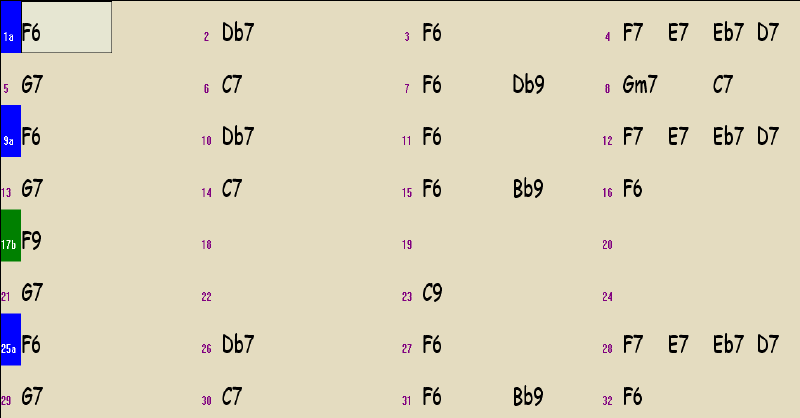
For these types of repeats, type out all of the chords in your song in linear form, so that your song is exactly how you want it to be played, but without the repeats. You can still copy and paste sections of bars that have the same chords. For example, if bars 1-2 have the chords G7-F7 (one chord per bar), you can highlight these bars, press Ctrl-C, then click on bar 3 and press Ctrl-V to enter G7-F7 into bars 3-4. In any case, say we have a 32 bar song like this one:
-
Example 1: D.C. al Coda
We would like to define a D.C. al coda, such that the song plays through to bar 24, repeats from the beginning of the song and plays to bar 6 (which is actually bars 25-30), then plays the coda which is bars 31-32. Here is how we would do it:
- Open the Repeats and Endings dialog and select "DC al Coda" as the repeat/ending type.
- Enter the following data:
-DC after bar: 24
-Go to coda after bar: 6
- Make sure that 'Generate new bars' is unchecked.
- Press [OK - Make Repeat].
Here is what it looks like with fake sheet mode enabled:
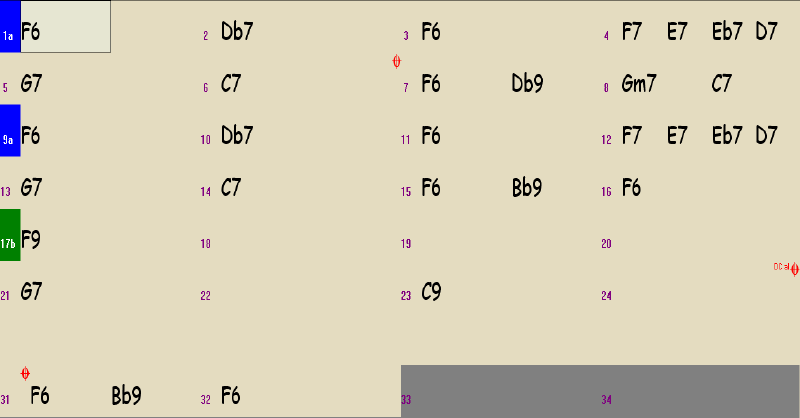
Notice that there is a space that separates the coda visually from the rest of the song, as is common in printed music.
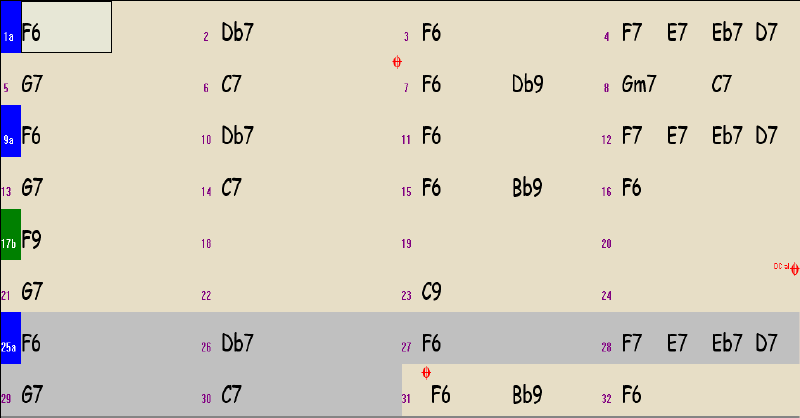
And here is what it looks like with fake sheet mode disabled:
-
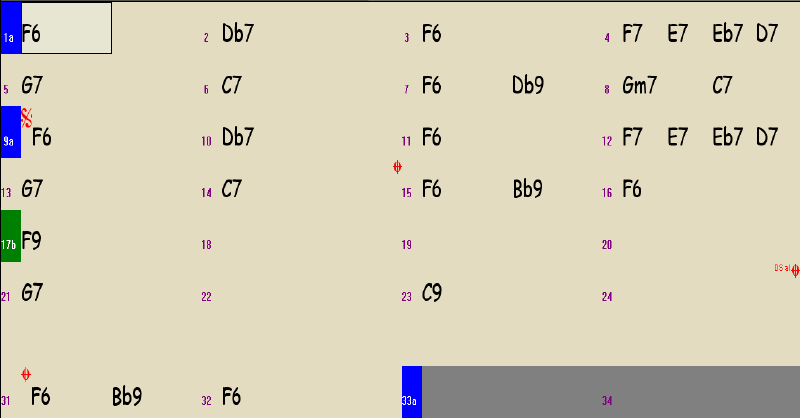
Example 2: D.S. al Coda
Still working with the same song, assume that we would like to instead define a D.S. al coda, such that the song plays through to bar 24, repeats from bar 9-14 (which are actually bars 25-30), then plays the coda at bars 31-32. Here is how we would do it:
- Open the Repeats and Endings dialog and select "DS al Coda" as the repeat/ending type.
- Enter the following data:
-DS after bar: 24
-Sign symbol at bar: 9
-Go to coda after bar: 14
- Make sure that 'Generate new bars' is unchecked.
- Press [OK - Make Repeat].
Here is what it looks like with fake sheet mode enabled:
-
Example 3: D.C. al Fine with 1st/2nd endings
In this example, we will start with the same song used for the two examples above:
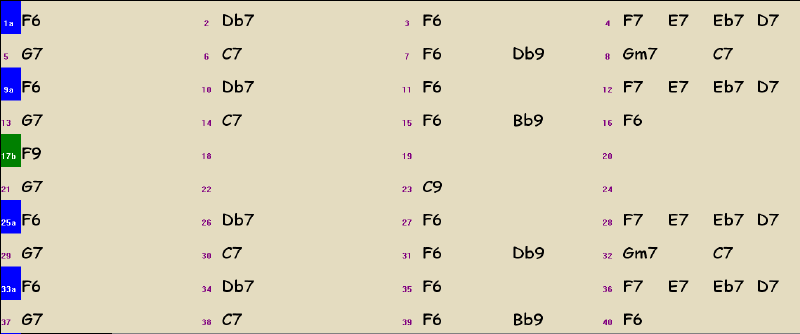
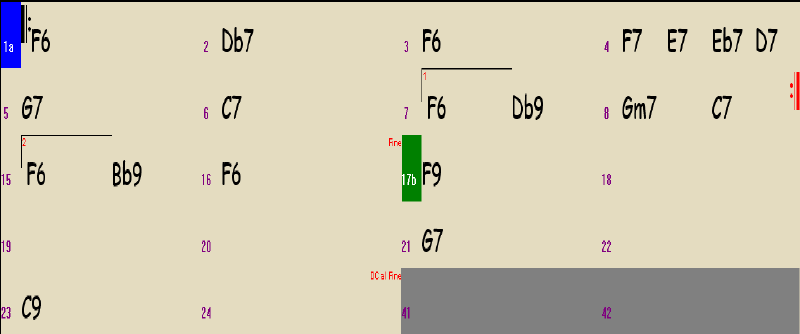
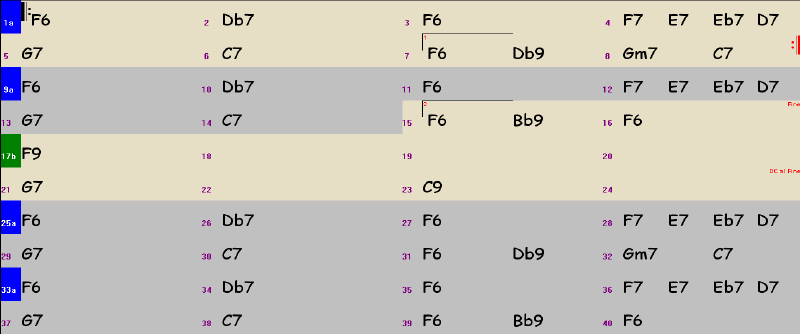
We would like to define a 1st/2nd ending in bars 1-16, as in the previous 1st/2nd ending examples. We would also like the song to play through to bar 24, repeat from the beginning, play the 1st/2nd ending again, then end at bar 16 after the 2nd ending. Note that bars 25-40 are the same as bars 1-16, since these bars will be repeated after the DC. When entering the chords, we could have copied the chords in bars 1-16 and pasted them into bars 24-40.
- Open the Repeats and Endings dialog and select "1st/2nd endings" as the repeat/ending type.
- Enter the following data:
-Repeat begins at: 1
-1st ending begins at: bar 7
-1st ending lasts for: 2 bars
-endings type: 1st/2nd endings
- Make sure that 'Generate new bars' is unchecked.
- Press [OK - Make Repeat].
- Open the Repeats and Endings dialog and select "DC al Fine" as the repeat/ending type.
- Enter the following data:
-DC after bar: 24
-Fine symbol after bar: 16
-# bars after DC to fine: 16
- Make sure that 'Generate new bars' is unchecked.
- Press [OK - Make Repeat].
NOTE: Be sure to get the "# bars after DC to fine" setting correct. If you didn't want to have the 1st/2nd ending played after the DC, you would set this to 8 rather than 16, and the total number of bars in your song would be 32 rather than 40.
Here is what it looks like with fake sheet mode enabled:
And here is what it looks like with fake sheet mode disabled:
How to display and print lead sheets with repeat symbols
To display a lead sheet with repeat signs/symbols showing, open the Lead Sheet window (Alt+W), and enable fakesheet mode. It will look something like this:
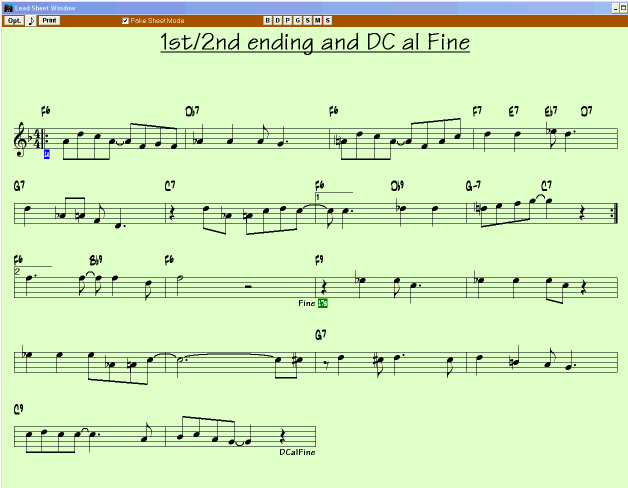
Follow these steps to print your song out with the repeat signs showing:
- Open the Lead Sheet window (Alt+W)
- Make sure the "Fake sheet mode" box is checked.
- Press the [Print] button in the Lead Sheet window.

Note 1: The automatic 2-bar ending does not print in Fake sheet mode.
Note 2: If you have more than one chorus and a Tag ending, the tag will only print if you choose 'whole song' as your print range (it won't print if you are only including the first chorus in your print range, for example).
Unconditional 30-Day Money Back Guarantee on all PG Music products purchased from PG Music Inc.
PG Music Inc.
29 Cadillac Ave Victoria BC Canada V8Z 1T3
Sales: 800-268-6272, 250-475-2874,+ 800-4746-8742*
* Outside USA & Canada where International Freephone service is available.
Access Codes
Tech Support: Live Chat, support@pgmusic.com
 Online now
Need Help?
Customer Sales & Support
|
Phones (Pacific Time) 1-800-268-6272 1-250-475-2874 |
||
| Live Chat | ||
| OPEN | Online Ordering 24/7 |
|
| OPEN | Forums, email, web support |