
Using Garritan Personal Orchestra and Jazz & Big Band with PG Music products
You can use "Garritan Personal Orchestra" and "Garritan Jazz & Big Band" with Band-in-a-Box® for Windows, RealBand, and PowerTracks Pro Audio.
They are most suited for use in either PowerTracks or RealBand (particularly GPO). The main reason for this is that GPO and JABB don't have a full set of General MIDI instruments, and in Band-in-a-Box® you can only use one synth for all your tracks. On the other hand, in RealBand (or PowerTracks) you can select a synth for each track individually.
This tutorial describes RealBand, but it is also entirely applicable to PowerTracks Pro Audio. For Band-in-a-Box®, you can use the same information, but there are a few differences.
The Garritan manuals and website have full details on installation and use; this tutorial is only intended as a general guide, with some troubleshooting tips and tricks related to PG Music products.
We also have an older archived tutorial which describes earlier versions of the products.
Last updated: Friday, 09 November 2018
System Requirements
- Windows XP or higher operating system.
- 1GB RAM minimum, 2 GB recommended.
- 2.8 GHz Pentium 4 or better, 2.0 GHz Core 2 Duo or better recommended.
- DVD drive required for boxed version, internet connection for download version, updates, and online registration.
- About 3.5 GB of free hard disk space, depending on which libraries you install.
Components applicable to PG Music software
When you install GPO or JABB, it mentions a few different components. The one applicable to our software is the VST plugin. The RTAS plugin is not applicable (it's used with Pro-Tools and other Digidesign compatible software), and the notation set is used for notation software like Finale. AU (Audio Units) only applies to Macintosh users. It doesn't hurt to install all components anyways, if you are not sure.
The Aria VSTi plugin is the sampler engine used to load and play the Garritan instruments.
Step 1: Install from the DVD/download.
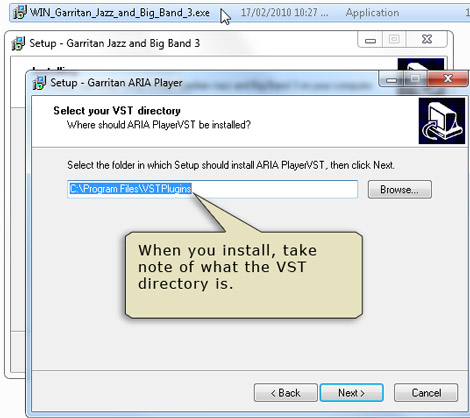
When you run the installer, pay attention to the destination directory that you choose to install the VSTi plugin to. By default, it may be something like C:\Program Files\vstplugins\Garritan.
Step 2: Start RealBand and open the DXi/VSTi window.
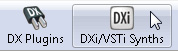
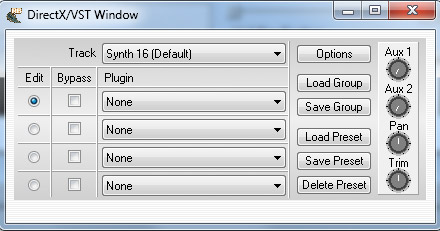
The first thing you need to do is add the Aria plugin to RealBand's list of available VSTi plugins. Open the DXi/VSTi window by clicking on the button in the top toolbar.
Note:
- VSTi plugins will not by accessible for selection in the MIDI Driver Setup dialog (re-route playback to default synth) until you add them to the list of plugins.
- Aria is a VSTi synth plugin - the "i" stands for "instruments". These are different than VST plugins, which refer to audio effects like reverb, EQ, and so on.
- DX/DXi is a different plugin standard. GPO and JABB are not used as DXi plugins.
Step 3: Select the ARIA Player VSTi plugin.
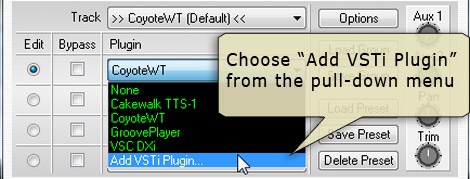
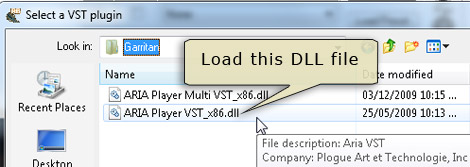
Click on the "Plugin" pull-down menu and choose "Add VSTi plugin".
This will open a standard Windows File-Open dialog, which you navigate to find the plugin file. It is a .dll file located in the folder described in step 1 above.
On 32-bit windows, it should be called "Aria Player VST_x86. On 64-bit Windows, there will also be one called "Aria Player VST_X64", however since RealBand is a 32-bit application, you will want to choose "Aria Player VST_x86".
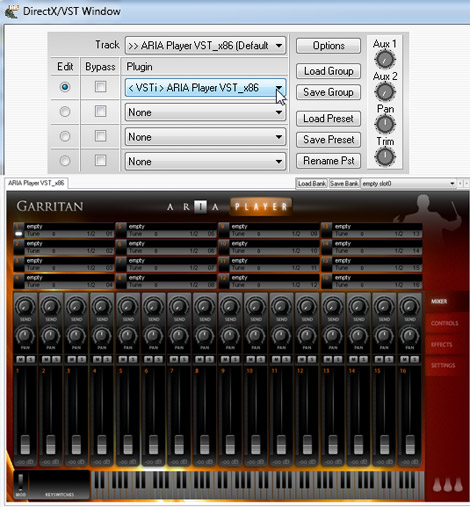
You should now see the ARIA player load. This is where you will do all the work selecting and loading instruments.
Step 4: Assign tracks to the ARIA synth
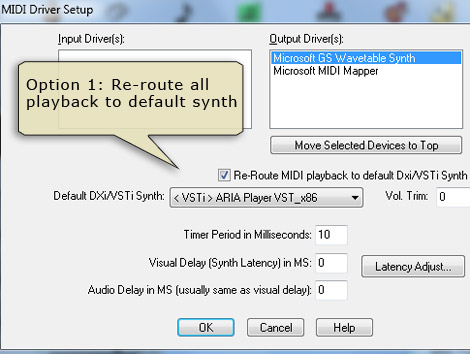
There are basically two different ways you can use the ARIA player in RealBand:
Option 1: You can select it as your default synth, to be used for all MIDI tracks. To do this, click on the [MIDI Drv] button in the toolbar (or go to Options | Preferences | MIDI | MIDI Devices) and check the "Re-Route playback to default synth" box. Choose <VSTi> Aria Player in the drop-down box.
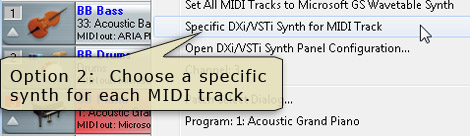
Option 2: You can assign the synth to individual tracks. The most basic way to do this, is to right-click on the Track Information area in the Tracks window, point to 'Specific DXi/VSTi synth for MIDI track', and select the ARIA player there.
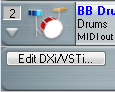
To Access the ARIA panel at anytime, press the DXi/VSTi synth button in the toolbar, or press the [Edit DXi/VSTi] button in the expanded track view.
Step 5: Load instruments in the Aria Player
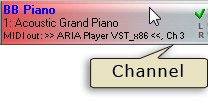
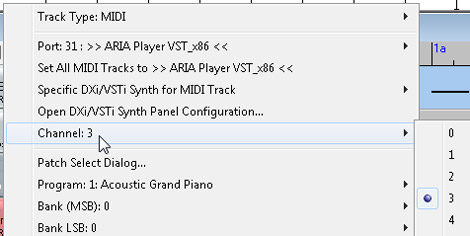
The ARIA player is where you do all the work selecting and loading instruments. The top section of the player has 16 slots, allowing you to add up to 16 different instruments (one per MIDI channel) The bottom section can be toggled between mixer, effects, and settings panels. The player doesn't respond to Program Changes, so you need to manually load in the instruments.
Before loading an instrument, you first need to know what MIDI channel to use. On the RealBand Tracks window, the channel is displayed in the Track information area, or by right-clicking on that area.
Note: If the channel is "0" this means that no particular channel is assigned (i.e. there is no 'forced channel' on that track) - instead, you'll need to look at the Event list window to determine what channels are being used. You can rechannel all existing events to the channels you select in the Tracks window by going to the Edit menu and selecting 'Rechannel all tracks'.
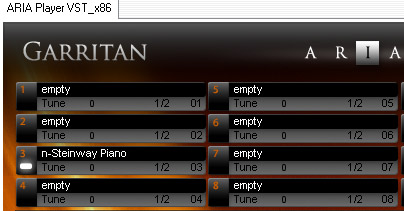
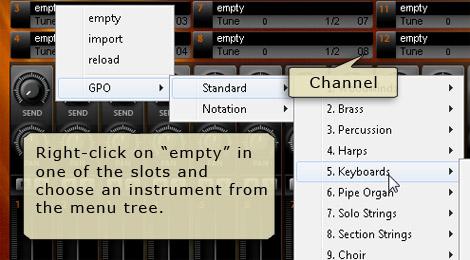
To load an instrument, click on the name of one of the slots (intially, they will all be "empty"), then choose the instrument from the hierarchical menus. Exactly what items are in the menu depends on which libraries you have installed (i.e. Garritan Personal Orchestra, Jazz & Big Band, or other). You may have installed both the Standard and Notation version - you should choose 'Standard' for sequencers like RealBand. 'Notation' is used for notation programs like Finale.
In the mixer panel, make sure the volume is turned up for that channel. The instrument should play now.
There are full instructions about using the ARIA player in the Garritan manuals, but that is the basic concept.
If you are using Band-in-a-Box®
Here are a few things unique to using the plugin with Band-in-a-Box®.
- JABB and GPO don't have a full set of General MIDI instruments. JABB has drums (including a General MIDI drum kit and some brush kits), bass, keyboards, woodwinds, brass, and guitar sounds. This covers many of the instruments used by Band-in-a-Box® Jazz styles.
- To select the Aria player: Open Band-in-a-Box® and go to Opt. | MIDI Driver Setup. Select the Use DXi/VSTi Synth checkbox to open the DirectX/VST window. On the Synth panel tab, select "Add VSTi Plugin" from the top 'plugin' pull-down menu"
- You can only use one synth at a time in Band-in-a-Box® - similar to re-routing all playback to a default synth.
- To find out what channel Band-in-a-Box® is using for the different tracks, you can go to Opt. | Preferences | Channels. By default:
Track Channel Bass 2 Piano 3 Melody 4 Thru 5 Guitar 6 Strings 7 Soloist 8
For example, if you were using the style ZZJAZZ.STY (Bass, Piano, Drums) you would load in a bass sound to channel 2, load in a piano sound to channel 3, and load in your drum kit (ZZJAZZ.STY uses the Standard Drum kit, but many other Jazz styles use the Brush Kit) to channel 10. - To open the DXi/VSTi synth window during your session, you can just press the DXi button on the main toolbar (you don't need to get there via the MIDI Driver Setup all the time).
Troubleshooting
Trouble connecting to the plugin
If you get a message that RealBand cannot make connection to the plugin, or it is not a valid plugin, there are a couple possibilities
- You may be selecting the wrong .dll files. When you installed the Garritan program intially, there was probably one screen that asked you to select your VSTi plugins folder. If you aren't sure what you selected there, try a search for the plugin file, which is "ARIA Player VST_x86.dll", or try running the installation again until you get to that screen so you can see what folder is selected. It would typically be something like C:\Program Files\VSTplugins. Note: If you happen to be selecting portaudio.dll or lbsndfile.dll, those are the wrong files.
- You may have selected the "_x64" plugin by accident. Select the "x86" plugin. Even if you have a 64-bit OS, you need to use the 32-bit plugin with PG Music programs.
- Less likely, but perhaps you have an older version of the Garritan product that is installed as a DX plugin. Since DX plugins show up in the list of plugins automatically, this is sometimes a source of confusion. Choose the VSTi plugin instead by following the steps in the tutorial above.
Playback problems
- No sound during playback: You likely need to open the ARIA control panel and add instruments. Pay attention to which channels you are adding the instruments to, and check those against the channels displayed in the RealBand tracks window.
- You may find that the on-screen keyboard in the Aria Player doesn't work. If you are using ASIO audio drivers in RealBand, you can resolve this problem by opening the ASIO Audio Drivers dialog (Options | Preferences | Audio | Drivers) and enabling the "ASIO Always On" option.
- DXi play-thru (ability to play an external MIDI controller and hear what you play through the DXi synth) will work as long as you are using an ASIO audio driver in RealBand. You set up your audio drivers in Options | Preferences | Audio. If you are using MME, thru playing is routed to the default MIDI output device selected in the MIDI Driver Setup dialog.
Miscellaneous
- Do you have an old version of the program? Band-in-a-Box® 2005 and earlier, and PowerTracks version 11 and earlier, do not support VSTi plugins. The latest versions of Garritan Personal Orchestra and Jazz & Big Band are not available in the older DX plugin standard.
- Do you have an older version of the Garritan products? Earlier versions of JABB and GPO used the Kontakt player rather than the Aria player. You can still use these with Band-in-a-Box®, however the exact steps are slightly different. We have an archived tutorial on using the older versions.
Unconditional 30-Day Money Back Guarantee on all PG Music products purchased from PG Music Inc.
PG Music Inc.
29 Cadillac Ave Victoria BC Canada V8Z 1T3
Sales: 800-268-6272, 250-475-2874,+ 800-4746-8742*
* Outside USA & Canada where International Freephone service is available.
Access Codes
Tech Support: Live Chat, support@pgmusic.com
 Online now
Need Help?
Customer Sales & Support
|
Phones (Pacific Time) 1-800-268-6272 1-250-475-2874 |
||
| Live Chat | ||
| OPEN | Online Ordering 24/7 |
|
| OPEN | Forums, email, web support |