
Band-in-a-Box 2024 New Feature - New MultiPicker Library Window
This is a one-stop-shopping floating window to pick a style or any of the 8 track types (RealTracks, RealDrums, Loops, UserTracks, MIDI SuperTracks, Custom MIDI Tracks, MIDI Soloists, and Melodists) or a style. All pickers show a common interface with a similar look and functions for filters, searching, selection. It allows selection and generation of the whole or partial track. Demos, memos, and multi-column information are available for all. You can filter by genre, popular song titles, feel, instruments, and more.
 You can open this window with the [MultiPicker Library] toolbar button or the Edit | MultiPicker Library menu item. The hotkeys are F7 or M Enter.
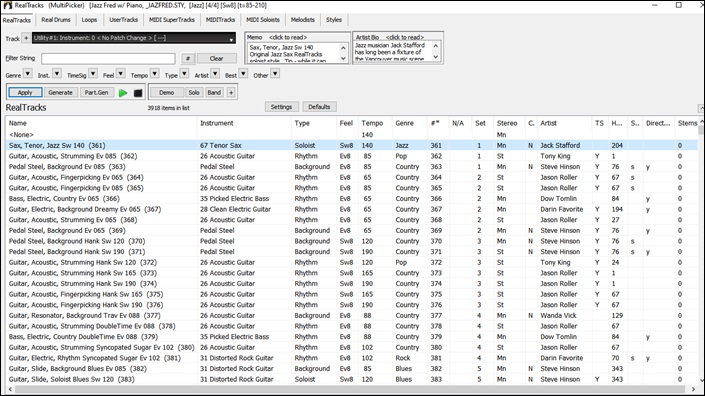
Use the tab buttons at the top of the window to switch the type of tracks.

The track selector allows you to select a track that the selected item on the list will be applied to.

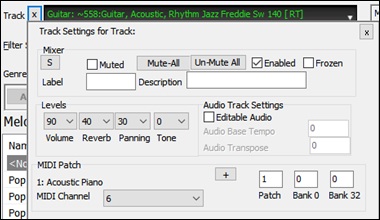
Clicking on the [+] button beside the track selector will display a small panel, where you can solo, mute, freeze, set volume/reverb/panning/tone, change the track label, write the track description, and do more for the current track.
.
The list can be sorted by clicking on the column headings.

You can use the filter function to search items on the list.

For example, type a text (e.g., bossa) in the Filter String field, and the list will be filtered to show only the items that have the word “bossa” somewhere in the name, genre, memo, etc. The [#] button allows you to filter the list by many elements including feel, time signature, set numbers, artists, etc. You can also use the arrow buttons to quickly filter the list by a genre, instrument, time signature, feel, etc. Press the [Clear] button to clear the filter and show all available items on the list.
You can read memos and artist bios (if available).

Audio demos are available.
 To hear them, press the [Demo] button. Double-clicking on or pressing the spacebar also plays the audio demos unless you have enabled the Double-Click (or Spacebar) plays Chord Sheet (not pre-made demo) option in the [+] button. For RealTracks, RealDrums and MIDI SuperTracks, each demo has a “band” version with all instruments and a “solo” version with just one instrument. The demos play the band version first if the Demo button Plays “Band” (not “Solo”) menu item in the [+] button is enabled. If this is disabled, then the solo version will be played first. You can also press the [Band] button for the band version or the [Solo] button for the solo version. The [+] button shows a menu with options to adjust the volume of the audio demos, loop playback of audio demos, load song/style demos of the selected item on the list, etc.

The [Apply] button applies the selected item on the list to the current track. This won’t generate a track but if you press the [Generate] button, a whole track will be generated and the song will play from the current position. Shift+clicking on this button generates a whole track and plays the song from the start.
The green arrow button plays the song from the current position. Shift+clicking on it plays the song from the start. The black square button stops the song or the audio demo.
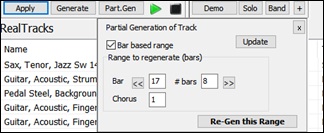
If you want to generate just for a portion of the track, press the [Part.Gen] button to open a small panel. You then specify the range based on either the full bar boundaries or precise regions in bars/beat/ticks and then press the [Re-Gen this Range] button.
 For some types of tracks, there is a [Settings] button that opens a small panel or a menu for additional settings.
RealTracks Settings and MIDI SuperTracks Settings Panels

The Timebase option is to play the selected RealTracks/MIDI SuperTracks at normal, half time, double time or triple time.
The [Medley] button allows you to create a medley of RealTracks on the same track.
If Bluesy is checked, the selected RealTracks/MIDI SuperTracks will play in a bluesy style, where major triads are treated like 7th chords.
If Simpler is checked, the selected RealTracks/MIDI SuperTracks will play a simpler arrangement (less busy, less embellished). See the “Simple Available” column for availability of simpler RealTracks/MIDI SuperTracks.
If Direct Input is checked, the selected RealTracks/MIDI SuperTracks will use a “clean signal” guitar so that you can add your own effects. See the “Direct Input Available” column for availability of clean recordings.
If you check the Held option, the selected RealTracks/MIDI SuperTracks will play held chords.
Select Disable RealTracks for this track (Force this track to MIDI) if you don't want RealTracks for this track, even if the current style specifies a RealTrack.
RealDrums Settings Panel
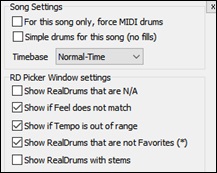
Check For this song only, force MIDI drums if you don’t want the RealDrums set in the current style.
If Simple Drums for this song (no fills) is checked, RealDrums will play a simpler arrangement without fills.
You can select a Timebase (normal, half-time, double-time, or triple-time) for any RealDrums.
Check Show RealDrums that are N/A if you want to see RealDrums that are not installed in the Drums folder.
Show if Feel does not match will show a song where the drums are in even feel and the style is swing (or vice versa).
Check Show if Tempo is out of range to see RealDrums that wouldn’t work well at the current song tempo.
Uncheck the Show RealDrums that are not Favorites (*) to see only RealDrums that you have assigned as favorites.
If Show RealDrums with stems is checked, only RealDrums that include stems will be listed.
Melodist Settings Panel
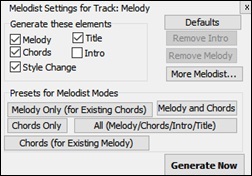
In this panel, you can select the elements (melody, chords, song title, etc.) that the Melodist will generate. If the Chords checkbox is enabled, the Melodist will generate chords, but if you want to keep the current chord progression already entered on the Chord Sheet, then uncheck this option. By default, the Melodist will use the associated style, but if you don’t want the current style changed, then uncheck the Style Change option. You can also use the preset buttons to quickly select the elements. For example, the [Chords Only] button checks the “Chord” option and unchecks all other elements. The [Melody and Chords] button checks “Melody” and “Chords.” The [More Melodist] button opens the Melodist dialog to select additional settings and options.
MIDI Soloist Settings Menu
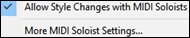
The Allow Style Changes with MIDI Soloists menu item lets you enable/disable style changes. You can select More MIDI Soloist Settings to open the Select Soloist dialog for additional settings.
Defaults Panel
 The [Defaults] button opens a panel where you can reset to defaults separately for the font size, the column width, and the window size.
Style Options
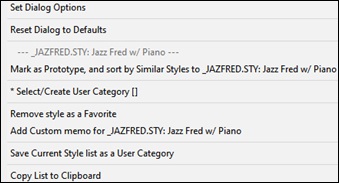
 For styles, there is an [Options] button that shows a menu with options to select/create User Category, add the current style to the User Category, set styles as favorites, etc.
Unconditional 30-Day Money Back Guarantee on all PG Music products purchased from PG Music Inc.
PG Music Inc.
29 Cadillac Ave Victoria BC Canada V8Z 1T3
Sales: 800-268-6272, 250-475-2874,+ 800-4746-8742*
* Outside USA & Canada where International Freephone service is available.
Access Codes
Tech Support: Live Chat, support@pgmusic.com

Q: How do I get the latest version of Band-in-a-Box?
A: We have packages for first-time or existing customers. Use the convenient chart to find the right package for you.
Q: Can I really have the entire UltraPAK shipped pre-installed on a USB 3 hard drive?
A: Yes, in addition to e-delivery/download, you can choose during checkout to get a physical backup copy hard drive for only $25 US (free shipping). You can use Band-in-a-Box directly from the hard disk, or copy it to your computer.
 Online now
Need Help?
Customer Sales & Support
|
Phones (Pacific Time) 1-800-268-6272 1-250-475-2874 |
||
| Live Chat | ||
| OPEN | Online Ordering 24/7 |
|
| OPEN | Forums, email, web support |