|
Log in to post
|
Print Thread |
|
|
|
|
|
Beginners Forum
|
Joined: May 2018
Posts: 5
Newbie
|
OP

Newbie
Joined: May 2018
Posts: 5 |
I had BIAB about 20 years ago and have just come back to it with BIAB 2017 - Wow! it got a whole lot more complex over those years.
Some Newbie questions if I may, even if you just point me to the correct tutorial.
I want to step edit adding a melody. I've found I can draw notes onto the piano roll, but this is going to take forever ...
1. Is there a quick way of typing the notes in from the keyboard (in the same way as you can enter chords into bars on the Notation screen), with default snapping to whole or half note positions?
2. The B P D etc buttons top left presumably indicate the part for which I'm entering the notes. There are 3 Gs but no M (unlike what's shown on the Help screen for this window). I think I'm entering the Melody since when I mouseover the third G it says guitar 3 track Melody. Is this correct and why doesn't the M show?
3. How do I play back my melody on its own from the piano roll? I get all the other instruments playing and so can't hear my melody. I've selected Guitar 3 on the radio button on the top row (instead of Master), but still all tracks play at once.
Any assistance gratefully received.
|
|
|
|
|
|
|
|
|
|
|
|
|
Beginners Forum
|
Joined: Oct 2008
Posts: 20,676
Veteran
|
|
Veteran
Joined: Oct 2008
Posts: 20,676 |
Hi Marlin, Welcome back to BIAB!
I want to step edit adding a melody. I've found I can draw notes onto the piano roll, but this is going to take forever ...
1. Is there a quick way of typing the notes in from the keyboard (in the same way as you can enter chords into bars on the Notation screen), with default snapping to whole or half note positions?
Have a look at Notation Mode and see if this helps. Using this is how I add melody to my songs. The way I access Notation Mode is by selecting the icon I've highlighted with a red box on the image below. (Note... if your view is not the same as what you see on the image below, use CTRL+T to toggle between standard and full-screen views.) 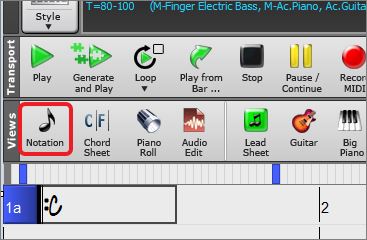 2. The B P D etc buttons top left presumably indicate the part for which I'm entering the notes. There are 3 Gs but no M (unlike what's shown on the Help screen for this window). I think I'm entering the Melody since when I mouseover the third G it says guitar 3 track Melody. Is this correct and why doesn't the M show? BIAB track names are now named after the instrument that's present on the track. This 'automatic naming' can be disabled by de-selecting the options I've highlighted on the image below. These options are found in the opening screen of "Options | Preferences". I suggest that you do this as it will help make sense of many of the instructions. With auto-naming disabled, the tracks will revert to BIAB's original, legacy names of Bass, Drums, Piano, Guitar, Strings, Melody and Soloist. These names will be unchanging. 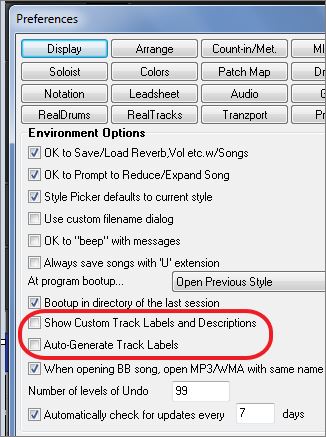 3. How do I play back my melody on its own from the piano roll? I get all the other instruments playing and so can't hear my melody. I've selected Guitar 3 on the radio button on the top row (instead of Master), but still all tracks play at once. On the mixer, click on the "S" for solo button to isolate a single track (or "M" for muting all other tracks). It might be easier to work in standard view (use CTRL+T to switch views if needed). 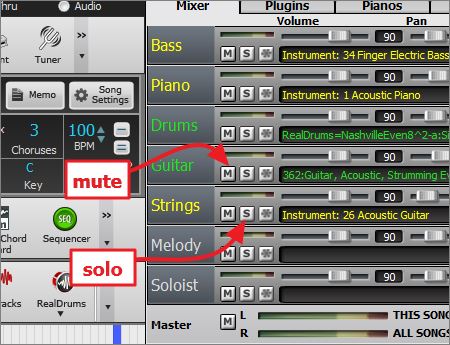 Hope this helps, Noel
MY SONGS...Audiophile BIAB 2026
|
|
|
|
|
|
|
|
|
|
|
|
|
Beginners Forum
|
Joined: Jul 2000
Posts: 27,673
Veteran
|
|
Veteran
Joined: Jul 2000
Posts: 27,673 |
Welcome to the forum, and welcome back to BIAB. I think we need to hone down what you want to do a little bit more, but in the meantime, here are a few comments:
When you make the adjustment Noel suggests, to keep the track names the original names, you will find that in many ways it operates the same as what you are used to. Also, in BIAB 2017, the interface was changed. Use Ctrl+T to switch back and forth from the new to the old. The old will look more familiar.
As before, melodies you enter should normally be only on the Melody or the Soloist track. Unless you freeze the track, any other instrument will be overwritten.
There is a function called Step Edit the melody. Write back if you want to know more. However, it applies to changing an existing melody, and I think you are asking more about entering one.
One useful trick, also unchanged from what you knew before, is to key in the rhythm of the melody using one key, then in the Editable Notation screen, adjusting the pitch by dragging the note up or down. Very useful for difficult rhythms.
BIAB 2026 Win Audiophile. Software: Fender Studio One 8, Swam horns, Acoustica-7, Notion 6, Song Master Pro, Win 11 Home. Hardware: Intel i9, 32 Gb; Fender Quantom HD8 & Faderport 8, Royer 121, Adam Sub8 & Neumann 120 monitors.
|
|
|
|
|
|
|
|
|
|
|
|
|
Beginners Forum
|
Joined: Sep 2003
Posts: 1,082
Expert
|
|
Expert
Joined: Sep 2003
Posts: 1,082 |
^
Noel,
I have always really like all your explanations especially when you include screen views that highlight the area you are explaining. Wish PG would hire you to write their tutorials and even their in line manuals.
No matter how much i think i know about certain Band features ( albeit Mac version ) i always learn more and retain it longer after reading your postings and make some adjustments for the way it is in Window's Band.
Many thanks.
Mac Audiophile 2020 2019 2018 2017 USB plus previous years versions macOS Mojave - 10.14.6 @ Aug 16, 2019 iMac i3 3.6 GHz 8GB RAM 4K with Retina display some examples @ sound cloud done with Mac Band and DAW's : https://soundcloud.com/you/tracks
|
|
|
|
|
|
|
|
|
|
|
|
|
Beginners Forum
|
Joined: Oct 2008
Posts: 20,676
Veteran
|
|
Veteran
Joined: Oct 2008
Posts: 20,676 |
w,
Thank you. I appreciate your kind words.
All the best,
Noel
MY SONGS...Audiophile BIAB 2026
|
|
|
|
|
|
|
|
|
|
|
|
|
Beginners Forum
|
Joined: Dec 2006
Posts: 393
Journeyman
|
|
Journeyman
Joined: Dec 2006
Posts: 393 |
^
Noel,
I have always really like all your explanations especially when you include screen views that highlight the area you are explaining. Wish PG would hire you to write their tutorials and even their in line manuals.
No matter how much i think i know about certain Band features ( albeit Mac version ) i always learn more and retain it longer after reading your postings and make some adjustments for the way it is in Window's Band.
Many thanks. +1 Noel, you've got a real talent to explain these things! Bruce
Macbook Pro 2018
2.6 GHz 6-core Intel Core i7, 16 GB RAM
OS Monterey
BIAB for Mac 2022
|
|
|
|
|
|
|
|
|
|
|
|
|
Beginners Forum
|
Joined: May 2018
Posts: 5
Newbie
|
|
OP
Newbie
Joined: May 2018
Posts: 5 |
Noel, thanks for taking the time to give such comprehensive, clear and useful responses to my questions. That's really very kind.
CTRL+T does indeed show a screen that is more familiar, though even that's more modern and more complicated than the version I had all those years ago. In those days, one of the clickable icons on the menu bas was a hippy with long hair and a headband!
Part of my problem is unfamiliarity with the terminology. The Notation View toggles between what I regard as the 'Bar Chords' page, where I can quickly get the structure of the song laid down, and a 'Music Score' page, where I now easily add a melody, thanks.
The Mixer also appeared after CTRL+T, and this gave me the track 'M' & 'S' buttons I know. Again thanks.
So, next question:
4. I laid down a simple melody with individual sings notes, 4 to the bar. I then decided I wanted to change instruments so I used the mixer desk and right clicked on the instrument name, picked a RealTracks piona that sounded great on audition. I pressed 'play' and it was still the original instrument, so i figued I had to re-generate the song to get the instrument change to take effect... Except that it over-wrote the simple notes of my melody with a virtuoso elaborate piano part. So again I'm missing something here - how to change instruments without getting my original melody over-written?
5. If I use the same method to change to a Midi patch instrument instead. BIAB doggedly hangs onto the original RealTrack instrument. Even if I switch to the Patches tab from the Mixer and use the dropdown, I can change between RealTracks instruments but I can't select a midi patch instead. (Same happens if I right click on the 'Melody' radio button at the top (as per the Help page)).
6. Exporting Midi: If I export a Midi file, playback from Windows is silect, apart from the lead-in count. I'm guessing this is because my song consists of Realtracks and these cannot be 'mapped' to Midi equivalents. If so I'm back to Q5. How do I set Midi intruments to allow a Midi export (MS GS Wavtable and GM2).
7. Exporting MP3: File > Save Special >.mp3> "MySong" > Save... 'Rendering File...' > Select output format [?] > Name = untitled [but I just gave it a name and the dropdown contains nothing... > Save As* > [Format name - "blah"] > OK > MPEG3/56 kb > OK... "Driver cannot do the requested conversion" [very helpful!]. It actually creates an MP3 file called "MySong" (not "Blah"), but it's 0 bytes. *(Same happens if I don't create a 'Format name' and Save As, but just hit OK). The Help topic seems to just cover .wav, which is too big. I can sucessfully export .wma, but this is then OS-dependent, somp3 is what I want.
I have the LAME codec installed and this works fine in Audacity creating MP3 files OK. Does BIAB need a different codec/driver for MP3 creation, or is there something else I'm missing?
Again any help gratefully received. Thanks for your patience.
Last edited by Marlin; 05/20/18 01:43 AM.
|
|
|
|
|
|
|
|
|
|
|
|
|
Beginners Forum
|
Joined: May 2018
Posts: 5
Newbie
|
|
OP
Newbie
Joined: May 2018
Posts: 5 |
Thanks Matt. Noel's reply got me onto the right tack, which then lead to a few more questions (see below)
|
|
|
|
|
|
|
|
|
|
|
|
|
Beginners Forum
|
Joined: Oct 2008
Posts: 20,676
Veteran
|
|
Veteran
Joined: Oct 2008
Posts: 20,676 |
Hi Marlin, Glad that we're getting somewhere. Now for your next round of questions... 4. I laid down a simple melody with individual sings notes, 4 to the bar. I then decided I wanted to change instruments so I used the mixer desk and right clicked on the instrument name, picked a RealTracks piano that sounded great on audition. I pressed 'play' and it was still the original instrument, so i figured I had to re-generate the song to get the instrument change to take effect... Except that it over-wrote the simple notes of my melody with a virtuoso elaborate piano part. So again I'm missing something here - how to change instruments without getting my original melody over-written? Realtracks are studio-recorded instrumental accompaniment riffs. BIAB slices, dices and splices these audio recordings together to fit a chord progression entered by a user. Because of their design, Realtracks cannot play a melody. If you loaded a Realtrack on the Melody track and then generated, it will overwrite your work. Any notation you enter can only be played by MIDI. For this reason, it's always a good idea to save a backup copy of your song once you get notation completed. That way, it's always easy to get back to where things were before they got disturbed. I use the system "Song title 1.mgu", "song title 2.mgu", etc. Because BIAB files take up very little disk space, having multiple files is inconsequential (I'm presently up to 47 for the current composition I'm working on). 5. If I use the same method to change to a Midi patch instrument instead. BIAB doggedly hangs onto the original RealTrack instrument. Even if I switch to the Patches tab from the Mixer and use the dropdown, I can change between RealTracks instruments but I can't select a midi patch instead. (Same happens if I right click on the 'Melody' radio button at the top (as per the Help page)). A MIDI patch will not overwrite a Realtrack. It's necessary to right-click on the Realtrack in the mixer and then select "Track Actions" followed by "Erase track". This will clear the Realtrack. Unfortunately your melody will also be gone because the (re)generate has overwritten it. As mentioned above, it's worthwhile saving multiple copies of a file when you first get it to a workable stage. This makes getting things back as they were much easier. 6. Exporting Midi: If I export a Midi file, playback from Windows is silent, apart from the lead-in count. I'm guessing this is because my song consists of Realtracks and these cannot be 'mapped' to Midi equivalents. If so I'm back to Q5. How do I set Midi intruments to allow a Midi export (MS GS Wavtable and GM2). Realtracks are audio, not MIDI. This is why you are not getting any sound. That said, if a Realtrack has notation associated with it, it's possible to export a MIDI interpretation. Go to the link below for a thorough explanation on how to do this. http://www.pgmusic.com/forums/ubbthreads.php?ubb=showflat&Number=451355#Post4513557. Exporting MP3: File > Save Special >.mp3> "MySong" > Save... 'Rendering File...' > Select output format [?] > Name = untitled [but I just gave it a name and the dropdown contains nothing... > Save As* > [Format name - "blah"] > OK > MPEG3/56 kb > OK... "Driver cannot do the requested conversion" [very helpful!]. It actually creates an MP3 file called "MySong" (not "Blah"), but it's 0 bytes. *(Same happens if I don't create a 'Format name' and Save As, but just hit OK). The Help topic seems to just cover .wav, which is too big. I can sucessfully export .wma, but this is then OS-dependent, somp3 is what I want.
I have the LAME codec installed and this works fine in Audacity creating MP3 files OK. Does BIAB need a different codec/driver for MP3 creation, or is there something else I'm missing?
Again any help gratefully received. Thanks for your patience.
You've answered your question well. Because of propriety software issues, BIAB doesn't come with its own MP3 codec. Rather, it uses what codec Windows has installed. K-Lite codecs will install a suitable one for BIAB to use. https://www.codecguide.com/download_kl.htmI used to have that installed but when I changed computers I did not bother. I prefer to use "FreAc" a freeware audio convertor because it gives me much more control over the end product. https://www.freac.org/Hope this helps, Noel
MY SONGS...Audiophile BIAB 2026
|
|
|
|
|
|
|
|
|
|
|
|
|
Beginners Forum
|
Joined: May 2018
Posts: 5
Newbie
|
|
OP
Newbie
Joined: May 2018
Posts: 5 |
Noel, thanks again for your help.
I now understand that if I select a RealTrack instrument as my Melody instrument it will not play my existing melody but will generate its own. A bit counter-intuitive, since all I'm efectively doing is changing a patch, but it obviously runs deeper than that so I just have to accept it.
I also understand that Realtracks will not be able to be saved as Midi unless they have an associated RealChart to provide the mapping. Thanks for the explanation and the link.
I'll chase down the codec(s) you suggest for exporting mp3, thanks.
A bit more tricky changing the Patch to Midi... until I realised that it's not done via the rather obvious 'Select Midi Instrument (Patch)' item on the right-click menu, which does not work, but via the slightly less intuitive 'Select Custom Midi Style for this Track'. Only snag is, with the latter I can select from the GM set, but with the former I can also access the GM2 extended set. I wanted a midi Ukulele for the track, but cannot see how to get one.
Not sure I understand the purpose of the 'Select Midi Instrument (Patch)' option if you can't use it, but Ii'm probably missing something (again!)
thanks again for your guidance.
|
|
|
|
|
|
|
|
|
|
|
|
|
Beginners Forum
|
Joined: Dec 2015
Posts: 1,114
Expert
|
|
Expert
Joined: Dec 2015
Posts: 1,114 |
Hi Martin
Just a quickie stating the obvious .
To use the midi patches you need to be using a midi style track. These come up with yellow text in the mixer.
By default these are listed after all the real styles (coloured green) in the style picker but you can change this behaviour. or filter for midi styles,
Just a thought
Mike
BIAB2021 UltraPlus,AsusN55S1Tbssd, W10/64,Akai EIEpro Yamaha CVP405,SquireStrat, CoolsoftVMidSynth Novatation Impulse61 Ctr kbd, Cwalk blab Kontakt http://mikesmusic.byethost16.com/
|
|
|
|
|
|
|
|
|
|
|
|
|
Beginners Forum
|
Joined: May 2018
Posts: 5
Newbie
|
|
OP
Newbie
Joined: May 2018
Posts: 5 |
Mike thanks - and it's not stating the obvious for me, as 20 years ago BIAB didn't have RealTracks or RealStyles - it was just Midi back then, so I feel I've got a pretty steep learning curve to get up.
|
|
|
|
|
|
|
|
|
|
|
|
Ask sales and support questions about Band-in-a-Box using natural language.
ChatPG's knowledge base includes the full Band-in-a-Box User Manual and sales information from the website.
|
|
|
|
|
|
|
|
|
|
|
Peter Gannon Talks Band-in-a-Box with zplane
zplane recently interviewed Peter Gannon, the founder and creator of Band-in-a-Box, about the software's early days, what sets it apart from AI, how zplane's audio algorithms are used in Band-in-a-Box, and more!
Special thanks to the team at zplane for their continued support.
Check out the full interview here: https://products.zplane.de/blog/peter-gannon-interview-pg-music
Last Chance! The Band-in-a-Box® 2026 for Mac® Special Ends Today (May 31, 2026) at 11:59pm PDT!
Time really is running out! Save up to 50% on Band-in-a-Box® 2026 for Mac® upgrades and receive a FREE Bonus PAK—only when you order by 11:59 PM PDT today!
We've added many major new features and new content in a redesigned Band-in-a-Box® 2026 for Mac®!
Version 2026 introduces a modernized GUI redesign across the program, with updated toolbars, refreshed windows, smoother workflows, and a new Dark Mode option. There’s also a new side toolbar for quicker access to commonly used windows, and the new Multi-View feature lets you arrange multiple windows as layered panels without overlap, making it easier to customize your workspace.
Another exciting new addition is the amazing new AI-Notes feature, which can transcribe polyphonic audio into MIDI. View the results in notation or play them back as MIDI, and choose whether to transcribe an entire track or transcribe specific parts like drums, bass, guitars/piano, or vocals. There's over 100 new features in Band-in-a-Box® 2026 for Mac®.
There's an amazing collection of new content too, including 202 RealTracks, new RealStyles, MIDI SuperTracks, Instrumental Studies, “Songs with Vocals” Artist Performance Sets, Playable RealTracks Set 5, two RealDrums Stems sets, and much more!
Upgrade your Band-in-a-Box for Mac® to save up to 50% on most Band-in-a-Box® 2026 upgrade packages!
Plus, when you order your Band-in-a-Box® 2026 Mac upgrade during our special, you'll receive a Free Bonus PAK of exciting new add-ons.
If you need any help deciding which package is the best option for you, just let us know. We are here to help!
Band-in-a-Box® 2026 Mac Special Offers Extended Until May 31st!
Good news- we've extended our Band-in-a-Box® 2026 for Mac® special offers until May 31, 2026!
Band-in-a-Box® 2026 is packed with major new features, enhancements, and an incredible lineup of new content! The program now sports a sleek, modern GUI redesign across the entire interface, including updated toolbars, refreshed windows, smoother workflows, a new dark mode option, and more. The brand-new side toolbar provides quicker access to key windows, while the new Multi-View feature lets you arrange multiple windows as layered panels without overlap, creating a flexible, clutter-free workspace. We have an amazing new “AI-Notes” feature. This transcribes polyphonic audio into MIDI so you can view it in notation or play it back as MIDI. You can transcribe an entire track (all pitched instruments and drums) or focus on individual parts like drums, bass, guitars/piano, or vocals. There's an amazing collection of new content too, including 202 RealTracks, new RealStyles, MIDI SuperTracks, Instrumental Studies, “Songs with Vocals” Artist Performance Sets, Playable RealTracks Set 5, two RealDrums Stems sets, and much more!
There are over 100 new features in Band-in-a-Box® 2026 for Mac®.
When you order purchase Band-in-a-Box® 2026 before 11:59 PM PDT on May 31st, you'll also receive a Free Bonus PAK packed with exciting new add-ons.
Check out the Band-in-a-Box® for Mac packages page to find the best package for you.
Holiday Weekend Hours
It's Victoria Day Long Weekend in Canada. Our Customer Service hours are:
Saturday, May 16: Closed
Sunday, May 17: Closed
Monday, May 18: 8:00am - 4:00pm
Regular hours resume Tuesday, May 19th!
Today's the Last Day of the Band-in-a-Box 2026® for Mac Special!
Order before 11:59pm PDT today (May 15, 2026) to save up to 50% off your Band-in-a-Box® 2026 for Mac® upgrade and receive a FREE Bonus PAK loaded with great new Add-ons to use with this new version!
Don't wait - order today!
Check out all the new features in the redesigned Band-in-a-Box® 2026 for Mac®!
Band-in-a-Box® 2026 for Mac - Special Offers End at 11:59pm PDT on Friday, May 15th, 2026!
Order before 11:59pm PDT on Friday, May 15th and SAVE up to 50% on most Band-in-a-Box® version 2026 for Mac Upgrade packages... and that's not all! With your version 2026 for Mac purchase, we'll include a Bonus PAK full of great new Add-ons FREE! Upgrade to the 2026 49-PAK to receive even more NEW Add-ons including 20 additional RealTracks... that's 222 NEW RealTracks available with version Band-in-a-Box® 2026 for Mac!
Upgrade to Band-in-a-Box® 2026 for Mac® today for as little as $49! Check out the Band-in-a-Box® packages page for all available purchase options.
Learn more about the Free Bonus PAK and 49-PAK here.
If you have any questions about which package is the best option for you, just let us know. We're here to help!
202 New RealTracks Released with Band-in-a-Box 2026!
With Band-in-a-Box® 2026, we've released 202 incredible new RealTracks (in sets 468-488) in a variety of genres—featuring your most requested styles!
Jazz, Funk & World (Sets 468-475):
Our new jazz, funk & blues RealTracks include a groovin’ collection of RealTracks and RealDrums! These include more requested “soul jazz” RealTracks featuring artists Neil Swainson (bass), Charles Treadway (organ), Brent Mason (guitar), and Wes Little (drums). There are new “smooth jazz” styles (4), which include a RealTracks first: muted trumpet, as well as slick new smooth jazz brushes options for drums. Blues lovers will be thrilled—there are more “classic acoustic blues” styles, including guitar (5), bass (4), and drums (10) with blues master Colin Linden, featuring understated and tasty background acoustic soloing, plus brushes drums and acoustic bass. There are also new electric blues RealTracks, including electric blues with PG favorite Johnny Hiland (3) and soulful electric slide guitar from Colin Linden (4). If you love funk & gospel, there are great new options this year, including gospel organ (3) from Charles Treadway, as well as new funk, tango, and rock ’n’ roll drums (3) and bass (1). And for big, bold arrangements, we have uptempo soul horns (4) featuring a three-part hip horn section with options for a full mix or stems of each individual horn — plus an accompanying rhythm section (4) of drums, bass, guitar, and electric piano!
Rock & Pop (Sets 476–482):
Our new rock & pop RealTracks bring a powerful mix of requested favorites, fresh genres, and modern chart-inspired styles! We have more of our popular “Producer Layered Acoustic Guitars (15)” featuring Band-in-a-Box favorite Brent Mason. We’ve continued our much-requested disco styles (10), and added new Celtic guitar (5) with a more basic, accessible approach than our previous Drop-D or DADGAD offerings. There are also highly requested yacht rock styles (17), inspired by the smooth, polished soft-rock sound of the late ’70s and early ’80s — laid-back grooves, silky electric pianos, warm textures, elegant harmonic movement, and pristine production aesthetics. Fans of heavier styles will love our new glam metal (13), capturing the flashy, high-energy sound of ’80s arena-ready guitar rock. We also have a set of rootsy modern-folk rock (18), with a warm, organic sound combining contemporary folk textures and driving acoustic strumming. And we’ve added lots of new modern pop styles (16) — the kinds of sounds you’re hearing on the radio today, featuring exciting new drums, synths, and cutting-edge RealTracks arrangements.
Country, & Americana (Sets 483–488):
Our new country & Americana RealTracks deliver a rich collection of acoustic, electric, and roots-inspired styles! We have new country pop (9) with legendary guitarist Brent Mason. There is also a potpourri (14) of bouzouki, guitars, banjo, and more, perfect for adding texture and character to contemporary acoustic arrangements. We’ve added funky country guitar (5) with PG favorite Brent Mason, along with classic pedal steel styles (5) featuring steel great Doug Jernigan. There are more country songwriter styles (8) that provide intimate, rootsy foundations for storytelling and modern Americana writing. Finally, we have “background soloing” acoustic guitar (12) with Brent Mason — simpler, but still very tasty acoustic lines designed to sit beautifully behind vocals or act as a subtle standalone solo part.
Check out all the 202 new RealTracks (in sets 468-488)!
And, if you are looking for more, the 2026 49-PAK (for $49) includes an impressive collection of 20 bonus RealTracks, featuring exciting and inspiring additions to add to your RealTracks library. You'll get new country-rhythm guitar styles from PG Music favorites Johnny Hiland and Brent Mason, along with modern-pop grooves that capture today’s radio-ready sound! There are also new indie-folk styles with guitar, bass, 6-string bass used as a high-chording instrument, acoustic guitar, and banjo. Plus, dedicated "cymbal fills" RealDrums provide an added layer that work very well with low-key folky styles with other percussion.
The 2026 49-PAK is loaded with other great new add-ons as well. Learn more about the 2026 49-PAK!
|
|
|
|
|
|
|
|
|
|
|
|
Forums57
Topics86,616
Posts807,488
Members40,172
| |
Most Online64,515
Apr 8th, 2026
|
|
|
|
|
|
|
|
|








 Dansk
Dansk Deutsch - Windows
 Español
 Français - Windows
 Italiano - Windows
 Nederlands
 Polski
 Português
 Svenskt
 русский
 Japanese
 Simplified Chinese
 Traditional Chinese
 Korean