
Search Manual
Band-in-a-Box® 2027 for Windows® User's Guide
Chapter 3: Band-in-a-Box 2027
Introduction
Band-in-a-Box 2027 for Windows® is here!
We’ve been busy and added many new features and an amazing collection of new content, including 101 RealTracks, new RealStyles, MIDI SuperTracks, Instrumental Studies, Playable RealTracks sets, two new sets of RealDrums Stems sets, XPro Styles PAK 12, Xtra Styles PAK 23, and more!
In addition to the 101 new RealTracks, the 2027 49-PAK includes 10 bonus unreleased RealTracks. That’s a total of 111 exciting new RealTracks and RealDrums! You’ll also get 20 enhanced RealTracks, featuring added or improved transcriptions. All the RealTracks are provided as FLAC files for lossless audio quality. There are two new MIDI SuperTracks Sets, including Smooth Jazz Electric Piano and More SynthMaster 5, along with two new MIDI Styles Sets featuring Playable RealTracks and SynthMaster styles. The Artist Performance Set 21 features 20 “Best Of” Artist Performances, remixed with 20 new included styles. There are also two new Instrumental Studies Sets, featuring Yacht Rock Guitar Soloing and Nashville Guitar Soloing, offering great material for studying and developing your guitar skills. Plus, we have two new RealDrums Stems Sets, featuring Pop & Americana with Jerry Roe and Fusion, Funk & Pop with Chester Thompson, giving you access to the individual drum recordings. Playable RealTracks Sets 6 and 7 offer new Hi-Q sounds and accompanying audio demos, as well as two new SynthMaster Sounds & Styles Sets, complete with audio demos to help you explore the sounds and styles!
Band-in-a-Box 2027 presents an exciting new collection of 101 RealTracks and RealDrums, featuring legendary musicians and a fantastic range of jazz, blues, rock, pop, country, Americana, and more!
In the jazz, blues & world vein, we have beautiful “Crooner” big band waltz horns (11) with Jim Clark, featuring a lush 10-part horn section as well as individual flute, trumpet, and saxophone parts. Blues lovers will be thrilled with new Chicago blues electric guitar (4) from acclaimed guitarist Colin Linden, featuring gritty swing rhythms and soulful, overdriven tones. Linden also brings us rootsy resonator blues guitar (6), with everything from slow, laid-back Chicago blues to upbeat Mississippi and Memphis-inspired grooves. Legendary guitarist Brent Mason delivers the distinctive sound of electric sitar-guitar (6), with rhythm and background-soloing styles inspired by 70s pop-rock, soul, and modern pop. And legendary drummer Chester Thompson brings us exciting new fusion RealDrums (5), blending jazz, funk, and pop with syncopated grooves and funky 16th-note rhythms.
For pop, rock & folk, we have smooth yacht-rock guitar soloing (3) with Brent Mason, perfect for adding melodic, laid-back solos to your soft rock and pop arrangements. There are exciting new modern electronic R&B, pop, and hip-hop styles (10), featuring deep synth bass, atmospheric synth textures, and electronic RealDrums. Brent Mason also brings us classic 70s power pop and 80s hard rock guitars (5), with driving rhythms, crunchy power chords, and expressive soloing. We've added high-energy folk-punk (5) with multi-instrumentalist Quinn Bachand, combining acoustic guitar, distorted electric guitars, banjo, and drums. Chester Thompson delivers more versatile pop and progressive-rock RealDrums (6), ranging from laid-back folk-pop grooves to energetic rock shuffles. And there’s a great collection of folk-rock and indie-folk styles (9), featuring acoustic and electric guitars, banjo, bouzouki, and bass, perfect for creating warm, organic arrangements with a modern-folk sound.
In the country & Americana category, we have new Americana guitars (5) featuring Andy Wood, Johnny Hiland, and Brent Mason, with melodic rhythms, expressive soloing, and classic western swing. Acclaimed drummer Jerry Roe brings us new country & Americana RealDrums (8), including modern Nashville grooves, half-time shuffles, and laid-back indie-folk brushes. Brent Mason returns with "musing" country and "dirty" Nashville pop guitars (8), blending atmospheric delays and spacious textures with gritty, distorted tones. There’s also fantastic new chicken pickin' guitar (6) from Johnny Hiland, with lively country rhythms, classic swing, and traditional waltzes. Finally, Myles Mancuso brings us rootsy acoustic guitar (4), featuring funky 16th-note grooves, shuffles, and complementary soloing, perfect for adding warmth and energy to your Americana and acoustic arrangements!
Band-in-a-Box 2027 Features and Additions
We’ve been busy and have added major new features and content for Band-in-a-Box® 2027 for Windows®! You sent us thousands of suggestions, and we’ve added an incredible 1,100 new features and enhancements! Plus, you’ll find plenty of exciting new content, including 101 new RealTracks, hundreds of new styles, sounds and more! With the AI Style Search, you can find styles simply by describing the sound or feel you’re looking for, with results that explain why each style is a good match. Automatic filters show you only the ‘Best’ RealTracks and RealDrums to add to your style. The Audio Chord Wizard is now fully AI, with bar line detection, chord analysis, seven-stem splitting, and polyphonic audio-to-MIDI transcription, working together in a one-stop-shop window. Open an audio file of your favorite song (.mp3, .m4a, etc.) and let the Wizard find the chords, beats, and bar lines, determine the key and time signature, and build a tempo map. Want to learn the piano or guitar part? You can now split the piano and guitar into separate stem tracks. Listen to either instrument individually and transcribe it to MIDI to see the notes in time with the audio and notation or transcribe all tracks to notation in a single click. There are many UI and workflow enhancements including color themes, context Menus, consistent behavior for scrolling/window synchronization/looping, and more. Enhanced Stems featuring seven stems in total, including two separate stems for guitars and keyboards. Enhanced AI Lyrics with improved results and a new standalone window, and more! (see below, and see full list of 1,100 enhancements at pgmusic.com)
The Band-in-a-Box DAW Plugin has been updated to 2027 (v.9.0.1), with key improvements to the StylePicker, RealTracks Picker, and RealDrums Picker. These include improved filtering, searching, sorting, and display options; more consistent style selection and clearer access to style commands; and a new [Best] button for finding RealDrums that match the current style. The RealTracks Picker can also filter the list to show only unavailable RealTracks. The RealDrums Picker offers easier access to variations, demos, and audition files, along with clearer list information and improved memo and artist biography displays.
Band-in-a-Box for Android is included with the installer. The file bb-android-125.apk is placed in your bb\Android folder. You can copy this file to any Android device to install the app. If you don’t have an Android device, you can still run the app on your PC using an emulator called BlueStacks, which you can download for free. Download the Android 11 version of BlueStacks, install it, and then drag the .apk file onto the BlueStacks window to run it.
Band-in-a-Box for iOS is available from the Apple App Store. It supports bar-based time signature and tempo changes, along with improved playback speed controls, chord editing gestures, and Chords view navigation. Other improvements include more precise playback timing, clearer server generation error messages, enhanced playback bar highlighting, and better M4A file handling. The update also includes dark-mode display fixes, improved keyboard controls, and various usability and compatibility fixes. The minimum iOS requirement is version 15.0.
Additional New Contents Available for Band-in-a-Box
101 NEW RealTracks
Band-in-a-Box 2027 presents an exciting new collection of 101 RealTracks and RealDrums, featuring legendary musicians and a fantastic range of jazz, blues, rock, pop, country, Americana, and more!
In the jazz, blues & world vein, we have beautiful “Crooner” big band waltz horns (11) with Jim Clark, featuring a lush 10-part horn section as well as individual flute, trumpet, and saxophone parts. Blues lovers will be thrilled with new Chicago blues electric guitar (4) from acclaimed guitarist Colin Linden, featuring gritty swing rhythms and soulful, overdriven tones. Linden also brings us rootsy resonator blues guitar (6), with everything from slow, laid-back Chicago blues to upbeat Mississippi and Memphis-inspired grooves. Legendary guitarist Brent Mason delivers the distinctive sound of electric sitar-guitar (6), with rhythm and background-soloing styles inspired by 70s pop-rock, soul, and modern pop. And legendary drummer Chester Thompson brings us exciting new fusion RealDrums (5), blending jazz, funk, and pop with syncopated grooves and funky 16th-note rhythms.
In the pop, rock & folk vein, we have smooth yacht-rock guitar soloing (3) with Brent Mason, perfect for adding melodic, laid-back solos to your soft rock and pop arrangements. There are exciting new modern electronic R&B, pop, and hip-hop styles (10), featuring deep synth bass, atmospheric synth textures, and electronic RealDrums. Brent Mason also brings us classic 70s power pop and 80s hard rock guitars (5), with driving rhythms, crunchy power chords, and expressive soloing. We’ve added high-energy folk-punk (5) with multi-instrumentalist Quinn Bachand, combining acoustic guitar, distorted electric guitars, banjo, and drums. Chester Thompson delivers more versatile pop and progressive-rock RealDrums (6), ranging from laid-back folk-pop grooves to energetic rock shuffles. And there’s a great collection of folk-rock and indie-folk styles (9), featuring acoustic and electric guitars, banjo, bouzouki, and bass, perfect for creating warm, organic arrangements with a modern-folk sound.
In the country & Americana vein, we have new Americana guitars (5) featuring Andy Wood, Johnny Hiland, and Brent Mason, with melodic rhythms, expressive soloing, and classic western swing. Acclaimed drummer Jerry Roe brings us new country & Americana RealDrums (8), including modern Nashville grooves, half-time shuffles, and laid-back indie-folk brushes. Brent Mason returns with “musing” country and “dirty” Nashville pop guitars (8), blending atmospheric delays and spacious textures with gritty, distorted tones. There’s also fantastic new chicken pickin’ guitar (6) from Johnny Hiland, with lively country rhythms, classic swing, and traditional waltzes. Finally, Myles Mancuso brings us rootsy acoustic guitar (4), featuring funky 16th-note grooves, shuffles, and complementary soloing, perfect for adding warmth and energy to your Americana and acoustic arrangements! Jazz, Blues & World RealTracks (Sets 489-493)
- 32 Jazz, Blues & World RealTracks (Sets 489-493): Our new jazz, blues & world RealTracks bring an exciting collection of classic big band horns, authentic blues guitars, unique instrumental textures, and dynamic fusion drums! We have beautiful “Crooner” big band waltz horns (11) with Jim Clark, featuring a lush 10-part horn section as well as individual flute, trumpet, and saxophone parts for creating your own arrangements. Acclaimed blues guitarist Colin Linden brings us classic Chicago blues electric guitar (4), with gritty swing rhythms and soulful, overdriven tones. Linden also delivers a collection of rootsy resonator blues guitar (6), covering everything from slow, laid-back grooves to upbeat Mississippi and Memphis-inspired rhythms. Brent Mason adds the distinctive sound of electric sitar-guitar (6), featuring rhythm and background-soloing styles inspired by 70s pop-rock, soul, and modern pop. Finally, legendary drummer Chester Thompson brings us five new fusion RealDrums (5), blending jazz, funk, and pop with syncopated grooves, funky 16th-note rhythms, and expressive drumming!
- 38 Rock-Pop & Folk RealTracks (Sets 494-499): Our new pop, rock & folk RealTracks offer an exciting mix of classic rock, modern electronic sounds, and acoustic folk styles! We have smooth yacht-rock guitar soloing (3) with legendary guitarist Brent Mason, perfect for adding melodic, laid-back solos to your pop and soft rock arrangements. There's also modern electronic R&B, pop, and hip-hop (10), featuring synth bass, atmospheric textures, and electronic RealDrums. Brent Mason returns with 70s power pop and 80s hard-rock guitars (7), delivering driving rhythms, crunchy power chords, and expressive soloing. We’ve added high-energy folk-punk (5) with Quinn Bachand, blending acoustic guitar, distorted electric guitar, banjo, and drums for a lively, roots-inspired sound. Legendary drummer Chester Thompson brings us versatile pop and progressive rock grooves (6), ranging from laid-back folk-pop to energetic rock shuffles. Finally, there's a collection of folk-rock and indie-folk styles (13), featuring guitars, banjo, bouzouki, and bass, perfect for creating warm, organic arrangements with a modern folk sound!
- 31 Country & Americana RealTracks (Sets 500-504): Our new country & Americana RealTracks bring an exciting collection of electric and acoustic guitars, along with versatile new RealDrums! We have Americana guitar (5) featuring Andy Wood, Johnny Hiland, and Brent Mason, with melodic rhythms, expressive soloing, and classic western swing. Drummer Jerry Roe delivers new RealDrums (8), with everything from modern Nashville grooves and half-time shuffles to laid-back indie-folk brushes. Brent Mason returns with 'musing' country and 'dirty' Nashville pop guitars (8), combining atmospheric delays and spacious textures with gritty, distorted tones. Johnny Hiland brings his signature chicken pickin’ style (6), featuring lively country rhythms, classic swing, and traditional waltzes. Finally, Myles Mancuso adds rootsy acoustic guitar (4), with funky 16th-note grooves, shuffles, and complementary soloing that are perfect for adding warmth and energy to your Americana and acoustic arrangements!
2027 49-PAK
Looking for even more great content? Supercharge your Band-in-a-Box 2027 experience with the 2027 49-PAK!
- 10 new Bonus Unreleased RealTracks: Guitar (Acoustic/Electric), Banjo, Folk, Pop & More
- 20 Enhanced RealTracks: Includes Previously released RealTracks, enhanced with added/improved transcriptions
- FLAC Files for the 30 Included RealTracks/RealDums
- MIDI SuperTracks Set 49: More SynthMaster 5 (14 MIDI SuperTracks)
- MIDI Styles Set 95: Look Ma! More MIDI 18: SynthMaster (10 Styles)
- Instrumental Studies 27: Nashville Guitar Soloing (6 Instrumental Studies)
- Artist Performance Set 21: “Best Of” Artist Performances (20 songs)
- RealDrums Stems Set 12: Fusion, Funk & Pop with Chester Thompson (11 RealDrum Stems)
- Playable RealTracks Set 7 (30 new sounds with audio demos)
- SynthMaster Sounds & Styles Set 4 (20 sounds with audio demos)
2027 Free Bonus PAK
This 2027 Free Bonus PAK adds even more great add-ons to your Band-in-a-Box 2027 package.
- MIDI SuperTracks Set 48: Smooth Jazz Electric Piano (4 MIDI SuperTracks)
- MIDI Styles Set 94: Look Ma! More MIDI 17: Playable RealTracks (10 Styles)
- Instrumental Studies 26: Yacht Rock Guitar Soloing (8 Instrumental Studies)
- RealDrums Stems Set 11: Pop & Americana with Jerry Roe (6 RealDrum Stems)
- Playable RealTracks Set 6 (20 new sounds with audio demos)
- SynthMaster Sounds & Styles Set 3 (10 sounds with audio demos)
- RealCombos Booster PAK for 2027
- Android Band-in-a-Box app (included), iOS Band-in-a-Box app access (via App Store)
20 Enhanced RealTracks: Includes Previously released RealTracks, enhanced with added/improved transcriptions
Rediscover 20 previously released RealTracks, now enhanced with added or improved transcriptions for even more possibilities! Featuring a wide variety of instruments and musical styles, this collection includes everything from acoustic and electric bass, fingerpicking and strumming guitars, and hard-rock guitar to bluegrass fiddle, pedal steel, electric piano, B3 organ, banjo, accordion, and more.
10 new Bonus Unreleased RealTracks: Guitar (Acoustic/Electric), Banjo, Folk, Pop & More
The 2027 49-PAK includes 10 bonus unreleased RealTracks, featuring an exciting mix of fresh rhythms and guitar styles to expand your RealTracks library. You’ll get dynamic fusion, progressive pop, and steady pop grooves, along with energetic fast folk-punk jigs featuring acoustic guitar and banjo. We have new RealDrums from legendary drummer Chester Thompson. There are also new rootsy acoustic-electric guitar styles, offering a warm blend of medium and upbeat pop rhythms. Plus, modern electric guitar styles with arpeggiated patterns, syncopation, and spacious delay effects add fresh textures to slower pop arrangements!
MIDI SuperTracks Set 48: Smooth Jazz Electric Piano
MIDI SuperTracks Set 48 brings the smooth, sophisticated sounds of jazz electric piano to your arrangements! Featuring four expressive MIDI SuperTracks, this collection includes laid-back smooth jazz ballads, cool swing-16th grooves, and melodic pop-influenced rhythms. And because these are MIDI SuperTracks, you have complete freedom to choose your own sounds! Use classic electric pianos for an authentic smooth jazz feel, or experiment with acoustic pianos, clavinets, synths, and other instruments to create something entirely your own. Perfect for adding warmth, groove, and versatility to your jazz, pop, and contemporary arrangements!
MIDI SuperTracks Set 49: More SynthMaster 5
MIDI SuperTracks Set 49 brings the exciting sounds of modern pop, R&B, and hip-hop to your music! Featuring seven MIDI SuperTracks specifically designed for use with the included SynthMaster synthesizer, this collection delivers everything from deep, punchy synth bass and subtle rhythmic pulses to crisp, syncopated chords, atmospheric textures, and melodic synth lines. These tracks take advantage of SynthMaster’s incredible range of contemporary sounds, making it easy to create the kinds of polished electronic productions heard in today’s popular music. And because they’re MIDI SuperTracks, you can experiment with different SynthMaster presets or other MIDI instruments to customize the sound of your arrangements!
MIDI Styles Set 94: Look Ma! More MIDI 17: Playable RealTracks
MIDI Styles Set 94 brings a unique twist to our popular “Look Ma! More MIDI!” series, featuring new all-MIDI styles built around Playable RealTracks! These special MIDI instruments are created from individual notes recorded by our talented RealTracks artists, capturing the authentic sounds of real instruments while giving you the flexibility of MIDI. While Playable RealTracks are typically used to customize individual notes and melodies within RealTracks performances, this set puts them front and center as standalone MIDI instruments! The result is a versatile collection of all-MIDI styles that combines the character of real instrumental recordings with the flexibility to edit, arrange, and customize your music!
MIDI Styles Set 95: Look Ma! More MIDI 18: SynthMaster
MIDI Styles Set 95 brings exciting modern sounds to our popular “Look Ma! More MIDI!” series, featuring a collection of all-MIDI styles built around the powerful SynthMaster synthesizer! Using SynthMaster’s extensive library of presets, these styles deliver rich synth textures, deep electronic basses, rhythmic pulses, and contemporary sounds perfect for pop, R&B, hip-hop, and electronic music. And because they're entirely MIDI-based, you have complete control over every part of your arrangement! Experiment with different SynthMaster presets, swap instruments, or edit individual notes to create your own unique sound. With SynthMaster included in Band-in-a-Box, these styles make it easy to bring modern electronic production sounds to your music!
Artist Performance Set 21: “Best Of” Artist Performances (Remixed with 20 new included styles)
Artist Performance Set 21 brings a fresh new sound to 20 of our favorite Artist Performances from previous releases! We've taken these performances and remixed them with 20 brand-new Band-in-a-Box styles, showcasing just how easy it is to completely transform a song by changing its backing arrangement. This collection features a fantastic variety of vocal performances, instrumental solos, and traditional melodies, covering everything from country, blues, pop, and jazz to Celtic folk and more. Hear how the same performance can take on a whole new character with a different musical backing! With all 20 new styles included, you can experiment with these arrangements yourself, or use them as inspiration for your own recordings. Whether you’re a singer looking for the perfect accompaniment or an instrumentalist exploring new ways to arrange your music, this set is a great showcase of the creative possibilities of Band-in-a-Box!
Instrumental Studies 26: Yacht Rock Guitar Soloing
Instrumental Studies 26: Yacht Rock Guitar Soloing explores the smooth, melodic electric guitar playing that defines the classic yacht rock sound. Featuring eight studies across a range of tempos and keys, this collection showcases tasteful phrasing, expressive melodies, and the polished guitar tones associated with laid-back West Coast pop and rock. You can slow down each performance to focus on individual phrases, explore the techniques being used, and develop your own approach to melodic soloing. Perfect for guitarists looking to bring a smooth, sophisticated sound to their improvisation and playing!
Instrumental Studies 27: Nashville Guitar Soloing
Instrumental Studies 27: Nashville Soloing showcases the expressive electric guitar techniques of modern country and Nashville pop. Featuring six studies in a variety of keys, this collection explores two contrasting styles: smooth, melodic country soloing with a relaxed, atmospheric feel, and gritty, high-energy Nashville playing with driving rhythms and a rock-influenced edge. Slow down the performances to study individual phrases, explore the rhythmic feel and melodic ideas, and build your own soloing vocabulary. Ideal for guitarists looking to develop their improvisation skills across modern country, pop, and rock styles!
RealDrums Stems Set 11: Pop & Americana with Jerry Roe
RealDrums Stems Set 11 gives you complete control over the incredible country and Americana drumming of acclaimed Nashville drummer Jerry Roe! Featuring six RealDrums styles, this collection covers everything from modern-country grooves and driving Nashville rhythms to energetic folk-punk and laid-back pop. With individual audio stems for kick, snare, hi-hat, toms, overheads, and room microphones, you can create your own custom drum mixes, adjusting the levels, panning, and effects of each part to perfectly suit your song. Whether you’re looking for a tight, punchy Nashville sound or a big, spacious drum mix, these stems give you the flexibility to shape Jerry Roe’s performances to fit your music!
RealDrums Stems Set 12: Fusion, Funk & Pop with Chester Thompson
RealDrums Stems Set 12 brings you the outstanding drumming of legendary drummer Chester Thompson, with individual microphone recordings that let you create your own custom drum mixes! Featuring twelve RealDrums styles covering jazz fusion, funk, pop, and progressive rock, this collection offers everything from laid-back soulful grooves and funky 16th-note rhythms to driving rock beats and intricate progressive shuffles. With separate stems for kick, snare, hi-hat, toms, overheads, and room microphones, you have the freedom to adjust levels, panning, and effects to get exactly the sound you want. Whether you prefer a tight, focused drum sound or a full, expansive mix, these stems give you the flexibility to make Chester Thompson's performances your own!
Playable RealTracks Set 6
Playable RealTracks Set 6 adds 20 exciting new instrument sounds to your collection, giving you even more flexibility to customize your RealTracks performances! Featuring a versatile range of electric and acoustic guitars, banjo, and resonator guitar, this set covers everything from smooth yacht rock and atmospheric modern country to gritty Chicago blues and high-energy folk-punk. Playable RealTracks let you add your own notes and melodies to RealTracks performances using sounds recorded by the same talented musicians, allowing your custom parts to blend naturally with the original audio. You can also use these sounds as standalone MIDI instruments to create entirely new parts! With included audio demos showcasing each sound, this collection opens up even more creative possibilities for your arrangements!
Playable RealTracks Set 7
Playable RealTracks Set 7 brings over 30 new sounds to your music, featuring an exciting collection of electric, acoustic-electric, baritone, and sitar-guitars! Explore everything from crunchy 70s power pop and driving 80s hard rock to atmospheric modern country, soulful blues, and unique electric sitar textures. With a versatile selection of clean, overdriven, and distorted guitar sounds, these Playable RealTracks are perfect for adding custom melodies, fills, and solos to your existing RealTracks performances. And because they can also be used as standalone MIDI instruments, you can create your own parts using the authentic sounds of real recorded instruments! Each sound comes with an audio demo, making it easy to explore the collection and find the perfect tone for your music!
SynthMaster Sounds & Styles Set 3 (with audio demos)
With Band-in-a-Box version 2027, we’ve added SynthMaster Sounds & Styles Set 3, featuring 10 more SynthMaster sounds and styles, complete with audio demos. Since version 2023, Band-in-a-Box has included the award-winning SynthMaster Player Synth by KV331 Audio, which offers thousands of presets, especially useful for modern, techno, and arpeggiator sounds. SynthMaster support is built right into Band-in-a-Box, making it easy to choose from thousands of SynthMaster sounds or use the “Load Hi-Q Patch” dialog to access presets created by PG Music. Styles can also play using SynthMaster sounds without needing to load the synth separately.
SynthMaster Sounds & Styles Set 4 (with audio demos)
With Band-in-a-Box version 2027, we’ve added SynthMaster Sounds & Styles Set 4, bringing you 20 more SynthMaster sounds and styles, complete with audio demos. Since version 2023, Band-in-a-Box has included the award-winning SynthMaster Player Synth by KV331 Audio, which offers thousands of presets, especially useful for modern, techno, and arpeggiator sounds. SynthMaster support is built right into Band-in-a-Box, making it easy to choose from thousands of SynthMaster sounds or use the “Load Hi-Q Patch” dialog to access presets created by PG Music. Styles can also play using SynthMaster sounds without needing to load the synth separately.
RealCombos 2027 Booster PAK
This collection brings together a diverse mix of acoustic and electric instruments, offering everything from fingerpicked Americana and lively old-time mandolin to Brazilian bossa nova grooves and Texas rock rhythms. With funky 70s rock, smooth pop, country-inspired guitar, jazz stride piano, and energetic Dixieland banjo, these tracks provide a versatile range of sounds and styles to add to your Band-in-a-Box library!
For Pro & MegaPAK customers, this includes 15 new RealTracks and 17 new RealStyles.
For UltraPAK customers, this includes 15 new RealStyles.
XPro Style PAK 12
Arriving right on cue, it’s the 12th edition of our XPro Styles PAK series with a fresh 100 styles for your enjoyment! Returning, as ever, are our classic trio of rock & pop, jazz, and country, each with 25 styles for your listening pleasure. Rounding out the group as this year’s wildcard: the blues! A wide-reaching and prolific style of music, the blues acts as the forefather to many popular genres while still maintaining its own distinctive presence in the musical landscape. The included 31 RealTracks and RealDrums can be used with any Band-in-a-Box 2026 (and higher) package.
Want to take a peek inside? Here you can find: smooth 70s soul, nostalgic new age, slow 12-8 blues, soft folk rock, bluegrass dance electronica, Celtic disco, funky acid jazz, and swingin’ blues shuffles!
Xtra Styles PAK 23
Xtra Styles PAK 23 for Band-in-a-Box 2026 (or higher) has arrived with a fresh batch of 200 new styles! As always, you can expect to find the classic XtraStyles PAK lineup of rock & pop, jazz, and country with each volume boasting 50 amazing styles to delight your ears! The 50 remaining styles that can be found in this PAK’s wildcard: Modern Pop. A wide-ranging and diverse genre. There’s a little of everything here, and as such, you’ll be sure to find something that tickles your fancy! Under the lens of Modern Pop you can find such genres as bubblegum country pop, modern reggaeton, klezmer house jams, and industrial EDM. Pick up Xtra Styles PAK 23 today!
In this PAK you can find: funky folk shuffles, dreamy smooth jazz, dark synth pop, Celtic rock, breezy yacht rock, dirty electropop, and many, many more!
- Rock & Pop 23: With a triumphant return, the 23rd edition of our Xtra Styles Rock & Pop volume is here and it’s packed to the brim with a bevy of brilliant styles for your creative endeavors! Inside you can find: reggae pop grooves, ambient R&B world jams, retro synth rock, fast ska punk, and spacey songwriter ballads alongside many more. Share in the fanfare and pick up Xtra Styles PAK 23: Rock & Pop 23 today!
- Jazz 23: Revved up and hot to the touch, Xtra Styles PAK 23: Jazz 23 is here full of hot licks, burnin’ riffs, and 50 new styles to set your creative impulse on fire! In this volume you can find: Latin jazz fiddle, slap-heavy pop funk, Latin rock, soulful jazz fusion, breezy yacht rock, and much more. Turn up the heat and pick up Xtra Styles PAK 23: Jazz 23 today!
- Country 23: Country 23 has arrived and with it 50 amazing styles to titillate the senses get your creative juices flowing! Here you’ll find somber rootsy Americana, classic country swing, subdued folk, Texas blues, modern folk pop, singer-songwriter ballads, and uptempo rockabilly. Pick up Xtra Styles PAK 23: Country 23 today!
- Modern Pop 1: H The chips are piled high, the blinds are set, and the tension is palpable… but this ain’t no bluff, this year's Xtra Style PAK wildcard is here to sweeten the pot. You hit the jackpot, it’s Modern Pop! Truly a volume with something for everyone, Modern Pop is less of a genre and more an umbrella that reaches across musical styles and brings them together. In this volume you can find west coast hip-hop next to indie pop rock, klezmer house jams next to modern R&B, and upbeat acid techno right alongside a dancey disco groove. Go all-in and pick up Xtra Styles PAK 23: Modern Pop today!
Xtra Styles PAK 22 (Released August 2026) – 200 RealStyles for Jazz, Rock-Pop, Country, and SynthMaster
Xtra Styles PAK 21 (Released December 2025) – 200 RealStyles for Jazz, Rock-Pop, Country, and Bro Country
Xtra Styles PAK 20 (Released July 2025) – 200 RealStyles for Jazz, Rock-Pop, Country, and Electronic
Xtra Styles PAK 20 (Released July 2025) - 200 RealStyles for Jazz, Rock-Pop, Country, and Electronic
Xtra Styles PAK 19 (Released December 2024) - 200 RealStyles for Jazz, Rock-Pop, Country, and Blues
Xtra Styles PAK 18 (Released August 2024) - 200 RealStyles for Jazz, Rock-Pop, Country, and SynthMaster
Xtra Styles PAK 17 (Released December 2023) - 200 RealStyles for Jazz, Rock-Pop, Country, and World
Xtra Styles PAK 16 (Released June 2023) - 200 RealStyles for Jazz, Rock-Pop, Country, and Praise & Worship
Xtra Styles PAK 15 (Released December 2022) - 60 RealStyles and 85 Styles for Jazz, Rock-Pop, Country, and MultiStyles
Xtra Styles PAK 14 (Released December 2022) - 140 RealStyles for Jazz, Rock-Pop, Country, and Pop 1
Xtra Styles PAK 13 (Released June 2022) - 200 RealStyles for Jazz, Rock-Pop, Country, and Singer/Songwriter
Xtra Styles PAK 12 (Released December 2021) - 200 RealStyles for Jazz, Rock-Pop, Country, and Blues
Xtra Styles PAK 11 (Released May 2021) - 200 RealStyles for Jazz, Rock-Pop, Country, and Half & Double-Time
Xtra Styles PAK 10 (Released December 2020) - 200 RealStyles for Jazz, Rock-Pop, Country, and Folk Celebration
Xtra Styles PAK 9 (Released May 2020) - 200 RealStyles for Jazz, Rock-Pop, Country, and Folk
Xtra Styles PAK 8 (Released December 2019) - 164 RealStyles for Jazz, Rock-Pop, Country, and Celtic
Xtra Styles PAK 7 (Released August 2019) - 164 RealStyles for Jazz, Rock-Pop, Country, Americana
Xtra Styles PAK 6 (Released Dec 2018) - 162 RealStyles for Jazz, Rock-Pop, Country, and Trad Folk & Jazz
Xtra Styles PAK 5 (Released July 2018) - 160 RealStyles for Jazz, Rock-Pop, Country, and MIDI Styles
Xtra Styles PAK 4 (Released November 2017) - 150 RealStyles for Jazz, Rock-Pop, Country, and Folk & Beyond
Xtra Styles PAK 3 (Released June 2017) - 160 RealStyles for Jazz, Rock-Pop, Country, and Americana
Xtra Styles PAK 2 (Released December 2016) - 161 RealStyles for Jazz, Country, Rock-Pop, and Bluegrass & World
Xtra Styles PAK 1 (Released August 2016) - 164 RealStyles for Jazz, Country, Rock-Pop, and Singer/Songwriter
Summary of New Features
Audio Chord Wizard Overhaul
The Audio Chord Wizard is now fully AI-powered, with bar line detection, chord analysis, seven-stem splitting, and polyphonic audio-to-MIDI transcription all accessible from a one-stop-shop window. It also detects the tempo, generates a tempo map, identifies the time signature, and determines the song key. Dedicated settings let you refine the results and re-process the entire song or a selected range for greater accuracy and flexibility.
AI Audio Stem Splitter and Transcriber Improvements
The AI Audio Stem Splitter can now separate audio into seven stems: Bass, Drums, Guitar, Piano, Others, Vocals, and Residual. You can now launch AI Audio Transcriber using the Transcribe command in the right-click context menu in the Audio Edit or Tracks window. When launched from the Audio Edit window, the displayed audio track and currently selected region are selected automatically. If no audio range is selected, transcription defaults to processing the entire track. RealTracks, RealDrums, UserTracks, Loops, and Artist Performances can all be transcribed, in addition to audio tracks.
Playback, Position, and Selection Synchronization
Playback position, edit cursors, bar highlighting, and selected ranges now remain synchronized across the Chord Sheet, Tracks, Audio Edit, Piano Roll, Notation, Lead Sheet, and Song Overview windows. Playback, pause, stop, Spacebar, and navigation controls also behave consistently throughout the program, with new options for conventional or precise DAW-style operation.
Consistent Scrolling, Zooming, and Navigation Across Windows
Navigation is now more consistent across the Chord Sheet, Tracks, Audio Edit, Piano Roll, Notation, and Lead Sheet windows. Scrollbars, mouse-wheel modifiers, keyboard navigation, cursor movement, and horizontal and vertical zoom controls have been standardized and expanded, making it easier to move through a song and adjust each view.
Unified Loop-Range Selection and Playback
Loop ranges are now shared across the Song Overview, Chord Sheet, Tracks, Audio Edit, Piano Roll, and Notation windows. Ranges can be created, extended, moved, resized, cleared, and adjusted to precise bar, beat, and tick positions, with optional selection linking, snapping, and immediate playback updates. Loop controls and the Loop Section dialog have also been redesigned for clearer and more conventional operation.
AI-Powered Natural-Language Style Search
AI Style Search finds suitable styles from natural-language descriptions or song references and presents results in strongest-to-weakest match order. Results include match scores and explanations, respect existing StylePicker filters, and can be copied in a spreadsheet-friendly format.
New Notation Transcription and MIDI Cleanup Tools
A new floating Notation Tools window provides commands for articulations, fingering, string assignments, conflict detection, and MIDI note cleanup. Selected notes can be transformed, hidden, reassigned to playable strings and frets, or filtered by musical and performance criteria.
Expanded Colors, Themes, and Interface Customization
A new floating Colors and Themes dialog provides centralized interface customization independent of Chord Sheet Settings, with immediate visual feedback, searchable color settings, and support for saving and loading themes. Themes are organized into protected Factory themes and editable Custom themes, with expanded color support for Notation, Lead Sheet, Piano Roll, toolbars, and other interface elements. Existing Chord Sheet schemes are preserved and migrated for compatibility
Toolbar and Interface Refinements
New hidable toolbars have been added to the Big Piano, Guitar and Big Lyrics windows. Top and side toolbar controls have received a variety of usability and visual improvements. Song Overview information, multi-view states, track selectors, flash messages, shortcuts, and active-window feedback are now clearer and more consistent.
Reorganized and Expanded Preferences
The Preferences dialog has been reorganized into clearer categories, with direct access to additional settings, consolidated audio-file options, improved hints, and new Defaults controls. Related dialogs open more consistently without obscuring or disrupting the current window layout.
Chord Sheet and Chord Entry Improvements
Chord entry, Chord Options, Bar Settings, repeats and endings, and Chord Sheet display have been improved. New chord spellings and display options are supported, while Chord Options provides more responsive previews and synchronized navigation across windows.
Improved Chord Builder and Progression Suggestions
The Chord Builder has improved layout, highlighting, previews, and progression suggestions. Suggestions can be based on either the previous chord or the current chord, and the Chord Builder can be opened as a standalone window or within the MultiPicker.
Reliable Floating Windows and Multi-Monitor Layouts
Major floating windows now remember their size, position, and monitor more reliably and independently of their docked counterparts. Window titles are more consistent, and all view and window layouts can be restored to their factory defaults.
RealTracks Playback and Performance Improvements
Many RealTracks sound smoother and more natural, with improved eighth-note push timing and cleaner transitions between riffs.
Improved Audio Driver Handling
ASIO settings display the driver’s current sample rate and indicate whether Band-in-a-Box is resampling its audio output. An optional setting allows Band-in-a-Box to request a sample rate from the driver, and changes made in the driver’s control panel can take effect without restarting the program. Windows Audio handling has also been improved, including automatic selection of a default input device when a saved device is unavailable and more informative messages when falling back from ASIO to WAS.
Improved Audio Editing and Performance Track Handling
Audio editing, importing, rendering, and Performance Tracks now handle base tempo and playback-tempo conforming more consistently. Editing works across more track types, Copy/Move operations preserve the original sound more accurately, and improved dialogs clearly identify the affected track and tempo behavior.
Improved MIDI Editing, Import, Export, Patch, and Channel Management
MIDI editing, playback, importing, exporting, channel routing, patch handling, and Event List workflows have been improved. Imported tracks receive more useful base patches and channel assignments, embedded patch changes are handled more predictably, and multi-channel tracks retain their intended events and channels.
Improved Practice Features
The Practice Window features a cleaner layout and an enhanced song selector with a filterable two-column list, floating mode, and options to load songs without closing the selector.
Streamlined SongPicker Search and Library Management
The SongPicker offers improved folder navigation, searching, list rebuilding, exporting, and selection workflows. Songs can be applied without closing the picker, searches can remain open, long rebuilds can be canceled, and song lists can be copied or exported for use in other applications.
Improved StylePicker Search, Rebuild, and Selection
StylePicker filtering, searching, sorting, rebuilding, and status reporting have been improved. Rebuild options are clearer, installer-triggered rebuilds are better integrated, list sorting is more natural, and the MultiPicker Styles tab includes Apply, OK, and Cancel controls.
New RealTracks Verification and Audio Cleanup Utilities
New maintenance tools can verify RealTracks folders and associated ST2/XT2 files, producing a detailed report of missing or invalid content. An audio cleanup utility can identify redundant WMA, M4A, and WAV files when matching FLAC files are available, with confirmation before deletion and optional Recycle Bin protection.
Faster and More Consistent MultiPicker Workflows
MultiPicker tabs now provide more consistent filters, lists, fonts, sorting, settings, memo areas, and export commands. Instruments in any list can be applied to a track by simply dragging it from the list to the Tracks or Mixer Window. Users can control which tabs appear, automatically fit columns, resize list text, and access track-specific and picker-specific settings more easily.
Smarter RealTracks, RealDrums, and MIDI SuperTracks Filtering
New Best controls quickly narrow RealTracks, RealDrums, and MIDI SuperTracks to choices matching the current style’s genre, time signature, feel, and tempo. Picker filters offer clearer tempo ranges, variation controls, availability filters, and more useful status information.
Redesigned RealDrums Picker
The RealDrums Picker has been redesigned to match the other MultiPicker tabs, with improved columns, filtering, memo panels, variations, stems, demos, and track settings. RealDrums information is more complete and remains correctly populated when switching between picker tabs.
Direct Audio and MIDI Import onto Tracks
Audio and MIDI files can now be dragged from Explorer directly to a specific track and time position in the Tracks, Piano Roll, Notation, or Audio Edit window. A visual insertion marker identifies the destination, and imported data can either be merged with existing material or replace material within the imported range.
Improved UI and Workflows in the Tracks, Audio Edit, and Mixer Windows
The Tracks, Audio Edit, and Mixer windows have improved track sizing, waveform display, scrolling, cursor movement, selection feedback, track descriptions, and tooltip information. New audio and MIDI editing commands, automatic track-panel fitting, finer height controls, and clearer handling of incompatible operations streamline editing across track types.
Improved StyleMaker and Style Creation
StyleMaker and the Drum Pattern Editor have improved layouts, controls, colors, auditions, recording behavior, and keyboard shortcuts. Instruments can be soloed or disabled without losing their patterns, and hybrid styles retain RealTracks and MIDI SuperTracks from their source styles.
Improved Notation, Lead Sheet, and Printing
Notation and Lead Sheet windows have improved timelines, toolbars, scrollbars, sizing controls, track selectors, and display reliability. Printing, bar numbers, lyrics, beat resolution, per-track chord positioning, and floating-window behavior have also been refined.
Metronome and Count-in Improvements
The Count-in and Metronome Options dialog has an improved layout and controls and has direct access from a button on the side toolbar.
Track Settings and Actions Dialog Improvements
The Track Settings and Actions dialog stays synchronized with track selections throughout the program and includes a new Editable Audio Track section with controls and hints for base tempo, transposition, following the playback tempo, and following key changes.
Updated RealTracks and RealDrums Settings Dialogs
RealTracks and RealDrums Settings have been reorganized into clearer sections with obsolete controls removed. New utilities, installation-folder warnings, conflict information, and folder-management options make content configuration and maintenance easier.
Enhanced AI Lyrics Dialog
The AI Lyrics is more intelligent and has a redesigned Common Elements area with more room for lyric fragments and clearer descriptions of creativity levels. The AI Lyrics can be opened either as a standalone dialog or in the MultiPicker.
More Precise Chord and MIDI Copying and Edit Command Handling
Copy commands provide finer control over which chord, form, tempo, patch, RealTracks, RealDrums, style, and Bar Settings data are included. Cut, Copy, Paste, and Delete are also routed to the last active editable window, allowing selections to remain active when commands are chosen from the main menu.
Improved Startup, and Welcome to Band-in-a-Box Dialog
Band-in-a-Box presents a cleaner startup sequence with a dark loading background, a longer-lasting splash screen, and progress text describing major initialization stages. A new Welcome dialog guides you through initial setup and helps verify activation and installed components.
Menu and Hotkey Updates
Several menu items have been added, renamed, or reorganized for clearer access. The Library button menu displays hotkeys for all its commands, with additional keyboard shortcuts available for opening common picker dialogs and accessing other frequently used features.
Stability, Performance, and Reliability Improvements
Many crashes, access violations, memory leaks, invalid-data failures, and window-state problems have been corrected.
VST3 Plugin Scanning Improvements
VST3 plugin scanning has been improved for greater stability, reliability, and control. Scanning runs out of process by default to help protect Band-in-a-Box from problematic plugins, while legacy in-process scanning remains available. The scanning process also supports better cancellation and handling of unresponsive scanner processes, automatically excludes plugins that cause scanning failures, and provides persistent scan logs and recovery information to help identify problems.
Stem Splitter Player Improvements
The Stem Splitter Player is a separate player that lets you play individual stems without triggering the Band-in-a-Box style tracks. It supports up to six stems, including separate Piano and Guitar stems. Waveform interaction has been enhanced with zooming, more intuitive region selection and resizing, and a playback cursor. Playback and transcription workflows have also been refined with clearer status messages, improved cursor behavior, and better handling of transcription commands. Transcription output features correct MIDI channels and timing, clearer file naming, and updated file-saving behavior.
Other Improvements and Additions
This improves everyday reliability and removes several inconsistent or outdated behaviors throughout the program.
Included VST Plugins
The latest versions of VSTSynthFont64, Plogue sforzando, and SynthMaster Player are included.
Band-in-a-Box DAW Plugin 2027 (v.9.0.1)
The Band-in-a-Box DAW Plugin has been updated to 2027 (v.9.0.1), with key improvements to the StylePicker, RealTracks Picker, and RealDrums Picker. These include improved filtering, searching, sorting, and display options; more consistent style selection and clearer access to style commands; and a [Best] button for finding RealDrums that match the current style. The RealTracks Picker can also filter the list to show only unavailable RealTracks. The RealDrums Picker offers easier access to variations, demos, and audition files, along with clearer list information and improved memo and artist biography displays.
Band-in-a-Box for Android Version 2.0.0 (Build 118)
Band-in-a-Box for Android is included with the installer. The file bb-android-125.apk is placed in your bb\Android folder. You can copy this file to any Android device to install the app. If you don’t have an Android device, you can still run the app on your PC using an emulator called BlueStacks, which you can download for free. Download the Android 11 version of BlueStacks, install it, and then drag the .apk file onto the BlueStacks window to run it.
Band-in-a-Box for iOS Version 2.0.9 (Build 259)
Band-in-a-Box for iOS is available from the Apple App Store. It supports bar-based time signature and tempo changes, along with improved playback speed controls, chord editing gestures, and Chords view navigation. Other improvements include more precise playback timing, clearer server generation error messages, enhanced playback bar highlighting, and better M4A file handling. The update also includes dark-mode display fixes, improved keyboard controls, and various usability and compatibility fixes. The minimum iOS requirement is version 15.0.
... and more!
Details of New Features
Audio Chord Wizard Overhaul
The Audio Chord Wizard is fully AI-powered, with bar line detection, chord analysis, seven-stem separation, and polyphonic audio-to-MIDI transcription all accessible from a one-stop-shop window.
The Audio Chord Wizard accurately detects beat and bar lines.
The Audio Chord Wizard accurately generates a tempo map.
The Audio Chord Wizard accurately identifies the time signature.
The Audio Chord Wizard accurately analyzes chords and places them.
The Audio Chord Wizard accurately determines the song key.
The Run Audio Chord Wizard command under the File and Audio menus and the [Open] button, as well as the S S 1 4 Enter hotkey, enter Audio Chord Wizard mode and display a floating AI Audio Chord Wizard dialog.
The ACW toolbar has been reorganized, with AI functions grouped on the left and legacy functions grouped on the right.
The AI Audio Chord Wizard dialog lets you configure and run bar line detection and chord analysis in a single dialog.
Audio files can be imported, opened, or dragged and dropped directly onto the AI Audio Chord Wizard dialog.
Import and Open dialogs remember the last-used audio folder.
An auto-analyze option automatically detects bar lines and analyzes chords when an audio file is imported through the Audio Chord Wizard.
The AI Audio Chord Wizard dialog includes an option to enable or disable the style and a style selector that lets you choose from several generic utility styles or select any style.
Audio Chord Wizard warns when the detected 3/4 or 4/4 meter does not match the loaded style and recommends loading a style with the appropriate time signature.
The dialog supports whole-song and partial-range processing. Partial ranges can be specified in seconds, by detected bars, using the current audio position, or using the selected audio range.
Bar line detection and chord analysis can be run independently or together, depending on which tasks are enabled.
Chord analysis can proceed without a detected beat map by using the song’s current bar lines and tempo.
The Audio Chord Wizard can optionally process stem separation and audio-to-MIDI transcription using typical settings. It also provides quick access to the AI Stems and AI Transcriptions dialogs for manual processing.
The AI Audio Chord Wizard dialog includes buttons to clear detected bar lines or analyzed chords independently as needed.
The dialog displays status information and estimated time for selected tasks, and progress bars while processing.
The [Reset] button in the dialog clears detected bar lines, chords, bar settings, stems and transcriptions from the current song, allowing you to start with a clean slate.
The [Settings] button in the dialog opens a dialog where you can customize bar line detection and chord analysis, as well as configure display behavior, tempo and beat handling, and chord processing.
You can choose whether to display Bar Settings indicators while using the Audio Chord Wizard. By default, the indicators are displayed.
The settings include an option to disable song end bars while using the Audio Chord Wizard. By default, this option Is selected.
It also includes an option to automatically adjust the time signature to maintain the tempo during bar line detection.
The selected major or minor scale in the settings is preserved when setting the song key.
By default, a chord detected on beat 2 is placed on beat 1 if beat 1 has no chord, and a chord detected on beat 4 is placed on beat 1 of the next bar if that beat has no chord.
Repeated bars restate on new section only by default.
Tempo labels are omitted when insufficient space would cause them to overlap adjacent bar lines.
Tempo displays append “bpm” only to the first tempo label, providing more room between closely spaced bar lines.
Chord analysis handles enharmonic chords accurately. For example, A# is correctly identified as Bb when appropriate.
The [Tempo] menu on the ACW toolbar includes commands to reduce the tempo by half or expand it by 2. These commands can correct tempo interpretations that are off by a factor of two. It also includes commands to reduce the tempo to waltz or expand it to 12/8.
Right-clicking on a waveform of the Audio Edit window displays a context menu with basic editing commands (cut, copy, paste, silence, and delete), a command to clear the selection, and a command to transcribe audio to MIDI. The menu also identifies Audio Chord Wizard commands and notes that additional options are available by right-clicking on a bar handle at the bottom of the window.
Bar markers display bar, tempo, and time signature information in a tooltip.
Bar handles display a horizontal move cursor to indicate that they can be dragged.
Bars 1 and 2 are displayed as anchored alignment markers and are preserved during re-analysis. These anchors are distinct from user-defined bar lines as they establish the audio alignment and prevent subsequent analyses from shifting the waveform.
Purple user-defined bar lines are preserved when bar lines are re-detected.
Right-clicking on a bar line handle opens a context menu with options for changing the current bar’s time signature, shifting bar lines, setting the current bar as bar 1, running bar line detection or chord analysis on the entire audio or a selected range, halving or doubling the tempo, and reducing the tempo to waltz or expanding it to 12/8.
The Make this bar 1 menu command creates new bar 1 and bar 2 alignment anchors after realigning the audio.
The ACW toolbar includes an [Options for Current Bar] menu with the same commands available from the context menu of an ACW bar line handle. The menu displays options for the bar containing the current cursor position and indicates that the same commands are also available by right-clicking on a bar line handle.
The bar line handle context menu and the [Options for Current Bar] menu identify the selected bar.
The bar line handle context menu and the [Options for Current Bar] menu also explain how time signatures with more than four beats can be represented across two bars.
The Set all bar lines to user-defined command is available in the bar line handle context menu.
When moving a bar line, the Audio Chord Wizard can automatically adjust the bar’s beat count (from 1 to 4) to maintain its previous tempo as closely as possible. This option is available from the [Tempo] toolbar menu and is off by default.
The [Tempo] menu on the ACW toolbar includes commands to reduce the tempo by half or expand it by 2. These commands can correct tempo interpretations that are off by a factor of two. It also includes commands to reduce the tempo to waltz or expand it to 12/8.
The [Tempo] menu also includes options for controlling what happens when the number of beats in a bar changes. This applies both when you explicitly change the beat count and when moving a bar line automatically adjusts it to maintain the tempo. You can choose to shift the remaining bars and chords, re-analyze chords from the current bar, or leave everything unchanged. The selected behavior is remembered, while “Ask me what to do” restores the confirmation dialog. When a beat-count change results from dragging a bar line, the shift operation begins after the moved handle, preventing the handle itself from being shifted a second time.
The “Set Bar 1” guidance has been updated to explain the new AI Audio Chord Wizard workflow and the legacy method of manually setting bar lines.
The “Set Bar 1” guidance has been updated to explain the new AI Audio Chord Wizard workflow and the legacy method of manually setting bar lines.
Legacy ACW menu commands have been renamed and reorganized to distinguish them from the AI Audio Chord Wizard workflow.
Legacy ACW “Lo-res” bar line detection and chord analysis options remain enabled only for the current session and reset to off when Band-in-a-Box restarts.
AI Audio Stem Splitter and Transcriber Improvements
The [AI] button, which opens the AI Stems and AI Transcriptions dialogs, has been moved to the side toolbar from the top toolbar.
The AI Audio Stem Splitter can now separate audio into seven stems: Bass, Drums, Guitar, Piano, Others, Vocals, and Residual.
The status messages include the note count for each transcribed stem.
The note counts can be viewed under the MIDI Count column in the Track Settings and Actions dialog.
Track types are assigned to transcriptions so that the notation matches the transcription type (e.g., generic, bass, piano, guitar, or drums).
Track types can be set and viewed in the Track Settings and Actions dialog for MIDI notation.
The correct MIDI patch is assigned to each transcribed track (e.g., a piano patch for a piano transcription).
The right-click context menus in the Audio Edit and Tracks windows include a Transcribe command to open the AI Transcriptions dialog.
Opening the AI Transcriptions dialog from the Audio Edit window automatically selects the displayed audio track and the currently selected audio region. If no range is selected, the dialog defaults to processing the entire track.
The AI Transcriptions dialog displays the “Offset from start” and “Duration” options as disabled instead of hiding them when the whole-track process is selected.
The [Update] button in the AI Transcriptions dialog fills in values of a selected range.
The AI Transcriptions dialog updates its track list immediately when it’s changed elsewhere in the program.
The AI Transcriptions dialog no longer disables the style by default.
When the track selected is changed, settings in the AI Transcriptions dialog change to best options.
The AI Transcriptions dialog provides a new option to create a copy of the transcription on another track.
A new [Copy Track] button in the AI Transcriptions dialog lets you copy MIDI from any track to another track.
RealTracks, RealDrums, UserTracks, Loops, and Artist Performances can all be transcribed, in addition to audio tracks.
The AI Transcriptions dialog includes a new [Defaults] button that restores the default settings.
Drum transcriptions no longer display unnecessary rests in the notation.
Playback, Position, and Selection Synchronization
The current bar and song position are synchronized across the Chord Sheet, Tracks, Notation, Lead Sheet, Piano Roll, and Audio Edit windows.
Clicking in the Chord Sheet, Tracks, Notation, Piano Roll, or Audio Edit window updates the current position in the other open windows.
The Tracks, Audio Edit, and Piano Roll windows scroll automatically as needed to keep the current position visible.
Newly opened windows (e.g., Tracks and Audio Edit) automatically display the current song position.
The Song Overview ruler remains synchronized with position changes made in all windows, providing a more consistent navigation experience throughout the program.
Pressing the Enter key advances the Chord Sheet cursor while keeping its position synchronized across other open windows.
Selected editing regions are synchronized between the Tracks and Audio Edit windows.
The edit cursor in the Tracks window shows the exact paused playback position instead of snapping to the nearest bar boundary.
Pressing the spacebar to pause and resume playback in the Tracks and Audio Edit windows resumes from the paused playback position instead of the left selection boundary.
Pressing the Play transport button while playback is paused resumes playback from the paused position.
Chord Sheet playback highlighting no longer starts at bar 1 or becomes out of sync when playback is started by clicking in a lead-in bar in the Tracks window.
Spacebar playback behavior is consistent across all windows, including the Chord Sheet, Tracks, Audio Edit, Piano Roll, Notation, and Lead Sheet windows.
Starting playback from the edit cursor uses its exact position instead of incorrectly snapping to the beginning of the containing bar. (Note:
When the edit cursor is at the very beginning of bar 1, playback starts from the beginning of the song, including the lead-in. When the edit cursor is anywhere else, playback starts from that exact position.)
When the “Start the ending 2 bars early” option in the Song Settings dialog is enabled, bar highlighting remains synchronized during overall song looping.
Double-clicking on a bar in a tag ending starts playback from that ending.
Pressing the F4 key or [Regenerate+Play] button while playback is paused regenerates the song and starts playback from the beginning on the first press.
Alt+F4 is a new hotkey that plays (replays) the song without regeneration.
Play-and-Loop (F10) can optionally start the first pass two bars before the selected loop range. This setting is available in the Playback Options dialog.
Bar Settings volume changes and mutes no longer carry over when overall song looping restarts playback.
A new Playback Options dialog provides settings for playback controls, looping, and keyboard controls.
The Pause/Continue options in the Playback Options dialog let you choose whether the edit cursor moves to the paused playback position and whether playback resumes from the edit cursor or the paused position, with an option for precise positioning.
The Stop/Play section in the Playback Options dialog lets you choose whether playback starts from the beginning of the song or from the exact edit cursor position (DAW-style), with an option for precise positioning. It also lets you choose whether Stop moves the edit cursor to the playback stop position, restoring the behavior used in versions prior to 2027.
Spacebar and Ctrl+Spacebar can each be assigned to Stop/Play from the beginning, Stop/Play from the edit cursor, Pause/Continue, Enter No Chord, or No Action
The Playback Options dialog displays a tip explaining playback hotkeys and a link to show the keyboard shortcuts list in Help.
Optional [Go to Start] and [Go to End] transport buttons are available for moving the edit cursor to the beginning or end of the song.
All Transport buttons on the top toolbar can be shown or hidden individually using the Toolbar Settings dialog.
The Home and End keys move the edit cursor to the beginning or end of the song consistently across all windows.
Shift+Home and Shift+End select from the current position to the beginning or end of the song, respectively, in all applicable embedded windows.
Consistent Scrolling, Zooming, and Navigation Across Windows
Navigation is now more consistent across the Chord Sheet, Tracks, Audio Edit, Piano Roll, Notation, and Lead Sheet windows.
Scrollbars, mouse-wheel modifiers, keyboard navigation, cursor movement, and horizontal and vertical zoom controls have been standardized and expanded, making it easier to move through a song and adjust each view.
Pressing and holding the scrollbar arrow buttons in the Chord Sheet, Tracks, Audio Edit, and Piano Roll windows now scrolls continuously.
The Left Arrow and Right Arrow keys now move the cursor correctly when the Tracks or Audio Edit window is open by itself.
Mouse-wheel navigation is supported when the pointer is over scrollbars in the Chord Sheet, Tracks, Notation, and other windows.
Scrolling up moves backward or up, while scrolling down moves forward or down.
Mouse-wheel scrolling and zooming, as well as single-click positioning, work when the pointer is over the Audio Edit timeline area, in addition to the waveform overview.
Mouse wheel behavior has been enhanced for consistency across windows. In the Chord Sheet window, Ctrl+Shift+mouse wheel scrolls vertically.
- In the Tracks and Audio Edit windows, the mouse wheel scrolls horizontally, while Shift+mouse wheel zooms horizontally.
- In the Audio Edit window, Ctrl+mouse wheel also zooms the waveform vertically, regardless of where the pointer is positioned. (A new setting in Tracks and Audio Edit settings lets you reverse the default scrolling and zooming behavior.)
- In the Notation and Lead Sheet windows, the mouse wheel scrolls horizontally, Shift+mouse wheel changes the number of bars per line, Ctrl+mouse wheel adjusts the font size, and Ctrl+Shift+mouse wheel scrolls vertically. (Note: Ctrl+mouse wheel in the Lead Sheet window cycles through useful font-size and staves-per-page presets, including those in Lead Sheet Options. For more precise control, use the Lead Sheet Options dialog to specify the values.)
You can change the default scroll direction in the Piano Roll window.
The Piano Roll splitter uses the active button color for better visibility.
Piano Roll horizontal zoom is limited to the song length, and bar lines are automatically thinned when zoomed out for a cleaner display.
The scrollbars in the Notation and Lead Sheet windows match those in other windows. They are easier to use, provide more precise control, and feature draggable thumbs.
The Notation window scrollbars include +/− buttons for adjusting notation size and the number of bars displayed on screen.
The Lead Sheet window scrollbars include +/− buttons for adjusting the number of staves per page and the number of bars displayed on screen.
Unified Loop-Range Selection and Playback
The [Looping] button on the top toolbar is now a split button with a dedicated Loop toggle and a separate drop-down menu for accessing the loop dialog and settings.
Timeline and loop-range selections are synchronized across the Song Overview, Chord Sheet, Tracks, Audio Edit, Notation, Piano Roll windows.
The Song Overview lets you create, extend, resize, move, and clear the unified loop range using full-bar selections.
Timeline loop range selections can be created in the timelines of Tracks, Audio Edit, and Notation windows by clicking and dragging. A blue overlay displays in the Chord Sheet for a loop range selected in another window.
Timeline loop range selections can be extended with Shift+click, resized by dragging either endpoint, and moved with Shift+drag.
Looping can use precise loop endpoints (bars/beats/ticks) instead of requiring full bars.
Looping a highlighted region preserves earlier Bar Settings tempo changes on every repeat.
The Piano Roll window uses the unified loop range and no longer requires Shift+click to enable or disable looping.
The [Loop Selected] button in the Tracks window uses precise highlighted region instead of bar boundaries.
The Chord Sheet context menu displays the selected loop range and lets you change the starting chorus.
Timeline and Chord Sheet context menus include a command to clear the selected loop range.
The [Loop Screen] button in the Notation window has a clearer caption and tooltip and correctly reflects activation via the Ctrl+Numpad 7 hotkey.
Changing the number of bars per screen no longer causes Notation screen looping to use the wrong bars.
Timeline selections in the Tracks and Audio Edit windows respect the shared Snap-to-Grid setting, while selections in the Notation window snap to beats.
The Tracks and Audio Edit windows include a preference that links the edit selection and the shared timeline loop selection, so changing either selection updates the other.
The Playback Options dialog includes settings to link timeline and edit selections in the Tracks and Audio Edit windows, enable click-to-clear behavior for loop ranges in the Chord Sheet and timelines, and automatically update the loop range during playback. If the “click-to-clear” preference is enabled, clicking in the Chord Sheet or timeline clears the selection. If the “automatic update of the loop range” is enabled, playback follows changes to the selected loop range you make without stopping.
Ctrl+Numpad 1 and Ctrl+Numpad 2 correctly trigger the “Play with Chorus Looped” commands instead of the corresponding unmodified Numpad commands.
The Loop Section Settings dialog is now a floating dialog, allowing you to access playback and main-window controls while it is open.
The Loop Section Settings dialog displays precise chorus, bar, beat, and tick positions and preserves loop ranges that start or end partway through a bar.
The Loop Section Settings dialog includes a [Clear Range] button that removes the selected loop range without disabling looping.
The Loop Section Settings dialog also includes a dedicated command to play and loop the bars currently visible in the Notation window, replacing the previous alternative mode that affected the entire dialog.
The Loop Section Settings dialog also includes an option to start the first pass two bars before the selected loop range.
Loop range changes in the Loop Section Settings dialog are synchronized with the existing playback-loop settings.
AI-Powered Natural-Language Style Search
The StylePicker features a tabbed search section with a new [Style Search (AI)] tab alongside the existing [Song Titles] tab.
AI Style Search lets you search for styles using natural language, displays results directly and automatically filters the StylePicker style list.
AI Style Search results are ordered from strongest to weakest match, still respecting current StylePicker filters.
When two styles are equally suitable and their typical tempos are approximately equally distant from the requested tempo, AI Style
Search prefers the style with the lower typical tempo.
The StylePicker status displays the correct number of styles found.
The right-click context menu in the AI Style Search results lets you load style demos or audition files.
Styles can be loaded by double-clicking them in the AI Style Search results.
AI Style Search results can be selected and copied using Ctrl+C or the Copy command in the right-click context menu. The copied rows are tab-delimited and include complete style names, match scores, descriptions, and all underlying text, even when not fully visible in the window. Multiple rows can be selected using Shift+click.
The full Natural-Language Style Search (AI) dialog, opened using the [More...] button in the [Style Search (AI)] tab, lets you search for styles using natural language and provides search status, result filtering options, match scores, explanations for suggested styles, and additional search options. It also includes a larger results area that expands when the dialog is resized.
The AI Style Search dialog includes a scrollable Analysis field. It identifies indirect song references and summarizes explicit musical criteria.
Pressing the Enter key in the AI Style Search field in both the StylePicker and the full AI Style Search dialog triggers the search.
AI Style Search follows instructions to identify indirect song references, summarize explicit musical criteria, and acknowledge uncertainty rather than inventing facts.
AI Style Search History can optionally save the query, analysis, timestamp, and complete results of previous searches. Saved searches can be restored from the History dialog.
Search History includes a configurable retention period and automatically removes searches older than the selected number of days.
New Notation Transcription and MIDI Cleanup Tools
A new floating Notation Tools dialog provides commands for articulations, fingering, string assignments, conflict detection, and MIDI note cleanup. Selected notes can be transformed, hidden, reassigned to playable strings and frets, or filtered by musical and performance criteria.
The Notation Tools can be used in any mode if you enable the “Allow these tools to work in both Editable AND Standard non-editable Notation Mode” option in the dialog.
Add or remove bends, hammer-ons, pull-offs, and slides on selected notes using dedicated keyboard shortcuts.
The keyboard shortcuts work without first opening the Notation Tools dialog.
Hide selected notes in notation without affecting playback, useful for glissandos and other embellishments.
Increase or decrease the string channels of selected notes within configurable limits, with an option to avoid conflicting string assignments.
Find string-channel conflicts where multiple notes would need to play on the same string at nearly the same time.
Assign selected notes to the lowest available fret positions at or above a specified minimum fret.
Apply the string assignments of a selected note group to similar groups throughout the track or within a specified bar range, with optional subset and matching-chord requirements.
Remove notes within a specified bar range based on fret position, duration, velocity, or open-string assignment.
Quickly access tools for assigning string channels and setting Melody channels based on the Soloist track.
Limit Melody note durations to a specified maximum.
The Notation Tools dialog position is retained between sessions.
Expanded Colors, Themes, and Interface Customization
A new Colors and Themes dialog lets you customize interface colors with immediate visual feedback and save or load themes. It is independent of Chord Sheet Settings and can be opened from a palette icon on the side toolbar, the Options menu, or the Preferences dialog.
The dialog is a floating window, allowing you to preview color changes while interacting with the main screen.
Color selection controls have been moved from the Chord Sheet Settings dialog to the Colors and Themes dialog.
The dialog includes a filter for quickly finding interface elements to customize.
Interface elements are organized by category in the selection list, and the elements have more descriptive names.
Some obsolete interface elements have been removed from the color picker (e.g. “Mixer Font” and “Notation Tool Bar”).
The selection indicator in the color picker palette appears correctly.
The Tracks window has independent waveform and background interface colors from the Audio Edit window, and a consistent edit cursor color is used throughout.
The colors of the Mixer toolbar, tabs, and track label backgrounds can be customized.
The Mixer Master strip has its own customizable theme background color.
The Mixer and Tracks Master blend in with the selected theme background color.
The Notation and Lead Sheet windows support separately customizable foreground and background colors, including dark color schemes.
Part markers in the Notation and Lead Sheet windows use the configured Chord Sheet part-marker colors.
The Notation and Lead Sheet windows support separately customizable colors for note highlighting and special notes.
The Lead Sheet window supports separately customizable colors for normal bars, empty bars, and Fake Sheet bar highlighting.
The color of note velocity and duration lines in the Staff Roll Notation window can be customized.
The Tempo and Time Signature areas of the top toolbar correctly use the selected custom background color.
The song-length and song-form separator text in the top toolbar use the “Toolbar Readout Caption” color.
View Toolbar Dividers follow the current theme color.
Window gaps and top toolbar dividers (Top Toolbar Dividers, Window Dividers and Gaps, and Toolbar Readout Divider) now follow their assigned theme colors.
Piano Roll backgrounds, rows, grid lines, Middle C row, and crosshairs can be customized independently.
Piano Roll timelines use the shared Timeline colors, and this color no longer affects other Piano Roll background areas.
The Piano Roll resize divider follows the Window Dividers and Gaps theme color.
Piano Roll color changes from the Colors and Themes dialog appear immediately.
Toolbar colors and icons now refresh correctly when a new theme is loaded.
Color themes are organized into protected Factory themes (Dark, Light, and Classic) and user-editable Custom themes. New Band-in-a-Box installations use the Dark Factory theme by default.
A “Previous Appearance” Custom theme preserves the effective appearance for users upgrading from any earlier version of Band-in-a-Box. This theme can be selected in the Welcome dialog or later in the Colors and Themes dialog.
Theme management includes Factory and Custom themes, options to update existing Custom themes and open the Custom Themes folder, and indicators showing the selected theme and whether it has been modified. Theme files use the .bbtheme extension. (Note: Existing legacy Chord Sheet schemes are preserved and automatically migrated to the new theme format when upgrading. Pre-2027 scheme files are preserved in Schemes\Backup\Pre2027.)
The Colors and Themes dialog includes buttons for quickly selecting themes.
Loading or saving a theme correctly updates the current color displayed in the Colors and Themes color picker.
You can select different toolbar image collections stored in subfolders of bb\Data\Images\ToolbarButtons. Saved themes include both the selected image collection and interface colors. Custom image collections do not need to include every image; missing images automatically use their default versions.
The Chord Sheet Settings dialog has a clearer layout, organized into three groups: Chord Display, Fonts, and Layout.
The Chord Sheet Settings dialog displays the current scheme and indicates whether it has been modified.
Custom Chord Sheet schemes can be updated, saved under a new name, and managed through their folder.
Chord Sheet schemes save, load, and reset only Chord Sheet settings, not colors.
Toolbar and Interface Refinements
The Big Piano, Guitar, Big Lyrics windows feature updated toolbars that can be hidden using the Hide Toolbar button on the right side of each toolbar. The toolbars are hidden by default, and their visibility settings are remembered.
The Master (Export) button icon on the top toolbar has changed from [MTR] to [MIX].
The Drop Station supports export to FLAC, with WMA Lossless still available under [+].
The [File] button on the top toolbar includes an Open Audio with ACW - Audio Chord Wizard command.
The [Import] button on the top toolbar includes an Import MIDI File command, which assigns imported tracks to Utility tracks by default, and commands to import Melody and Soloist MIDI data from the clipboard.
Optional [Go to Start] and [Go to End] buttons can be displayed in the Transport area on the top toolbar to move the edit cursor to the beginning or end of the song. You can show these buttons using the Toolbar Settings dialog.
All Transport buttons on the top toolbar can be shown or hidden individually using the Toolbar Settings dialog.
The [Record] button on the the top toolbar has a red tint so it's easier to distinguish from the [Stop] button.
The tooltip for the [Open Song] button on the top toolbar includes information about the F3 keyboard shortcut.
The [Song Form] button includes a menu item to open the Song Title and Form dialog, and more clearly distinguishes the Song Form Maker dialog.
The menu item Loop Entire Song in the [Overall Song Replay] button on the top toolbar has been changed to Replay Entire Song to clarify that the setting restarts playback from the beginning when the song reaches the end, rather than looping.
Changing the “Overall Loop (Replay Song)” setting in the Song Title and Form dialog immediately updates the [Replay Song] button on the top toolbar to reflect the new setting.
Dividers have been added between the Song and Style readouts and their respective information buttons.
A gear icon on the right of the top toolbar opens the Toolbar Settings dialog directly instead of displaying a drop-down menu.
The Toolbar Settings dialog opened from the gear icon on the top toolbar includes a [General Prefs] button for opening the main Preferences dialog.
A button has been added to the Song Settings group on the top toolbar for opening the Set MicroChords dialog.
A persistent collapse/expand button is available at the top of the side toolbar as an alternative to dragging its edge to change the toolbar’s width.
Clicking on the [ACW] button on the side toolbar highlights the [Chords], [Audio Edit], and [ACW] buttons, rather than just the [Chords] and [Audio Edit] buttons.
Manually selecting ACW mode in the Audio Edit window highlights the [ACW] button on the side toolbar when both the embedded Chords and Audio Edit windows are open.
Opening a floating Notation or Lead Sheet window by Ctrl+clicking on its button in the side toolbar, or by switching a dedicated window to floating, correctly activates the [Chords] button in the side toolbar.
The menu under the [Library] button on the side toolbar includes Use MultiPicker instead of individual dialogs.
All menu items under the [Library] button on the side toolbar support Shift+click to open the corresponding standalone dialog or Ctrl+click to open the corresponding MultiPicker tab. A normal click follows the “Use MultiPicker instead of individual dialogs” preference.
All menu items under the [Library] button on the side toolbar display their assigned hotkeys.
The [AI] button has been moved to the side toolbar from the top toolbar.
The [AI] button’s drop-down menu includes a command to run the Audio Chord Wizard.
The [AI] button’s drop-down menu uses dividers to group related AI features.
A gear icon has been added to the side toolbar for opening the Preferences dialog.
A palette icon has been added to the side toolbar for opening the Colors and Themes dialog.
A drumsticks icon has been added to the side toolbar for opening the Count-in and Metronome Options dialog.
The dropdown menu opened from the [Mixer] button on the side toolbar displays a checkmark beside the Mixer’s current state.
Song Overview spacing has been adjusted to prevent overlapping bar labels, especially in long, multi-chorus songs.
Song Overview tooltips can be shown or hidden using an option in the Text Hints dialog (e.g., “Chorus 1 Bar 8”).
An option in the Text Hints dialog allows Song Overview tooltips to display only the chorus, bar, and Bar Settings information, without additional hint text.
Chorus numbers of 10 or higher are no longer truncated in the top toolbar’s song form area during playback.
The song-length display accounts for tempo changes throughout the song.
Multi-View filenames and messages include “Mixer” when the Mixer is visible in the view.
Multi-View updates are more efficient.
Track selector on the side toolbar displays an asterisk when the selected track uses song-based RealTracks or RealDrums.
Track selectors in all views (e.g. Notation window, Guitar window) identify tracks using song-based RealTracks or RealDrums with an asterisk.
The collapsed state of the Piano Roll velocity panel is remembered between sessions.
Opening another song while playback is paused correctly clears the highlighted [Play] and [Pause] buttons on the top toolbar.
In layouts with multiple embedded windows, a thin light-blue border identifies the active, editable window. Clicking on a toolbar or menu does not change which window is active.
The asterisk indicating unsaved changes appears correctly beside the filename in the title bar.
Flash messages are better formatted and include a title identifying the message type (Message, Status, Tip, Error, or Debug).
Yes/No/Cancel confirmation dialogs use a larger font.
Activation messages use larger text and conventionally sized buttons.
The tempo increase and decrease buttons on the top toolbar follow the configured normal, hover, and pressed action-text colors.
Reorganized and Expanded Preferences
The Preferences dialog can be opened with a new gear icon on the side toolbar.
The Preferences dialog has been expanded to support additional category buttons.
The [Playback], [Colors/Themes], [Text Hints], [Mixer], and [Audio Edit] category buttons have been added.
The [MIDI File] category button has been renamed [MIDI File Export].
The redundant [Colors] and [Practice] category buttons have been removed.
The category buttons have been rearranged to group related settings more logically.
The new [Defaults] button resets its settings to factory defaults, affecting only settings shown in the main Preferences dialog; other dialogs have their own [Defaults] buttons.
Text Hint settings have been moved from the Preferences dialog to the new Text Hints dialog.
The Keyboard Controls settings have been moved from the Preferences dialog to the Playback Options dialog.
The new Playback Options dialog provides settings for playback controls, looping, and keyboard controls.
Several hints in the Preferences dialog have clearer wording and improved formatting.
The dialog includes three options related to opening song files with associated audio: “Open MP3/WMA/M4A/MP4 with same name,” “Show message if WAV file not found,” and “Delete decompressed WAV files.” These settings were previously located in separate dialogs.
The “Open MP3/WMA with same name” setting has been renamed “Open MP3/WMA/M4A/MP4 with same name” because it also applies to M4A and MP4 files.
A new “Append recently opened song files to the File menu” setting controls whether recently opened songs are added to the File menu. It operates independently of “OK to auto-add recent files” in the Favorite Songs dialog, so disabling the latter no longer prevents the File menu list from updating.
The “Auto-generate track labels” setting has been renamed “Auto-generate track label instead of using the defaults (Bass, Drums...)” for clarity.
Opening the Lead Sheet Options dialog from the Preferences dialog no longer causes a floating Lead Sheet window to appear over the modal options dialog.
Opening the Toolbar Settings dialog from the Preferences dialog no longer causes the floating Mixer to remain on top of other applications after closing the dialog.
After opening the Lead Sheet, Notation, or Lyrics options dialogs from the Preferences dialog and showing the applicable windows, the previous dedicated window or multi-view is restored, along with the correct side toolbar button states.
The [Setup Printer], [OK - Preview/Graphics], and [OK - Print] buttons appear correctly in the Print Options dialog when opened from the Preferences dialog.
The Lyric Window Options dialog appears in front of the Big Lyrics window instead of behind it.
The obsolete Windows 95 sound control keystroke option has been removed from the Audio Settings dialog.
The Guitar Setting dialog has been renamed Guitar Window Settings dialog.
The menu under the [Library] button on the side toolbar includes Use MultiPicker instead of individual dialogs.
All menu items under the [Library] button on the side toolbar support Shift+click to open the corresponding standalone dialog or
Ctrl+click to open the corresponding MultiPicker tab. A normal click follows the “Use MultiPicker instead of individual dialogs” preference.
Return to Factory Settings (Options | Return to Factory Settings) lets you reset general settings, MIDI drivers and patches, toolbars, window layouts, and themes independently. Note: Toolbar resets save a separate backup alongside the preferences file. The Options | Open Preferences File menu command restores the matching toolbar backup and prompts you to restart to apply it.
Troubleshooting files safemode.txt and safermode.txt now use factory toolbar settings, themes, and window layout for the current session. Both are enabled from the bb\Preferences folder and display a startup notice explaining how to restore normal operation.
Return to Factory Settings has been moved to directly above Open Preferences File in the Options menu.
Chord Sheet and Chord Entry Improvements
Madd9, Fadd9, and Fadd2 chords are accepted. For example, Cmadd9 is displayed as Cmadd2 by default.
The Chord Sheet Settings dialog lets you choose whether add2 and add9 chords are displayed as add2 or add9 (e.g., Cadd9), and madd2 and madd9 chords as displayed as madd2 or madd9 (e.g. Cmadd9)
The “Display ‘sus’ as ‘sus4’” option in the Chord Sheet Settings dialog also applies to C7sus, C9sus, and C13sus. However, the “Display ‘C9sus4’ as ‘C11’” option takes precedence.
Chords in the keys of Gb, F#, and C# use theoretically correct enharmonic spellings, such as Cb in the key of Gb.
Pressing the Enter key in the MicroChords dialog triggers the [OK] button.
Keyboard input continues to work after generating from the Select Soloist dialog.
Entering chords in the Tracks window (timeline area) enters the chord where your cursor is.
The Right Cursor key in the Chord Sheet correctly advances past bars shortened to one or two beats using Bar Settings. Repeated chord previews in the Chord Options dialog play correctly without becoming limited to a bass note or going silent.
The [Preview] button in the Chord Options dialog is more responsive.
The Chord Options dialog lets you apply rests and holds only to Melody, Soloist, Audio, or Utility tracks. Previously, excluding all five legacy tracks caused the effect to be removed.
Entering chords in the Chord Options dialog updates the Tracks window.
Previous/Next bar navigation in the Chord Options dialog synchronizes the cursor in the Tracks, Piano Roll, and Audio Edit windows.
The Excluded list in the Chord Options dialog shows Strings when it is excluded.
The Chord Options dialog opens on beats 3/4 when those beats are selected in the Chord Sheet, instead of opening on beats 1/2.
The Bar Settings dialog opens with all controls fully visible.
The Bar Settings dialog layout for indicator settings has been improved, with clearer labels and tooltips explaining how the indicators work.
Bar Settings indicators no longer appear in the Song Overview strip when they are disabled for the Chord Sheet.
Chord Sheet Settings provides separate options to show or hide Bar Settings indicators for tempo changes and changes in the number of beats (time signature).
You can hide tempo and number-of-beats indicators when their effective values are unchanged from the previous bar.
Bar numbers and time signatures remain readable when rows are short.
Time signatures use a compact numerator-only display when the full stacked display does not fit.
When a song contains bar-based tempo changes, a Tempo Map (TM) indicator with a tooltip appears at bar 1.
The Bar Settings indicator line appears along the bottom edge of the bar cell rather than underlining the bar number.
The top toolbar’s tempo display shows an asterisk when the song contains bar-based tempo changes.
Songs containing invalid repeat data can be loaded and played without crashing. The Edit Repeats and Endings dialog prevents invalid entries, such as negative values and excessively long repeat lengths.
Repeat and ending data is validated to prevent invalid repeats, first and second endings, and D.C. al Coda markings.
Repeat symbols created with the Edit Repeats and Endings dialog display red repeat dots instead of black dots.
Repeat dots use orange dots on dark Chord Sheet backgrounds to match the repeat bar symbols in the factory dark theme.
Repeat and ending numbers and symbols are larger and easier to read.
The To Coda marking displays “To” followed by the Coda symbol, distinguishing it from the actual Coda marking.
Chord Sheet selections and Bar Settings target the correct bars when “Start the ending 2 bars early” is enabled.
Bar highlighting stays in sync during overall song looping when “Start the ending 2 bars early” is enabled.
The “End” marker on the Chord Sheet is easier to read.
RealTracks assignments made at chorus 1 bar 1 using the Bar Settings dialog play correctly, even when they are the only RealTracks changes on the track.
Paste Text to Song(s) uses the exported “...” tag for filenames when creating songs in batches, instead of incorrectly using the song title.
Improved Chord Builder and Progression Suggestions
The Chord Builder can be opened either as a standalone dialog or in the MultiPicker.
The Chord Progression Builder’s layout has been refined, with improved alignment, spacing, buttons, tooltips, and fonts while maintaining support for small monitors.
The last column of buttons in the Chord Progression Builder is fully visible.
Suggested chord highlights have thinner lines and rounded corners.
The Chord Progression Builder highlights suggested chords only when “Highlight suggested chords” is checked.
The Chord Progression Builder can suggest chords based on either the previous chord or the current chord. By default, suggestions are based on the previous chord.
Enabling or disabling the “Enter chord when clicked” checkbox in the Chord Progression Builder no longer cycles through suggested chord variations.
Reliable Floating Windows and Multi-Monitor Layouts
Floating Notation and Lead Sheet windows remember their size and position independently of their dedicated (docked) counterparts.
Docked and floating Notation windows no longer affect each other's notation scaling.
Lead Sheet notation displays at the correct size when switching between floating and dedicated windows.
In multi-monitor setups, floating Notation and Lead Sheet windows reopen on the monitor where they were last used.
Floating Notation and Lead Sheet windows remember their size, position, and monitor between sessions, regardless of whether they were open or closed when Band-in-a-Box was last closed.
Opening a floating Notation or Lead Sheet window by Ctrl+clicking on its button in the side toolbar, or by switching a dedicated window to floating, correctly activates the [Chords] button in the side toolbar.
A small Notation window no longer appears briefly when switching to the dedicated Notation view.
The floating Notation window opens at its previously saved size instead of sometimes displaying only its title bar.
The floating Piano Roll window correctly remembers its size, position, and monitor, including when Band-in-a-Box is closed while the window is still open.
The floating Audio Edit window correctly remembers its size, position, and monitor, including when Band-in-a-Box is closed while the window remains open.
The Guitar window correctly remembers its floating size, position, and monitor when docked, closed, or reopened.
The Big Piano window correctly remembers its floating size, position, and monitor when docked, closed, or reopened
The Big Lyrics window correctly remembers its floating size, position, and monitor when docked, closed, or reopened
The floating Audio Edit window display its window title.
All floating windows use consistent window titles (e.g., “Audio Edit Window” and “Notation Window”).
The multi-views menu includes an option to reset all views and windows to their factory-default size, position, monitor, and docked or floating state.
RealTracks Playback and Performance Improvements
RealTracks eighth-note pushes have better timing.
RealTracks audio stretching used to fill gaps produces smoother transitions, reducing occasional clicks between riffs, particularly with low-frequency RealTracks.
RealTracks assigned to the Audio track respond correctly to volume changes, muting, and restoring in Bar Settings.
The RealTracks “Adjust shot velocity” setting no longer affects holds.
A separate RealTracks setting is available for adjusting hold velocity.
The RealDrums “Adjust shot velocity” setting no longer affects holds.
A separate RealDrums setting is available for adjusting hold velocity.
RealChart notation for triple-time RealTracks highlights in sync with the audio.
Partial generation is now supported for RealTracks in half-time, double-time, and triplet-time feels.
Erasing a selected range of a generated RealTrack in the Tracks or Audio Edit window no longer affects the wrong portion of the track.
Over 100 previously released RealTracks have had their transcriptions (RealCharts) improved, and transcriptions have been added to RealTracks that previously had none.
Improved Audio Driver Handling
The ASIO Audio Drivers dialog displays the current ASIO sample rate.
The ASIO Audio Drivers dialog indicates whether Band-in-a-Box is resampling its audio output to match the ASIO driver's current sample rate.
Changes made in an ASIO driver's control panel take effect without requiring a restart of Band-in-a-Box.
Pressing OK in Audio Settings saves WAS as the selected driver after falling back from an unavailable ASIO driver.”
When a saved Windows audio input device is unavailable, the Window Audio Devices dialog automatically selects the default input device. Pressing OK saves the configuration.
ASIO/WAS fallback messages explain that you can open the Window Audio Drivers dialog to make the driver setting permanent.
Improved Audio Editing and Performance Track Handling
Audio editing commands, includingcut, copy, paste, silence and delete, work on the Drums track with RealDrums and MultiDrums in both the Tracks and Audio Edit windows.
The Tracks window supports cutting, copying, pasting, silencing and deleting regular audio regions, including copying audio between tracks.
Right-click context menus for audio editing (cut, copy, paste, silence and delete) are available in the Tracks window in both
Standard mode and Edit Phrases and Loops mode.
The right-click context menu in the Audio Edit window includes Silence and Delete commands.
The dropdown menu of the Audio Edit window’s [Edit] button has been reorganized into four sections: Editing, Processing, Generation, and Settings.
Editing commands are disabled when no audio region is selected, preventing unintended edits to the entire track or a single sample, depending on the command used.
When you attempt to paste between regular audio and generated RealTracks, an explanatory message appears instead of pasting incompatible or outdated clipboard data.
Pasting from a RealTracks track onto another empty track preserves the RealTracks classification when the song is saved and reopened.
Previously, the pasted track could be incorrectly classified as a RealDrums track and become unable to play.
Pasting a RealTracks riff onto an empty track offers the option to assign the “silent” RealTrack, allowing the pasted riff to be preserved without selecting an unrelated RealTrack.
Pasting a RealTracks region onto a silent track or a track that has not yet been generated places it at the selected edit position rather than at the beginning of the track.
Silencing a very short region of a RealTracks track displays a message explaining that the region is too short to be edited reliably, rather than causing an unintended riff boundary adjustment.
Selection edges in the Audio Edit window snap to the correct beat positions after song tempo changes when “Conform to playback tempo” is disabled.
When selecting audio editing commands such as Fade and Amplify for a RealTracks or RealDrums track, Band-in-a-Box asks for confirmation before converting the track to user editable audio.
Converting a generated track to an editable audio track preserves the current selection rather than selecting the entire track.
A RealTrack converted to an editable audio track is displayed as an editable audio track immediately, without waiting for playback to start.
Converting a RealTrack or RealDrums track to an editable audio track preserves its original audio level.
The editable audio conversion remains available after using the Copy/Move Tracks feature.
Copying or moving a muted RealTracks or RealDrums track also copies its audio.
The Set Base Tempo dialog includes a track selector that identifies the audio track being edited, displays its stored base tempo, and provides a checkbox to choose whether the tempo follows the playback tempo or remains fixed. Setting the base tempo to 0 consistently means “use the current song tempo.”
Setting an audio track’s base tempo to 0 no longer causes its waveform to disappear.
Audio imported onto an empty track or used to replace existing audio defaults to the current song tempo. Merging audio preserves the existing base tempo, while ACID tempo metadata takes priority.
For editable audio tracks (e.g., imported or recorded audio), the track description shows the audio base tempo and indicates whether the track follows the playback tempo or uses a fixed tempo.
Equalizing tempos updates the audio base tempo and enables “Follow playback tempo” for all audio tracks.
The “Audio Recorded - Keep Take?” dialog displays the recorded track’s audio base tempo and “Conform to (follow) playback tempo” setting. New recordings default to the current song tempo, with tempo conforming enabled.
The Import Audio dialog displays the “Audio base tempo” and “Conform to (follow) playback tempo” settings. The base tempo defaults to the current song tempo unless tempo metadata is detected in the imported file.
Opening an audio file as a new song defaults the audio track to a fixed tempo, sets the base audio tempo to the song tempo, and displays a message explaining where the setting can be changed.
When copying a RealTracks or RealDrums track using the Copy/Move Tracks dialog, the destination track matches the original track’s sound and volume precisely and uses the correct Audio Base Tempo.
Saving Track As Performance File can be undone for .wav and .m4a files without undoing the previous action instead.
Undoing Performance File creation removes the file and clears the track’s waveform, audio status, and track color.
Newly created Performance Tracks immediately display the orange track color and audio format description.
The prompt for the Artist Performance file format is clearer. The default response is “No, save .wav only.”
Erasing a Performance File immediately clears the waveform and performance status and unfreezes the track.
Rendering a Performance Track no longer causes a progress dialog to appear stuck during subsequent RealTracks generations.
The tooltip for the [Test Recording Level] button in the Record Audio dialog has been updated to clarify that it opens the Band-in-a-Box VU Meters.
The Record Audio dialog automatically fills the “From Bar” and “Chorus” fields using the current cursor position.
The [Test Recording Level] button opens the VU Meters window if it is not already open, or brings it to the front if it is already open.
The VU Meters window can be repositioned while the Record Audio dialog is open.
Tracks that are hidden in the Mixer window are made visible automatically when a recorded take is kept.
The VU Meters window no longer remains in the Windows Alt+Tab list after audio recording.
Opening an audio file sets the song title.
Opening an audio file remembers its folder for the next File Open operation, consistent with opening Band-in-a-Box song files.
Importing an audio file no longer automatically selects the entire imported audio region.
Export to FLAC is available in "Quick Export" and the full Render to Audio File dialog.
The Drop Station supports export to FLAC, with WMA Lossless still available under [+].
The Master (Export) button icon on the top toolbar has changed from [MTR] to [MIX].
When rendering a song to audio, an information message appears if there is nothing to render, such as when all tracks are muted.
Rendering individual tracks flat, dry, and centered ignores the master volume adjustments for “This Song” and “All Songs.”
“Individual tracks flat, dry, and center” renders no longer include volume offsets from styles or default.sol.
Improved MIDI Editing, Import, Export, Patch, and Channel Management
Live MIDI Thru and Keyboard Wizard harmony activity appears on the Thru track’s piano and VU meter.
The Convert Harmony to Track dialog includes a “Set the track type to multi-channel” checkbox, enabled by default. This is useful when the harmony uses more than one channel or instrument.
Regular MIDI tracks (Bass, Piano, etc.) no longer become silent or disappear from the display when they were set to “Multi-channel” via Track Settings in the Track context menu.
MIDI notes on the Melody or Soloist track highlight correctly in red during playback when the track is set to “Multi-channel” via Track Settings in the Track context menu.
Songs saved with tracks accidentally set to MIDI channel 0 (disabled) are corrected automatically.
MIDI channel assignments are synchronized across the Track Settings and Actions dialog, Track context menus, the Melody/Soloist menu’s Track Type setting, and the MIDI Settings dialog.
Multi-channel tracks are no longer reassigned to the default channel when exporting a MIDI file.
Harmonies exported to separate MIDI tracks retain their intended channels instead of being reassigned to the forced track channel.
RealChart notation on Utility tracks no longer plays through an external MIDI synth or Microsoft GS Wavetable.
MIDI tracks assigned to an instrument plug-in no longer play through the hardware MIDI output unintentionally.
The MIDI Thru channel setting is preserved when opening a song or restarting the program.
A warning appears during playback when two or more single-channel MIDI tracks containing notes share the same MIDI channel.
MIDI options include a setting to enable or disable warnings when single-channel MIDI tracks share a MIDI channel.
The MIDI Channel submenu appears directly in the main section of a track’s context menu.
The Record MIDI dialog automatically fills the “From Bar” and “Chorus” fields using the current cursor position.
MIDI import can optionally create a bar-based tempo map from MIDI tempo events, automatically setting the overall song tempo and calculating an effective tempo for each imported bar.
The MIDI import dialog remembers the previously selected folder throughout the current Band-in-a-Box session.
MIDI Options includes a setting to automatically reroute imported MIDI tracks to avoid channel conflicts. This setting is enabled by default.
When automatic MIDI channel rerouting is enabled, MIDI files imported to Utility tracks avoid channels reserved for generated tracks.
Channels are assigned only to imported tracks that contain data, preventing gaps in Utility track numbers from causing premature channel duplication.
MIDI track descriptions in the Mixer display “Imported MIDI” instead of a fixed MIDI channel.
MIDI track descriptions in the Mixer display the current MIDI channel, identify multi-channel tracks, and indicate whether embedded patch changes are present.
The “OK to load Hi-Q patch” prompt when loading a MIDI SuperTrack includes a “Never Ask Again” checkbox that remembers your Yes or No response. The MIDI Options dialog includes settings to control whether this prompt appears and to set the default response.
Generating an already applied MIDI SuperTrack no longer displays the SuperPatch confirmation a second time.
Stopping playback no longer causes a MIDI track’s base patch to be replaced by one of its embedded patch changes.
When selecting a new patch for a user MIDI track containing embedded patch changes, a dialog offers options to replace the initial patch while preserving later patch changes, remove all embedded patch and bank changes, or cancel.
Selecting a favorite patch for a channel 10 MIDI drum track no longer selects the following drum kit instead.
The General MIDI patch list identifies the corresponding channel 10 drum kits for applicable patches.
GM drum kit numbers appear in the # column of the Patches MultiPicker.
Imported single-channel MIDI tracks using MIDI program 0 correctly select Acoustic Piano as the track patch instead of displaying no patch change.
Patch and bank changes at time zero on imported single-channel MIDI tracks are used to set the track’s base patch, while later embedded changes remain intact.
MIDI Options also includes a setting to remove the initial embedded patch and bank changes after they have been assigned to the track’s base patch during import. This setting is enabled by default.
Changing a MIDI track patch marks the song as modified.
Multi-channel MIDI exports include patch changes and other events only for the channels used by the track.
Saving a Type 1 MIDI file to the clipboard no longer triggers an incorrect warning message.
Channel-based event list colors use white text for improved readability.
The event list channel color scheme uses 16 distinct colors instead of repeating colors after channel 8.
Event List coloring returns to event-based mode when a multi-channel track is changed to single-channel.
The Event List Editor can be resized.
The Event List Editor offers three color scheme options: None, Channel-based, and Event-based.
The [Edit Text] button’s tooltip appears only in the appropriate area of the Event List Editor dialog.
MIDI data on a track appears correctly in the Big Piano and Guitar windows.
The Notation window’s note indicator displays correctly when a note falls between the treble and bass clefs.
The Notation window’s note indicator accounts for octave-transposed tracks, such as guitar and bass.
Improved Practice Features
The Practice Window can be opened from the Play menu as well as the Window menu.
The Practice Window features larger buttons, better spacing and alignment, and a cleaner bottom action area.
The song selector is now a dialog that displays filenames and song titles in a filterable two-column list. For folders containing more than 500 songs, song titles are omitted to avoid lengthy loading times, and an explanatory message is displayed in the dialog.
The song selector can remain open as a floating dialog, with the [Apply] button that loads the selected song without closing the selector.
The song selector has a global option that lets you double-click a song to load it without closing the dialog.
The layout has been updated with better alignment and more logically grouped controls.
Incorrect-answer messages in the Ear Training window appear in a non-modal dialog, similar to the one used for correct-answer messages. Correct-answer messages are displayed in green text.
The Chord Tutor includes text explaining that the root uses the Bass channel and patch, while the chords use the Piano channel.
Streamlined SongPicker Search and Library Management
SongPicker commands to open the Current, Home, or Favorite folder work consistently in the Songs MultiPicker.
Empty song folders no longer repeatedly prompt users to rebuild their song lists (for example, an empty C:\bb\Songs folder).
Opening the modal SongPicker in the Current or Home folder no longer changes the saved “Open in Home” preference.
The Go to Parent Folder command has been added to the [Change] button’s drop-down menu.
The Select Folder command in the [Change] button’s drop-down menu uses a modern Windows dialog, with the current Song List folder selected by default.
The “Open in Home” checkbox has been repositioned to prevent it from interfering with long folder paths.
Saved Favorite Song Sets retain complete song paths, preventing songs from appearing as N/A when loaded from a different folder.
SongPicker date range filters default to the current program year.
Ctrl+F correctly triggers Search instead of Play From when the Songs MultiPicker is open.
The Search window is now a floating window with Search, Next, and Close buttons.
The [Search] button has been moved beside the Filter field, and the [Search Again] button has been moved into the modeless Search window and renamed [Next].
A new option in the SongPicker Options dialog lets you close the SongPicker when double-clicking a song to apply the selection. By default, double-clicking applies the selection without closing the SongPicker.
New [OK] and [Cancel] buttons have been added. [Apply] loads the selected song without closing the SongPicker, while [OK] loads the song and closes it. When “Play when chosen” is enabled, the song is generated and played in either case.
The SongPicker no longer displays a duplicate automatic rebuild prompt after the [Rebuild] button has been pressed.
A new [Copy List] button copies the current song list to the clipboard as tab-delimited text, suitable for pasting into a text editor or spreadsheet.
A new [Export to CSV] button saves the current song list as a CSV file for use with spreadsheet programs.
A new [Cancel] button beside the progress indicator lets you cancel song list rebuilds during folder scanning or song processing, even when a rebuild takes a long time.4
The SongPicker font matches the smoother font used elsewhere in the MultiPicker.
Tooltips, captions, and messages describe the functions more accurately.
The [Action] button has been renamed [Options] and opens the SongPicker Options dialog directly.
File Open/Save dialogs display filenames without unexpected trailing characters.
Improved StylePicker Search, Rebuild, and Selection
The StylePicker features a tabbed search section with a new [Style Search (AI)] tab alongside the existing [Song Titles] tab.
The StylePicker no longer displays “n/a” as the artist for MIDI SuperTracks when no applicable artist name is available.
You can filter the style list by XPro Styles PAK using the “Other” filter button.
“New in 2027” in the Category filer includes 2027 Bonus, BonusPAK, MIDI, and MIDI SuperTracks styles.
The filter and search sections resize smoothly with the window and feature improved alignment.
Hints have been added to the Song Titles search section in the StylePicker.
The filter summary and tooltip have improved formatting
When a demo song cannot be found for a style, a descriptive message is displayed instead of “Not Found.”
The [Go to Top] (scroll up) button has been relocated to the upper center of the list, giving the Style Search area more space.
A [Go to Bottom] (scroll down) button has been added next to the [Go to Top] button.
The StylePicker mixer track labels now use the same background color as the instrument display for improved readability.
The StylePicker mixer mute and solo indicators now update immediately when track status changes elsewhere in the program.
The “StylePicker defaults to current style” preference correctly determines whether the StylePicker selects the song’s current style or retains the previously selected style.
The “Select a RealTracks” dialog no longer includes the first RealTrack in filtered results when it doesn’t match the filter. You can filter to a single RealTrack and select it by pressing Enter without having to click it with the mouse.
The former [Options] button has been renamed [Actions] and offers clearer, style-specific commands with less redundant information. A separate [Options] button has been added to open the StylePicker Options dialog.
Three RealStyles (BM_CWLTZ, =POPPLTS, and =TEXMETL) with nonstandard filename prefixes appear in their correct alphabetical positions in the StylePicker’s default listing after a rebuild.
The Set#, #Instr, and #substyles columns sort in the correct order.
The Set# column sorts naturally, with set names in alphabetical order and numbered sets in numerical order.
The StylePicker list font size can be adjusted using Ctrl+mouse wheel.
The StylePicker Options include a button to fit the columns to the available window width.
The [Rebuild] button has been relocated to a more prominent position next to the rebuild status bar.
Rebuild choices are now described as “Normal” (rebuilds PG Music content only) and “Full” (also includes user and third-party styles), replacing “Fast” and “Slow.”
Normal rebuild is faster.
Rebuild status information is now an always-visible display showing when the style list was rebuilt and how many styles, RealTracks, and RealDrums were found.
The rebuild status remains visible and shows the date of the last database rebuild and the total number of styles found, RealDrums discovered, and RealTracks installed.
Installer-triggered rebuilds open the Styles MultiPicker instead of the standalone StylePicker.
Installers can trigger an automatic rebuild at bootup.
The program installer includes an option to automatically rebuild the StylePicker on first startup if a rebuild is recommended.
The StylePicker Options dialog includes a setting to choose whether the automatic rebuild uses Normal or Full.
The StylePicker Options dialog includes an option to automatically start a rebuild instead of prompting at bootup.
The rebuild confirmation dialog displays the folders where RealTracks and RealDrums were most recently installed, if there is a conflict. (Note: The automatic rebuild pauses for folder confirmation when the most recent install locations differ from the configured RealTracks or RealDrums folders.)
Folder buttons in the rebuild confirmation dialog remain visible in a dimmed state when custom folders are disabled.
The Styles MultiPicker includes [Apply], [OK], and [Cancel] buttons at the bottom.
New RealTracks Verification and Audio Cleanup Utilities
A new RealTracks verification utility checks RealTracks folders, RealTracks ST2 files, and ST2/XT2 files in three stages. A persistent status message shows progress, and a text report identifies missing folders and files, explains each check, and provides details about any errors.
The cleanup utility finds and removes redundant WMA, M4A, and WAV files when matching FLAC files are present. Available from both the RealTracks Settings and RealDrums Settings dialogs, it is primarily intended for Audiophile users. It uses the configured
RealTracks and RealDrums folder locations, which are displayed in the dialog. Before deleting files, it calculates the total space to be reclaimed and prompts for confirmation. An optional Recycle Bin protection setting moves files to the Recycle Bin when possible and leaves them untouched if that fails.
The dialog displays the current scanning and file-removal status.
Faster and More Consistent MultiPicker Workflows
MultiPicker instruments, including RealTracks, RealDrums, Loops, UserTracks, MIDI SuperTracks, MIDI Tracks, and Patches, can be dragged directly onto track labels or descriptions in the Mixer and Tracks windows.
Keyboard shortcuts work immediately after opening the MultiPicker, without requiring a click inside the window.
The Home and End keys navigate to the beginning and end of MultiPicker lists.
The MultiPicker lists receive keyboard focus when the tab is selected.
Applying a song title from the Titles MultiPicker switches to the Styles MultiPicker instead of opening the modal StylePicker.
Selecting Launch StylePicker showing styles with selected RealTrack from a list’s context menu switches to the Style MultiPicker instead of opening the modal StylePicker.
Navigating MultiPicker lists with the arrow keys no longer leaves blue highlight artifacts between columns.
The selected RealTracks item no longer changes to <None> after visiting the RealDrums tab without selecting a RealDrum.
A Rebuild List command is available in MultiPicker list context menus. It prompts you to use the [Rebuild] button in the StylePicker.
Filter entry is smoother and more responsive, especially with large lists or on slower systems.
The density columns in the MIDI Tracks list are properly labeled and include tooltips.
The Stems column displays its tooltip.
You can adjust the list font size by holding Ctrl while scrolling the mouse wheel.
The <None> entry no longer displays tempo or stereo information
The Holds column sorts correctly.
The Type column can be sorted in the MIDI Soloist and Melodist pickers.
The # column in the RealTracks and MIDI SuperTracks lists has been moved next to the Name column, and the RT# is no longer appended to the item name.
The RealTracks list displays video availability in a separate Vid column instead of combining it with the set number in the “Set” column. Y means that a video is available, and N/A means that a video is available but not installed.
The optional ST2 column shows the names of associated .ST2 files for RealTracks and MIDI SuperTracks. This is hidden by default and can be enabled in the Utilities section of the RealTracks Settings dialog.
Filters feature a clearer display, larger fonts, and more consistent buttons, controls, and status information across pickers.
The MultiPicker can automatically fit list columns to the available window width.
Column headings use a single asterisk to indicate normal sorting and a double asterisk to indicate reverse sorting.
RealTracks and RealDrums item totals no longer count the <None> entry.
Font-size changes made in other pickers are immediately reflected in the StylePicker.
Set names in the StylePicker are sorted alphabetically.
MIDI drum tracks in the MIDI Tracks MultiPicker identify their instrument as “Drums” instead of “No Patch Change.”
All instances of “No Patch Change” in the Instrument column of the MIDI Track MultiPicker have been corrected.
Tempo columns in the MultiPicker sort numerically instead of alphabetically.
Filter labels in the Titles MultiPicker are aligned with their dropdown buttons.
The “Disable RealTracks” checkbox can be enabled in the RealTracks Settings for Track panel of the MultiPicker.
The Track Settings for Track panel, accessed via the [+] button at the top left of the window, has been renamed Mixer Settings for Track.
The Mixer Settings for Track panel includes an “Editable audio track” section with settings for audio base tempo, audio transpose,“Follow playback tempo,” and “Follow key changes.” matching those in the Track Settings and Actions dialog. A [Convert to editable audio] button replaces the previous “Editable Audio” checkbox.
The [+] button beside the track selector opens the Mixer Settings for Track panel correctly after switching from RealDrums to RealTracks.
The [Set to None] button above the RealTracks, RealDrums, and MIDI SuperTracks lists makes it easy to select no song-based RealTracks, RealDrums, or MIDI SuperTracks.
A warning is displayed before assigning a RealTrack or MIDI SuperTrack if doing so could replace existing notation or note-based lyrics on the Melody track.
The settings buttons are better organized, providing consistent access to track settings, MultiPicker options, and tab-specific settings dialogs.
The MultiPicker Track Settings panels appear in the correct location.
The MultiPicker Options & Defaults dialog lets you choose which tabs to show or hide. Hidden tabs open as standalone dialogs, even when “Use MultiPicker instead of dialogs” is enabled.
The audition (pre-made) demo volume setting works correctly.
The audition volume setting is preserved when another demo is played and is saved between sessions.
The Patches picker uses faster, column-based lists consistent with other pickers. Lists can be sorted by patch name, GM number, and patch/preset type.
The filter and memo areas in the Patches picker are better organized and consistent with those in other pickers.
The [Set to None] button above the Patches list selects the top row, “No Patch / Preset.”
The Memo preview area for MIDI Patches no longer displays internal placeholder text.
The Memo preview areas are larger and can be widened by dragging their right edge. They also provide access to artist biographies.
RealTracks without a dedicated memo display useful type, genre, and native tempo information instead of internal data and .ST2 filenames.
The Copy list to clipboard command in the list’s right-click context menu has been renamed Export current list to tab-delimited text file.
All lists, including RealTracks, RealDrums, Loops, and Patches, can be exported to tab-delimited text files. Select Export current list to tab-delimited text file from a list’s right-click context menu to save the current list as a suitably named text file in the Data folder.
Smarter RealTracks, RealDrums, and MIDI SuperTracks Filtering
The “Show N/A” filter is available in the “Other” filter menu.
When the “Show N/A” filter is enabled, an indicator “N/A included” appears above the list.
Filter string is displayed in the Filter status area instead of in the “None” instrument list row.
The RealTracks Picker can be filtered to show only RealTracks that are not currently available.
A new criterion in the RealTracks “Other” filter lets you show only standard RealTracks or include all variations, such as Bluesy, A/B-only, Half-Time, Double-Time, Outside, Simple, and Very Simple.
RealTracks tempo filters offer clearer options for filtering by the current song tempo, current style, or a custom tempo range. Tempo presets display the actual source-tempo range being applied. You can also filter RealTracks to show only those suitable for the current song tempo, accepting song tempos from 15% below to 40% above each RealTrack’s source tempo.
The MultiPicker tempo filters use a more practical source-tempo range of 30% below to 15% above the selected tempo, rounded to the nearest 5 BPM.
The RealTracks, RealDrums, and MIDI SuperTracks pickers offer a [Best] button to filter results to match the current style’s genre, time signature, feel, and tempo.
The RealTracks and RealDrums pickers offer a “Best” checkbox to keep the automatic Best filtering enabled.
The RealTracks Picker includes a Soloist checkbox to include or exclude Soloist RealTracks. Best-match filtering can be combined with other filters and remains active until disabled or the filters are cleared.
The RealTracks Picker includes a button to toggle between soloist and background/rhythm RealTracks.
Sixteen Electric Guitar Alternate RealTracks (e.g. 12-Key) are now listed in their appropriate sets in the RealTracks Picker rather than in set 800.
Redesigned RealDrums Picker
Duplicate User RealDrums entries no longer accumulate in the RealDrums Picker after each rebuild.
The filter updates automatically as you enter a filter term, matching the behavior of the RealTracks filter.
Filter selections are preserved when switching pickers and applied to each picker where relevant, including the RealDrums picker.
Filter options for N/A, favorites, and stems, as well as filters for mismatched feel and out-of-range tempos, are available in the Filter menus instead of the RealDrums Track Settings panel.
Active RealDrums compatibility filters (“Feel matches” and “Tempo in range”) are identified in the filter-description text above the list.
The RealDrums Picker displays the total number of installed RealDrums folders, including variations.
The RealDrums Track Settings panel lets you choose different RealDrums variations with each play.
Variations no longer appear blank when switching back from other pickers.
RealDrums variations and variation memos are displayed in compact, clearly labeled panels.
The Variations column (^) indicates which RealDrums have variations available and supports sorting.
Double-clicking on a variation plays its corresponding pre-made demo instead of a short or interrupted raw audio excerpt.
The RealDrums variations list no longer appear blank after switching to another picker and returning to the RealDrums picker.
The first entry in the list (e.g., 118Pop22223^) displays properly in the RealDrums Picker.
All RealDrums display the correct set numbers.
The “Show only RealDrums with stems” option in the RealDrums Track Settings panel has been renamed from “Show RealDrums with stems”.
RealDrums stems are displayed beside the RealDrums list in a scrollable, two-column panel.
The RealDrums Stems panel is always visible and indicates when the selected RealDrum has no stems.
RealDrums demo songs and associated style demos can be loaded from the RealDrums list’s right-click context menu. Three types of files are available for the selected RealDrums track: RD Demo Songs, Style Demos, and Styles.
RealDrums auditions play and report only the selected Band or Solo demo, falling back to the other version only when necessary.
The RealDrums list displays Ntn (Notation Available), Set (Set Number), and Vid (Video Available) in three separate sortable columns.
The /4 column has been renamed TimeSig and displays 3/4 or 4/4 instead of a blank value or /3.
The Set column groups named sets alphabetically and sorts numbered sets numerically.
The MultiPicker font-size setting applies correctly to the RealDrums list and is saved within and between sessions.
RealDrums Picker column widths are now saved, and the column and window reset commands work consistently with those in other pickers.
The redundant Settings, Rebuild, Copy List, Audition, Play Now, and Stop buttons have been removed from the bottom of the RealDrums Picker.
The User Comments field is hidden by default to leave more room for commonly used information.
An option in RealDrums Settings lets you show or hide the User Comments field.
RealDrums memos display correctly in both the standalone RealDrums Picker and RealDrums MultiPicker.
RealDrums artist biographies load correctly instead of displaying only the artist’s name.
The RealDrums Picker memo matches the memo design (location, size, and functionality) used by the other MultiPicker tabs.
RealDrums without an authored memo display a basic memo generated from their genre, feel, time signature, and artist information.Direct Audio and MIDI Import onto Tracks
Audio and MIDI files can be dragged from Explorer directly to a specific track and time location in the Tracks, Piano Roll, Notation, and Audio Edit windows.
When dragging a file over a supported editing area, an insertion marker shows the destination track and time.
Direct audio and MIDI imports can either be merged with the existing track data or overwrite data within the imported time range.
Direct MIDI imports combine all tracks from the source file while preserving their MIDI channels, controllers, and embedded patch changes.
Improved UI and Workflows in the Tracks, Audio Edit, and Mixer Windows
When tracks use song-based RealTracks or Drums, or RealTracks have been disabled in the song, the track label shows an asterisk indicator.
The track description for audio tracks displays the actual WAV file format.
Track descriptions show the RealTracks or RealDrums actually playing after bar-settings changes, and return to the overall track assignment when playback stops.
The label and description tooltips display the current track label, description, instrument, or patch before the explanatory text.
Text Hint preferences let you show, hide, or use compact tooltips for track labels and descriptions. Compact tooltips display only the full track label or current track description, without additional information about the control.
The Change Track Description dialog clarifies that custom text is prepended to the automatically generated description.
The Change Track Description and Rename Track Title dialogs remain fully visible when opened near the bottom of the screen.
Track descriptions now indicate when a track contains patch changes from Bar Settings, RealTracks changes, or RealDrums.
Custom track names follow the tracks when they are moved using the Copy/Move Tracks command.
References to “Arm Track for Audio Input Monitoring” have been changed to “Enable Audio Input Monitoring.”
The [P] button in the Tracks window lights up when the Piano view is active for that track.
The Waveform and RealTracks/Stems icons in the Mixer and Tracks windows display their own descriptive tooltips instead of the Freeze icon tooltip. The audio track tooltip also explains the base tempo settings.
The waveform overview background in the Tracks window darkens when its track is selected.
Waveforms in the Tracks window scale proportionally when track heights are changed.
Waveform height in the Tracks window can be adjusted from 50% to 500% in the Audio Edit and Tracks Window Settings dialog. This adjustment can be limited to RealTracks, leaving regular audio waveforms at their normal height. This makes quieter RealTracks waveforms easier to see and edit without affecting the audio level.
Fixed-tempo audio waveforms in the Tracks window remain visually aligned with playback when tempo changes are applied through the Bar Settings or the Audio Chord Wizard.
Playback cursors in the Tracks and Audio Edit windows move more smoothly.
The Tracks window include an option to enable smoother playback cursor movement, which may increase CPU usage.
The Tracks window displays a full-height edit cursor while retaining separate track-specific cursors for range selections.
VU meters in the Tracks window are more responsive.
Selected audio regions display reversed waveform colors, making selections easier to identify when waveforms are large. Ctrl+mouse wheel adjusts track heights in the Tracks window more quickly. Ctrl+Shift+mouse wheel has been added for fine adjustments in 1-pixel increments.
Chord symbols no longer overlap in the Tracks and Audio Edit timelines. If there is a conflicting chord on a weak beat (2 or 4) those are hidden first.
Ctrl+mouse wheel adjusts track heights in the Mixer window more quickly. Ctrl+Shift+mouse wheel has been added for fine adjustments in 1-pixel increments.
The Tracks window panels consistently reserve space for the bottom horizontal scrollbar, preventing them from extending over or beneath it.
The vertical scrollbar thumb in the Tracks window no longer changes size dramatically when scrolling through tall track panels.
The Tracks window include a setting to automatically fit all visible track panels to the available window height. When enabled, the panels are automatically resized when tracks are shown or hidden or when the window is resized.
The Mixer window includes an option to automatically fit all visible track panels to the available space.
The Tracks window no longer treats exactly fitted track panels as requiring vertical scrolling, which could cause the top track panel to disappear unnecessarily.
The Tracks window includes buttons to increase or decrease track panel heights. Tooltips explain how to use Ctrl+mouse-wheel for height adjustments and Shift+click for fine control, similar to Ctrl+Shift+mouse-wheel.
Mixer window’s scroll buttons appear disabled when no further scrolling is available in their direction.
The Mixer displays [+] and [−] buttons for adjusting track height when the window is wide enough.
The Copy/Move Tracks dialog displays a status message while opening and preparing track data, since this can take several seconds.
A command has been added to the Track Actions submenu in the track’s context menu to open the Copy/Move Track dialog with “Copy audio” preselected.
Copying audio or MIDI tracks, or importing an audio file to an inactive destination track, automatically makes the destination track visible if necessary.
When Partial Regeneration is attempted on a RealTracks solo generated from the Soloist dialog, an explanatory message indicates that the solo must first be assigned as the track’s main RealTrack.
Disabling a style clears generated RealTracks and RealDrums data from non-frozen tracks. If there are any frozen tracks, these are not removed and a Flash Message is shown explaining why.
Disabling a style clears generated content from non-frozen Utility tracks while preserving frozen tracks and user-recorded Audio or MIDI.
The Freeze All command in the Mixer and Tracks windows uses the all-tracks generation prompt instead of prompting for each track individually.
Selecting an audio effect for a track that contains no audio displays an appropriate warning message.
Incompatible paste operations in the Tracks window show an explanatory dialog instead of silently doing nothing.
The Tracks window offers a right-click context menu with editing operation for MIDI tracks.
The Tracks window’s MIDI context menu offers separate Paste (Merge) and Paste (Replace) commands.
MIDI regions in generated MIDI tracks can be copied, cut, pasted, and deleted in the Tracks window. As expected, generated MIDI will be replaced when the track is regenerated unless the track is frozen. As in the Piano Roll window, Ctrl+V performs “Paste (Merge),” merging copied MIDI with existing events, while “Paste (Replace)” is available from the context menu.
MIDI regions can be cut, copied, and pasted within and between user MIDI tracks in the Tracks window. Pasted regions are inserted at the Tracks window cursor and merged with existing MIDI data.
Pressing the Delete key when a MIDI region is selected removes the MIDI events within that region.
The Select RealDrums command in a track’s context menu honors the “Use MultiPicker instead of individual dialogs” preference when selecting RealDrums for non-Drums tracks.
Improved StyleMaker and Style Creation
The StyleMaker and Drum Pattern Editor windows feature improved layouts, colors, and buttons
The StyleMaker includes a checkbox to solo the selected instrument.
A Pattern Options button has been added to the StyleMaker’s toolbar.
You can disable an instrument in a style while preserving its patterns and settings.
The F6 (Select Next Instrument) and F8 (Play Pattern) hotkeys work correctly.
When saving the current song as a style, the RealDrums volume is saved correctly as a style dB offset.
The [Save as .STY] button in the StylePicker correctly saves the current arrangement as a style.
Song-based RealTracks are properly cleared when a newly created style is loaded.
StyleMaker pattern auditions no longer play briefly and then continue silently or fail to produce sound when restarted.
The drum count-in no longer plays during solo pattern auditions.
Cancelling song playback in the StyleMaker turns off the [Play] button on the main window’s toolbar.
Recording no longer remains silent when Stop has not been pressed first.
The Miscellaneous Style Settings dialog has been improved for clarity and usability.
- The volume fields are dimmed when “Allow volume changes with style” is unchecked.
- The “Ticks to Push” setting has been renamed “Ticks to Push (MIDI only)” for clarity.
- Clicking empty space in the More Miscellaneous Style Settings dialog no longer resets the selected track.
Style velocity offsets are applied correctly to MIDI SuperTracks that generate a chord track.
Hybrid styles retain RealTracks and MIDI SuperTracks from their source styles instead of using only MIDI.
Improved Notation, Lead Sheet, and Printing
Band-in-a-Box offers to install the required notation fonts when opening the Notation or Lead Sheet window, if they are not installed.
A track selector in Notation Window Options lets you set the chord vertical position separately for each track.
The per-track chord vertical position setting in the Notation window persists between sessions.
Bar-based lyrics appear correctly on a separate page when “Bar-based lyrics separate” is selected in the Print Options dialog.
Lead Sheet bar-number display options correctly distinguish None, Every Part Marker, Every Bar, Every Row and Every Page in all cases.
The “Show Bar Numbers: Every Row” setting in the Lead Sheet Options dialog respects the custom “Fake Sheet bars per line” setting.
Repeated values in the “Fake Sheet bars per line” setting are preserved when the Lead Sheet Options dialog is reopened.
The Lead Sheet toolbar includes Size [+] and [−] buttons to adjust the font size and number of staves per page.
Lead Sheet font sizes up to 1000% can be entered in the Lead Sheet Options dialog
The larger Lead Sheet presets use 185% with five staves per page and 245% with four staves per page, better accommodating typical modern screen sizes.
The narrow timeline strip in the Notation window has been replaced with a dedicated bar-and-beat timeline featuring separate blue edit and green playback cursors. In Editable Notation mode, right-clicking still sets the beat resolution for the nearest beat.
Clicking in the Notation window timeline positions the edit cursor on individual notation divisions.
Right-clicking in the Notation window no longer moves the edit cursor.
The Beat Resolution dialog identifies the selected bar and beat, and opens near the clicked location.
The Notation and Lead Sheet windows flicker less when opened.
The Lead Sheet window opens with the correct font size, including when running the program for the first time or after restoring factory settings.
A small Notation window no longer appears briefly when switching to the dedicated Notation view.
The floating Notation window opens at its previously saved size instead of sometimes displaying only its title bar.
The Notation toolbar’s Size Increase and Size Decrease controls are available in the overflow menu.
The Big Notes button in the Notation window no longer gets stuck when the notation font is already enlarged, allowing note names to be turned off as expected.
Debug position information no longer appears in the Notation window when you hold the Ctrl key.
The “Rest” checkbox appears disabled in Staff Roll mode, where rests cannot be entered. Switching to Staff Roll mode selects the “Note” checkbox.
The velocity and duration line color settings have been removed from Notation Window Options dialog and moved to the Colors and Themes dialog.
The Notation and Lead Sheet toolbars and track selectors have been improved. Track selector text updates immediately to reflect mute and unmute status.
Metronome and Count-in Improvements
The Count-in and Metronome Options dialog has an improved layout.
The new [Defaults] button has been added to the Count-in and Metronome Options dialog.
The Count-in and Metronome Options dialog can be opened with a new count-in button on the side toolbar.
The visual metronome no longer stops working after the MultiPicker has been opened during a session.
The visual metronome no longer appears in the Windows Alt+Tab list after it is closed.
The “Smart Lead-in” option trims RealDrums count-in audio when the Melody or Soloist begins during the lead-in.
The Count-in and Metronome Options dialog has a setting to enable the audible metronome during playback.
The Count-in and Metronome Options dialog includes a setting to keep the audible metronome playing when tracks are muted or a track is soloed.
The audible metronome sounds during audio recording when set to “During record” instead of “During record and play.”
The audible metronome timing can be advanced or delayed by up to 60 ticks to compensate for MIDI device or plugin latency.
Track Settings and Actions Dialog Improvements
The “Do not re-route” option under MIDI Channel can now be selected and is recognized correctly.
Track selection in the dialog stays synchronized with the main screen and other track selectors.
The dialog updates immediately when track data changes.
Selecting a patch in the dialog sends the patch change immediately.
The dialog includes an “Editable audio track” section with settings for audio base tempo, audio transpose, “Follow playback tempo,” and “Follow key changes.” This section is enabled only when the current track is an editable audio track.
The dialog uses a [Convert to editable audio] button instead of an “Editable Audio” checkbox. The button is enabled only when the selected track can be converted.
Generated audio tracks, such as RealTracks, can be converted to editable audio from the Track Settings and Actions dialog when applicable.
The dialog has “MIDI Notes and Other Events” and “Channel Number” columns.
Track types can be set and viewed for MIDI notation.
Tooltips have been added to the columns in the Track Settings and Actions dialog.
Updated RealTracks and RealDrums Settings Dialogs
Band-in-a-Box warns at startup when the most recent RealTracks or Drums install location differs from the configured RealTracks or Drums folder.
The RealTracks Settings and RealDrums Settings dialogs include an option to enable or disable the startup warning for a mismatched RealTracks and Drums install folders.
The RealTracks Settings and RealDrums Settings dialogs display the most recent install folder when it conflicts with the currently configured folder.
The new Utilities section in the RealTracks Settings dialog provides access to RealTracks maintenance functions and settings.
Disabling the custom RealTracks folder setting completely clears the previously entered folder location.
A new option in the Utilities section of the RealTracks Settings dialog lets you display the names of associated .ST2 files for RealTracks and MIDI SuperTracks in the MultiPicker. This option is disabled by default.
Removed: The obsolete buttons for displaying demos, assigning RealTracks to tracks, and deleting old +/- files have been removed from the RealTracks Settings dialog.
The RealDrums Settings dialog opens centered on the screen.
The RealDrums Settings dialog has been reorganized into clearer Global Settings, Drums Folder, Substitutions, and Utilities sections, with obsolete controls removed.
The obsolete and confusing [Install] and [Archive] buttons have been removed from the RealDrums Settings dialog.
The “Compatible Songs, Styles” and “Song-specific RD Settings” sections have been removed from the RealDrums Settings dialog.
These features are available in the RealDrums Picker.
Disabling the custom Drums folder setting completely clears the previously entered folder location.
An option in the Utilities section lets you display RealTracks installation errors. When enabled, a flash message appears when you open the RealTracks Picker if installation errors are detected.
Enhanced AI Lyrics Dialog
The AI Lyrics can be opened either as a standalone dialog or in the MultiPicker.
Internal panel names no longer appear at the bottom of the AI Lyrics Picker.
The AI Lyrics “Common Elements” area has been redesigned with a larger lyric-fragment entry field and a new “Creativity” section that describes each creativity level (e.g., “Highly imaginative and experimental”).
The AI Lyrics displays status messages while generating content.
More Precise Chord and MIDI Copying and Edit Command Handling
The Copy Chords and/or Melody dialog (Copy Special | Copy From…To…) provides specific options for copying part markers, time signature and number-of-beats changes, tempo changes, volume and patch changes, RealTracks/RealDrums/style changes, and other bar settings.
Tempo changes are excluded by default when using the Copy Chords and/or Melody dialog. You can enable “Copy tempo changes” to include absolute, percentage, and chorus-specific tempo changes. The K/KK Quick Copy commands use the same detailed copy options.
Using Ctrl+C/Ctrl+V on the Chord Sheet no longer copies tempo changes. Existing tempo changes at the destination are preserved, while chords, part markers, and all other bar settings continue to be pasted.
The “Copy Melody (or Soloist)” and “Paste Melody (or Soloist)” dialogs have been renamed “Copy MIDI” and “Paste MIDI” to reflect that they work with any MIDI track.
Copy, Cut, and Delete commands are routed to a correct window (e.g. Chords instead of Notation).
Commands such as Cut, Copy, Paste, and Delete are directed to the last editable window that the user clicked, including the Chord Sheet, Notation, Piano Roll, Audio Edit, and Tracks windows. This allows you to select material in an embedded window and then use the main Edit menu or a keyboard shortcut without needing to keep the mouse positioned over that window.
Improved Startup, and Welcome to Band-in-a-Box Dialog
A dark background is displayed while the main Band-in-a-Box interface loads, preventing partially drawn or white areas from appearing.
The startup splash screen remains visible until the main interface is fully initialized and ready to display.
The startup splash screen shows the current initialization stage, including preparation of windows, toolbars, styles, plugins, MIDI, instruments, and layout.
A floating Mixer no longer appears over the startup screen while Band-in-a-Box is still initializing.
The Help | Utilities menu includes commands to install the latest versions of PG Music Fonts, Coyote Wavetable, sforzando, SynthMaster Player, and PG Music DirectX Plugins.
A new “Welcome to Band-in-a-Box” dialog lets you select an initial theme and check activation status, installed components, and content status.
The dialog appears the first time Band-in-a-Box is launched on a computer where it has not been run before. It also appears after an upgrade from an earlier version, after installation, or when launching the program for the first time with factory settings. You can also open it at any time from Help | Utilities | Check Band-in-a-Box Installation.
The dialog displays Band-in-a-Box activation status and provides an [Activate Now] button.
The dialog runs a “Band-in-a-Box and Plugins Check” to determine the installation status of required and recommended components and plugins.
The check identifies the installation status of PG Music Fonts, Coyote Wavetable, sforzando, SynthMaster Player, and PG Music DirectX Plugins, and lets you install them directly from the dialog. (Note: Plugin installers launched during startup run before DXi/VST initialization. If you launch an installer after Band-in-a-Box has fully loaded, you may need to close the program first.)
The dialog includes a [Continue] button to complete normal startup and, when a StylePicker rebuild is recommended, a [Continue and Rebuild] button to complete startup and run the StylePicker rebuild process.
Troubleshooting files safemode.txt and safermode.txt now use factory toolbar settings, themes, and window layout for the current session. Both are enabled from the bb\Preferences folder and display a startup notice explaining how to restore normal operation.
Menu and Hotkey Updates
The File | Open Special submenu includes Open Audio with ACW - Audio Chord Wizard.
The File | Import submenu includes an Import MIDI File command, which assigns imported tracks to Utility tracks by default, and commands to import Melody and Soloist MIDI data from the clipboard.
The Settings for This Song command has been moved from the Edit | Song Form submenu to the Edit menu.
Legacy destructive audio effects have been moved from the Audio menu to the Audio | Edit Audio submenu.
Selecting an audio effect for a track that contains no audio displays an appropriate warning message.
The Window menu has been reorganized to match the order of windows in the side toolbar and also includes Audio Chord Wizard.
The Window menu displays a checkmark beside each currently active dedicated window.
A MultiPicker Library command has been added to the Window menu.
A Mixer Window Position submenu has been added to the Window menu. It lists the available options, with a checkmark indicating the current setting.
The Style is Enabled item has been added to the [Style] button’s drop-down menu to toggle the current style on or off.
The Choose RealDrums command in a track’s context menu has been changed to Select RealDrums for consistency with other menu items.
The Convert track to User Editable Audio command is now available in the Track Actions submenu of the track’s context menu for RealTracks and RealDrums tracks. Previously, this command was available only in the Track Settings and Actions dialog.
Separate commands have been added to the Track Actions submenu in the track’s context menu to open the Copy/Move Track dialog with either “Copy MIDI” or “Copy audio” preselected.
The Help menu commands open the appropriate Help tabs, with Contents and Search available directly from the Help menu.
The Help | Utilities submenu includes commands to install the latest versions of PG Music fonts, Coyote Wavetable, sforzando, SynthMaster Player, and PG Music DirectX plugins.
The Customize Text Hints command in the Help menu opens the Text Hints dialog directly.
The Redundant Audio File Cleanup Utility command has been added to the Help | Utilities submenu.
The legacy cleanup utility (Help | Utilities | Run Cleanup Routine) shows a dialog explaining its purpose before running.
The List of Hotkeys command has been added to the Help | Help Topics submenu.
The Play | Play with No Re-Generation menu command generates tracks if needed on the initial play, matching the standard Play/Replay command. A separate Play Special command has been added that never generates tracks.
The Return to Factory Settings command has been moved to directly above Open Preferences File in the Options menu.
Typing D E M O Enter on the Chord Sheet loads demo song of the current style.
Ctrl+Q now exits Band-in-a-Box, replacing Alt+F4.
Alt+F4 now plays or replays the song without regenerating tracks.
Ctrl+F6 opens the SongPicker, instead of the very old SongPicker.
R U Enter opens the UserTracks Picker.
M S T Enter opens the MIDI SuperTracks Picker.
M T Enter opens the MIDI Tracks Picker.
M P A T Enter opens the MIDI Patch Picker.
Ctrl+F9 opens the modal StylePicker instead of the MultiPicker when “Use MultiPicker instead of dialogs” is disabled.
Ctrl+Shift+T opens the embedded Tracks window.
Ctrl+Shift+C opens the Chord Sheet window.
Ctrl+Shift+N opens the embedded Notation window. Previously, it opened the floating Big Piano window.
Ctrl+Shift+S opens the embedded Lead Sheet window.
Ctrl+Shift+R opens the embedded Piano Roll window.
Ctrl+Shift+W opens the Audio Chord Wizard.
Ctrl+Shift+P opens the embedded Big Piano window.
Ctrl+Shift+L now opens the embedded Big Lyrics window. Previously, it opened the floating Big Lyrics window.
The “Set Tempo” shortcut is now Ctrl+Shift+Alt+T. Previously, it was Ctrl+Alt+T.
1071 The “Print Song in Lead Sheet Mode” shortcut is now Ctrl+Shift+Alt+P. Previously, it was Ctrl+Shift+P.
The “Drag and Drop Mode” shortcut is now Ctrl+Shift+O. Previously, it was Ctrl+Shift+S.
The hotkey for “Record Melody from Bar...” has been removed. (The command remains available from the Melody menu.)
The hotkey for “Send General MIDI Mode ON and BB Patches” has been removed. (The command remains available from the Options menu.)
The hotkey for “Embellish Melody during playback” has been removed. (The command remains available from the Melody menu.)
All Mixer keyboard shortcuts now use Ctrl+Alt. Some shortcuts previously used Ctrl+Shift and have been changed. For example, the shortcuts for adjusting the selected track’s volume are now Ctrl+Alt+Q/W instead of Ctrl+Shift+Q/W.
All menu items in the [Library] button on the side toolbar display their assigned hotkeys.
Stability, Performance, and Reliability Improvements
Editing a bar with multiple lines of lyrics in the Bar Lyrics layer no longer causes an access violation.
Frozen tracks remain visible when playback starts with the style disabled.
Loading or playing songs containing invalid repeat data no longer causes a crash.
Song List rebuild prompts can be canceled without causing a rare error, and all prompt text is displayed correctly.
Canceling the Open File dialog after selecting a filename containing unsupported characters no longer causes an access violation.
Selecting a file whose name or path contains unsupported characters displays a message instead of reopening the Open File dialog.
Opening MusicXML files containing instruments with more than six strings no longer causes a crash.
Copying and pasting large numbers of events in the Piano Roll window is much more efficient and no longer causes the program to become temporarily unresponsive.
Repeated generations of the same song no longer cause memory usage to grow substantially.
Generating RealTracks no longer causes memory leaks that increase the program's memory usage over time.
Regenerating a range no longer produces invalid range messages or causes the program to become unresponsive.
The Event List Editor no longer attempts to access an invalid event when the filtered list is empty.
Canceling the Chord Sheet Settings dialog no longer moves the embedded Guitar window to an incorrect location.
The Titles list in the MultiPicker no longer displays two extra blank columns.
VST3 Plugin Scanning Improvements
VST3 plugins are scanned out of process by default to help protect Band-in-a-Box from plugins that crash during discovery. In-process (legacy) scanning is still available from the Scan mode menu item.
VST3 scan cancellation and the handling of unresponsive scanner processes are improved.
VST3 scanning no longer causes Band-in-a-Box to crash or become unresponsive
Problematic plugins are automatically excluded from subsequent scans.
Persistent VST3 scan logs and recovery information are saved in the bb\DX Settings folder to help identify problems.
- VST3_Scan_Log.txt: Stores a timestamped log of plugin paths, scan results, exclusions, cancellations, crashes, and timeouts.
- VST3_Scan_Active.txt: Identifies the plugin currently being inspected. The file is cleared after processing.
- Excluded_VST3_list.txt: Lists plugins excluded due to scan failures or crashes. These plugins are skipped during subsequent scans.
“Scan VST3 Plugins” in the Plugin Options dialog now works when the dialog is opened from the top toolbar.
Stem Splitter Player Improvements
The Stem Splitter Player supports up to six stems, with Piano and Guitar available as separate stems.
You can choose between four-stem and six-stem separation from the Settings menu.
You can zoom the waveform using Ctrl+mouse wheel.
Clicking on an unselected region of the waveform resets the Song Start and Length values to cover the entire song.
The mouse cursor changes when positioned over a selection to indicate that it can be dragged or resized.
A playback cursor appears in waveform.
Right-clicking on a track (stem) displays its context menu instead of deselecting it.
Clicking on a track name no longer toggles its checked state.
A folder icon is available for each track, allowing you to reveal its folder in Explorer.
Clicking on a transcription icon when no stem exists no longer causes a transcription error.
Clicking on a blue transcription icon no longer regenerates a transcription that has already been generated.
Transcription messages include the name of the stem currently being transcribed.
An Exit button is available to close the “Drums or Transcription” message that appears during source-file transcription.
Merged transcriptions use Band-in-a-Box MIDI channels.
Merged MIDI source transcriptions have correct timing.
The suffix “-merge” is added to the master filename when it contains a merged transcription of individual stem transcriptions. This distinguishes it from a transcription of the original audio file and more accurately describes its contents.
Source transcriptions are saved in the same folder as the source audio file.
When Settings | Output | Create subfolder for files is enabled, the source audio file is also copied into the subfolder.
The menu bar has a different color to distinguish it from the main work area.
The Open menu has been renamed File and includes the New and Open commands.
The Reset Mixer menu item has been renamed Reset Settings.
Other Improvements and Additions
When starting the program with factory settings or returning the program to factory settings from within the program, RealTracks no longer appear as N/A until the list is rebuilt.
Band-in-a-Box no longer prompts you to save the song after returning to factory settings if no changes have been made.
Switching tracks while the Track Settings and Actions dialog is open no longer causes an access violation.
The SongPicker Options dialog no longer appears in the Windows Alt+Tab list after it is closed.
The MicroChords dialog no longer appears in the Windows Alt+Tab list after it is closed.
The Copy/Move Tracks dialog no longer appears in the Windows Alt+Tab list after it is closed.
The Insert Section Text dialog no longer appears in the Windows Alt+Tab list after it is closed.
The VU Meters window no longer remains in the Windows Alt+Tab list after audio recording.
The visual metronome no longer appears in the Windows Alt+Tab list after it is closed.
Selecting a new style can be undone and redone.
A blank “Tip” flash message no longer appears unexpectedly.
Opening or saving a Preferences file no longer changes the default folder used by unrelated file dialogs, such as File | Print.
The modal RealTracks Picker’s filter menu displays all items, including Feel and Time Signature, even before you open the MultiPicker.
The playback tempo field no longer displays “4422” when no styles are listed in the StylePicker.
StylePicker columns no longer appear too wide initially on high-resolution displays or require manual window resizing to adjust.
The bottom controls in the StylePicker are fully visible when the window is first opened, even with Windows display scaling enabled.
References to “Bar Settings red lines” have been changed to “Bar Settings indicators” throughout the program and documentation.
Missing online RealTracks audio demos (auditions) are now correctly reported as a failure.
RealTracks artist bios have been updated.
Drum groove names have been updated.
Installers have a more modern UI.
RealTracks installers no longer warns about an incorrect Band-in-a-Box folder if it is correct.
The included version of SynthMaster no longer prompts for a license key in certain cases.
Track labels in the Mixer and Tracks windows now display at the correct font size without being clipped.
The installer’s “Launch Band-in-a-Box” option runs the program under the original user account rather than inheriting elevated privileges, avoiding potential issues with features such as drag and drop during that session.
DragDrop folder cleanup no longer reports an error when the folder contains subfolders.
The Mixer state is restored correctly from the previous session after startup initialization.
Freeze All no longer shows empty tracks when automatic track visibility is enabled.
Save As Video now confirms before replacing an existing file.
The included version of SynthMaster no longer prompts for a license key in certain cases.
Several tutorial files have been added to the bb\Documentation\Tutorials\Tutorial - BB2027 folder.
The Feature Browser has been updated with new topics.
Included VST Plugins
The latest version of VSTSynthFont64 (v3.6.1.5) is included. This VST software synthesizer lets Band-in-a-Box play MIDI using GM SoundFont or DLS instrument files, including large SoundFonts over 2 GB. Updates include:
- Registration information is accepted correctly, even when the registration details are valid.
- Closing the editor window while the file-open dialog is open no longer causes an exception.
- When assigning a SoundFont to the percussion channel (10), the basic percussion preset is assigned if the desired percussion preset is not found, rather than assigning a melodic preset.
- In the SoundFont File Open dialog, you can use PC keyboard Tab to switch focus between the list of files (in the middle) and the list of Presets (right). The up/down arrow keys will then operate on the chosen list.
The atest version of Plogue sforzando (v1.982) is included. This VST2/VST3 software synthesizer supports the SFZ sound format and PG Music’s Hi-Q sounds. Updates include:
- Finalized Linux builds for x86-64 and ARM64.
- ARIA Engine updates.
- Additional compatibility and stability improvements.
The latest version of SynthMaster Player (v2.9) is included. This VST2 software synthesizer by KV331 Audio features thousands of presets, particularly useful for modern, techno, and arpeggiator sounds. Updates include:
- Added 50 new cinematic presets by Kevin Schroeder and addressed issues with global LFO retriggering, sample loop-point importing, preset loading in the AAX version, wavetable drawing performance, and the display of favorited expansion presets.
- Added 50 new hardstyle presets by Fragment Audio and addressed various issues affecting visual displays, stability, tempo synchronization, audio mixing, AAX functionality, and expansion downloads.
- Added 150 new factory presets by Bluffmunkey, Aelyx Design, and Gercek Dorman, introduced an in-app shop for purchasing and installing preset banks, expanded SynthMaster Player Free to 500 factory presets, and addressed issues with license key activation, factory preset lists, and factory presets and skins.
Updated Band-in-a-Box DAW Plugin
Band-in-a-Box DAW Plugin has been updated to 2027 (v.9.0.1).
The StylePicker features improved filtering, search, layout, and status displays, along with clearer messages and more readable mixer controls.
Style selection behavior is more consistent, RealTrack filtering is more accurate, and the Actions and Options buttons provide clearer access to style commands and settings.
The StylePicker no longer displays “n/a” as the artist for MIDI SuperTracks when no applicable artist name is available.
You can filter the style list by XPro Styles PAK using the “Other” filter button.
StylePicker’s “New in 2027” category includes 2027 Bonus, BonusPAK, MIDI, and MIDI SuperTracks styles.
The StylePicker’s filter and search sections resize smoothly with the window and feature improved alignment.
Hints have been added to the Song Titles search section in the StylePicker.
The StylePicker’s filter summary and tooltip have improved formatting
When a demo song cannot be found for a style, a descriptive message is displayed instead of “Not Found.”
he [Go to Top] (scroll up) button has been relocated to the upper center of the list, giving the Style Search area more space.
A [Go to Bottom] (scroll down) button has been added next to the [Go to Top] button in the StylePicker.
The StylePicker mixer track labels now use the same background color as the instrument display for improved readability.
The StylePicker mixer mute and solo indicators now update immediately when track status changes elsewhere in the program.
The StylePicker’s list is sorted more accurately, including alphabetical and numerical sorting of style names and column values.
The StylePicker list font size can be adjusted using Ctrl+mouse wheel.
The StylePicker Options include a button to fit the columns to the available window width.
Folder buttons in the rebuild confirmation dialog remain visible in a dimmed state when custom folders are disabled.
The StylePicker Options dialog includes a setting to choose whether the automatic rebuild uses Normal or Full.
The RealTracks Picker can be filtered to show only RealTracks that are not currently available.
The RealDrums Picker features a [Best] button to find RealDrums matching the current style’s genre, time signature, feel, and tempo, along with improved filtering, search behavior, compatibility indicators, and clearer information about installed RealDrums and their variations.
The RealDrums Picker features improved filtering, search behavior, and compatibility indicators, along with clearer information about installed RealDrums and their variations.
RealDrums variations are easier to identify and audition.
The RealDrums Picker provides easier access to RealDrums demo songs, associated style demos, and Band or Solo audition files.
The RealDrums Picker features clearer column labels, additional sortable columns, improved column and font-size settings, and a simplified interface.
The RealDrums Picker displays RealDrums memos and artist biographies correctly, and generates basic memos from genre, feel, time signature, and artist information when no authored memo is available.
The RealDrums Picker Set column now sorts set numbers numerically.
Band-in-a-Box for Android Version 2.0.0 (Build 118)
- Version 2.0.0 is a major new release that works independently of the desktop version, unlike the previous app, which required a connection to your desktop installation.
- Create, generate, and play songs directly on your Android device, using both MIDI and RealTracks. MIDI is generated and played locally on the device, while RealTracks are generated through an internet connection to pgmusic.com.
- Display high-quality music notation and tablature.
- Use the on-screen guitar fretboard and piano.
- Choose from 12,000 available styles using the full-featured StylePicker.
- Import existing songs as standalone Band-in-a-Box files or in ZIP archives. You can transfer them by email, Dropbox, or other methods.
- Access style downloads and server generation with a Band-in-a-Box for Windows 2026 serial key.
BB v2026 styles are included.
The license-key entry field displays hyphens in the format XXXX-XXXX-XXXX-XXXX-XXXX-XXXX.
A Score Options popup is available. Preferences reset between app sessions to prevent problems caused by corrupted XML configurations.
Loop controls are available from Form view.
Server generation messages include an estimated completion time.
A Key/Transpose view is available.
Long-pressing the Mute button opens a popup with Mute All, Play All, Solo, and Reset Mixer options.
The Chords view supports pinch-to-zoom.
The Chords view supports page flipping with a one-bar lookahead.
The small piano automatically sets the lowest octave and number of octaves when you change tracks or load a song. You can also customize the octave settings.
The fretboard UI displays channelized notes on the strings.
The Song Picker includes a Folder selection mode.
A Print to PDF feature is available. Hint text in the Song Info editor is also more visible.
Playback bar highlighting supports tempo changes.
The Chord Keyboard’s More and Shots and Holds pages match the iOS app.
MIDI recording is supported on Melody and Soloist tracks, including input from external MIDI devices.
Playback and display support bar-level time signature and tempo settings. A Bar Settings page is also available on the keyboard.
Session playback speed and metronome controls are available from the Tempo popup.
Server generation error messages cover additional failure cases, matching the iOS app.
A Show/Modify Licence dialog is available from Settings.
An Exit button is available in the main hamburger menu.
The MIDI Synth service is flagged as a foreground media playback service in Android, preventing it from being disabled when the app is idle or running in the background.
A Save button is available in the hamburger menu.
The StylePicker highlights the selected style's cell, and its details view includes a scroll bar.
The app supports Android devices with 16 KB page sizes.
Startup crashes affecting some Android 15 and later devices have been addressed.
The Chords view scrolls to bar 1 when you create a new song or open an MGU file.
Playback starts automatically when generating a song from the server.
The Files view's Create Folder command sets the working path correctly.
The Save button at the bottom of the Save view is visible in dark mode.
The Melody track is selected when an MGU file is opened.
The Save view’s pen icon and the Chord Keyboard’s part marker icons are sized correctly.
M4A files imported inline with song files through the BB2Go desktop function are imported correctly.
The Song Picker and File Picker detect inline .m4a files and display the "M4A Ready" status.
The app no longer freezes when you change the configuration of a connected USB device.
Styles that use MultiDrums generate correctly on the server.
The Play button displays the blue dot that indicates a song needs to be generated.
Erasing an M4A file clears all eligible files.
The Song Variables toolbar displays button layouts correctly on tablet devices.
Playback starts immediately when generating a song locally.
Chords can be selected correctly before a song is generated or loaded.
Text in the Info view is displayed in the correct color in dark mode.
The Style Picker's Real Only filter displays only styles whose names start with an underscore (_).
The Style Picker's detail text can be scrolled when the information or memo is lengthy.
Text in the Exit App popup is displayed in the correct color.
The chord bar font size is larger.
Chord bar lines are gray instead of black in dark mode.
Chord bar numbers use a more legible system font.
MIDI playback synchronization with M4A files is improved.
The Chord Edit Keyboard resizes button text to prevent it from wrapping onto multiple lines.
Changing the style and generating a song after selecting New Song no longer resets the style to ZZJAZZ.
Song playback stops when you close the app.
The Chorus Start and Chorus End buttons in Song Form use increments of 4 instead of 5.
The Chord Edit Keyboard is aligned correctly, with no bottom toolbar showing underneath it.
Style and Form bar items are displayed correctly on phone screens.
The piano displays note highlights.
Guitar fretboard positions are applied correctly when highlighting notes.
The guitar fretboard defaults to 24 frets on tablet devices.
MIDI notes no longer hang or continue playing uncontrollably when you return to the app from the background.
The Files view's search function applies the filter string correctly.
The Save button in the Save As view is blue in both light and dark modes for better visibility.
Instrument patch popup cell colors are displayed correctly in dark mode.
Server connection errors on some devices and emulators have been addressed.
Band-in-a-Box for iOS Version 2.0.9 (Build 259)
The StylePicker displays the BB v2026 styles available on the server.
Songs with bar-based time signature and tempo changes are supported. These settings are available from Chord Edit Keyboard > More > Bar Settings. Chord bars display a time signature change when present and a yellow dot when a tempo change is present. If a bar contains both, only the time signature is displayed.
Long-pressing on a chord bar toggles the Chord Edit Keyboard.
Pinching in the Chords view changes the number of lines or columns, depending on the primary direction of the gesture.
Tempo percentage controls adjust the overall playback speed, with the adjustment displayed beside the song tempo. The setting resets between app sessions.
Server generation errors are handled more informatively, with clearer error messages.
Playback timing is more precise.
The All Except label in the Shots and Holds keyboard is visible in dark mode.
Playback bar highlighting displays the bar number.
The Chord Edit Keyboard’s More Chords button is renamed More to reflect the addition of the Bar Settings option.
Styles that use MultiDrums generate correctly on the server.
M4A files with uppercase or mixed-case extensions are detected and imported correctly (e.g., .m4a, .M4A, .mP4, and .Mp4).
The Open/Save view no longer displays the your_old_biab_songs.zip file.
The Open/Save view no longer displays M4A+ Ready when the M4A file is separate.
The minimum iOS deployment requirement is iOS 15.0.
The long-press gesture on the Chords view is disabled to prevent it from opening the keyboard and interfering with scrolling and pinch gestures.
The Chorus Begin and Chorus End buttons use increments of 4 instead of 5.
... and more!
QuickStart Tutorial
Let’s take a close look at the some of the new features in Band-in-a-Box 2027!
Audio Chord Wizard Overhaul
The Audio Chord Wizard is now fully AI-powered, with bar line detection, chord analysis, seven-stem splitting, and polyphonic audio-to-MIDI transcription all accessible from a one-stop-shop window. It also detects the tempo, generates a tempo map, identifies the time signature, and determines the song key. Dedicated settings let you refine the results and re-process the entire song or a selected range for greater accuracy and flexibility.
The Run Audio Chord Wizard command under the File and Audio menus and the [Open] button, as well as the S S 1 4 Enter hotkey, enter Audio Chord Wizard mode and display a floating AI Audio Chord Wizard dialog.
The ACW toolbar has been reorganized, with AI functions grouped on the left and legacy functions grouped on the right.

The AI Audio Chord Wizard dialog lets you configure and run bar line detection and chord analysis in a single dialog.
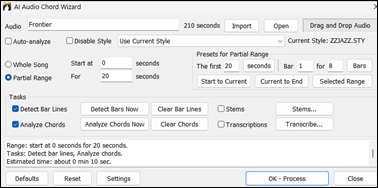
An audio file can be imported, opened, or dragged and dropped anywhere in the dialog.

The [Import] button preserves the current song, except for the Audio track. It imports the selected audio file onto the Audio track of the current song. The [Open] button clears the current song and load the audio onto the Audio track of a new song.
If the Auto-analyze option is enabled, the Audio Chord Wizard automatically begins bar line detection and chord analysis as soon as an audio file is opened or imported. This option is disabled by default.

The dialog includes an option to enable or disable the style and a style selector that lets you choose from several generic utility styles or select any style.
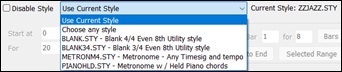
The dialog supports whole-song and partial-range processing. You can specify a partial range in seconds, by detected bars, using the current audio position, or by selecting an audio range.

In the Tasks area, select the tasks to include when you press the [OK - Process] button. The [Detect Bars Now] and [Analyze Chords Now] buttons run the corresponding tasks immediately, without waiting for OK. You can also include seven-stem separation and audio-to-MIDI transcription. Enable the Stems option to include stem separation with typical settings. When the Transcribe task is enabled, the transcription behavior depends on whether stems are generated. If stems are generated, each stem is transcribed, but if no stems are generated, the master audio track is transcribed to a single track, with a copy placed on the Utility 1 track. Press the [Stems...] or [Transcribe...] button to open the AI Stems or AI Transcriptions dialog, where you can customize the corresponding settings.

The Status area displays information about the selected range and tasks, as well as the estimated time to completion. It also shows progress bars while processing.

The [Defaults] button returns the settings to their defaults.
The [Reset] button clears detected bar lines, chords, bar settings, stems and transcriptions from the current song, allowing you to start with a clean slate.
The [Settings] button opens a dialog where you can customize bar line detection and chord analysis, as well as configure display behavior, tempo and beat handling, and chord processing.
When you are ready, press [OK - Process]. The status area shows progress bars while processing.

Once the process is complete, the detected bar lines are added to the Audio Edit window, while the analyzed chords are entered and a tempo map is created on the Chord Sheet. The Audio Chord Wizard also determines the song key and time signature.
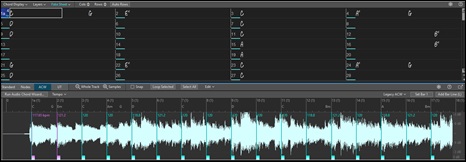
You can choose whether to display Bar Settings indicators while using the Audio Chord Wizard. By default, these indicators are hidden, even when they are enabled in the Chord Sheet Settings dialog (Options | Preferences | [Chord Sheet]). To display them, click on the [Settings] button in the AI Audio Chord Wizard dialog and uncheck the “Disable bar settings indicators when ACW is used” option. Note that additional global indicator settings are available in the Chord Sheet Settings dialog. For example, you can choose to show indicators only when the tempo or number of beats differs from the previous bar.

Tempo labels are omitted when there is insufficient space to display them without overlapping adjacent bar lines, and “bpm” is appended only to the first tempo label to provide more room between closely spaced bar lines.

Hovering the mouse cursor over a bar marker displays a tooltip with bar, tempo and time signature information.
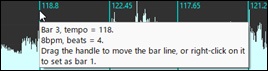
Bars 1 and 2 are displayed as anchored alignment markers and are preserved during re-analysis. These anchors are distinct from user-defined bar lines as they establish the audio alignment and prevent subsequent analyses from shifting the waveform. Purple user-defined bar lines are preserved when bar lines are re-detected.

Hovering the mouse cursor over a bar handle displays a horizontal move cursor, indicating that the handle can be dragged.

Right-clicking on a bar handle opens a context menu with options to change the current bar’s time signature, shift bar lines, set the current bar as bar 1, run bar line detection or chord analysis on the entire audio or a selected range, and adjust detected tempos. The Make this bar 1 command creates new bar 1 and bar 2 alignment anchors after realigning the audio. All of these options are also available from the drop- down list of the [Options for Current Bar] menu on the ACW toolbar.
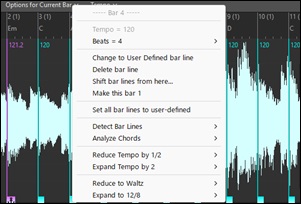
The [Tempo] menu on the ACW toolbar includes options for controlling how bar lines and chords are handled when moving bar lines or changing the number of beats in a bar. It also includes commands to adjust detected tempos and equalize the audio to a single tempo.
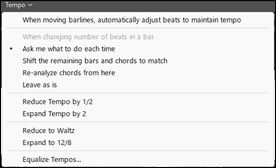
The menu also includes options for controlling what happens when the number of beats in a bar changes. This applies both when you explicitly change the beat count and when moving a bar line automatically adjusts it to maintain the tempo. You can choose to shift the remaining bars and chords, re-analyze chords from the current bar, or leave everything unchanged. The selected behavior is remembered, while “Ask me what to do” restores the confirmation dialog. When a beat-count change results from dragging a bar line, the shift operation begins after the moved handle, preventing the handle itself from being shifted a second time.
Right-clicking on a waveform displays a context menu with basic editing commands (cut, copy, paste, silence, and delete), a command to clear the selection, and a command to transcribe audio to MIDI. The menu also includes options to run bar line detection or chord analysis on the entire audio or within a selected range.
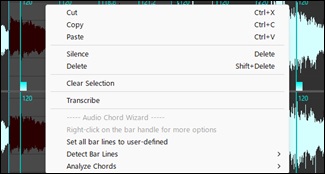
The [Legacy ACW] menu includes commands for legacy (older) Audio Chord Wizard features. Menu commands have been renamed and reorganized to distinguish them from the AI Audio Chord Wizard workflow.
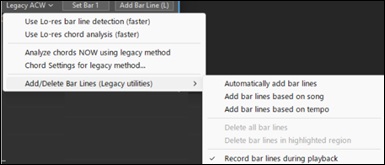
AI Audio Stem Splitter and Transcriber Improvements
The AI Audio Stem Splitter can now separate audio into seven stems: Bass, Drums, Guitar, Piano, Others, Vocals, and Residual. You can now launch AI Audio Transcriber using the Transcribe command in the right-click context menu in the Audio Edit or Tracks window. When launched from the Audio Edit window, the displayed audio track and currently selected region are selected automatically. If no audio range is selected, transcription defaults to processing the entire track. RealTracks, RealDrums, UserTracks, Loops, and Artist Performances can all be transcribed, in addition to audio tracks.
 You can launch the AI Stems and AI Transcriptions features from the [AI] button, which is now located on the side toolbar.
The AI Audio Stem Splitter can now separate audio into seven stems: Bass, Drums, Piano, Guitar, Others, Vocals, and Residual. The previous combined Piano/Guitar stem is now split into separate Piano and Guitar stems, and the new Others stem includes instruments such as strings and vibes.
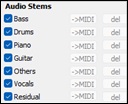
The status messages include the note count for each transcribed stem.
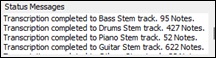
Track types are assigned to transcriptions so that the notation matches the transcription type (e.g., generic, bass, piano, guitar, or drums). You can view or set track types in the Track Settings and Actions dialog.
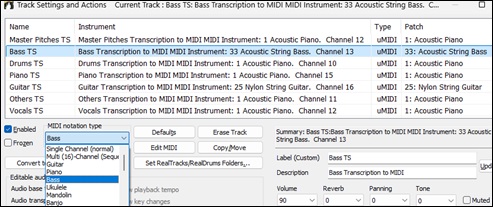
The correct MIDI patch is assigned to each transcribed track (e.g., a piano patch for a piano transcription).

The right-click context menu in the Audio Edit or Tracks window now includes the Transcribe command to open the AI Transcriptions dialog.
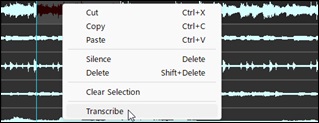
Opening the AI Transcriptions dialog from the Transcribe command in the Audio Edit or Tracks window automatically selects the displayed audio track and the currently selected audio region. If no range is selected, the dialog defaults to processing the entire track.
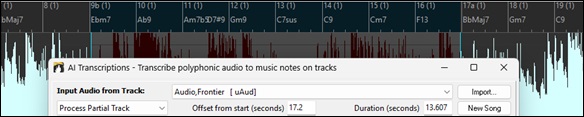
Previously, when you selected the whole-track process, the Offset from start and Duration options were hidden. They are now displayed but disabled.

The [Update] button fills in values of a selected range.

The dialog no longer disables the style by default.

The Extra Transcription on option in the AI Transcriptions dialog lets you create a copy of the transcription on another track, and the [<-Copy Track] button lets you copy MIDI from any track to another track.

RealTracks, RealDrums, UserTracks, Loops, and Artist Performances can all be transcribed. Previously, transcription was available only for audio tracks. The typical use is to create a single-track transcription. There is usually no need to create stems or multiple transcription tracks because the source material (such as RealTracks) almost always consists of a single instrument. However, multiple transcriptions or stems may be useful for UserTracks, Loops, or Artist Performances that contain multiple instruments.
To transcribe a track, select it in the AI Transcriptions dialog and choose whether to create the transcription on the same track, on an additional track, or both. This is useful for transcribing RealTracks, UserTracks, and other tracks that do not already have transcriptions. An additional track also lets you add harmony or use an alternate MIDI patch.
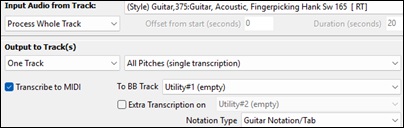
Because the transcription preserves the timing of the audio, it can provide better results for performance purposes than prepared transcriptions in many cases.
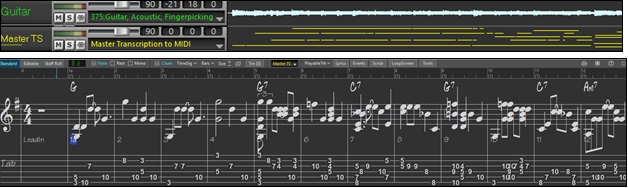
Unlike the previous version, Drum transcriptions do not display unnecessary rests in the notation.

Payback, Position, and Selection Synchronization
layback position, edit cursors, bar highlighting, and selected ranges now remain synchronized across the Chord Sheet, Tracks, Audio Edit, Piano Roll, Notation, Lead Sheet, and Song Overview windows. Playback, pause, stop, Spacebar, and navigation controls also behave consistently throughout the program, with new options for conventional or precise DAW-style operation.
The current bar and song position are synchronized across the Chord Sheet, Tracks, Notation, Lead Sheet, Piano Roll, and Audio Edit windows. Clicking in the Chord Sheet, Tracks, Notation, Piano Roll, or Audio Edit window updates the current position in the other open windows.
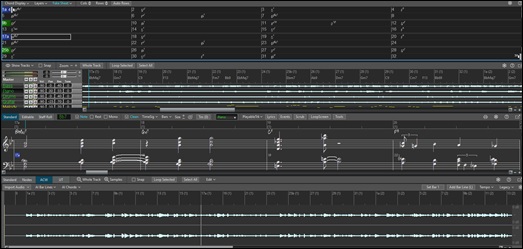
The Tracks, Audio Edit, and Piano Roll windows scroll automatically as needed to keep the current position visible.
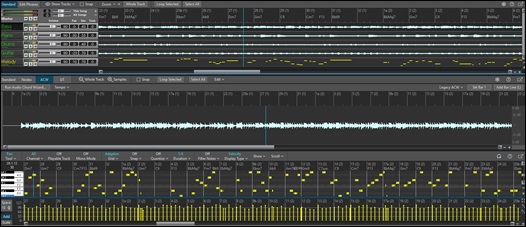
Newly opened windows automatically display the current song position.
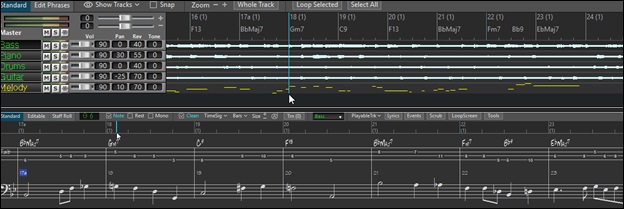
The Song Overview ruler remains synchronized with position changes made in all windows, providing a more consistent navigation experience throughout the program.

Pressing the Enter key advances the Chord Sheet cursor while keeping its position synchronized across other open windows.
Selected editing regions are synchronized between the Tracks and Audio Edit windows.
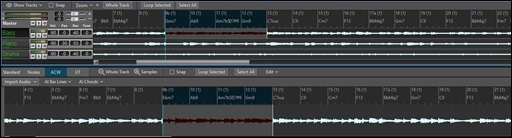
The edit cursor in the Tracks window shows the exact paused playback position instead of snapping to the nearest bar boundary.

Pressing the Spacebar to pause and resume playback in the Tracks and Audio Edit windows resumes from the paused playback position instead of the left selection boundary.

Pressing the [Play] transport button while playback is paused resumes playback from the paused position.

Chord Sheet playback highlighting no longer starts at bar 1 or becomes out of sync when playback is started by clicking in a lead-in bar in the Tracks window.
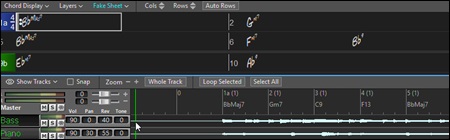
Spacebar playback behavior is consistent across all windows, including the Chord Sheet, Tracks, Audio Edit, Piano Roll, Notation, and Lead Sheet windows.
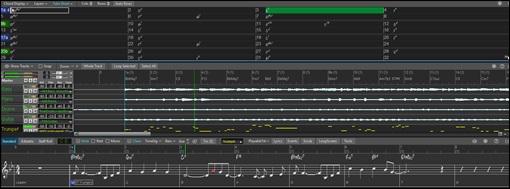
Starting playback from the edit cursor uses its exact position instead of incorrectly snapping to the beginning of the containing bar. (Note: When the edit cursor is at the very beginning of bar 1, playback starts from the beginning of the song, including the lead-in. When the edit cursor is anywhere else, playback starts from that exact position.)

When the Start the ending 2 bars early option in the Song Settings dialog is enabled, bar highlighting remains synchronized during overall song looping.

Double-clicking on a bar in a tag ending starts playback from that ending.

Pressing the F4 key or [Regenerate+Play] button while playback is paused regenerates the song and starts playback from the beginning on the first press.

Alt+F4 is a new hotkey that plays (replays) the song without regeneration.

Bar Settings volume changes and mutes no longer carry over when overall song looping restarts playback.
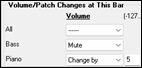
A new Playback Options dialog provides settings for playback controls, looping, and keyboard controls.
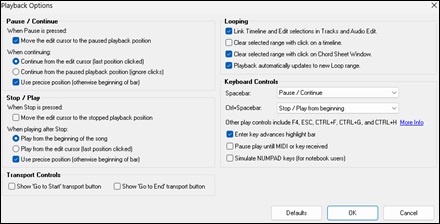
The Pause/Continue options in the Playback Options dialog let you choose whether the edit cursor moves to the paused playback position and whether playback resumes from the edit cursor or the paused position, with an option for precise positioning.
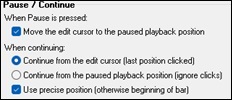
The Stop/Play section in the Playback Options dialog lets you choose whether playback starts from the beginning of the song or from the exact edit cursor position (DAW-style), with an option for precise positioning. It also lets you choose whether Stop moves the edit cursor to the playback stop position, restoring the behavior used in versions prior to 2027.
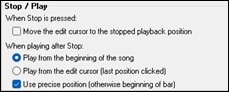
Spacebar can be assigned to Stop/Play from the beginning, Stop/Play from the edit cursor, Pause/Continue, Enter No Chord, or No Action.
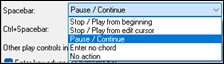
Ctrl+Spacebar can also be assigned to Stop/Play from the beginning, Stop/Play from the edit cursor, Pause/Continue, Enter No Chord, or No Action.
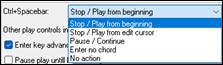
The Playback Options dialog displays a tip explaining playback hotkeys and a link to show the keyboard shortcuts list in Help.

Optional [Go to Start] and [Go to End] transport buttons are available for moving the edit cursor to the beginning or end of the song.

All Transport buttons on the top toolbar can be shown or hidden individually using the Toolbar Settings dialog.
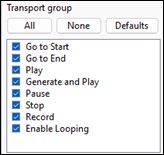
The Home and End keys move the edit cursor to the beginning or end of the song consistently across all windows.
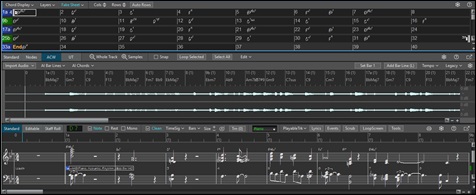
Shift+Home and Shift+End select from the current position to the beginning or end of the song, respectively, in all applicable embedded windows.
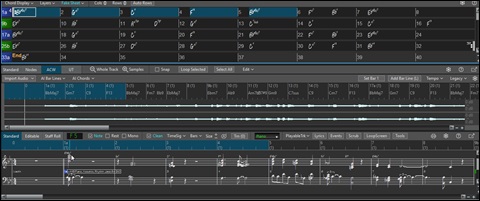
Consistent Scrolling, Zooming, and Navigation Across Windows
Navigation is now more consistent across the Chord Sheet, Tracks, Audio Edit, Piano Roll, Notation, and Lead Sheet windows. Scrollbars, mouse-wheel modifiers, keyboard navigation, cursor movement, and horizontal and vertical zoom controls have been standardized and expanded, making it easier to move through a song and adjust each view.
Pressing and holding the scrollbar arrow buttons in the Chord Sheet, Tracks, Audio Edit, and Piano Roll windows scrolls continuously.

The Left Arrow and Right Arrow keys now move the cursor correctly when the Tracks or Audio Edit window is open by itself.

Mouse-wheel navigation is supported when the pointer is over scrollbars in the Chord Sheet, Tracks, Notation, and other windows. Scrolling up moves backward or up, while scrolling down moves forward or down.

Mouse-wheel scrolling and zooming, as well as single-click positioning, work when the pointer is over the Audio Edit timeline area, in addition to the waveform overview.
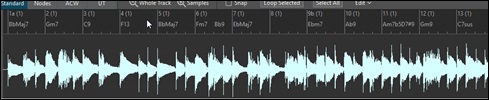
Mouse wheel behavior has been enhanced for consistency across windows.
- In the Chord Sheet window, Ctrl+Shift+mouse wheel scrolls vertically.
- In the Tracks and Audio Edit windows, the mouse wheel scrolls horizontally, while Shift+mouse wheel zooms horizontally.
- In the Audio Edit window, Ctrl+mouse wheel also zooms the waveform vertically, regardless of where the pointer is positioned. (A new setting in Tracks and Audio Edit settings lets you reverse the default scrolling and zooming behavior.)
- In the Notation and Lead Sheet windows, the mouse wheel scrolls horizontally, Shift+mouse wheel changes the number of bars per line, Ctrl+mouse wheel adjusts the font size, and Ctrl+Shift+mouse wheel scrolls vertically. (Note: Ctrl+mouse wheel in the Lead Sheet window cycles through useful font-size and staves-per-page presets, including those in Lead Sheet options. For more precise control, use the Lead Sheet Options dialog to specify the values.)
You can change the default scroll direction in the Piano Roll window.
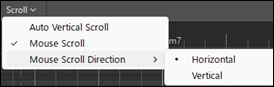
The Piano Roll splitter uses the active button color for better visibility.

The Piano Roll horizontal zoom is limited to the song length, and bar lines are automatically thinned when zoomed out for a cleaner display.

The scrollbars in the Notation and Lead Sheet windows match those in other windows. They are easier to use, provide more precise control, and feature draggable thumbs.

The Notation window scrollbars include +/− buttons for adjusting notation size and the number of bars displayed on screen.

The Lead Sheet window scrollbars include +/− buttons for adjusting the number of staves per page and the number of bars displayed on screen.
Unified Loop-Range Selection and Playback
Loop ranges are now shared across the Song Overview, Chord Sheet, Tracks, Audio Edit, Piano Roll, and Notation windows. Ranges can be created, extended, moved, resized, cleared, and adjusted to precise bar, beat, and tick positions, with optional selection linking, snapping, and immediate playback updates. Loop controls and the Loop Section dialog have also been redesigned for clearer and more conventional operation.
The [Looping] button on the top toolbar is now a split button with a dedicated Loop toggle and a separate drop-down menu for accessing the loop dialog and settings.
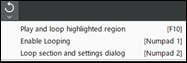
Timeline and loop-range selections are synchronized across the Song Overview, Chord Sheet, Tracks, Audio Edit, Notation, Piano Roll windows.

The Song Overview lets you create, extend, resize, move, and clear the unified loop range using full-bar selections.

Timeline loop range selections can be created in the timelines of Tracks, Audio Edit, and Notation windows by clicking and dragging. A blue overlay displays in the Chord Sheet for a loop range selected in another window.
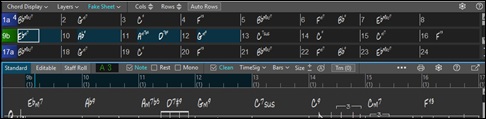
Timeline loop range selections can be extended with Shift+click, resized by dragging either endpoint, and moved with Shift+drag.

Looping can use precise loop endpoints (bars/beats/ticks) instead of requiring full bars.

The Piano Roll window uses the unified loop range and no longer requires Shift+click to enable or disable looping.

The [Loop Selected] button in the Tracks window uses precise highlighted region instead of bar boundaries.
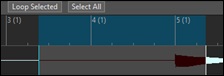
The Chord Sheet context menu displays the selected loop range and lets you change the starting chorus.

Timeline and Chord Sheet context menus include a command to clear the selected loop range.

The [Loop Screen] button in the Notation window has a clearer caption and tooltip and correctly reflects activation via the Ctrl+Numpad 7 hotkey.
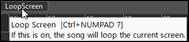
Changing the number of bars per screen no longer causes Notation screen looping to use the wrong bars.

Timeline selections in the Tracks and Audio Edit windows respect the shared Snap-to-Grid setting, while selections in the Notation window snap to beats.

The Tracks and Audio Edit windows include a preference that links the edit selection and the shared timeline loop selection, so changing either selection updates the other.

The Playback Options dialog includes settings to link timeline and edit selections in the Tracks and Audio Edit windows, enable click-to-clear behavior for loop ranges in the Chord Sheet and timelines, and automatically update the loop range during playback. If the “click-to-clear” preference is enabled, clicking in the Chord Sheet or timeline clears the selection. If the “automatic update of the loop range” is enabled, playback follows changes to the selected loop range you make without stopping.
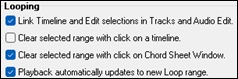
Ctrl+Numpad 1 and Ctrl+Numpad 2 correctly trigger the “Play with Chorus Looped” commands instead of the corresponding unmodified Numpad commands.
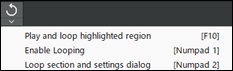
The Loop Section Settings dialog is now a floating dialog, allowing you to access playback and main-window controls while it is open.
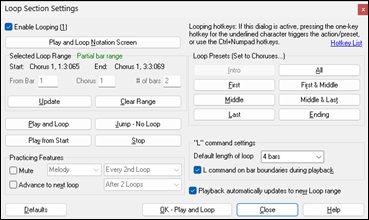
The Loop Section Settings dialog displays precise chorus, bar, beat, and tick positions and preserves loop ranges that start or end partway through a bar.

The Loop Section Settings dialog includes a [Clear Range] button that removes the selected loop range without disabling looping.

The Loop Section Settings dialog also includes a dedicated command to play and loop the bars currently visible in the Notation window, replacing the previous alternative mode that affected the entire dialog.

Loop range changes in the Loop Section Settings dialog are synchronized with the existing playback-loop settings.
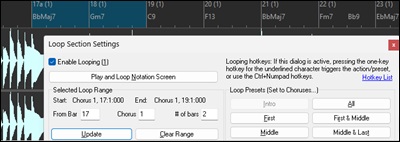
AI-Powered Natural-Language Style Search
AI Style Search finds suitable styles from natural-language descriptions or song references and presents results in strongest-to-weakest match order. Results include match scores and explanations, respect existing StylePicker filters, and can be copied in a spreadsheet-friendly format.
[Note: An internet connection is required to use this feature. ]
Open the StylePicker using the S 1 Enter or Ctrl+F9 hotkey. It features a tabbed search section with a new [Style Search (AI)] tab alongside the existing [Song Titles] tab. In the text entry field of the [Style Search (AI)] tab, describe what you’re looking for. For example, you could type “Laid-back jazz quartet around 140 BPM with acoustic bass, piano, and brushes.” Press the [Search] button or the Enter key.
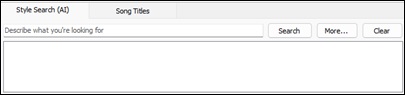
AI Style Search displays the results and automatically filters the StylePicker style list to show matching styles. The results are ordered from strongest to weakest match, while respecting the current StylePicker filters. When two styles are equally suitable and their typical tempos are approximately equally distant from the requested tempo, AI Style Search prefers the style with the lower typical tempo.
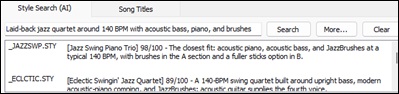
You can double-click on a style in the results to load it to the current song.
Right-clicking in the results opens a context menu with commands to play an audio demo of a style, load a style into the current song, load a demo song for a style, or copy the result. The copied rows are tab-delimited and include complete style names, match scores, descriptions, and all underlying text, even when not fully visible in the window. Multiple rows can be selected using Shift+click.

You can also use the expandable Natural-Language Style Search (AI) dialog, which opens from the [More...] button in the AI Style Search field. It lets you search for styles and provides search status, result filtering options, match scores, explanations for suggested styles, additional search options, and a larger results area that expands when you resize the dialog.
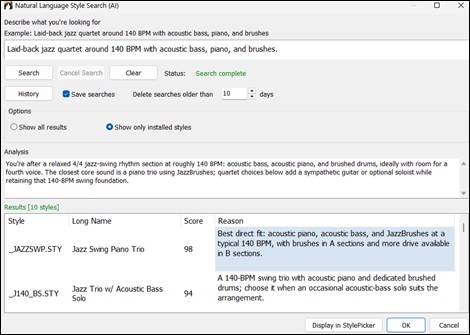
In the text entry field at the top of the dialog, describe what you’re looking for, and press the [Search] button or the Enter key.

You can toggle the setting to show all results or only installed styles. The setting is saved and applied to both the full dialog search and the compact StylePicker search. It defaults to showing only installed styles.

The scrollable Analysis field shows how your AI Style Search has interpreted your query. It identifies indirect song references and summarizes the explicit musical criteria.

The Results include match scores and explanations to help you understand why particular styles were suggested.

Press the [Display in StylePicker] button to display the found styles in the StylePicker while keeping the dialog open.

You can double-click on a style in the results to load it to the current song.
Right-clicking in the results opens a context menu with commands to play an audio demo of a style, load a style into the current song, load a demo song for a style, or copy the result.

You can optionally save searches and set a retention period to automatically remove searches older than the specified number of days.

The [History] button opens a dialog that lists previous searches and their timestamps. You can select a search to load its query, analysis and results, or delete the selected searches or all searches. It lets you select a search to load its query, analysis and results, or delete the selected search or all searches.
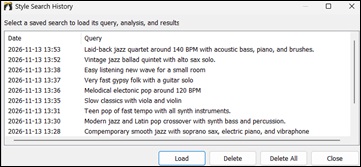
New Notation Transcription and MIDI Cleanup Tools
A new floating Notation Tools dialog provides commands for articulations, fingering, string assignments, conflict detection, and MIDI note cleanup. Selected notes can be transformed, hidden, reassigned to playable strings and frets, or filtered by musical and performance criteria.

 Open the Notation window and press the [Tools] button on its toolbar to open the Notation Tools dialog.
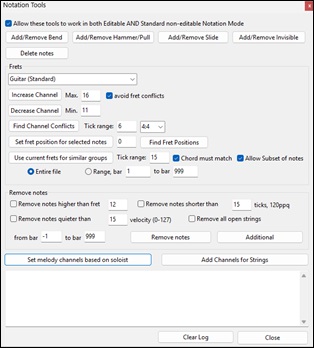
Normally, notation can be edited in Editable or Staff Roll mode. However, the Notation Tools can be used in any mode if you enable the Allow these tools to work in both Editable AND Standard non-editable Notation Mode option in the dialog.
Select the note(s) you want to edit by clicking and dragging in the Notation window. You can also use the hotkeys: Shift+Right Arrow to select the next note after the timeline, Shift+Left Arrow to select the previous note before the timeline, Ctrl+Right Arrow to select the next group of notes after the timeline, and Ctrl+Left Arrow to select the previous group of notes before the timeline. Then, use the button in the dialog to edit the selected note(s). You can also use the corresponding hotkeys without opening the dialog.

The [Add/Remove Bend] button or Ctrl+Badds a bend controller which displays a bend with the direction determined by the previous note on the same string (channel). If the note already has a bend, pressing the button or hotkey removes it.
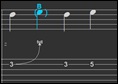
The [Add/Remove Hammer/Pull] button or Ctrl+Alt+F adds a hammer-on or pull-off controller, depending on whether the last note on the same string (channel) is higher or lower than the current note. If the note already has a hammer-on or pull-off, pressing the button or hotkey removes it.
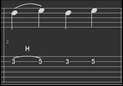
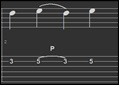
The [Add/Remove Slide] button or Ctrl+Alt+G adds a slide controller, which displays a slide between the current note and the previous note on the same string (channel). If the note already has a slide, pressing the button or hotkey removes it.
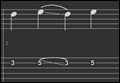
The [Add/Remove Invisible] button or Ctrl+I adds a controller that hides the current note, although it remains audible during playback. This is useful for effects such as glissandos, where you may want to hear multiple notes without displaying them.
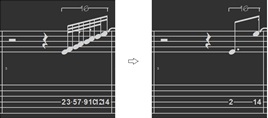
The [Delete notes] button or the Delete key deletes the selected notes.
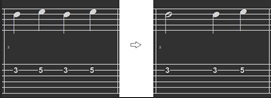
The [Increase Channel] button or Ctrl+Up Arrow increases the strings (channels) of all selected notes, using the Max. and Min. settings. When the “Avoid fret conflicts” option is selected, increasing the strings (channels) is not possible if it would result in multiple notes being assigned to the same string (channel) at the same time.
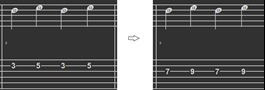
The [Decrease Channel] button or Ctrl+Down Arrow decreases the strings (channels) of all selected notes, using the Max. and Min. settings. When the “Avoid fret conflicts” option is selected, decreasing the strings (channels) is not possible if it would result in multiple notes being assigned to the same string (channel) at the same time.
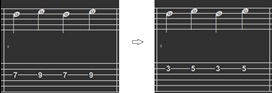
The [Find Channel Conflicts] button scans the current track for notes that occur within the specified tick range and are assigned to the same string (channel). This helps identify impossible guitar fingerings in which two notes would need to be played on the same string at nearly the same time. The scan results are displayed in the status area at the bottom of the dialog. For example, the scan may identify notes in a glissando because they occur close together on the same string.

The [Set lowest fret for selected notes] button moves the selected notes to the lowest possible fret positions for their current string (channel) assignment. This is useful for creating more natural guitar fingerings and reducing unnecessarily high fret positions. For example, notes on strings 5-5-3 (channels 13-14-15) may be moved to strings 1-0-3 (channels 12-13-15).
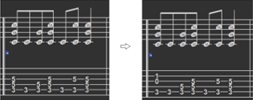
The [Use current frets for similar groups] button applies the string (channel) assignments of a selected note group (chord) to similar groups throughout the track or within a specified bar range. The “Tick range” setting determines how close together notes must be in order to be considered part of the same group. If the Chord must match option is enabled, only groups with matching chords are considered. If the Allow subset of notes option is enabled, a group can match even if it contains only some of the notes in the current group.
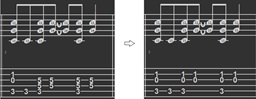
The [Find Fret Positions] button lets you quickly and easily find alternative fret positions for the selected notes. When you click on this button, an additional dialog opens, listing the available options for the selected notes. As you click on each option, the notes are repositioned on the corresponding strings. The Allow open strings for higher voicing option includes voicings that combine notes on higher frets (such as frets 7 or 8) with open strings. If this option is disabled, voicings that combine notes on frets 1 through 5 with open strings are still included.
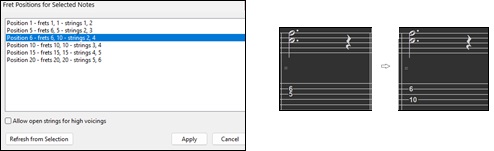
While this dialog is open, you can select other notes and click on the [Refresh from Selection] button to display options for the newly selected notes. Click on the [Apply] button to permanently apply the selected fret positions to the notes, or click on the [Cancel] button to discard the changes.
The options in the Remove Notes area let you remove notes within a specified bar range based on fret position, duration, velocity, or open-string assignment. These options are useful for removing unwanted notes that may have appeared in the transcription, such as notes that are unusually quiet or positioned very high on the fretboard. When you click on the [Remove Notes] button, notes that match the specified criteria are removed. The dialog then shows which notes were removed and why.
The options in the Remove Notes area let you remove notes within a specified bar range based on fret position, duration, velocity, or open-string assignment. These options are useful for removing unwanted notes that may have appeared in the transcription, such as notes that are unusually quiet or positioned very high on the fretboard. When you click on the [Remove Notes] button, notes that match the specified criteria are removed. The dialog then shows which notes were removed and why.

The [Add Channels for Strings] button finds the best channels for unchanneled notes in the track. In the Best Channels dialog, you can set minimum and maximum fret positions, specify the tick range used to determine how close together notes must be to be considered part of the same group, choose a fretboard type, and set other options. You can also favor or avoid open strings. The [Scan] button checks every note in the track and reports how many notes can be processed. Click on the [Apply] button to assign channels to the notes.
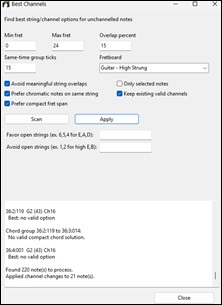
The [Set melody channels based on soloist] button assigns channels to notes in the Melody track based on the corresponding notes in the Soloist track. This lets you keep the notes in the Melody track while using the channel assignments from the Soloist track. You can apply this to the entire song, a selected range, or selcted notes, choose a fretboard, and adjust other options.
Open the demo song “Tutorial - notation, set guitar frets from soloist track.MGU” from the \bb\Documentation\Tutorial - BB2027 folder. It has a good transcription on the Melody track, but the notes do not have channel assignments. However, the song was also recorded simultaneously using a MIDI pickup, and that information is on the Soloist track. MIDI pickups can produce glitchy recordings with many extra notes.
Click on the [Set Melody Channels Based on Soloist] button in the Channel Automation Tool dialog to assign channels to the notes in the Melody track. The dialog reports how many notes were processed.
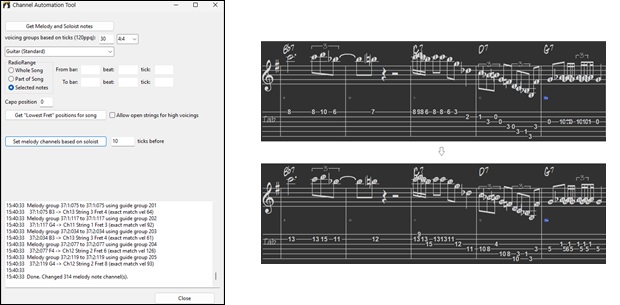
Thank you for taking time to read this introduction to Band-in-a-Box 2027!
Unconditional 30-Day Money Back Guarantee on all PG Music products purchased from PG Music Inc.
PG Music Inc.
29 Cadillac Ave Victoria BC Canada V8Z 1T3
Sales: 800-268-6272, 250-475-2874,+ 800-4746-8742*
* Outside USA & Canada where International Freephone service is available.
Access Codes
Tech Support: Live Chat, support@pgmusic.com
 Online now
Need Help?
Customer Sales & Support
|
Phones (Pacific Time) 1-800-268-6272 1-250-475-2874 |
||
| Live Chat | ||
| OPEN | Online Ordering 24/7 |
|
| OPEN | Forums, email, web support |