
Search Manual
RealBand® 2026 for Windows® User’s Guide
Chapter 2: RealBand 2026
RealBand 2026 introduces several workflow and audio-engine improvements, including enhanced grid display options, updated window title styling, more accurate master-volume handling, improved tablature export, track-height synchronization, and new MIDI-transcription capabilities in both the Stem Splitter and AI Notes dialogs. Support for Add2 chords in MGU/SGU files has also been added
Summary list of New Features
A New Grid Lines Option
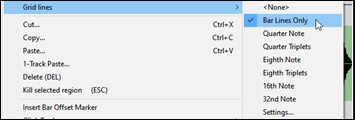
A new "Bar Lines Only" option has been added to the Grid Lines setting in the Tracks and Audio Edit window context menus.
Updated Title Bar Style for Non-Floating Windows
Non-floating windows no longer use the older blue title bar with the red X close button (used in RealBand 2025 and earlier).
Master Volume Now Applied at End of Audio Chain
The Master Volume control on the bottom toolbar of the main screen is now applied at the very end of the audio chain, preventing Aux-processed tracks from becoming disproportionately loud and ensuring the master effects always receive a full signal.
A New XML Export Option
A new option "Save bends when saving tablature" in the Save XML File dialog writes bend information to XML files. (Note: This is primarily intended for reloading into PG Music programs. Other software may interpret XML bends differently, and results may vary.)
Set All Tracks to Same Height
When resizing a track in the Tracks window, holding down the Ctrl key while releasing the mouse button sets all tracks to match the adjusted track height.
Stem Splitter Now Supports MIDI Transcription
The Stems dialog now includes Audio-to-MIDI transcription, allowing you to convert any separated stem (or the full mix) into MIDI. These MIDI transcriptions can be viewed, edited, remixed, or used for learning purposes. For example, you can import vocals from your favorite singer, transcribe a desired instrument part to MIDI, and then use Band-in-a-Box to rearrange or replace the backing tracks, creating a fully personalized mix.
New AI Notes Dialog for Audio-to-MIDI and Stems
The new AI Notes dialog can both transcribe audio to MIDI and generate stems.
Support for Add2 Chords from MGU/SGU
Add2 chords from MGU and SGU files are now supported.
Details of New Features
A New Grid Lines Option
A new “Bar Lines Only” option has been added to the Grid Lines setting in the Tracks and Audio Edit window context menus.
Stem Splitter Updated Title Bar Style for Non-Floating Windows
Non-floating windows no longer use the older blue title bar with the red X close button (used in RealBand 2025 and earlier).

Master Volume Now Applied at End of Audio Chain
The Master Volume control on the bottom toolbar of the main screen is now applied at the very end of the audio chain, preventing Aux-processed tracks from becoming disproportionately loud and ensuring the master effects always receive a full signal.

A New XML Export Option
A new option “Save bends when saving tablature” in the Save XML File dialog writes bend information to XML files. (Note: This is primarily intended for reloading into PG Music programs. Other software may interpret XML bends differently, and results may vary.)

Set All Tracks to Same Height
When resizing a track in the Tracks window, holding down the Ctrl key while releasing the mouse button sets all tracks to match the adjusted track height

Stem Splitter Now Supports MIDI Transcription
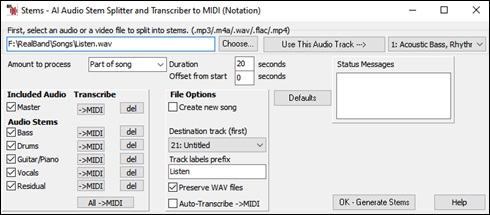
The Stems dialog now includes Audio-to-MIDI transcription, allowing you to convert any separated stem (or the full mix) into MIDI. These MIDI transcriptions can be viewed, edited, remixed, or used for learning purposes. For example, you can import vocals from your favorite singer, transcribe a desired instrument part to MIDI, and then use Band-in-a-Box to rearrange or replace the backing tracks, creating a fully personalized mix.
Open the dialog by selecting the menu item File | Open Special | Import Audio File to separate tracks (using Stem Splitter), Then, choose an audio file (or use the existing audio track), select the options, and click on the [OK – Generate Stems] button. Once stems are generated, use the [->MIDI] button for any stem to transcribe it to MIDI. The [All ->MIDI] button transcribes all generated stems to MIDI at once. Note that the [->MIDI] and [All ->MIDI] buttons are greyed out (disabled) if MIDI transcription is not available but they automatically become enabled when the status changes.
The new Tracks Window and Mixer Window | Auto-hide extra upper tracks (except one blank track) command in the right-click menu on the Tracks or Mixer window will automatically hide blank tracks above the highest used track, while still leaving at least one blank track above the highest used track
New AI Notes Dialog for Audio-to-MIDI and Stems
The new AI Notes dialog can both transcribe audio to MIDI and generate stems.
To open it, choose the menu item Edit | Audio | Launch AI Audio Transcriber. Then, select a track containing audio that you want to process, choose the instrument(s) to split and/or transcribe, specify the destination track(s) for the MIDI output, and press OK.
The new Tracks Window and Mixer Window | Auto-hide extra upper tracks command in the right-click menu on the Tracks or Mixer window will automatically hide all blank tracks above the highest used track.
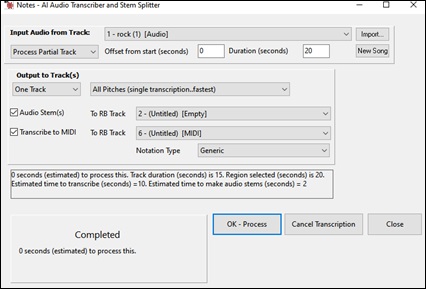
Input Audio from Track: Transcription or stem split processes use the existing audio in the track selected here.
[Import]: This lets you select an audio file to import to the selected track.
[New Song]: This clears the current song, allowing you to open a new audio file to a new song using the [Import] button.
Process Whole Track / Process Partial Track: Choose whether to process the entire song or only a portion. Because transcription can take time (up to two minutes for a three-minute song), selecting a smaller section speeds up processing.
Offset from start: Specify the location where the transcription begins.
Duration: Set the length of audio to process from the start location.
One Track / Master + 4 Tracks: Choose to output transcriptions and/or stems for a single instrument or multiple instruments.
Audio Stem(s): Select this to generate stems. You should also select a destination track for the generated stems.
Transcribe to MIDI: Select this to transcribe audio in the selected track to MIDI. You should also choose a destination track for that MIDI output.
Notation Type: Select a type to assign the correct channel, patch, and notation display for the output track.
Support for Add2 Chords from MGU/SGU
Add2 chords from MGU and SGU files are now supported.

Thank you for taking time to read this introduction to RealBand 2026!
Unconditional 30-Day Money Back Guarantee on all PG Music products purchased from PG Music Inc.
PG Music Inc.
29 Cadillac Ave Victoria BC Canada V8Z 1T3
Sales: 800-268-6272, 250-475-2874,+ 800-4746-8742*
* Outside USA & Canada where International Freephone service is available.
Access Codes
Tech Support: Live Chat, support@pgmusic.com
 Online now
Need Help?
Customer Sales & Support
|
Phones (Pacific Time) 1-800-268-6272 1-250-475-2874 |
||
| Live Chat | ||
| OPEN | Online Ordering 24/7 |
|
| OPEN | Forums, email, web support |