
Search Manual
Band-in-a-Box® 2026 for Windows® User's Guide
Chapter 10: Working with MIDI
Band-in-a-Box has a built-in sequencer, which allows you to record and edit MIDI. MIDI can be recorded into Band-in-a-Box in several ways:
- Live with a MIDI keyboard, MIDI guitar, or MIDI wind controller.
- In step time by entering notes in the Notation window with the mouse.
- Using the Wizard feature to “play” notes with your QWERTY keyboard.
- Importing a pre-recorded standard MIDI iile into the Melody or Soloist.
Real-Time Recording
You can punch in/out, do unlimited overdubs, record directly to the tag or the ending, and start recording from any bar.
 To record live using your MIDI keyboard, guitar, or wind controller, click on the REC button on the top toolbar or press Ctrl+R. You can also use the menu item Melody | Edit Melody Track | Record Melody.
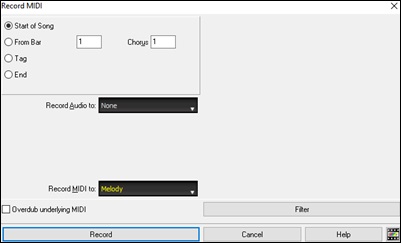
In the Record MIDI dialog, set the start point for the recording and select the destination track. If there are underlying MIDI notes in the destination track, you can choose the option to merge or overwrite them.
The [Filter] button will open the Record Filter dialog, which allows you to choose the types of MIDI data to be recorded.
Press the [Record] button or the R key to begin recording.
Stop recording by pressing the Esc key or the spacebar, or by clicking on the [Stop] button on the top toolbar . The Recorded dialog will then open.
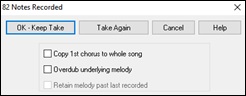
[OK - Keep Take] saves the take you just recorded. Remember that it’s easy to fix small glitches in the Editable Notation window or in the Event List editor.
[Take Again] lets you quickly reject a take and start the recording again. Press the [A] key to do this with a keystroke.
[Cancel] ends the recording session; nothing is saved. To start again, press the [Record MIDI] button or the Ctrl+R keys.
Copy 1st chorus to whole song: If you have recorded one chorus of the song, checking this at the end of the recording will copy the same recording to all of the choruses.
Overdub underlying melody: You have the option to merge the recording with the existing melody. If there is no underlying melody, this option will be grayed out.
Retain melody past last recorded: You have the option to erase any melody after the last recorded melody note or keep it. Use this feature when you want to punch out at the end of a take.
Recording to an external sequencer
Many people use Band-in-a-Box in live situations. If you are unable to bring your computer with you, a good alternative is a hardware sequencer or a keyboard with a built-in sequencer that reads Standard MIDI Files. To transfer songs to the Sound Brush, follow these simple steps:
- Make a MIDI file of the song.
- Either save the file directly to a floppy disk or copy it to the floppy from your hard drive.
- The Sound Brush is then able to read the IBM formatted disk with MIDI files on it.
Entering Notes Manually
You can enter melody notes directly onto a track in the Notation window, using either the Editable Notation or Staff Roll mode. Notes and rests can be entered, moved, and edited with standard mouse actions—point and click, drag and drop, or right-click to open the Note Edit dialog. Confirmation dialogs help prevent accidental entry of duplicate notes (same pitch near the same time) or notes that are extremely high or low (requiring many ledger lines)
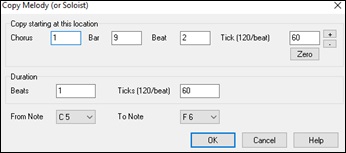
Once you have some melody entered, you can copy and paste chunks of it as you would in a text document. To copy and paste notation, highlight an area of notation by dragging the mouse over the region. Then select the menu item Edit | Copy.
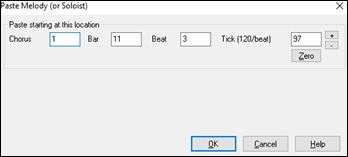
Click on the place where you want to paste to (by clicking at the time line on top of the Notation window) and then choose the menu item Edit | Paste. You can specify a precise paste location in the Paste Melody dialog.
Recording with the Play Along Wizard Feature
This is a very helpful feature if you don’t have a MIDI keyboard but you want to record with a “live” feel. Use the Wizard to record notes from the computer’s QWERTY keyboard for a track that’s more natural than step time. Here’s how it works.
1. Click on the [MIDI] button on the top toolbar and check MIDI Keyboard Wizard Enabled on its drop-down menu. You can also select the menu item Play | Wizard Playalong feature.
2. Press the [REC] button on the top toolbar or the hotkey Ctrl+R, and press [Record] in the Record MIDI dialog.
3. As the song plays, play the melody on any keys on the bottom two rows of the QWERTY keyboard, in the rhythm of the melody. The “wizard” notes won’t be the correct melody of course, but don’t worry about that as you record. When you’re finished, look in the Notation window. You will see the wrong notes in the right places with the correct durations.
4. Drag the notes (with the left mouse button) to the correct place on the staff. You will hear the notes play as you drag them, and the names will show in the note name box. For sharps, flats, and naturals, hold down the Shift key, Ctrl key, or Alt key respectively. You will end up with a melody that sounds like it was recorded live, without the rigid feel of tracks entered in step time.
[Tip: If you have the Wizard “On” the spacebar won’t stop playback. You need to press the Esc key to stop playback when the Wizard is on. This is to prevent stopping the song if you mistakenly hit the spacebar while playing the Wizard. ]
Melody Wizard
For songs with melodies, there are QWERTY keys (Enter, \ , T, 6) that trigger notes from the melody as the song is being played. Other keys trigger 1-4 approach notes from below or above. The notes can be recorded, to humanize a stiff melody with better timing, and approach notes also useful for sight reading, rhythm practice, or to perform. This feature works with harmonies.
- Melody notes: T, 6, Enter, \
- Same Melody note: 5
- Approach notes: QWER YUIO
- Octave set: 1, 2, 3
MIDI notes also work (if Preferences [Transpose] is set to “Allow Melody Wizard on THRU part”).
- Octave set: E(40), F(41), G(43)
- Melody notes: F(53), G(55)
- Melody notes: F(53), G(55)
- Approach notes: B(47), C, D, E A, B, C, D(62)
To use the Melody Wizard, make sure the Keyboard Wizard is enabled. This will also enable the MIDI Wizard on the QWERTY keys.
Then, open a song that has a Melody track.
Mute the Melody track with Alt+8 keys.
Play the song.
As you play the song, you can use the Enter key or the \ key (or T or 6 above the T) to play Melody notes.
W E R T - These will be approach notes up to the melody. You can start on any note.
Q E R T - Starting on a Q instead of W will use wider voicings for approach notes.
I U Y T - These will be approach notes down to the melody. Start on any note.
O U Y T - Starting on an O instead of I will use wider voicings for approach notes.
MIDI Keyboard Wizard
The Wizard can also be used with a connected MIDI keyboard. The keyboard wizard always plays correct notes and is a fun way to play along with Band-in-a-Box. The MIDI keyboard also sends volume information (unlike the QWERTY keyboard), so is a better choice if you have a MIDI keyboard connected.
This feature is accessed with the [Transpose] button in the Preferences dialog. To turn on the Wizard to allow MIDI control, choose “Use Wizard for THRU part.”
Now, when you play notes on the MIDI keyboard (during playback), they will get remapped to chord tones. C/E/G/Bb notes played on a THRU keyboard will be mapped to chord tones, and D/F/A/B will be passing tones. This scale - C D E F G A Bb B - is considered the “Bebop” scale, useful for playing over dominant 7th chords.
The Wizard is useful for entering notation quickly. If you can’t play piano well, play the wizard in the correct rhythm. The pitches will be wrong, but you can fix them in the Editable Notation window later, and the durations, volume, and timing are already correct.
Melody/Soloist Sequencer
Normally, you would want a single part on the Melody or Soloist track. But, since MIDI information can have separate channels, it is possible to store 16 separate parts on each of the tracks. For the following discussion, we will assume that you’re using the Melody track, but the same functions are available for the Soloist. When the Melody track has been set to “Multi(16)-Channel” we refer to this as “Sequencer Mode.”
Also, for this discussion we will assume that you have a multi-channel track loaded in. Let’s load a MIDI file, using File | Open MIDI file, and choosing a MIDI file like C:\bb\Documentation\Tutorials\violet.MID.
If you want to use the 16 separate parts for the Melody track, set the track type to “Multi-Channel.” This is done by selecting the menu item Melody | Track Type | Multi(16) Channel. You can also use the [Sequencer] button on the top toolbarn.
Now, when you are in this multi-channel mode, output from the Melody track will be on whatever MIDI channel the information is stored on and will not be using the Melody MIDI Channel.
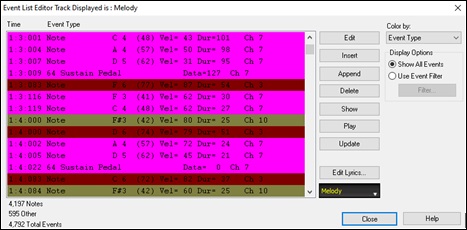
You can view the track’s channels in the Event List, which you open by clicking on the [Events] button in the Notation window.The data is color-coded by channels for multi-channel tracks. For example, channel 7 is pink, and channel 10 is gold.
If you open the Lead Sheet window, you will see the entire MIDI file displayed on separate tracks of notation. Since this represents 6 separate tracks (in the case of violet.MID), this is likely “too much information” for you to read, unless you are a symphony conductor.
To customize the notation display for sequencer mode, press the [Opt.] button in the Lead Sheet window, and see the settings for Multi-Channel Tracks.
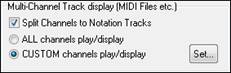 |
Choose the “CUSTOM channels play/display” option and press the [Set] button to launch the Sequencer Window. Then you can customize which channels will play and display. |
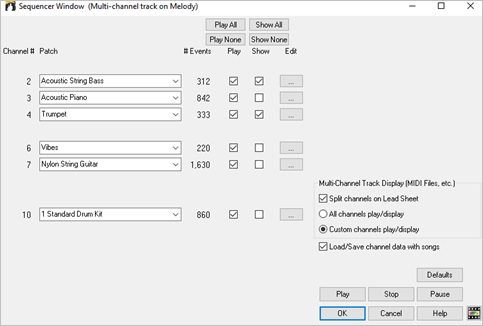
In the example picture, we have set Channel 2 (Bass) and Channel 4 (Trumpet) to show on the notation, and have set all of the channels to play (to hear them).
For a specific channel, (e.g. channel 3: piano), we see the following information.
- Channel 3: Acoustic Piano (this is the patch name found on the track).
- 842: There are 842 events in the track, usually every note is an event.
We have customized the piano track so that it can be heard (play=true), but not seen in notation (Show=false).
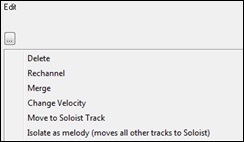 |
There is a small button at the right of the track line that allows you to delete/ rechannel or merge the channel with another channel. |
You can also change the patch (instrument) for that track by using the instrument patch combo box.

So now that we’ve customized the display, we are seeing the bass and trumpet on the notation,and hearing the entire track.
Removing All Tracks Except Melody from A MIDI File
One use for the Sequencer mode is to load in a MIDI file, and then delete all of the channels except the melody, so that you can allow the Band-in-a-Box rhythm section to provide the accompaniment.
To do this, open the Sequencer window, and use the Edit pull down menu to delete all tracks except the melody.

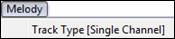
Once you have done this, you don’t need the Melody | Track Type to be multi-channel anymore, so you should set it to be Track Type [Single Channel], so that it will be like any other Band-in-a-Box song and use the Melody channel for playback.
Recording Your Own Parts to The Melody Sequencer
Normally, you would record your parts to the Melody track, and not be concerned about what MIDI channel they are using, because Band-in-a-Box uses the Melody channel (usually channel 4) for this.
But if you have set the Track type to be multi-channel, the output on the Melody track will be whatever channel is stored in the tracks.
 When you record a melody and the track type is set to multi-channel, the “Keep Take” dialog will have a selection for the channel that should be used for the recording.
 Also, make sure that you have “Overdub underlying melody” checkbox set, or you won’t hear the other melody parts during the recording.
Example: Recording 4 Separate Counter Melodies on The Melody Track
So, if you want to record, for example, 4 separate parts to go along with a Band-in-a-Box song, you should do the following.
1. Select the menu item Melody | Track Type | Multi(16)-Channel.
2. Record a melody. At the end of the recording, pick a channel that is not already used by Band-in-a-Box. BB uses channels 2-10, so channels 11 to 16 are available for your counter melody.
3. Repeat step 2 by recording additional melodies.
4. Assign patches to the melodies using the Sequencer Window.
Importing MIDI Files
Standard MIDI files can be read to your song from MIDI files or from the Windows® clipboard. You can read in all of a MIDI file, or selected channels and a specific range of bars. Use eitherof the following two commands.
- Melody | Edit Melody Track | Import Melody from MIDI File – to select a MIDI file from disk using the Windows® Open File dialog.
- Melody | Edit Melody Track | Import Melody from Clipboard - when the MIDI data is already copied from another program to the Windows® clipboard. The clipboard option will be grayed out if there is no MIDI data in the clipboard.
[Tip: You can also drag a MIDI file from the Explorer and drop it anywhere on the Band-in-a-Box screen.]
The Import MIDI File dialog will open.
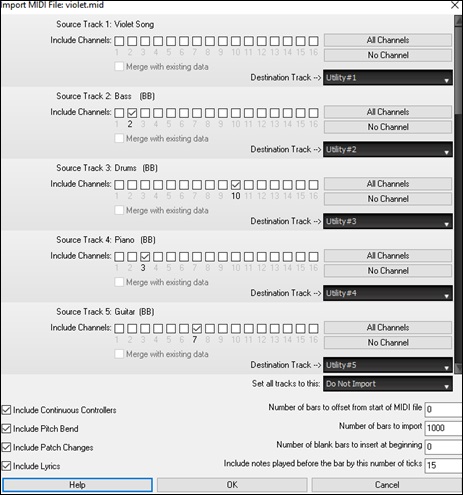
Include Channels: You can hover the mouse cursor over the channel selector check boxes to see how many events are on each channel. If you select all of the channels, Band-in-a-Box will read in all of the channels and merge them to the destination track.
Merge with Existing Data on the track: You can choose to merge the imported data with the existing data in the destination track.
Destination Track: You can choose the destination track for each track for multi-track MIDI files.
Set all tracks to this: This allows you to set a destination track for all source tracks.
Include Continuous Controllers / Include Pitch Bend / Include Patch Changes / Include Lyrics: If you don’t need these items, you can save space by not importing them.
Number of bars to offset from start of MIDI file: To start reading from the beginning of the MIDI file, select 0 as the offset. If you want to start at bar 32, for example, select an offset of 32 (bars).
How Many Bars to import: Leave this setting at the default of 1000 to read-in the entire file (unless it’s longer than 1000 bars!), or set it to the number of bars that want.
Number of blank bars to insert at beginning: This will insert blank bars into the track. Remember that Band-in-a-Box normally has a 2-bar lead-in count. If your MIDI file has no lead-in, then you need to set this to = 2 to compensate for the 2 bars of lead-in.
Include notes early by (120 PPQ): If you’re reading in a MIDI file starting at bar 5, it would be annoying to have a note that was played 1 tick earlier than bar 5 left out of the MIDI file that is read in. To include it, you can set this, and the note will be read in.
Editing MIDI Tracks
Quantize Track
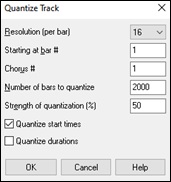
Right-click on a track in the Mixer or Tracks window, and go to Edit MIDI | Quantize, Time Adjust | Quantize. This allows you to quantize the MIDI track.
|
Resolution Choose the division you want like the track quantized to. Choosing 16 will Quantize to 16th notes. |
Humanize Track
Quantize routines can leave the music sounding stiff and unmusical. Some routines attempt to humanize a track by adding “randomization,” which rarely has the desired effect since humans don’t randomly change timing or volume. Band-in-a-Box uses intelligent humanization routines to humanize a melody from one feel to another, from one tempo to another, and vary the amount of swing to 8th notes. The results are very musical, with natural sounding melodies.
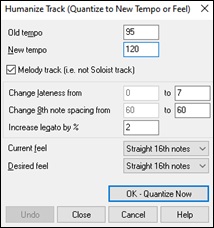
Right-click on a track in the Mixer or Tracks window, and select Edit MIDI | Quantize, Time Adjust | Humanize from the context menu.
|
We have broken down the Humanize effect into 5 main categories: tempo, lateness, 8th note spacing, legato, and feel. The best way to learn how these parameters combine is to try them (you can always press the [Undo] button if you don’t like the results.)For example, try changing the tempo of a song to see the changes that this will make to the 8th note spacing and lateness. Press the [OK - Quantize Now] button to apply your changes to your song. [Tip: Often, when musicians play at faster tempos they play the swing 8th notes closer together and a little late.] We feel that these categories are straightforward and you should have no trouble achieving the desired results. Remember to apply such parameters as Legato and Lateness sparingly, then press the OK button to apply your changes to your song. |
Event List Editor
You can edit events including all MIDI events and lyric events using the Event List Editor. It can be launched in several ways.
- Choose the meu item Melody | Edit Melody Track | Step Edit Melody.
- Choose the meu item Soloist | Edit Soloist Track | Step Edit Soloist Track.
- Choose the meu item Window | Notation | Event List Editor.
- Press the [Events] button in the Notation window.
- Right-click on a track label in the Mixer or Tracks window, and select Edit MIDI | Event List Editor from the context menu.
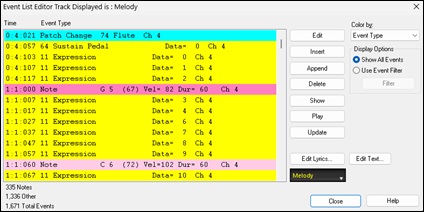
The list is color-coded based on Event Type, Channel, Duration, or Velocity.
When color-coding is based on “Event Type,” the list shows the event as follows.
- Notes starting near the beat boundary are dark pink.
- Notes starting on the off-beat are light pink.
- Patch changes are cyan.
- Controller changes are yellow.
- Pitch Bends are grey.
The Event List Editor allows you to modify, insert, and delete notes.
- Double-click on an event to edit it (or press the [Edit] button.)
- [Insert] opens the Event Type to Edit dialog, which lets you select a type of event, then opens a dialog for editing the selected event type.
- [Append]also opens the Event Type to Edit dialog for selecting a type of event to add at the end of the track.
- [Delete] removes the selected event.
- [Show] exits the dialog and highlights the note in the Notation window.
- [Play] plays the selected event moves the next event.
- [Update] redraws the notation screen.
- [Edit Lyrics] allows you to edit note-based lyrics.
- [Edit Text] allows you to edit text events.
Event List Filter
There is a filter for the Event List Editor, allowing you to quickly spot all patch changes.
For example, to examine the patch changes on the Melody track, choose Use Event Filter, then press the [Filter] button to open the Event List Filter. Select the type of information you want to display. In this case, it is program changes (patches) only.
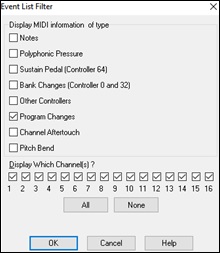
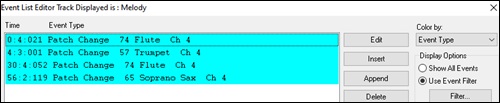
The track will then display with the program changes only.
Notation Window Editing
You can often get better results by using the Notation window to edit notes instead of the Event List window. To do this, open the Notation window in either Editable Notation or Staff Roll Notation mode. In both modes, notes can be dragged and dropped with the mouse.
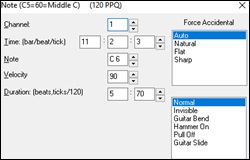
For precise note editing, right-click on the note you want to edit and choose “Edit Note” in the contextual menu. This opens the Note dialog, where all of the parameters of the note can be addressed.
Timeshift Track
Right-click on a track label in the Mixer or Tracks window, and select Edit MIDI | Quantize, Time Adjust | Timeshift Track (ticks) from the context menu. This moves (slides) the track a certain number of ticks. There are 120 ticks per quarter note. For example, to give the song a more laid-back feel, shift the track about 10 ticks ahead.
Insert/Delete Beats
You can insert or delete a specified number of beats in the MIDI track. For example, to insert 2 bars at bar 5, right-click on a track label in the Mixer or Tracks window, select Edit MIDI | Quantize, Time Adjust | Insert Beats at Bar…, select bar 5, and select 8 beats (2 bars) to insert.
More Editing Features
More MIDI editing features are available in the Edit MIDI submenu of the track label’s context menu. For example, you can transpose the track without affecting other tracks, eliminates note overlaps, copy MIDI data in the first chorus to all choruses, erase all MIDI data from the track, and more.
Piano Roll Window
The Piano Roll window enables precise graphic editing of note timing and duration. You can also graphically edit note velocity, controllers, program changes, channel aftertouch, or pitch bend..
 To open the Piano Roll window, click on the [Piano Roll] button on the side toolbar. Ctrl+clicking on this button opens it as a floating window, while Shift+clicking adds it as an embedded window.
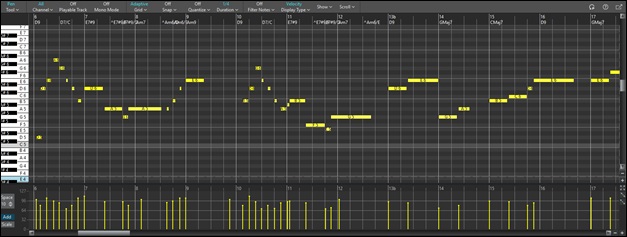
[Note: A demo song PianoRollDemoSong.MGU in the C:\bb\Documentaion\Tutorials\Tutorial – BB 2005 Demo folder contains some MIDI data which can be seen in the Piano Roll window. ]
Toolbar

Tool
Choose from different editing tool modes to optimize your workflow for different tasks. “Pen” is the default tool, streamlining the note entry for faster composition. The “Split” tool lets you divide a note into two at the click point. The “Right-Click” option lets you configure right-click behavior. By default, right-click dragging selects notes. You can also switch tools by hotkeys 1-6 (1 - Pen, 2 - Select, 3 - Move, 4 - Split, 5 - Erase, 6 - Velocity).
Channel
Choose which MIDI channel's events to display.
When "All" is selected, events on all channels in a multi-channel track are shown.
When "10" is selected, Note and Keyboard panels display the drum sound name associated with each key (e.g., "C5 (Kick)") alongside the standard note name, making drum programming more intuitive.
When a channel from 11 to 16 is selected, Note and Keyboard panels display guitar string and fret information (e.g., "C5 (2s/1f)" for second string, first fret) alongside the standard note name, enhancing guitar-oriented MIDI editing.
Playable Track
Enable or disable the Playable Track. When enabled, any note you enter will be heard during playback unlike RealCharts notes.
Mono Mode
When Mono mode is on, only one note plays at a time. This is ideal for creating melodic sequences and single-note lines without unintended chord overlaps.
Grid
Toggle the grid on/off, adjust the grid resolution to match your workflow, or apply swing or groove to the grid for non-straight timing feels.
Snap
Adjust snap behavior, including snap strength and toggle.
When the Snap mode is on, selections, inserted notes, or edited notes will align to the selected note value.
The hotkey (Shift+S) toggles the Snap mode on and off.
The "Strength" option (0-100%) lets you fine-tune how strongly notes adhere to the grid, enabling subtle timing shifts while still maintaining a loose rhythmic feel when desired.
Quantize
This provides quick quantize strength presets (0-100%) or opens the full Quantize dialog, which offers precise and flexible control over timing and musical alignment.
In the Quantize dialog, click on a quantize type button (Time, Scale, or Velocity) to enable or disable that quantize type.
- Time: Align note positions to the desired timing resolution.
- Scale: Adjust notes to a selected musical scale.
- Velocity: Normalize or modify velocity ranges.
Duration
Set the default duration of inserted notes. You can easily adjust individual note durations with the mouse, so typically you only need to choose a standard duration that fits your song.
Filter Notes
This lets you toggle note filtering on or off and provides advanced filtering options.
The Note Filter Settings dialog provides sophisticated note filtering capabilities.
- [Pitch Range]: Show or hide notes by pitch.
- [String Range]: Show notes within specific guitar string ranges.
- [Fret Range]: Show notes within specific fret ranges.
- [Position Range]: Filter notes by time range using the bar.beat.tick format.
- [Duration Range]: Display notes based on note length.
- [MIDI Channels]: Show or hide notes by channel, with convenient All/None buttons.
- [Velocity Range]: Filter by velocity ranges.
- [Invert Filters]: Swap visible and hidden notes instantly.
- Enable or disable each filter criterion independently by clicking on the filter button.
- Selection rectangle respects filters, with an option to select filtered notes.
Display Type
This determines which graphic data is displayed or edited in the Graphic Event panel. You can choose Velocity, Controller, Program Change, Channel Aftertouch, or Pitch Bend.
Show
This lets you select visual features including:
- Crosshairs: These are the faint dotted horizontal and vertical lines that follow the mouse as you move it in the Note panel.
- Middle C Indicator: A clear visual marker highlights Middle C (C5) for easy octave orientation.
- Ghost Notes: When viewing a single channel, notes on other channels are displayed, helping you follow multi-channel tracks.
- Velocity Shading: Notes are color-coded by velocity, with higher velocities appearing brighter and more saturated, and lower velocities appearing more subdued.
- Note Display: Choose what information appears on each note (note name, velocity, duration, etc.).
- Keyboard Note Names: Display MIDI note names on the piano keyboard for quick reference.
Scroll
The "Mouse Scroll" option allows you to enable or disable mouse wheel scrolling, giving you control over navigation behavior.
When the "Auto Vertical Scroll" option is enabled, the Piano Roll automatically scrolls vertically as you switch tracks to keep the average note range in view.
Reset Button
This restores all settings to their default values.
Help Button
This opens the help file for the Piano Roll window.
Floating/Docking Button
This toggles between floating and docking modes.
Ruler Panel

The Ruler panel displays bar numbers with a full-height vertical line for each bar and a shorter line for each beat, along with the chords in the song.
Click anywhere on the Ruler panel to move the cursor to that position
Double-click anywhere to start playback from that position.
A loop region area appears on the Ruler panel, providing intuitive loop management.
- The default (disabled) loop region spans bars 1-4.
- Click and drag to define a new loop region.
- Shift+click on the loop region to toggle looping on or off.
- Drag the left or right edge to adjust loop start/end points.
- Drag the loop region body to move it to a new position.
Cursor Location Info Panel

This panel shows the cursor's location in bar.beat.tick format, along with the corresponding MIDI note or controller value (depending on the cursor position).
Piano Keyboard Panel
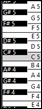
The piano keyboard displays MIDI note names for quick reference. This is enabled by default via the Keyboard Note Names option in the [Show] drop-down menu.
Clicking on a key inserts a note at the cursor with the duration set in the [Duration] drop-down menu.
Holding a key inserts a note at the cursor with a duration determined by how long you hold the key.
Shift+clicking on a key selects all notes of that pitch.
Shift+dragging across the keyboard selects all notes within a pitch range.
Note Panel
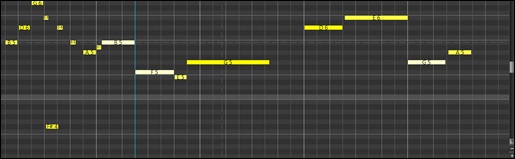
This panel displays two distinct full-height cursors: a green playback cursor that tracks the current playback position, and a blue position cursor that marks your edit/start position.
Faint dotted horizontal and vertical lines appear as you move mouse.
A clear visual marker highlights Middle C (C5) for easy octave orientation.
Zoom in vertically down to a single octave for detailed editing of specific pitch ranges, or zoom out to display all notes within the visible window height.
Zoom fully out horizontally to view your entire project at once, ideal for reviewing overall song structure and long-range patterns.
Horizontal bars represent notes. Notes can be selected, edited (start time, pitch, duration), inserted, and deleted.
Notes are color-coded by velocity, with higher velocities appearing brighter and more saturated, and lower velocities appearing more subdued.
When viewing a single channel, notes on other channels are displayed in while, helping you follow multi-channel tracks.
Notes display information such as note name, velocity, duration, etc. You can choose what information appears using the [Show] drop-down menu.
Note text automatically shortens when notes are too small to display full information, maintaining readability at all zoom levels.
Detailed tooltips appear when hovering over any note, showing pitch, velocity, duration, position, channel, and more. When hovering over empty space, the tooltip shows what note would be created at that location.
Overlapping notes are displayed in white for easy identification. They can be eliminated from the context menu.
Note Selection
Click on a note to select it. The selected note will be shown in red.
Shift+drag over notes to select multiple notes.
Shift+click on a note to add it to the selection.
Holding down the Shift key while pressing the left/right arrow selects the adjacent note to the left or right.
In the “Select” Tool mode, click on empty space and drag a rectangle around notes to select all notes within that rectangle.
The selection rectangle picks up all notes that overlap with the rectangle, not just those whose start positions fall within it, making multi-note selection more intuitive.
Adding Note
In the “Pen” Tool mode, click anywhere on the Note panel to enter a note with the duration set in the [Duration] drop-down menu.
Pressing the N key inserts a note at the cursor position using the last-entered pitch.
To add notes with custom durations, click and drag horizontally. Notes will extend as you drag, with real-time visual feedback.
Clicking on a key in the Piano Keyboard panel adds a note at the current cursor position.
If Snap mode is on, inserted notes will align to the selected note value.
Editing Note
Click and drag a note horizontally to adjust its start time.
The left/right arrow keys move the start time of the selected note by 1 grid resolution.
Click and drag a note vertically to adjust its pitch.
The up/down arrow keys move the selected note by one semitone.
Holding down the Shift key while pressing the up/down arrow keys moves the selected note up or down by one octave.
Click and drag from the right edge of a note to adjust its duration.
Click and drag from the left edge of a note to adjust its start time and duration simultaneously.
When moving a note with the arrow keys, note movement follows the current grid resolution, providing more predictable and musically aligned navigation.
By default, note movement is axis-locked—restricted to pitch or time—for precise editing. Hold the Shift key while dragging to remove the lock and move notes freely in both directions.
Select a note and press the Delete key to delete the note. Clicking on a note while holding down the Shift+Ctrl keys also deletes the note. If “Erase” is enabled in the [Tool] drop-down menu, clicking on a note deletes it.
Hold down the Ctrl key as you hover over a note. When the cursor changed to a “V” click and drag the note vertically to adjust its velocity.
The current velocity value is displayed in real time as you drag.
Hold down the Ctrl key while hovering over a note. When a specialized cursor (“V”) appears, click and drag the note vertically to adjust its velocity. The current velocity value is displayed in real time as you drag.
Graphic Event Panel

This panel displays non-note MIDI events such as Velocity, Controller, Program Change, Channel Aftertouch, and Pitch Bend. Use the [Display Type] drop-down menu to choose which type of data is shown.
When inserting controller or pitch bend events graphically, the event density can be adjusted from one event per tick up to one event per 30 ticks.
For events like Pitch Bend or Controller (e.g.,modulation or sustain), always end a “gesture” with a zero-value event. Otherwise, subsequent notes may be affected, causing unwanted effects such as a lingering pitch bend, continuous vibrato, or a stuck sustain pedal.
Velocity
You can increase or decrease velocities of the selected notes using hotkeys or the context menu.
| (Hotkey) | (Context menu) |
+ |
Increase Velocities of Selected Notes by 1. |
Shift + |
Increase Velocities of Selected Notes by 5. |
- |
Decrease Velocities of Selected Notes by 1. |
Shift - |
Decrease Velocities of Selected Notes by 5. |
~ |
Randomize Velocities of Selected Notes (-1 to +1). |
Shift ~ |
Randomize Velocities of Selected Notes (-5 to +5)). |
You can also adjust velocities directly on the Note panel. To do this, hold down the Ctrl key while hovering over a note, and when a specialized cursor (“V”) appears, click and drag the note vertically.
Controller

The Graphic Event panel displays the chosen controller type such as:
- Expression MSB: This is recognized by most modern synthesizers including most General MIDI synths. However, some older synths do not recognize this controller. Expression is an alternative to “7 Main Volume MSB.” Use the Expression controller for individual tracks and reserve the main Volume controller for overall track loudness. That way, you can use the Band-in-a-Box main window Volume controls without affecting individual notes on the track.
- Modulation Wheel MSB: is not firmly defined, but it is usually a Vibrato or Tremolo effect (especially in General MIDI synths). Play PianoRollDemoSong.MGU and watch how Modulation has been added to some notes to add Vibrato. It is usually best to use a modest amount. With graphic edits, too much is almost always too much!
Program Change

The demo song intro has a flute program change. Then the first chorus is trumpet, the second chorus is flute, and the third chorus is soprano sax.
Channel Aftertouch

Select "ChnAfter" in the [Display Type] drop-down menu to see Channel Aftertouch events.
Pitch Bend

Play the demo song and watch how the pitch bends have been inserted to "scoop" some note attacks, "sting" the middle of a note, or "fall off" some note releases.
Event Selection
Click on an event to select it. The selected event will be shown in red.
Shift+drag over events to select multiple events.
Shift+click on an event to add it to the selection.
Adding Events
Click on the desired location to insert a single event.
Use the Pencil or Line tool to add multiple events at once.
Pencil Tool: Hover the mouse cursor over an empty area to activate the Pencil tool. Then, click and drag to draw a freehand curve. If the curve isn’t perfect on the first try, keep holding the mouse button and move back and forth until it matches your desired shape. Releasing the mouse inserts a series of events following the freehand curve.

Line Tool: Hold down the Ctrl key while hovering the mouse cursor over an empty area to activate the Line tool. Then, click and drag to draw a straight line. Releasing the mouse inserts events along the line slope.

For both tools, the Space setting controls the spacing of inserted events. For example, setting it to 30 inserts events every 30 ticks.
Edit Modes
There are two modes for editing graphic events.
- The Add mode adds or subtracts the same amount to all selected events.
- The Scale mode scales the selected events. Select one or more Graphic Events and move the mouse over one of the events. Shift-drag vertically, and the events are scaled in a proportional fashion. Large-value events are scaled more than small-value events. This keeps the same shape of a gesture but makes the gesture bigger or smaller.
In the Add mode, note velocities exactly match the slope of your drawn line.
In the Scale mode, the Line Tool shapes the dynamics, but note velocities are scaled to follow the approximate shape of your drawn line. With this mode, you can insert a velocity fade, or change the velocity of a region, while preserving the Velocity dynamics of the music.
Editing Events
Click and drag an event up or down to change its value. If multiple events are selected, the values of all selected events will be changed.
Hold down the Shift key while clicking and dragging an event horizontally to slide it in time. If multiple events are selected, all selected events will move together.
Select an event and press the Delete key to delete the event. Clicking on an event while holding down Shift+Ctrl also deletes the event.
Right-Click Context Menu
Right-click in the Note, Graphic Events, or Ruler panel to access the context menu.
Undo: Duplicates the Band-in-a-Box Edit | Undo (or Ctrl+Z) action.
Delete Selected Events: Deletes any selected events (highlighted in red). This can also be accomplished by tapping the Delete key.
Select All Notes and Graphic Events: If the “Chan” combo box is set to “All,” this item will select ALL EVENTS on ALL CHANNELS (all events in the track). Otherwise, ALL EVENTS are selected which match the CURRENT MIDI CHANNEL.
Select All Note Events (Of Current Channel): If the Chan combo box is set to “All,” this item will select ALL NOTES on ALL CHANNELS, but it will not select any non-note events. Otherwise, ALL NOTES are selected which match the CURRENT MIDI CHANNEL.
Select All Note Events (Of Current Channel): If the “Chan” combo box is set to “All,” this item will select ALL GRAPHIC EVENTS of the CURRENT VIEW/EDIT TYPE on ALL CHANNELS. Otherwise, ALL GRAPHIC EVENTS of the CURRENT VIEW/EDIT TYPE are selected which match the CURRENT MIDI CHANNEL. For instance, you could select all channel 4 modulation events, then Delete, to easily remove all of those events from the track.
Cut: Copy selected events to the clipboard and then remove them from the track. Can also be accomplished with the menu Edit | Cut (or Ctrl+X) action. If you wish, it is possible to cut from the Piano Roll, and then paste into the Notation window, or vice-versa.
Copy: Copy selected events to the clipboard can also be accomplished with the menu Edit | Copy (or Ctrl+C) action. If you wish, it is possible to copy from the Piano Roll, and then paste into the Notation window, or vice-versa.
Paste - Replace: If no events are on the clipboard, this item is dimmed. The paste occurs at the time location of your right-click. Move the mouse cursor to the desired insert location. Right-click on the Note Panel, Graphic Event Panel, or any of the Rulers. Then choose this item from the pop-up menu. Any previous event types in the paste range which match event types in the clipboard are removed before the clipboard data is added to the track. If the “Chan” combo box is set to All, pasted events keep their original (copied) MIDI channel. Otherwise, the pasted events will be re-channeled to match the “Chan” combo box.
Paste - Merge: If no events are on the clipboard, this item is dimmed. The paste occurs at the time location of your right-click. Move the mouse cursor to the desired insert location. Right-click on the Note Panel, Graphic Event Panel, or any of the Rulers. Then choose this item from the pop-up menu. Events from the clipboard are merged with existing data in the track. If the “Chan” combo box is set to All, pasted events keep their original (copied) MIDI channel. Otherwise, the pasted events will be re-channeled to match the “Chan” combo box. The feature can also be accomplished with the menu Edit | Paste (or Ctrl+V) action (to match the Notation window, which also uses a merge style of pasting). Before using the main menu Edit | Paste (or Ctrl+V), first make sure the insertion marker is set to your desired paste time location. This is easy to do. Just click or drag in the Chord Ruler to place the insertion marker where you want it. Then tap Ctrl+V.
Re-Channel All Events to the Track Channel (Ch = xx): Re-channel all notes and graphic events (the entire track) to the MIDI Output channel assigned for this track. Sometimes this can come in handy to bring some “sanity” into Piano Roll editing. For instance, though the default Melody output channel might be channel 4, meaning that Band-in-a-Box transmits any events in the Melody track on channel 4. The actual events in the Melody track might be channel 1, or a mixture of several channels. For ordinary playback or note tweaking, it doesn’t matter if the event channels are “mixed up,” as long as you have the view channel set to All. But if you wish to use Paste - Replace, the Paste - Replace function is smart enough not to “stomp on” a track’s events that differ from the channels of the clipboard MIDI data. So if you force all events to the track channel, the Paste - Replace function will always replace appropriately.
Re-Channel Selected Events to the Track Channel (Ch = xx): Re-channel only the selected events to the track channel.
Re-Channel Selected Events to the View Channel: When editing a multi-channel guitar track or editing an imported multi-channel MIDI file, this command may be useful. Beware that it might initially appear confusing.or instance, one might set the view channel to ALL, and make a selection (intending to set these events to Ch 12). Then set the view channel to 12, and of course the selected events disappear (if the events had some other MIDI Channel). But then when you invoke “Re-Channel Selected Events to the View Channel,” the MIDI events will reappear on the Piano Roll.
Eliminate Overlapped Notes: Overlapped notes are displayed in bold aqua color, making them easy to identify. Selecting this menu command will remove the overlap.
Create Mute Region to mute generated accompaniment: This menu item is available in the Playable Tracks mode. When you select this, a green label will show at the top, and you can extend it by dragging horizontally. When you play the song, the generated accompaniment in this region won’t be heard, but the green notes you have entered will be heard. If you regenerate accompaniment, it will be outside of this is region.
Increase Velocities of Selected Notes by 1: This increases velocities of all selected notes by 1. The hotkey is + (plus).
Increase Velocities of Selected Notes by 5. This increases velocities of all selected notes by 5. The hotkey is Shift++.
Decrease Velocities of Selected Notes by 1: This decreases velocities of all selected notes by 1. The hotkey is – (minus).
Decrease Velocities of Selected Notes by 5: This decreases velocities of all selected notes by 5. This The hotkey is Shift+-.
Randomize Velocities of Selected Notes (-1 to +1): This changes velocities of all selected notes by a random number from -1 to +1. The hotkey is ~ (tilde).
Randomize Velocities of Selected Notes (-5 to +5): This changes velocities of all selected notes by a random number from -5 to +5. The hotkey is Shift+~.
Unconditional 30-Day Money Back Guarantee on all PG Music products purchased from PG Music Inc.
PG Music Inc.
29 Cadillac Ave Victoria BC Canada V8Z 1T3
Sales: 800-268-6272, 250-475-2874,+ 800-4746-8742*
* Outside USA & Canada where International Freephone service is available.
Access Codes
Tech Support: Live Chat, support@pgmusic.com
 Online now
Need Help?
Customer Sales & Support
|
Phones (Pacific Time) 1-800-268-6272 1-250-475-2874 |
||
| Live Chat | ||
| OPEN | Online Ordering 24/7 |
|
| OPEN | Forums, email, web support |