
Search Manual
Band-in-a-Box® 2026 for Windows® User's Guide
Chapter 3: Band-in-a-Box 2026
Introduction
Band-in-a-Box 2026 for Windows® is here!
We’ve been busy and added many new features and an amazing collection of new content, including 202 RealTracks, new RealStyles, MIDI SuperTracks, Instrumental Studies, “Songs with Vocals” Artist Performance Sets, Playable RealTracks Set 5, two new sets of RealDrums Stems, XPro Styles PAK 11, XPro Styles PAK 10, Xtra Styles PAK 22, Xtra Styles PAK 21, and more!
We have a 2026 49-PAK with 20 BONUS RealTracks in addition to the 202 new RealTracks, so in total an amazing 222 new RealTracks and RealDrums are available! There are over 50 new “Playable RealTracks” Hi-Q sounds in this year’s Playable RealTracks Set 5, which match many of our RealTracks so you can easily switch from RealTracks and RealDrums parts to MIDI notes while maintaining the instrument sound! Every sound also has an accompanying audio demo. The 2026 49-PAK also includes 2 new Artist Performance Sets that contain 20 original songs with lead and backing vocals! There are Instrumental Studies Sets including “Groovin’ Blues Soloing” and “Soul Jazz Guitar Soloing,” providing deep-dive study material in two exciting genres. There are also two new RealDrums Stems Sets, which allow you to access the individual wave files from each different mic used to record many of our RealDrums! And there are two new MIDI SuperTracks Sets, including styles designed to work with the amazing SynthMaster plugin!
In addition, there are over 50 new RealStyles that use the new RealTracks & RealDrums. These include more requested “Soul Jazz” RealTracks (10) featuring artists Neil Swainson (bass), Charles Treadway (organ), Brent Mason (guitar), and Wes Little (drums). There are new “Smooth Jazz” styles (4), which include a RealTracks first: muted trumpet, as well as slick new Smooth Jazz brushes options for drums. Blues lovers will be thrilled—there are more “classic acoustic blues” guitar (5), bass (4) and drums (10) styles with blues master Colin Linden, featuring understated and tasty “background soloing” acoustic guitar styles, plus brushes drums and acoustic bass. There are also new electric blues RealTracks including electric blues with PG favorite Johnny Hiland (3) and soulful electric slide guitar from Colin Linden (4). If you love Funk & Gospel, there are great new options this year, including Gospel organ (3) from Charles Treadway, as well as new funk, tango and rock ‘n’ roll drums (3) and bass (1). There are exciting uptempo soul horns (4) featuring a three-part Hip Horn Section style, with options for a full mix or stems for each individual horn! These also come with an accompanying rhythm section (4) of drums, bass, guitar, and electric piano.
In the rock & pop vein, we have more of our requested “Producer Layered Acoustic Guitars” (15) featuring Band-in-a-Box favorite Brent Mason. We’ve continued our requested Disco styles (10). We’ve also added requested Celtic guitar (5) with a more basic, accessible approach than our previous Drop-D or DADGAD styles. There are also requested Yacht Rock styles (17), inspired by the smooth, polished soft-rock sound of the late ‘70s and early ‘80s—laid-back grooves, silky electric pianos, rich vocal-friendly arrangements, and pristine production aesthetics. We have new Glam Metal (13), capturing the flashy, high-energy sound of ‘80s arena-ready guitar rock. There is also a set of Rootsy Modern Folk Rock (18), with a warm, organic sound combining contemporary folk textures and driving acoustic strumming. And we’ve had lots of requests for more modern pop styles (16). These are the kinds of styles you’re hearing on the radio today, with exciting new drums and synth RealTracks.
In the country and Americana vein, we have new Country Pop with legendary guitarist Brent Mason (9). There is a “potpourri” (14) of bouzouki, guitar, banjo, and more. We have Funky Country Guitar (5), also with PG favorite Brent Mason. There are classic pedal steel styles (5) with steel great Doug Jernigan. There are more “Country Songwriter” styles (8). And we’ve added “background soloing” acoustic guitar with Brent Mason (12), which are simpler—but still VERY tasty—acoustic guitar lines that work great backing vocalists or used as a standalone solo!
Band-in-a-Box 2026 Features and Additions
There are many major new features in Band-in-a-Box 2026 for Windows. The program now features a sleek, modern GUI redesign across all areas, including toolbars, windows, and workflow. A new side toolbar provides quick access to track selection, the MultiPicker Library, and other key windows. The Multi-View feature allows multiple windows and elements to be displayed as layered panels without overlap, creating a highly flexible workspace. Many windows—including Tracks, Piano Roll, and more—have been redesigned for improved usability and a cleaner, more intuitive interface.
We have an amazing new “AI-Notes” feature. This transcribes polyphonic audio to MIDI, so it can be viewed in notation or played as MIDI. It can transcribe the entire file (all pitched instruments) and all drums. Or it can transcribe individual instruments within the audio (drums, bass, guitars/piano, vocals). This uses an AI neural net to produce results that are accurate and sound very musical when played. Simply choose an audio file (mp3, .m4a, .wav etc.) of your favorite band/pop song and then choose the instrument(s) that you want to transcribe and destination track(s) for MIDI. You can get transcriptions of the instruments (bass, drums, guitars/pianos, vocals), which you can play standalone or along with the audio of the song. This is a great way to learn new songs, as you can watch the parts play on piano keyboard or guitar fretboard. Use this along with the “AI-Stems” feature, and you can also split the original audio into separate tracks.
And much more… over 60 new features in Band-in-a-Box 2026 for Windows!
The latest version of the Band-in-a-Box DAW Plugin continues to deliver seamless integration with all major DAWs. Enjoy seamless sync with your DAW—such as Presonus Studio One or Pro Tools—with full support for floating-point tempo changes, making it easy to switch styles and keep your workflow moving, and more!
Band-in-a-Box for Android is included with the installer. The file bb-android-96.apk is placed in your bb\Android folder. You can copy this file to any Android device to install the app. If you don’t have an Android device, you can still run the app on your PC using an emulator called BlueStacks, which you can download for free. Download the Android 11 version of BlueStacks, install it, and then drag the .apk file onto the BlueStacks window to run it.
Additional New Contents Available for Band-in-a-Box
In addition to the 202 New RealTracks, we have more new content available for Band-in-a-Box 2026.
- Bonus Unreleased RealTracks/RealDrums (20) with 20 RealStyles - Included in the 2026 49-PAK
- 29 MIDI SuperTracks
MIDI SuperTracks Set 46: Piano and Organ (7 MIDI SuperTracks) - Included in the 2026 Free Bonus PAK
MIDI SuperTracks Set 47: More SynthMaster (22 MIDI SuperTracks) - Included in the 2026 49-PAK
- 25 All-MIDI Styles
MIDI Styles Set 92: Look Ma! More MIDI 15: Latin Jazz (15 Styles) - Included in the 2026 Free Bonus PAK
MIDI Styles Set 93: Look Ma! More MIDI 16: SynthMaster (10 Styles) - Included in the 2026 49-PAK
- 14 Instrumental Studies
Instrumental Studies Set 24: Groovin’ Blues Soloing (6 Instrumental Studies) - Included in the 2026 Free Bonus PAK
Instrumental Studies Set 25: Soul Jazz Guitar Soloing (8 Instrumental Studies) - Included in the 2026 49-PAK
- 24 Artist Performances
Artist Performance Set 19: Songs with Vocals Volume 9 (12 songs) - Included in the 2026 Free Bonus PAK
Artist Performance Set 20: Songs with Vocals Volume 10 (12 songs) - Included in the 2026 49-PAK
- 20 RealDrums Stems
RealDrums Stems Set 9: Cool Brushes (10 RealDrum Stems) - Included in the 2026 Free Bonus PAK
RealDrums Stems Set 10: Groovin’ Sticks (10 RealDrum Stems) - Included in the 2026 49-PAK
- Over 50 Playable RealTracks
Playable RealTracks Set 5 (over 50 new sounds with audio demos) - Included in the 2026 Free Bonus PAK
- SynthMaster Sounds Set 1 (12 sounds with demos) - Included in the 2026 Free Bonus PAK
- SynthMaster Sounds & Styles Set 2 (15 sounds and styles with audio demos) - Included in the 2026 49-PAK
- RealCombos Booster PAK for 2026 - Included in the 2026 Free Bonus PAK
- XPro Styles PAK 11 - 100 new RealStyles - Available separately
- XPro Styles PAK 10 - 100 new RealStyles - Available separately
- Xtra Styles PAK 22 - 200 new RealStyles - Available separately
- Xtra Styles PAK 21 - 200 new RealStyles - Available separately
- Android Band-in-a-Box app (included), iOS Band-in-a-Box app access (via App Store) - Included in the 2026 Free Bonus PAK
202 NEW RealTracks
Band-in-a-Box 2026 presents an exceptional array of RealTracks and RealDrums! These include more requested “Soul Jazz” RealTracks (10) featuring artists Neil Swainson (bass), Charles Treadway (organ), Brent Mason (guitar), and Wes Little (drums). There are new “smooth jazz” styles (4), which include a RealTracks first: muted trumpet, as well as slick new smooth jazz brushes options for drums. Blues lovers will be thrilled—there are more “classic acoustic blues” guitar (5), bass (4) and drums (10) styles with blues master Colin Linden, featuring understated and tasty “background soloing” acoustic guitar styles, plus brushes drums and acoustic bass. There are also new electric blues RealTracks including electric blues with PG favorite Johnny Hiland (3) and soulful electric slide guitar from Colin Linden (4). If you love Funk & Gospel, there are great new options this year, including gospel organ (3) from Charles Treadway, as well as new funk, tango and rock 'n' roll drums (3) and bass (1). There are exciting uptempo soul horns (4) featuring a three-part hip horn section style, with options for a full mix or stems for each individual horn! These also come with an accompanying rhythm section (4) of drums, bass, guitar, and electric piano.
In the rock & pop vein, we have more of our requested “producer layered acoustic guitars” (15) featuring Band-in-a-Box favorite Brent Mason. We’ve continued our requested Disco styles (10). We’ve also added requested Celtic guitar (5) with a more basic, accessible approach than our previous Drop-D or DADGAD styles. There are also requested yacht rock styles (17), inspired by the smooth, polished soft-rock sound of the late ’70s and early ’80s—laid-back grooves, silky electric pianos, rich vocal-friendly arrangements, and pristine production aesthetics. We have new glam metal (13), capturing the flashy, high-energy sound of ’80s arena-ready guitar rock. There is also a set of rootsy modern-folk rock (18), with a warm, organic sound combining contemporary folk textures and driving acoustic strumming. And we’ve had lots of requests for more modern pop styles (16). These are the kinds of styles you're hearing on the radio today, with exciting new drums and synth RealTracks.
In the country and Americana vein, we have new country pop with legendary guitarist Brent Mason (9). There is a “potpourri” (14) of bouzouki, guitar, banjo, and more. We have funky country guitar (5), also with PG favorite Brent Mason. There are classic pedal steel styles (5) with steel great Doug Jernigan. There are more “country songwriter” styles (8). And we’ve added “background soloing” acoustic guitar with Brent Mason (12), which are simpler—but still VERY tasty—acoustic guitar lines that work great backing vocalists or used as a standalone solo!
- 55 Jazz, Funk & Blues RealTracks (Sets 468-475): Our new jazz, funk & blues RealTracks include a groovin’ collection of RealTracks and RealDrums! These include more requested “soul jazz” RealTracks (10) featuring artists Neil Swainson (bass), Charles Treadway (organ), Brent Mason (guitar), and Wes Little (drums). There are new “smooth jazz” styles (4), which include a RealTracks first: muted trumpet, as well as slick new smooth jazz brushes options for drums. Blues lovers will be thrilled—there are more “classic acoustic blues” styles, including guitar (5), bass (4), and drums (10) with blues master Colin Linden, featuring understated and tasty background acoustic soloing, plus brushes drums and acoustic bass. There are also new electric blues RealTracks, including electric blues with PG favorite Johnny Hiland (3) and soulful electric slide guitar from Colin Linden (4). If you love funk & gospel, there are great new options this year, including gospel organ (3) from Charles Treadway, as well as new funk, tango, and rock ‘n’ roll drums (3) and bass (1). And for big, bold arrangements, we have uptempo soul horns (4) featuring a three-part hip horn section with options for a full mix or stems of each individual horn — plus an accompanying rhythm section (4) of drums, bass, guitar, and electric piano.
- 94 Rock & Pop RealTracks (Sets 476–482): Our new rock & pop RealTracks bring a powerful mix of requested favorites, fresh genres, and modern chart-inspired styles! We have more of our popular “Producer Layered Acoustic Guitars (15)” featuring Band-in-a-Box favorite Brent Mason. We’ve continued our much-requested disco styles (10), and added new Celtic guitar (5) with a more basic, accessible approach than our previous Drop-D or DADGAD offerings. There are also highly requested yacht rock styles (17), inspired by the smooth, polished soft-rock sound of the late ‘70s and early ‘80s — laid-back grooves, silky electric pianos, warm textures, elegant harmonic movement, and pristine production aesthetics. Fans of heavier styles will love our new glam metal (13), capturing the flashy, high-energy sound of ‘80s arena-ready guitar rock. We also have a set of rootsy modern-folk rock (18), with a warm, organic sound combining contemporary folk textures and driving acoustic strumming. And we’ve added lots of new modern pop styles (16) — the kinds of sounds you’re hearing on the radio today, featuring exciting new drums, synths, and cutting-edge RealTracks arrangements.
- 53 Country & Americana RealTracks (Sets 483–488): Our new country & Americana RealTracks deliver a rich collection of acoustic, electric, and roots-inspired styles! We have new country pop (9) with legendary guitarist Brent Mason. There is also a potpourri (14) of bouzouki, guitars, banjo, and more, perfect for adding texture and character to contemporary acoustic arrangements. We’ve added funky country guitar (5) with PG favorite Brent Mason, along with classic pedal steel styles (5) featuring steel great Doug Jernigan. There are more country songwriter styles (8) that provide intimate, rootsy foundations for storytelling and modern Americana writing. Finally, we have “background soloing” acoustic guitar (12) with Brent Mason — simpler, but still very tasty acoustic lines designed to sit beautifully behind vocals or act as a subtle standalone solo part.
Bonus Unreleased RealTracks/RealDrums (20) with 20 RealStyles
The 2026 49-PAK includes an impressive collection of 20 bonus RealTracks, featuring exciting additions to add to your RealTracks library. We have exciting country-rhythm guitar styles from PG Music favorites Johnny Hiland and Brent Mason. We also have more exciting modern-pop styles, giving you that modern radio sound! We also have indie-folk styles, with guitar, bass, 6-string bass used as a high-chording instrument, with acoustic guitar and banjo. And we also have some dedicated "cymbal fills" RealDrums, which can be used as an added layer, and work very well with low-key folky styles with other percussion.
MIDI SuperTracks Set 46: Piano and Organ
MIDI SuperTracks Set 46 features a potpourri of piano and organ styles ranging from songwriters ballads, to uptempo soul and lively soul jazz.
MIDI SuperTracks Set 47: More SynthMaster
This MIDI SuperTracks Set is expertly crafted to showcase the award-winning SynthMaster Player Synth by KV331 Audio, included with Band-in-a-Box 2026. Featuring a selection of synth pads, bass synths, and more, this collection is perfect for enhancing your tracks in genres like ambient, trance, hip-hop, synthwave, and more!
MIDI Styles Set 92 Look Ma! More MIDI 15: Latin Jazz
This collection of MIDI styles is bursting with the rhythms, colors, and energy of Latin genres from across the Americas! This diverse set spans everything from Afro-Cuban grooves to the smooth bossa nova, the sultry tango, and the lively cumbia. Inside, you’ll find MIDI and MIDI SuperTracks featuring nylon guitars, upright bass, dynamic percussion, string sections, brass and sax ensembles, and energetic drum grooves. With its rich collection of Latin styles—including Afro-Cuban, salsa, mambo, samba fusion, tango, bolero, montuno, cumbia, and bossa nova— Look Ma! More MIDI 15: Latin Jazz gives you everything you need to bring your Latin-inspired tracks to life.
MIDI Styles Set 93 Look Ma! More MIDI 16: SynthMaster
MIDI Styles Set 93: Look Ma! More MIDI 16: SynthMaster delivers a new collection of MIDI and MIDI SuperTracks synth styles is crafted specifically for the SynthMaster plugin, delivering a wide range of genres including electronica, jazztronica, chiptune, jungle, ambient, techno, and more!
Instrumental Studies Set 24: Groovin’ Blues Soloing
Instrumental Studies 24 – Groovin’ Blues Soloing showcases exceptional electric guitar performances across slow blues (both even and swing) and jump blues styles. These studies demonstrate how each phrase fits naturally over classic 12-bar blues progressions in both major and minor keys. You can slow them down allowing you to focus in on specific elements before bringing everything together. This collection is ideal for developing your soloing technique and improvisation skills over essential blues changes.
Instrumental Studies Set 25: Soul Jazz Guitar Soloing
Instrumental Studies 25 - Soul Jazz Guitar Soloing features eight standout electric-guitar solos from fast funk to laid-back grooves and smooth, mellow jazz. These studies demonstrate how each solo fits naturally over classic blues and soul-jazz progressions in both major and minor keys. It’s a great way to build your soloing technique and sharpen your improvisation over classic blues progressions.
Artist Performance Set 19: Songs with Vocals Volume 9
Artist Performance Set 19 - Songs with Vocals Volume 9 showcases a wide variety of styles, from reggaeton and rumba to country, smooth jazz, new age, soul grooves, New Orleans boom-chicka, and more. Enjoy these tracks as they are, or explore new creative directions by remixing them into your own styles and genres.
Artist Performance Set 20: Songs with Vocals Volume 10
This collection of 12 brand-new vocal songs spans an eclectic mix of styles, including country, rumba, synth-pop, indie-pop, gospel, folk, funk, and more. Whether you listen to them as complete productions or use them as a starting point for creative remixes, these tracks offer plenty of inspiration across a wide range of genres.
RealDrums Stems Set 9
There’s nothing like the sweet sound of brushes on a drum kit, and RealDrums Stems Set 9 gives you full control over the sound with stems for 10 brushes RealDrums. These range from folk-inspired 16ths grooves, to sophisticated funky jazz styles as well as down-n-dirty blues.
The “RealDrums Stems” feature allows you to select a RealDrum and when generated, it not only generates the standard drum mix, but also generates the same drum part, but with separate tracks for each microphone used in the recording session. This means that, instead of just a drum stereo mix, you receive distinct tracks for elements like the kick drum’s dual-mic setup, the hi-hat microphone, room mics, etc. This provides you with the flexibility to mix the drums yourself, allowing you to achieve your own distinctive sound for the drum kit!
RealDrums Stems Set 10
Get ready to rock out with this new collection of RealDrums stems. This features 5 “yacht rock” drum grooves with that slick muted snare tone. It also let’s you go crazy with some hair metal styles, and we also throw in a modern-soul groove!
The “RealDrums Stems” feature allows you to select a RealDrum and when generated, it not only generates the standard drum mix, but also generates the same drum part, but with separate tracks for each microphone used in the recording session. This means that, instead of just a drum stereo mix, you receive distinct tracks for elements like the kick drum’s dual-mic setup, the hi-hat microphone, room mics, etc. This provides you with the flexibility to mix the drums yourself, allowing you to achieve your own distinctive sound for the drum kit!
Playable RealTracks Set 5
This 5th installment adds over 50 more Playable RealTracks, paired with clickable audio demos so you can easily preview these great new sounds at your fingertips!
These Playable RealTracks Hi-Q sounds match many of our RealTracks, so you can easily switch from RealTracks parts to MIDI notes while maintaining the instrument sound! Customize the RealTracks performance by adding your own notes. You will then hear those notes using a MIDI sound created from the RealTracks recording. This means you can get the RealTracks to play the notes you want at key parts of the performance, either augmenting or replacing what the RealTracks is playing, for any sections in the song.
SynthMaster Sounds Set 1
With Band-in-a-Box version 2026 we’ve added 12 more SynthMaster sounds with audio demos. With version 2023 we started including the award-winning SynthMaster Player Synth by KV331 Audio. This has thousands of presets that are especially useful for modern, techno and arpeggiator sounds. SynthMaster support is built into Band-in-a-Box so you can easily choose thousands of SynthMaster sounds or use the “Load Hi-Q patch” dialog to choose from presets made by PG Music.
SynthMaster Sounds & Styles Set 2
With Band-in-a-Box version 2026 we’ve added 12 more SynthMaster sounds and styles, with audio demos. With version 2023 we started including the award-winning SynthMaster Player Synth by KV331 Audio. This has thousands of presets that are especially useful for modern, techno and arpeggiator sounds. SynthMaster support is built into Band-in-a-Box so you can easily choose thousands of SynthMaster sounds or use the “Load Hi-Q patch” dialog to choose from presets made by PG Music. Styles can be made to play with SynthMaster sounds without any need to load it.
RealCombos 2026 Booster PAK
This collection brings together a selection of acoustic and electric instruments, giving you everything from Americana 16th-note bass lines and smooth pop-waltz grooves to energetic merengue rhythms. Together, these tracks deliver a versatile toolkit for crafting your own songs!
For Pro customers, this includes 27 new RealTracks and 23 new RealStyles.
For MegaPAK customers, this includes 25 new RealTracks and 23 new RealStyles.
For UltraPAK customers, this includes 12 new RealStyles.
XPro Style PAK 11 (Released August 2026)
Guess who's back again? That's right! It's our XPro Styles PAK's triumphant return with the 11th edition in this series! 100 new styles are coming your way spread across the rock & pop, jazz, and country genres. And this edition's wildcard genre explores the immense and far-reaching catalogue of electronic music! The included 31 RealTracks and RealDrums can be used with any Band-in-a-Box® 2026 (and higher) package.
XPro Style PAK 10 (Released December 2025)
Few things are certain in life: death, taxes, and a brand spankin’ new XPro Styles PAK! In this, the 10th edition of our XPro Styles PAK series, we’ve got 100 styles coming your way! We have the classic 25 styles each from the rock & pop, jazz, and country genres, and rounding out this volume’s wildcard slot is 25 styles in the Praise & Worship genre! A wide spanning genre, you can find everything from rock, folk, country, and more underneath its umbrella. The included 28 RealTracks and RealDrums can be used with any Band-in-a-Box 2025 (and higher) package. Here’s just a small sampling of what you can look forward to in XPro Styles PAK 10: Soft indie folk worship songs, bumpin’ country boogies, gospel praise breaks, hard rockin’ pop, funky disco grooves, smooth Latin jazz pop, bossa nova fusion, western swing, alternative hip-hop, cool country funk, and much more!
Xtra Styles PAK 22 (Released August 2026)
It's time to celebrate! Xtra Styles PAK 22 for Band-in-a-Box® is here, and we've got 200 brand-new styles coming your way! No Xtra Styles PAK is complete without the classic rock & pop, jazz, and country volumes you know and love, and we've got plenty to share, with 150 styles spread across too many genres to list! Of course, it also wouldn't be complete with our special wildcard volume to add a little spice and pizzazz to the mix. This year, because we loved it so much the first time, we've decided to make the second iteration of our SynthMaster volume, full of new sounds, interesting genres, and 50 engaging styles, all making use of the diverse SynthMaster plugin! Here you can find genres such as airy yacht rock, sultry electrotango, and even some synth soca funk. Don't wait, pick up Xtra Styles PAK 22 today!
In this PAK you can find: dulcet folk ballads, funky gospel country, Brazilian jazz fusion, upbeat 1980s pop, classic Americana, a plethora of breezy bossa novas, indie singer-songwriter, scintillating synthwave, exuberant electronica, and many, many more!
- Rock & Pop 22: Comin' in hot in just for you, it's Rock & Pop 22! A stalwart in our Xtra Styles lineup, this year Xtra Styles PAK 22: Rock & Pop 22 continues to offer a wide array of styles within the already vast and encompassing rock and pop genres. Here's a small taste of what you can find inside: post-punk revivals, vibrant 70s rock, pompous modern pop, hard-hitting rock 'n' roll, folk-inspired pop rock, moody indie pop, and dirty grunge. As always, too many styles to find and enjoy, and not enough time to enjoy them all! Time to pare down the list, pick up Xtra Styles PAK 22: Rock & Pop 22 today!
- Jazz 22: Cooler than a cat in a freezer, Xtra Styles PAK 22: Jazz 22 is here to proffer swingin' grooves and cool licks for your listening pleasure. In this volume you can find: lounge tango, smooth jazz, soul jazz funk, jump blues, laid-back world grooves, and much more. It's time to relax and chill out, pick up Xtra Styles PAK 22: Jazz 22 today!
- Country 22: Yeehaw! Galloping your way is Xtra Styles PAK 22: Country 22, driving forward a bounty of delightful styles for your listening enjoyment and creative endeavors! Here you'll find somber country ballads, classic country waltzes, dreamy country pop, Americana, driving folk rock, and chugging train grooves. There's something for everyone! It's time to grab hold of the reigns see all that Xtra Styles PAK 22: Country 22 has to offer!
- SynthMaster 2: Comin' in hot in just for you, it's Rock & Pop 22! A stalwart in our Xtra Styles lineup, this year Xtra Styles PAK 22: Rock & Pop 22 continues to offer a wide array of styles within the already vast and encompassing rock and pop genres. Here's a small taste of what you can find inside: post-punk revivals, vibrant 70s rock, pompous modern pop, hard-hitting rock 'n' roll, folk-inspired pop rock, moody indie pop, and dirty grunge. As always, too many styles to find and enjoy, and not enough time to enjoy them all! Time to pare down the list, pick up Xtra Styles PAK 22: Rock & Pop 22 today!
Xtra Styles PAK 21 (Released December 2025)
Rejoice, one and all, for Xtra Styles PAK 21 for Band-in-a-Box® is here! We’re serving up 200 brand spankin’ new styles to delight your musical taste buds! The first three courses are the classics you’ve come to know and love, including offerings from the rock & pop, jazz, and country genres, but, not to be outdone, this year’s fourth course is bro country! A wide-ranging genre, you can find everything from hip-hop, uptempo outlaw country, hard hitting rock, funk, and even electronica, all with that familiar bro country flair. The dinner bell has been rung, pick up Xtra Styles PAK 21 today.
In this PAK you’ll discover: Energetic folk rock, raucous train beats, fast country boogies, acid jazz grooves, laid-back funky jams, a bevy of breezy jazz waltzes, calm electro funk, indie synth pop, industrial synth metal, and more bro country than could possibly fit in the back of a pickup truck!
- Rock & Pop 21: Rock & Pop 21 is here and packed with delightful goodies for you to explore! In this volume you can find driving prog rock, calm electro funk, sludgy grunge, folky cinematic western, alternative hip-hop, reggaeton, soul and R&B slow jams, heavy metal, and much, much more.
- Jazz 21: Jazz 21 is here to step into the spotlight and dazzle and delight your ears with a bounty of musical treasures! Styles you can find in this volume include: modern jazztronica, smooth funky fusion, uptempo dixieland, soulful boogaloos, Latin jazz jams, sultry jazz noir, and a whole ton more! Pick up Xtra Styles PAK 21: Jazz 21 today!
- Country 21: Howdy folks, Xtra Styles PAK 21 is pulling in to the station right on time, and it just so happens to be carrying a wagonload of country styles for your listening enjoyment! In the 21st iteration of this volume, you can find: energetic folk rock, indie country blues, Celtic bluegrass, moody Americana, raucous train beats, country boogies, and a multitude of waltzes across many styles! There’s something for everyone, so pick up Xtra Styles PAK 21: Country 21 today!
- Bro Country 1: Hip-hop. Hard Rock. Electronica. These were the ingredients chosen to create the perfect country genre, encapsulating the entire history of country music while breathing new life into the style. But then, three more ingredients were added to the mix: blue jeans, boots, and pickup trucks. Thus, bro country was born… yee haw! In Xtra Styles PAK 21: bro country 1 you can find: funky jams, rootsy folk, hard rock, pop ballads, electronic beats, and more! All of these genres are equally at home under the bro country umbrella. Pick up Xtra Styles PAK 21: Bro Country 1 today!
Xtra Styles PAK 20 (Released July 2025) - 200 RealStyles for Jazz, Rock-Pop, Country, and Electronic
Xtra Styles PAK 19 (Released December 2024) - 200 RealStyles for Jazz, Rock-Pop, Country, and Blues
Xtra Styles PAK 18 (Released August 2024) - 200 RealStyles for Jazz, Rock-Pop, Country, and SynthMaster
Xtra Styles PAK 17 (Released December 2023) - 200 RealStyles for Jazz, Rock-Pop, Country, and World
Xtra Styles PAK 16 (Released June 2023) - 200 RealStyles for Jazz, Rock-Pop, Country, and Praise & Worship
Xtra Styles PAK 15 (Released December 2022) - 60 RealStyles and 85 Styles for Jazz, Rock-Pop, Country, and MultiStyles
Xtra Styles PAK 14 (Released December 2022) - 140 RealStyles for Jazz, Rock-Pop, Country, and Pop 1
Xtra Styles PAK 13 (Released June 2022) - 200 RealStyles for Jazz, Rock-Pop, Country, and Singer/Songwriter
Xtra Styles PAK 12 (Released December 2021) - 200 RealStyles for Jazz, Rock-Pop, Country, and Blues
Xtra Styles PAK 11 (Released May 2021) - 200 RealStyles for Jazz, Rock-Pop, Country, and Half & Double-Time
Xtra Styles PAK 10 (Released December 2020) - 200 RealStyles for Jazz, Rock-Pop, Country, and Folk Celebration
Xtra Styles PAK 9 (Released May 2020) - 200 RealStyles for Jazz, Rock-Pop, Country, and Folk
Xtra Styles PAK 8 (Released December 2019) - 164 RealStyles for Jazz, Rock-Pop, Country, and Celtic
Xtra Styles PAK 7 (Released August 2019) - 164 RealStyles for Jazz, Rock-Pop, Country, Americana
Xtra Styles PAK 6 (Released Dec 2018) - 162 RealStyles for Jazz, Rock-Pop, Country, and Trad Folk & Jazz
Xtra Styles PAK 5 (Released July 2018) - 160 RealStyles for Jazz, Rock-Pop, Country, and MIDI Styles
Xtra Styles PAK 4 (Released November 2017) - 150 RealStyles for Jazz, Rock-Pop, Country, and Folk & Beyond
Xtra Styles PAK 3 (Released June 2017) - 160 RealStyles for Jazz, Rock-Pop, Country, and Americana
Xtra Styles PAK 2 (Released December 2016) - 161 RealStyles for Jazz, Country, Rock-Pop, and Bluegrass & World
Xtra Styles PAK 1 (Released August 2016) - 164 RealStyles for Jazz, Country, Rock-Pop, and Singer/Songwriter
Summary of New Features
GUI Enhancements
Major Feature: There’s a new GUI for the main screen and many program windows, giving the entire interface a modern, consistent look with improved usability.
Top Toolbar
Redesigned Layout: The top toolbar has been redesigned using logical groups of related controls, arranged from left to right:
- Export: Drop Station and export buttons.
- File: New, Open, Save, and related commands.
- Transport Control: Standard play and record controls.
- Song & Style: Song information, style details, and properties.
- Song Settings: Playback and configuration controls.
- Additional Tools: Buttons for additional functions.
Consistent Icon Design: Button icons are visually consistent throughout the application and follow standard UI design conventions.
Customizable Buttons: Buttons in the File, Song Settings, and Additional Tools groups can be added or removed based on your preferences.
Button Display Mode Options: All top toolbar buttons can display either an image or a caption. Caption mode uses larger buttons, so fewer buttons fit on the screen.
Improved Readability: Button captions use an easy-to-read font for crisp, clear text, rather than being embedded in the button images.
Low-Resolution Support: The toolbars and main screen support 1024×768 displays. Toolbars automatically resize to prevent clipping.
Drop Station Improvement: The Drop Station now has a consistent theme and larger drop segments for improved readability.
Drag and Drop Mode: DAW Plugin mode is now called “Drag and Drop” mode.
Drop Button: A new [Drop] button has been added. It is a split button with a Drag and Drop mode toggle on the left as the main button, and a drop-down menu with additional drag-and-drop options on the right.
Active Drag and Drop Mode Indicator: When Drag and Drop mode is active, a red button and descriptive text in the drop-down menu clearly indicate its status.
Master Button: A new [Master] button has been added. It is a split button with a main button on the left that you can drag and drop to the Drop Station to render the master mix, and a drop-down menu on the right with additional options for rendering the song.
Option to Simplify Filenames: A new option in the Drag and Drop Settings dialog controls how filenames are generated, with three choices:
Default (long and descriptive), Simple Long (instrument name), and Simple Short (track name only).
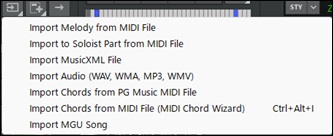
Import Button: A new [Import] button provides options for importing MIDI or audio to the current song. (This button can be added using the toolbar preferences.)
Active-State Indicators for Transport Buttons: The [Play], [Generate+Play], [Pause], [Stop], and [Rec] buttons now display an active state. For example, the [Play] button turns green during playback; and the [Generate+Play] button turns blue during track generation, before playback starts.
Active State for Loop Button: The [Loop] button displays an active state when the loop section (looping the highlighted region) is enabled.
Song Overview Tooltip: Hovering over the Song Overview (under Transport buttons) shows bar and chorus numbers.
Song Overview Indicator: The Song Overview indicates Bar Settings changes (e.g., volume changes, beats/bar change) with a red line.
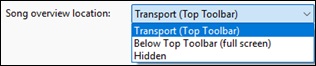
Song Overview Display Mode: The Song Overview can be set to small (under Transport), full width, or hidden completely.
Inline Song Title Editing: The Song Title field is now editable without opening a modal dialog.
Song Info Area: This displays the song length.
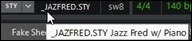
Style Name Tooltip: Hovering over the style name shows full short and long style names, useful when the toolbar is narrow.
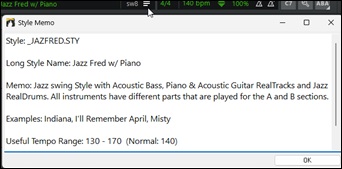
Style Memo Dialog: A new dialog, similar to the Song Memo dialog, shows summary of information about the style.
Always-Visible Visual Transpose Display: The Visual Transpose is always visible, showing +0 when no transposition is applied.
Dynamic Time Signature Indicator: The Time Signature button always displays the style’s time signature and shows an asterisk if any time signature or beats/bar changes occur in the song.
Global Song Loop Control: The [Replay Song] button shows its on/off state and includes a drop-down menu with options such as “never enable” or “always enable.”
Enhanced Tap Tempo Buttons: The button size has been increased for easier tapping.
Overflow Menu: A group of buttons on the top-right displays an overflow menu (three dots) when selected buttons do not fit on the screen.
Gear Icon: A gear icon on the far right of the top toolbar lets you open the Toolbar Preferences or Program Preferences dialog.
Side Toolbar
Side Toolbar: A new side toolbar provides quick access to track selection, the MultiPicker Library window, and other windows.
Position Option: The side toolbar can be positioned on either the left or right side of the screen.
Resize Option: You can resize the side toolbar (narrower or wider) by dragging its edge. Its width is remembered between sessions.
Mixer Access: The [Mixer] button lets you quickly show or hide the Mixer, with options to display it as docked on the left, docked on the right, or as a floating (movable) window. The selected position (left/right) is remembered between sessions.
Track Selector: The track selector with a [+] button provides a central place to choose the active track and access track-related settings and commands.
View Buttons: Logical groups of view buttons on the side toolbar allow switching the main window (e.g., Chords, Tracks, Notation, etc.) and opening secondary windows (Big Piano, Guitar, Lyrics, Drums).
Docked vs. Floating Windows: Each window can be shown either docked in the main workspace or as a floating window.
- Ctrl+click on a view button to force the window to float.
- Shift+click on a view button to add the window as docked in the main workspace.
- All view buttons show an active state when their window is docked.
- The MultiPicker Library window can also be docked or floating. Ctrl+click on the [Library] button to force it to open as a floating window.
Multi-View
Docking Multiple Windows: You can dock multiple windows in the main workspace by Shift+clicking on their buttons. For example, to create a Chords-and-Notation top/bottom layout, click on [Chords], then Shift+click on [Notation]. You can also add Lyrics, Guitar, or
Piano windows to a multi-view by clicking on their respective buttons.
ACW Multi-View: The Audio Chord Wizard (ACW) uses a special multi-view layout, with the Chord Sheet window on top and the Audio Edit window on the bottom.
Adjustable Layout: All docked windows include splitters, allowing you to adjust their vertical size.
Default Multi-View Access: The [Views] button loads thedefault multi-view layout (combination of embedded and/or floating windows).
Saving and Loading Multi-View: The [Views] button’s down arrow lets you open or save a multi-view layout.
Individual Windows
Consistent Toolbar Design: Every window now includes a toolbar with a unified visual theme. Standard controls (e.g. Preferences, Dock, Help) are located on the right, while window-specific controls appear on the left with descriptive labels.
Overflow Menu for Small Windows: Each toolbar includes an overflow menu (three dots) to display any left-side controls that do not fit when the window is narrow.
Floating Window Support: Most windows can be switched to a floating (movable) window using the Float button in the top-right corner. (Note: The Chord Sheet window serves as the default view and cannot be floated.)
Consistent Zoom Controls: Many windows now include standardized scroll bars and horizontal or vertical zoom buttons.
Chord Sheet Toolbar Enhancements: The Chord Sheet toolbar provides easy access to control for opening Layers, adjusting chord display options, and setting the number of rows and columns displayed.
Chord Sheet Context Menu: The order of items in the Chord Sheet context menu has been optimized for easier access.
Smooth Repeat Symbol Dots: Repeat symbol dots previously had a “starry” appearance; they are now smooth circles.
Mixer Window Improvement: The Mixer window has a cleaner, easier-to-read layout.
Always-Visible Mixer Control Labels: Labels for the Volume, Pan, Reverb, and Tone controls in the Mixer are now always visible and remain centered above their respective controls.
Mixer Settings Dialog: The Mixer window now has a standard Mixer Settings dialog.
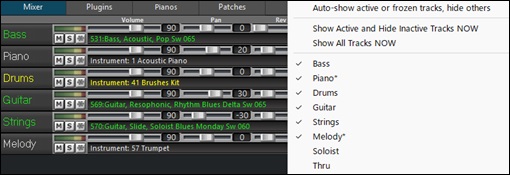
Track Visibility Button Location on Mixer: The eye button has been moved to the top of the Mixer, making it easier to choose which tracks are displayed.
Mixer Settings from Eye Button: The “eye” button’s drop-down menu now includes an item to open the Mixer Settings dialog.
Dynamic Track Visibility Update: Changing the auto show/hide option in the Mixer Settings dialog updates the “eye” button’s drop-down list is updated to reflect the new setting.
Track Visibility Control: Tracks set as visible by the “eye” button on the Mixer or Tracks window remain visible for the current song, and this setting is saved with the song.
Dynamic Track Activity Update: On the Mixer or Tracks window, tracks automatically update their active or inactive status in real time.
Actions such as loading songs or styles are reflected immediately, ensuring the window always shows the current track activity accurately.
Refreshed Color Scheme: The Audio Edit and Tracks windows feature a refreshed color scheme designed for better readability and reduced eye strain, providing a cleaner and more pleasant working environment.
Tracks Window - Floating vs. Docked: The window can be either floating or docked. A toggle button at the top-right switches between the two modes.
Tracks Window - Per-Track Plugin Display: The window now lets you select plugins on each track. Clicking on the new [Fx] button displays the plugins for the selected track, while Ctrl+clicking on it shows the plugins for all tracks.
Tracks Window - Per-Track Piano Keyboard Display: The window can display piano keyboard on each track. Clicking on the new [P] button shows the piano keyboard for the selected track, while Ctrl+clicking on it shows the piano keyboard for all tracks.
Tracks Window - Track Visibility Button: The new [Show Tracks] button lets you choose which tracks are displayed. Tracks set as visible by this button remain visible for the current song, and this setting is saved with the song.
Tracks Window - Volume/Pan/Reverb/Tone Labels: Labels have been added for the Volume, Pan, Reverb and Tone controls, and they remain centered above their respective controls.
Tracks Window - Master VU Meter Labels: The Master VU meters now include labels and match the dark theme.
Tracks Window - Cleaner Dividers: Dividers between tracks have a cleaner appearance.
Tracks Window - Track Height: Track height can be adjusted individually by dragging a track divider.
Tracks Window - Set All Tracks to Same Height: Drag a track divider while holding down the Ctrl key, then release the mouse button. All tracks will be set to that height.
Tracks Window - Mouse Wheel Behavior: The mouse wheel function is standardized, with different functions depending on where you use it.
- Scrolling on the left side of the window scrolls vertically.
- Scrolling on the right side zooms horizontally.
- Scrolling over the Volume, Pan, Reverb, or Tone controls adjusts those settings.
- Scrolling while holding down the Ctrl key changes the height of all tracks.
- Scrolling while holding down the Shift key scrolls the window vertically.
Column Tooltips: Tooltip hints now appear for columns on lists in various picker windows (MultiPicker Library, StylesPicker, RealDrums Picker, etc.). Hovering over a column shows its full name, which is especially helpful when the column is too narrow to display the entire name.
MultiPicker Library Tab Improvements: The picker tabs have been improved to always remain on a single row, with all tabs visible using abbreviated titles when necessary. Also, tooltips appear when hovering over a tab, showing its full name.
Other Areas
Color Picker Improvements: The Display Options dialog includes several improvements to the color picker.
- Element names and ordering have been improved.
- A position indicator dot shows where you clicked in the color palette.
- “New” and “Current” swatches let you revert to the element’s current color.
- The [Load Scheme] button includes an option to switch between dark and light mode for the Chord Sheet.
- A new [Reset All] button resets only the colors to the state they were in when the dialog was opened.
Auto-Open Checkbox on Big Lyrics window: The toolbar now includes an Auto-Open checkbox.
Text Events Edit Access: The dialog includes a button to open the Text Events dialog.
Floating Jukebox Dialog: A new floating Jukebox dialog has been added; it stays open during playback, is resizable, and includes Previous] and [Next] buttons.
Video Tutorials Access: A menu item has been added to Help | PG Music Website to open the Video Tutorials webpage.
Install Manager Access: You can run the newer Install Manager from the Help | Utilities submenu item. (The legacy Download Manager remains available.)
Expanded Freeze Tracks Submenu: The Play | Freeze Tracks submenu now allows freezing any available track, including Utility tracks, and displays custom track labels if used.
Toolbar Button in Preferences: The Preferences dialog includes a new button for configuring toolbar preferences.
Toolbar Settings in Options Menu: A new item has been added to the Option menu for configuring toolbar preferences.
Options Added to Track Button Menu: New items have been added to edit MIDI (1. Rechannel to guitar channels, 2. Rechannel to guitar channels (preserving existing guitar channels), 3. Rechannel to bass channels, 4. Rechannel to piano channels.).
AI Notes (Polyphonic Audio to MIDI)
The amazing new "AI-Notes" feature transcribes polyphonic audio to MIDI, allowing it to be viewed in notation or played as MIDI. It can transcribe an entire audio file (all pitched instruments and all drums), or it can isolate and transcribe individual instruments (drums, bass, guitars/piano, and vocals). It uses an advanced AI neural network to produce highly accurate results that sound exceptionally musical when played. For example, load your favorite pop song and generate transcriptions for its instruments (bass, drums, guitars/pianos, vocals), which you can play on their own or along with the audio of the song. This is an excellent way to learn songs, as you can visually follow the parts as they play on the piano keyboard or guitar fretboard. You can also use this feature together with the "AI-Stems" feature to split the original audio into separate tracks.
To use it, click on the [AI] button on the toolbar and select AI-Notes from the drop-down menu, or press the N O T E S Enter keys to open the Notes - AI Audio Transcriber and Stem Splitter dialog. Then, select an audio file (MP3, M4A, WAV, etc.), choose the instrument(s) you want to transcribe, specify the destination track(s) for MIDI, and press OK.
AI Stems Enhancements
The AI Stems dialog now includes Audio-to-MIDI transcription, allowing you to convert any separated stem (or the full mix) into MIDI. These MIDI transcriptions can be viewed, edited, remixed, or used for learning purposes. For example, you can import vocals from your favorite singer, transcribe a desired instrument part to MIDI, and then use Band-in-a-Box to rearrange or replace the backing tracks, creating a fully personalized mix.
The dialog now includes instructions on how to create stems and/or transcriptions.
Piano Roll Window Enhancements
Visual Enhancements
Modernized Color Scheme: A fully refreshed color palette throughout the Piano Roll for improved visual clarity and delivers a more contemporary look.
Velocity Shading by Default: Notes are now color-coded by velocity, with higher velocities appearing brighter and more saturated, and lower velocities appearing more subdued.
Middle C Indicator: A clear visual marker highlights middle C (C5) on the keyboard for easier octave orientation.
Full-Height Playback Cursor: The Piano Roll now features two distinct full-height cursors: a green playback cursor that tracks the current playback position, and a blue position cursor that marks your edit/start position.
Separate Playback and Position Cursors: Playback (green) and edit (blue) cursors are now distinct, matching the behavior of the Audio Edit window for a consistent user experience.
Velocity Editing Cursor: A specialized cursor appears when holding down the Ctrl key and dragging notes to adjust velocity, centered precisely at the click point for improved control.
Note Display & Information
Customizable Note Text Display: The new Note Display drop-down menu option lets you choose what information appears on each note (note name, velocity, duration, etc.), allowing you to control visual information density.
Intelligent Note Text Sizing: Note text now automatically shortens when notes are too small to display full information, maintaining readability at all zoom levels.
Enhanced Note Tooltips: Detailed tooltips appear when hovering over any note, showing pitch, velocity, duration, position, channel, and more. When hovering over empty space, the tooltip shows what note would be created at that location.
Real-Time Duration Feedback: When adjusting note duration by dragging, the updated duration value is displayed in real time as you drag.
Drum Kit Sound Names for Channel 10: On channel 10, notes and keyboard display the drum sound name associated with each key (e.g., “C5 (Kick)”) alongside the standard note name, making drum programming more intuitive.
Guitar Notation for Channels 11-16: On channels 11-16, notes and keyboard display guitar string and fret information (e.g., “C5 (2s/1f)” for second string, first fret) alongside the standard note name, enhancing guitar-oriented MIDI editing.
Bar.Beat.Tick Format: All position displays now use the industry-standard bar.beat.tick (b.b.t) format for consistency and clearer timing reference.
Keyboard Note Name Display: You can toggle MIDI note names on the keyboard for quick reference, with improved spacing on black-key labels for better readability.
Grid and Timing
Advanced Grid Controls: New options in the Grid menu allow you to:
- Toggle the grid on/off.
- Adjust the grid resolution to match your workflow.
- Apply swing or groove to the grid for non-straight timing feels.
Smart Snap with Hotkey Toggle: The enhanced snap-to-grid system now includes an [S] hotkey for quick toggling. Snap functions consistently whether you are entering new notes or moving existing ones.
Adjustable Snap Strength: A new “Snap Strength” setting (0-100%) lets you fine-tune how strongly notes adhere to the grid, enabling subtle timing shifts while still maintaining a loose rhythmic feel when desired.
Grid-Aware Movement: When moving a note with the arrow keys, note movement follows the current grid resolution, providing more predictable and musically aligned navigation.
Loop Region
Visual Loop Area Editor: A new dedicated loop region area appears on the Ruler panel, providing intuitive loop management.
- The default (disabled) loop region spans bars 1-4.
- Click and drag to define a new loop region.
- Shift+click on the loop region to toggle looping on or off.
- Drag the left or right edge to adjust loop start/end points.
- Drag the loop region body to move it to a new position.
Note Editing Tools
Pen Tool as Default:The Pen tool is now the default cursor mode, streamlining the note entry for faster composition.
Split Tool: A new Split tool lets you divide a note into two at the click point.
Click-and-Drag Note Creation: Create notes with custom durations by clicking and dragging horizontally. Note extend as you drag, with real-time visual feedback.
Flexible Note Movement: Move notes by clicking and dragging. By default, movement is axis-locked—restricted to pitch or time—for precise editing.
Hold the Shift key while dragging to remove the lock and move notes freely in both directions.
Edge-Based Duration Editing: Click and drag from the left edge of a note to adjust its start position and duration simultaneously.
Piano Keyboard Note Entry: Click directly on the piano keyboard to insert a note at the current cursor position. Hold the key on the piano keyboard to increase the note’s duration while holding.
Hold the Ctrl key and drag notes vertically to adjust velocity. The current velocity value is displayed in real time as you drag.
Shift+Drag Event Time Adjustment: In the Graphic Event panel, hold down the Shift key while clicking and dragging an event horizontally to slide it in time. If multiple events are selected, all selected events will move together.
Selection Rectangle Enhancement: The selection rectangle now selects all notes that overlap with the selection area, not only those whose start positions fall within it, making multi-note selection more intuitive.
Keyboard Shortcuts
Note Panel Shortcuts
- 1 – 6: Toggles the Tool mode.
- Shift: Activates the selection tool for selecting multiple notes.
- Shift on a note: Enables free movement in both directions (removes axis-lock).
- Shift+Ctrl: Activates the delete tool for removing notes.
- Ctrl+Drag: Adjusts note velocity with real-time visual feedback.
- Left/Right Cursors: Moves the selected note by 1 grid resolution, or moves cursor if no note is selected.
- Shift+L Cursor / Shift+R Cursor: Selects the adjacent note to the left or right.
- Up/Down Cursors: Moves the selected note up or down by one semitone.
- Shift+Up Cursor / Shift+Down Cursor: Moves the selected note up or down by one octave.
- N: Inserts a new note at the cursor position using the last-entered pitch.
- Shift+S: Toggles snap-to-grid on/off.
Control Panel Shortcuts
- Shift: Activates the selection tool for selecting automation regions.
- Ctrl: Activates the line cursor for drawing straight automation lines.
Keyboard Panel Shortcuts
- Shift: Activates the selection tool.
Ruler Panel Shortcuts
- Shift: Toggles loop playback on/off.
Zoom and Navigation
Extended Vertical Zoom: Zoom in vertically down to a single octave for detailed editing of specific pitch ranges, or zoom out to display all notes within the visible window height.
Complete Horizontal Zoom Out: Zoom fully out horizontally to view your entire project in the Piano Roll at once, ideal for reviewing overall song structure and long-range patterns.
Auto-Scroll Control: A new “Mouse Scroll” option in the Scroll menu allows you to enable or disable mouse wheel scrolling in the Piano Roll, giving you control over navigation behavior.
Cursor-Based Clicking: Clicking anywhere on the Ruler or Note panel (without dragging) now moves the cursor to that position for fast, precise navigation.
Ruler Double-Click Playback: Double-click anywhere on the Ruler to start playback from that position, making it easier to audition specific sections quickly.
Advanced Features
Mono Mode: Enable“Mono Mode” from the toolbar to ensure only one note plays at a time, perfect for creating melodic sequences and single-note lines without unintended chord overlaps.
Quantize Strength: Use the 0–100% options in the Quantize drop-down menu to fine-tune the intensity of quantization.
Comprehensive Quantize Dialog: A redesigned Quantize dialog provides precise and flexible control over timing and musical alignment:
- Quantize Time: Align note positions to the desired timing resolution.
- Quantize Scale: Adjust notes to a selected musical scale.
- Quantize Velocity: Normalize or modify velocity ranges.
- Clickable Section Headers: Quickly enable or disable each quantize type by clicking on its title bar.
Advanced Filter System: A new floating Filter dialog provides sophisticated note filtering capabilities:
- Pitch Filter: Show or hide notes by pitch (supports note names).
- String Range Filter: Show notes within specific guitar string ranges.
- Fret Range Filter: Show notes within specific fret ranges.
- Position Range Filter: Filter notes by time range using the bar.beat.tick format.
- Duration Filter: Display notes based on note length.
- MIDI Channel Filter: Show or hide notes by channel, with convenient All/None buttons.
- Velocity Filter: Filter by velocity ranges.
- Invert Filter: Swap visible and hidden notes instantly.
- Individual Toggle: Enable or disable each filter criterion independently.
- Filter-Aware Selection: Selection rectangle respects filters, with an option to select filtered notes.
Edit Tool Selection:Choose from different editing tool modes from the toolbar to optimize your workflow for different tasks. The “Right-Click” option in the Pen menu lets you configure right-click behavior. By default, right-click dragging selects notes.
GUI Improvements
Streamlined Toolbar: The toolbar has been fully reorganized, with all functions now organized into clear, logical menus for a cleaner, more professional interface.
- Tool: Select the active editing tool.
- Channel: Choose which MIDI channel to display and edit.
- Playable Track: Enable or disable the Playable Track.
- Mono Mode: Turn Mono Mode on or off.
- Grid: Configure grid resolution, visibility, and swing/groove.
- Snap: Adjust snap behavior, including snap strength and toggle.
- Quantize: Access quick quantize presets or the full Quantize dialog.
- Duration: Apply predefined note durations.
- Filter Notes: Open theadvanced Filter dialog for note visibility control .
- Display Type: Select what the Control panel displays (velocity, controllers, etc.).
- Show: Toggle visual features including Ghost Notes, Velocity Shading, Note Display, and Keyboard Note Names.
- Scroll: Configure mouse and auto-scroll behavior.
- Reset Button: Restore all settings to their default values.
- Help Button: Open online help documentation.
- Floating/Docking Button: Float or dock the Piano Roll window.
Stem Splitter Player Enhancements
MIDI Transcription
Audio-to-MIDI Transcription: Transform any audio file into editable MIDI notation. The powerful new transcription engine can convert pitched instruments or drums into MIDI format, offering endless possibilities for remixing, learning, and music production.
Individual Track Transcription: Transcribe the source file or specific stems independently without processing the entire mix. Each track has a dedicated transcription button (eighth note icon) that turns blue when a transcription is available, allowing you to drag the generated MIDI file directly to your desired location.
Flexible Transcription Workflows: Combine operations seamlessly—split an audio file into stems, then transcribe everything at once or selectively transcribe only the stems you need. The transcription feature integrates fully with the stem splitting workflow for maximum flexibility.
Intelligent Source Transcription Options: When transcribing the source file directly, the application prompts whether to transcribe as drums or pitched notes, ensuring optimal results based on your content.
Multi-Stem Combined Transcription: Transcribe all stems simultaneously to create individual MIDI files for each stem plus a combined “source transcription” file that merges all parts. This approach produces superior results compared to transcribing the mixed source file directly, while still providing separate MIDI files for each stem.
Transcription Menu: A new dedicated Transcription menu in the toolbar provides quick access to all transcription settings and options.
Waveform Timeline and Region Selection
Visual Waveform Timeline: A new interactive waveform displays your source audio file with precise time references. The timeline provides a visual representation of your audio and links directly to the Start and Length parameters.
Region Selection Tool: Select specific regions of your audio file directly in the waveform timeline by clicking and dragging. The Start and Length values automatically update to match your selection, making it easy to process only the parts you need.
Timeline Zoom and Scroll: Navigate large audio files effortlessly with zoom and scroll capabilities in the waveform timeline, allowing you to focus on precise sections or view the entire song at a glance.
Start Time Parameter: A new "Start Time" parameter lets you specify exactly where in the audio file to begin processing, giving you precise control over which portions of your audio to split or transcribe.
Enhanced Time Precision: Time values now display in seconds with decimal fractions when selecting regions and setting start positions for improved accuracy.
Library Management
Batch Stem Split from Folder: The "Select a folder with songs to split" option in the Stems menu performs a batch operation on all songs in the selected folder. Each song will be split into stems and automatically added to the library, streamlining the process of handling multiple songs at once.
Batch Add to Library: Quickly add multiple songs to your library at once instead of one at a time, making it easier to build your collection.
Drag-and-Drop Library Management: Drag and drop one or multiple songs directly onto the Library panel to instantly add them to your collection - no need to use the Add Song dialog.
Drag-and-Drop Song Loading: Drag and drop a song onto the track table to load it instantly, providing a faster, more intuitive workflow.
Library Search: A new search bar allows you to quickly find songs in your library by name, essential for navigating large collections.
Workflow Automation
Auto-Split After Open: Enable this setting to automatically begin splitting a file into stems immediately after opening it, removing the need for an extra click in your regular workflow.
Auto-Transcribe After Split: When enabled, all stems are automatically transcribed after the splitting process completes, creating a fully automated workflow from audio file to MIDI output.
Interface Improvements
Comprehensive Tooltips: Every component in the application now includes helpful tooltips that appear on hover, making it easier to understand each control's function.
Settings Menu: A new dedicated Settings menu consolidates all application preferences in one convenient location, including automation options, output formats, and mixer controls.
Option to Transcribe Residual Stem: An option has been added to the Settings menu to transcribe residual stem. (By default, the residual stem is not transcribed.)
Reset Mixer Option: A "Reset Mixer" option in the Settings menu allows you to quickly return all mixer tracks to their default state, useful when starting fresh with a new song.
Streamlined Transport Controls: The Count-in and Sync buttons have been removed to simplify the transport section, focusing on core playback controls for stem and transcription workflows.
Auto-Stop During Processing: Playback now automatically stops when splitting or transcribing operations begin, preventing conflicts and ensuring clean processing.
File Management
Organized Output Folders: A new "Create Subfolder for Files" option in the Settings menu organizes generated stem and transcription files into dedicated subfolders, keeping the source file's directory uncluttered.
Stem Format Options: Moved to the Settings | Output | Format submenu, these options let you choose your preferred output file format (.wav, .mp3, .ogg, etc.) for generated stem files.
Support for M4A/MP4 Files: You can now import and process M4A and MP4 files.
New Hotkeys
S S 1 6 Enter: Opens the Notes - AI Audio Transcriber and Stem Splitter dialog.
N O T E S Enter: Opens the Notes - AI Audio Transcriber and Stem Splitter dialog.
I N T R O Enter: Open the Generate Chords for Intro dialog.
Other Features and Enhancements
VSTSynthFont 3.6.1.2 is included. A complete list of bug fixes and new features can be found in the \bb\Documentations folder.
Band-in-a-Box for Android is included with the installer. The file bb-android-96.apk is placed in your bb\Android folder. You can copy this file to any Android device to install the app. If you don't have an Android device, you can still run the app on your PC using an emulator called BlueStacks, which you can download for free. Download the Android 11 version of BlueStacks, install it, and then drag the .apk file onto the BlueStacks window to run it. (Note: BlueStacks includes settings that allow you to disable ads if they become intrusive.)
QuickStart Tutorial
Let’s take a close look at the great new features in Band-in-a-Box 2026!
GUI Enhancements
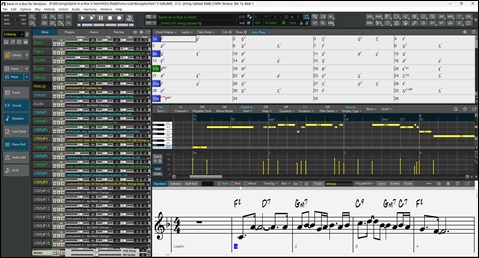
Major Feature: There’s a new GUI for the main screen and many program windows, giving the entire interface a modern, consistent look with improved usability.

Redesigned Layout
The top toolbar has been redesigned using logical groups of related controls, arranged from left to right:
- Export: Drop Station and export buttons.
- File: New, Open, Save, and related commands.
- Transport Control: Standard play and record controls.
- Song & Style: Song information, style details, and properties.
- Song Settings: Playback and configuration controls.
- Additional Tools: A customizable set of extra buttons.
Consistent Icon Design
Button icons are visually consistent throughout the application and follow standard UI design conventions.

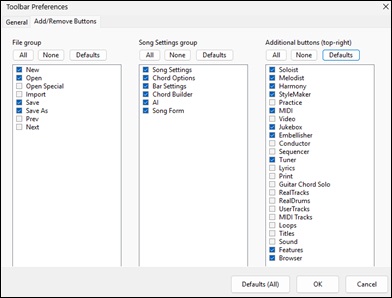
Customizable Buttons
Buttons in the File, Song Settings, and Additional Tools groups can be added or removed based on your preferences. You can configure these settings in the Toolbar Settings dialog. To open it, use the gear icon on the far right of the toolbar, select the menu item Options | Toolbar Setting, or click on the [Toolbar] button in the Preferences dialog (Ctrl+E or Options | Preferences). Then, use the options in the [Add/Remove Buttons] tab. There are quick-select presets for Defaults, All, or None.
Button Display Mode Options
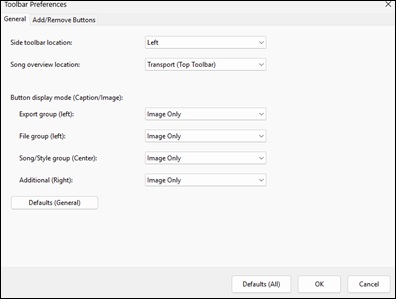
All top toolbar buttons can display either an image or a caption. Caption mode uses larger buttons, so fewer buttons fit on the screen. You can also adjust the font size of captions. To set these, use the options in the [General] tab in the Toolbar Settings dialog.
Improved Readability
Button captions use an easy-to-read font for crisp, clear text, rather than being embedded in the button images.

Low-Resolution Support
The toolbars and main screen support 1024×768 displays. Toolbars automatically resize to prevent clipping.
Drop Station Improvement
The Drop Station now has a consistent theme and larger drop segments for improved readability.

Drag and Drop Mode
DAW Plugin mode is now called "Drag and Drop" mode.

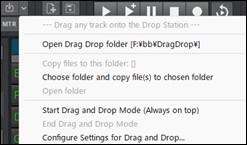
Drop Button
A new [Drop] button has been added. It is a split button with a Drag and Drop mode toggle on the left as the main button, and a drop-down menu with additional drag-and-drop options on the right.
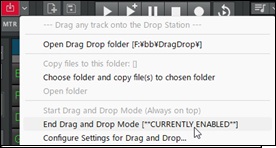
Active Drag and Drop Mode Indicator
When Drag and Drop mode is active, a red button and descriptive text in the drop-down menu clearly indicate its status.
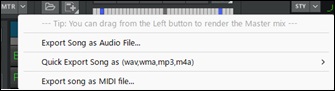
Master Button
A new [Master] button has been added. It is a split button with a main button on the left that you can drag and drop to the Drop Station to render the master mix, and a drop-down menu on the right with additional options for rendering the song.
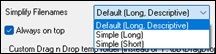
Option to Simplify Filenames
A new option in the Drag and Drop Settings dialog controls how filenames are generated, with three choices: Default (long and descriptive), Simple Long (instrument name), and Simple Short (track name only).
Import Button
The new [Import] button provides options for importing MIDI or audio to the current song. (This button can be added using Toolbar Preferences dialog.)
Active-State Indicators for Transport Buttons
The [Play], [Generate+Play], [Pause], [Stop], and [Rec] buttons now display an active state. For example, the [Play] button turns green during playback; and the [Generate+Play] button turns blue during track generation, before playback starts.

Active State for Loop Button
The [Loop] button displays an active state when the loop section (looping the highlighted region) is enabled.

Song Overview Tooltip
Hovering over the Song Overview (under Transport buttons) shows bar and chorus numbers.

Song Overview Indicator
The Song Overview indicates Bar Settings changes (e.g., volume changes, beats/bar change) with a red line.

Song Overview Display Mode
The Song Overview can be set to small (under Transport), full width, or hidden completely. This is done in the Toolbar Preferences dialog.
Inline Song Title Editing
The Song Title field is now editable without opening a modal dialog.

Song Info Area
This displays the song length.

Style Name Tooltip
Hovering over the style name shows full short and long style names, useful when the toolbar is narrow.
Style Memo Dialog
A new dialog, similar to the Song Memo dialog, shows summary of information about the style.
Always-Visible Visual Transpose Display
The Visual Transpose is always visible, showing +0 when no transposition is applied.

Dynamic Time Signature Indicator
The Time Signature button always displays the style's time signature and shows an asterisk if any time signature or beats/bar changes occur in the song.

Global Song Loop Control
The [Replay Song] button shows its on/off state and includes a drop-down menu with options such as "never enable" or "always enable."
![[Replay Song] button showing its drop-down menue](images/3/GUI_14_song_7.jpg)
Enhanced Tap Tempo Buttons
The button size has been increased for easier tapping.

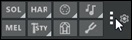
Overflow Menu
A group of buttons on the top-right displays an overflow menu (three dots) when selected buttons do not fit on the screen.
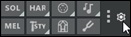
Gear Icon
A gear icon on the far right of the top toolbar lets you open the Toolbar Preferences or Program Preferences dialog.
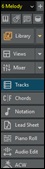
Side Toolbar
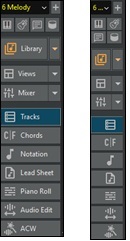
A new side toolbar provides quick access to track selection, the MultiPicker Library window, and other windows.
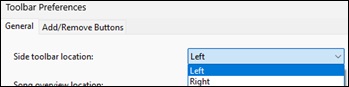
Position Option
The side toolbar can be positioned on either the left or right side of the screen. This setting is found in the Toolbar Preferences dialog.
Resize Option
You can resize the side toolbar (narrower or wider) by dragging its edge. Its width is remembered between sessions.
Mixer Access
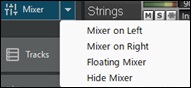
The [Mixer] button lets you quickly show or hide the Mixer, with options to display it as docked on the left, docked on the right, or as a floating (movable) window. The selected position (left/right) is remembered between sessions.
Track Selector
The track selector with a [+] button provides a central place to choose the active track and access track-related settings and commands.
![track selector with a [+] button](images/3/GUI_sidebar_04.jpg)
View Buttons
Logical groups of view buttons on the side toolbar allow switching the main window (e.g., Chords, Tracks, Notation, etc.) and opening secondary windows (Big Piano, Guitar, Lyrics, Drums).
(Note: Secondary windows are optional add-on displays. When docked, they always appear at the top and do not replace the main windows. This design is intentional and makes it easy to keep instrument views visible while switching among the main windows.)
|
Docked vs. Floating Windows Each window can be shown either docked in the main workspace or as a floating window. - Ctrl+click on a view button to force the window to float. - Shift+click on a view button to add the window as docked in the main workspace. - All view buttons show an active state when their window is docked. - The MultiPicker Library window can also be docked or floating. Ctrl+click on the [Library] button to force it to open as a floating window. |
Docking Multiple Windows
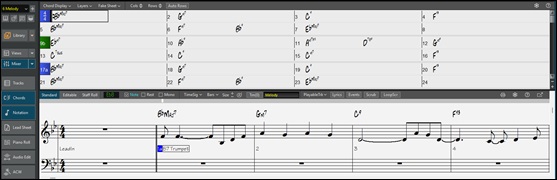
You can dock multiple windows in the main workspace by Shift+clicking on their buttons. For example, to create a Chords-and-Notation top/bottom layout, click on [Chords], then Shift+click on [Notation]. You can also add Lyrics, Guitar, or Piano windows to a multi-view by clicking on their respective buttons.
ACW Multi-View
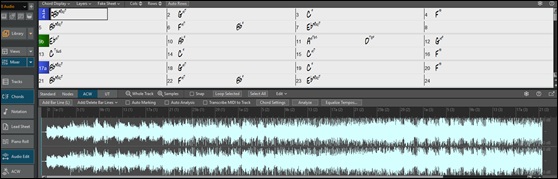
The Audio Chord Wizard (ACW) uses a special multi-view layout, with the Chord Sheet window on top and the Audio Edit window on the bottom.
Adjustable Layout
All docked windows include splitters, allowing you to adjust their vertical size.

Default Multi-View Access
The [Views] button loads the default multi-view layout (combination of embedded and/or floating windows).

Saving and Loading Multi-View
The [Views] button's down arrow lets you open or save a multi-view layout.
![[Views] button’s down](images/3/GUI_multiview_05.jpg)
Consistent Toolbar Design
Every window now includes a toolbar with a unified visual theme. Standard controls (e.g. Preferences, Dock, Help) are located on the right, while window-specific controls appear on the left with descriptive labels.

Overflow Menu for Small Windows
Each toolbar includes an overflow menu (three dots) to display any left-side controls that do not fit when the window is narrow.

Floating Window Support
Most windows can be switched to a floating (movable) window using the Float button in the top-right corner. (Note: The Chord Sheet window serves as the default view and cannot be floated.)

Consistent Zoom Controls
Many windows now include standardized scroll bars and horizontal or vertical zoom buttons.

Chord Sheet Toolbar Enhancements
The Chord Sheet toolbar provides easy access to control for opening Layers, adjusting chord display options, and setting the number of rows and columns displayed.

Chord Sheet Context Menu
The order of items in the Chord Sheet context menu has been optimized for easier access.
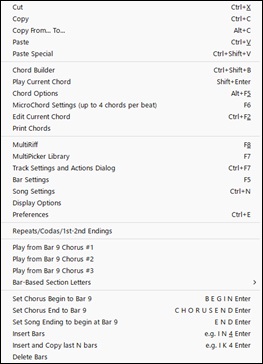
Smooth Repeat Symbol Dots
Repeat symbol dots previously had a "starry" appearance; they are now smooth circles.

Mixer Window Improvement
The Mixer window has a cleaner, easier-to-read layout.
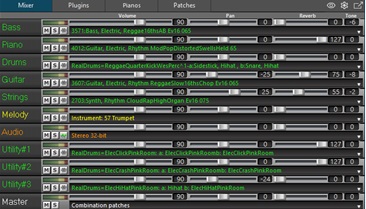
Always-Visible Mixer Control Labels
Labels for the Volume, Pan, Reverb, and Tone controls in the Mixer are now always visible and remain centered above their respective controls.

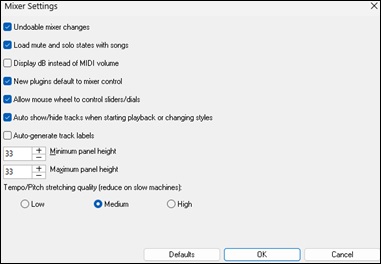
Mixer Settings Dialog
The Mixer window now has a standard Mixer Settings dialog.
Track Visibility Button Location on Mixer
The "eye" button has been moved to the top of the Mixer, making it easier to choose which tracks are displayed.

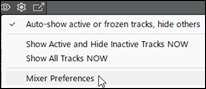
Mixer Settings from Eye Button
The "eye" button's drop-down menu now includes an item to open the Mixer Settings dialog.
Dynamic Track Visibility Update
Changing the auto show/hide option in the Mixer Settings dialog updates the "eye" button's drop-down list is updated to reflect the new setting.

Track Visibility Control
Tracks set as visible by the "eye" button on the Mixer or Tracks window remain visible for the current song, and this setting is saved with the song.
Dynamic Track Activity Update
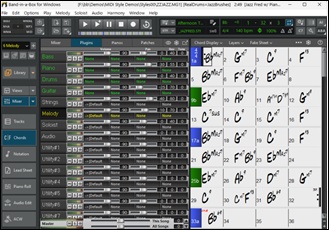
On the Mixer or Tracks window, tracks automatically update their active or inactive status in real time. Actions such as loading a new song or style are reflected immediately, ensuring the window always shows the current track activity accurately.
For example, with ZZJAZZ.STY loaded, the Bass, Piano, and Drums tracks appear as active, but changing the style to ZZLITROK.STY adds Guitar and Strings tracks, reflecting the instrumentation of the new style.

Refreshed Color Scheme
The Audio Edit and Tracks windows feature a refreshed color scheme designed for better readability and reduced eye strain, providing a cleaner and more pleasant working environment.
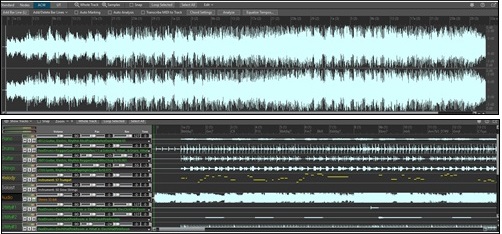
Tracks Window: Floating vs. Docked
The window can be either floating or docked. A toggle button at the top-right switches between the two modes.

Tracks Window: Per-Track Plugin Display
The window now lets you select plugins on each track. Clicking on the new [Fx] button displays the plugins for the selected track, while Ctrl+clicking on it shows the plugins for all tracks.
![Tracks window - [Fx] button](images/3/GUI_trackswin_02.jpg)
Tracks Window: Per-Track Piano Keyboard Display
The window can display piano keyboard on each track. Clicking on the new [P] button shows the piano keyboard for the selected track, while Ctrl+clicking on it shows the piano keyboard for all tracks.
![Tracks window - [P] button](images/3/GUI_trackswin_03.jpg)
Tracks Window: Track Visibility Button
The new [Show Tracks] button lets you choose which tracks are displayed. Tracks set as visible by this button remain visible for the current song, and this setting is saved with the song.
![Tracks window - [Show Tracks] button](images/3/GUI_trackswin_04.jpg)
Tracks Window: Volume/Pan/Reverb/Tone Labels
Labels have been added for the Volume, Pan, Reverb and Tone controls, and they remain centered above their respective controls.

Tracks Window: Master VU Metes Labels
The Master VU meters now include labels and match the dark theme.

Tracks Window: Cleaner Dividers
Dividers between tracks have a cleaner appearance.

Tracks Window: Track Height Adjustment
Track height can be adjusted individually by dragging a track divider.

Tracks Window: Set All Tracks to Same Height
Drag a track divider while holding down the Ctrl key, then release the mouse button. All tracks will be set to that height.
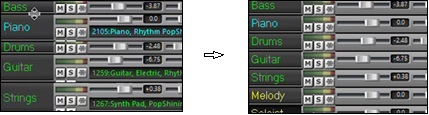
Tracks Window: Mouse Wheel Behavior
The mouse wheel function is standardized, with different functions depending on where you use it.
- Scrolling on the left side of the window scrolls vertically.
- Scrolling on the right side zooms horizontally.
- Scrolling over the Volume, Pan, Reverb, or Tone controls adjusts those settings.
- Scrolling while holding down the Ctrl key changes the height of all tracks.
- Scrolling while holding down the Shift key scrolls the window vertically.
Column Tooltips
Tooltip hints now appear for columns on lists in various picker windows (MultiPicker Library, StylesPicker, RealDrums Picker, etc.). Hovering over a column shows its full name, which is especially helpful when the column is too narrow to display the entire name.
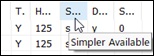
MultiPicker Library Tab Improvements
The picker tabs have been improved to always remain on a single row, with all tabs visible using abbreviated titles when necessary. Also, tooltips appear when hovering over a tab, showing its full name.

Color Picker Improvements
The Display Options dialog includes several improvements to the color picker.
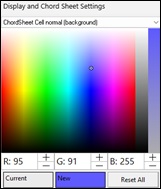
- Element names and ordering have been improved.
- A position indicator dot shows where you clicked in the color palette.
- "New" and "Current" swatches let you revert to the element's current color.
- The [Load Scheme] button includes an option to switch between dark and light mode for the Chord Sheet.
- A new [Reset All] button resets only the colors to the state they were in when the dialog was opened.
Auto-Open Option on Big Lyrics Window
The toolbar now includes an Auto-Open checkbox.

Text Events Edit Access
The Event List Editor includes an button to open the Text Events dialog.
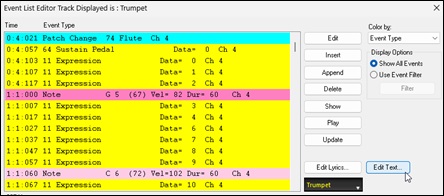
Floating Jukebox Dialog
A new floating Jukebox dialog has been added; it stays open during playback, is resizable, and includes [Previous] and [Next] buttons.
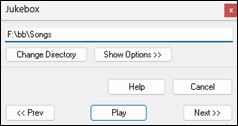
Video Tutorials Access
A menu item has been added to Help | PG Music Website to open the Video Tutorials webpage.

Install Manager Access
You can run the newer Install Manager from the Help | Utilities submenu item. (The legacy Download Manager remains available.)

Expanded Freeze Tracks Submenu
The Play | Freeze Tracks submenu now allows freezing any available track, including Utility tracks, and displays custom track labels if used.
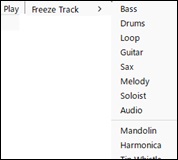
Toolbar Button in Preferences
The Preferences dialog includes a new button for configuring toolbar preferences.

Toolbar Settings in Options Menu
A new item has been added to the Option menu for configuring toolbar preferences.

Options Added to Track Button Menu
New items have been added to edit MIDI (1. Rechannel to guitar channels, 2. Rechannel to guitar channels (preserving existing guitar channels), 3. Rechannel to bass channels, 4. Rechannel to piano channels.).

AI Notes (Polyphonic Audio to MIDI)
The amazing new "AI-Notes" feature transcribes polyphonic audio to MIDI, allowing it to be viewed in notation or played as MIDI. It can transcribe an entire audio file (all pitched instruments and all drums), or it can isolate and transcribe individual instruments (drums, bass, guitars/piano, and vocals). It uses an advanced AI neural network to produce highly accurate results that sound exceptionally musical when played. For example, load your favorite pop song and generate transcriptions for its instruments (bass, drums, guitars/pianos, vocals), which you can play on their own or along with the audio of the song. This is an excellent way to learn songs, as you can visually follow the parts as they play on the piano keyboard or guitar fretboard. You can also use this feature together with the "AI-Stems" feature to split the original audio into separate tracks.
To use it, click on the [AI] button and select AI-Notes from the drop-down menu, or use the hotkeys N O T E S Enter or S S 1 6 Enter to open the Notes - AI Audio Transcriber and Stem Splitter dialog. Then, select a track containing audio that you want to process, choose the instrument(s) to split and/or transcribe, specify the destination track(s) for the MIDI output, and press OK.
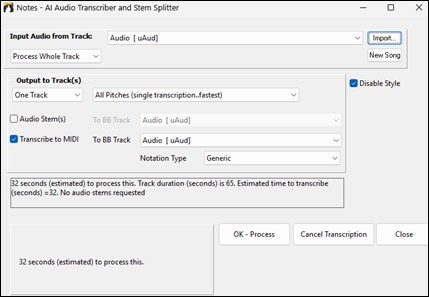
Input Audio from Track: Transcription or stem split processes use the existing audio in the track selected here.
[Import]: This lets you select an audio file to import to the selected track.
[New Song]: This clears the current song, allowing you to open a new audio file to a new song using the [Import] button.
Process Whole Track / Process Partial Track: Choose whether to process the entire song or only a portion. Because transcription can take time (up to two minutes for a three-minute song), selecting a smaller section speeds up processing.
Offset from start: Specify the location where the transcription begins.
Duration: Set the length of audio to process from the start location
Disable Style: Check this if you don't want the style to play along with the audio.
One Track / Master + 4 Tracks: Choose to output transcriptions and/or stems for a single instrument or multiple instruments.
Audio Stem(s): Select this to generate stems. You should also select a destination track for the generated stems.
Transcribe to MIDI: Select this to transcribe audio in the selected track to MIDI. You should also choose a destination track for that MIDI output.
Notation Type: Select a type to assign the correct channel, patch, and notation display for the output track.
AI Stems Enhancements
The AI Stems dialog now includes Audio-to-MIDI transcription, allowing you to convert any separated stem (or the full mix) into MIDI. These MIDI transcriptions can be viewed, edited, remixed, or used for learning purposes. For example, you can import vocals from your favorite singer, transcribe a desired instrument part to MIDI, and then use Band-in-a-Box to rearrange or replace the backing tracks, creating a fully personalized mix.
To use this feature, click on the [AI] button on the top toolbar and select AI Stems from the drop-down menu, or use the hotkey S T E M S Enter. You will then see the Stems - AI Audio Stem Splitter and Transcriber to MIDI dialog.
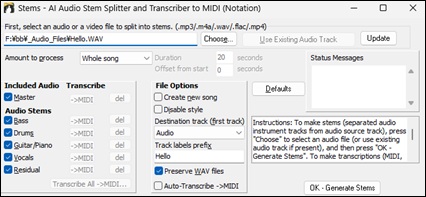
Choose a file, select the options, and click on the [OK – Generate Stems] button. Once stems are generated, use the [->MIDI] button for any stem to transcribe it to MIDI. The [Transcribe All ->MIDI] button transcribes all generated stems to MIDI at once, with the option to place a second copy below the stem tracks. Note that the [->MIDI] and [Transcribe All ->MIDI] buttons are greyed out (disabled) if MIDI transcription is not available but they automatically become enabled when the status changes.
If you prefer to separate the file into individual tracks and automatically transcribe each one to MIDI, enable the Auto-Transcribe ->MIDI option, and click on the [OK – Generate Stems & Transcription] button.
Piano Roll Window Enhancements
Visual Enhancements
Modernized Color Scheme: A fully refreshed color palette throughout the Piano Roll for improved visual clarity and delivers a more contemporary look.
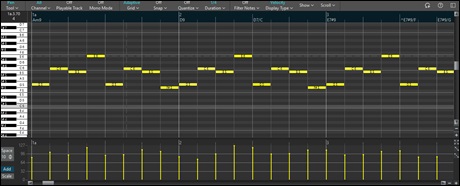
Velocity Shading by Default: Notes are now color-coded by velocity, with higher velocities appearing brighter and more saturated, and lower velocities appearing more subdued.

Middle C Indicator: A clear visual marker highlights middle C (C5) on the keyboard for easier octave orientation.

Full-Height Playback Cursor: The Piano Roll now features two distinct full-height cursors: a green playback cursor that tracks the current playback position, and a blue position cursor that marks your edit/start position.

Separate Playback and Position Cursors: Playback (green) and edit (blue) cursors are now distinct, matching the behavior of the Audio Edit window for a consistent user experience.
Velocity Editing Cursor: A specialized cursor appears when holding down the Ctrl key and dragging notes to adjust velocity, centered precisely at the click point for improved control.

Note Display & Information
Customizable Note Text Display: The new "Note Display" menu option lets you choose what information appears on each note (note name, velocity, duration, etc.), allowing you to control visual information density.
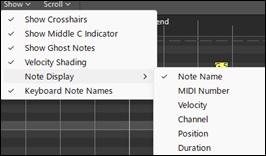
Intelligent Note Text Sizing: Note text now automatically shortens when notes are too small to display full information, maintaining readability at all zoom levels.

Enhanced Note Tooltips: Detailed tooltips appear when hovering over any note, showing pitch, velocity, duration, position, channel, and more. When hovering over empty space, the tooltip shows what note would be created at that location.

Real-Time Duration Feedback: When adjusting note duration by dragging, the updated duration value is displayed in real time as you drag.

Drum Kit Sound Names for Channel 10: On channel 10, notes and keyboard display the drum sound name associated with each key (e.g., "C5 (Kick)") alongside the standard note name, making drum programming more intuitive.
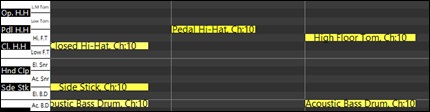
Guitar Notation for Channels 11-16: On channels 11-16, notes and keyboard display guitar string and fret information (e.g., "C5 (2s/1f)" for second string, first fret) alongside the standard note name, enhancing guitar-oriented MIDI editing.

Bar.Beat.Tick Format: All position displays now use the industry-standard bar.beat.tick (b.b.t) format for consistency and clearer timing reference.

Keyboard Note Name Display: You can toggle MIDI note names on the keyboard for quick reference, with improved spacing on black-key labels for better readability.

Advanced Grid Controls: New options in the Grid menu allow you to:
- Toggle the grid on/off.
- Adjust the grid resolution to match your workflow.
- Apply swing or groove to the grid for non-straight timing feels.

Smart Snap with Hotkey Toggle: The enhanced snap-to-grid system now includes a hotkey (Shift+S) for quick toggling. Snap functions consistently whether you are entering new notes or moving existing ones.
Adjustable Snap Strength: A new "Snap Strength" setting (0-100%) lets you fine-tune how strongly notes adhere to the grid, enabling subtle timing shifts while still maintaining a loose rhythmic feel when desired.
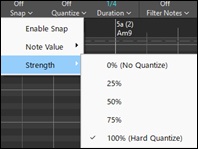
Grid-Aware Movement: When moving a note with the arrow keys, note movement follows the current grid resolution, providing more predictable and musically aligned navigation.

Loop Region
Visual Loop Area Editor: A new dedicated loop region area appears on the Ruler panel, providing intuitive loop management.

- The default (disabled) loop region spans bars 1-4.
- Click and drag to define a new loop region.
- Shift+click on the loop region to toggle looping on or off.
- Drag the left or right edge to adjust loop start/end points.
- Drag the loop region body to move it to a new position.
Note Editing Tools
Pen Tool as Default: The Pen tool is now the default cursor mode, streamlining the note entry for faster composition.
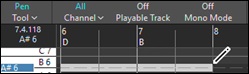
Split Tool: A new Split tool lets you divide a note into two at the click point.
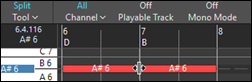
Click-and-Drag Note Creation: Create notes with custom durations by clicking and dragging horizontally. Note extend as you drag, with real-time visual feedback.
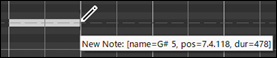
Flexible Note Movement: Move notes by clicking and dragging. By default, movement is axis-locked—restricted to pitch or time—for precise editing. Hold the Shift key while dragging to remove the lock and move notes freely in both directions.

Edge-Based Duration Editing: Click and drag from the left edge of a note to adjust its start position and duration simultaneously.
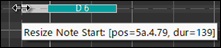
Piano Keyboard Note Entry: Click directly on the piano keyboard to insert a note at the current cursor position. Hold the key on the piano keyboard to increase the note's duration while holding.

Direct Velocity Editing: Hold the Ctrl key and drag notes vertically to adjust velocity. The current velocity value is displayed in real time as you drag.
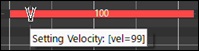
Shift+Drag Event Time Adjustment: In the Graphic Event panel, hold down the Shift key while clicking and dragging an event horizontally to slide it in time. If multiple events are selected, all selected events will move together.
Selection Rectangle Enhancement: The selection rectangle now selects all notes that overlap with the selection area, not only those whose start positions fall within it, making multi-note selection more intuitive.
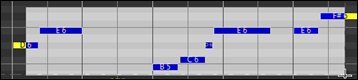
Keyboard Shortcuts
Note Panel Shortcuts
- 1 – 6: Toggles the Tool mode.
- Shift: Activates the selection tool for selecting multiple notes.
- Shift on a note: Enables free movement in both directions (removes axis-lock).
- Shift+Ctrl: Activates the delete tool for removing notes.
- Ctrl+Drag: Adjusts note velocity with real-time visual feedback.
- Left/Right Cursors: Moves the selected note by 1 grid resolution, or moves cursor if no note is selected.
- Shift+L Cursor / Shift+R Cursor: Selects the adjacent note to the left or right.
- Up/Down Cursors: Moves the selected note up or down by one semitone.
- Shift+Up Cursor / Shift+Down Cursor: Moves the selected note up or down by one octave.
- N: Inserts a new note at the cursor position using the last-entered pitch.
- Shift+S: Toggles snap-to-grid on/off.
Control Panel Shortcuts
- Shift: Activates the selection tool for selecting automation regions.
- Ctrl: Activates the line cursor for drawing straight automation lines.
Keyboard Panel Shortcuts
- Shift: Activates the selection tool.
Ruler Panel Shortcuts
- Shift: Toggles loop playback on/off.
Zoom and Navigation
Extended Vertical Zoom: Zoom in vertically down to a single octave for detailed editing of specific pitch ranges, or zoom out to display all notes within the visible window height.
Complete Horizontal Zoom Out: Zoom fully out horizontally to view your entire project in the Piano Roll at once, ideal for reviewing overall song structure and long-range patterns.
Auto-Scroll Control: A new "Mouse Scroll" option in the Scroll menu allows you to enable or disable mouse wheel scrolling in the Piano Roll, giving you control over navigation behavior.
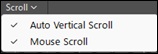
Cursor-Based Clicking: Clicking anywhere on the Ruler or Note panel (without dragging) now moves the cursor to that position for fast, precise navigation.

Ruler Double-Click Playback: Double-click anywhere on the Ruler to start playback from that position, making it easier to audition specific sections quickly.

Mono Mode: Enable "Mono Mode" from the toolbar to ensure only one note plays at a time, perfect for creating melodic sequences and single-note lines without unintended chord overlaps.

Quantize Strength: Use the 0–100% options in the Quantize menu to fine-tune the intensity of quantization.
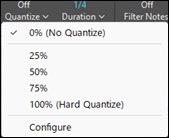
Comprehensive Quantize Dialog: A redesigned Quantize dialog (Quantize - Configure) provides precise and flexible control over timing and musical alignment.
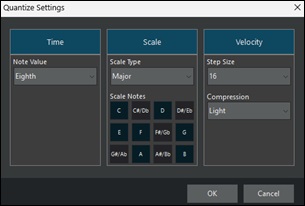
- Quantize Time: Align note positions to the desired timing resolution.
- Quantize Scale: Adjust notes to a selected musical scale.
- Quantize Velocity: Normalize or modify velocity ranges.
- Clickable Section Headers: Quickly enable or disable each quantize type by clicking on its title bar.
Advanced Filter System: A new floating Filter dialog (Filter Notes - Configure) - provides sophisticated note filtering capabilities.
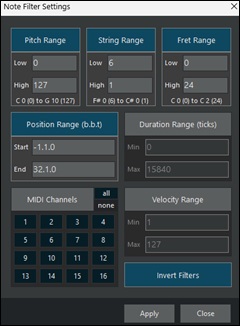
- Pitch Filter: Show or hide notes by pitch (supports note names).
- String Range Filter: Show notes within specific guitar string ranges.
- Fret Range Filter: Show notes within specific fret ranges.
- Position Range Filter: Filter notes by time range using the bar.beat.tick format.
- Duration Filter: Display notes based on note length.
- MIDI Channel Filter: Show or hide notes by channel, with convenient All/None buttons.
- Velocity Filter: Filter by velocity ranges.
- Invert Filter: Swap visible and hidden notes instantly.
- Individual Toggle: Enable or disable each filter criterion independently.
- Filter-Aware Selection: Selection rectangle respects filters, with an option to select filtered notes.
Edit Tool Selection: Choose from different editing tool modes from the toolbar to optimize your workflow for different tasks. The "Right-Click" option in the Pen menu lets you configure right-click behavior. By default, right-click dragging selects notes.
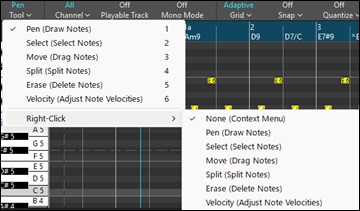
GUI Improvements
Streamlined Toolbar: The toolbar has been fully reorganized, with all functions now organized into clear, logical menus for a cleaner, more professional interface.

- Tool: Select the active editing tool.
- Channel: Choose which MIDI channel to display and edit.
- Playable Track: Enable or disable the Playable Track.
- Mono Mode: Turn Mono Mode on or off.
- Grid: Configure grid resolution, visibility, and swing/groove.
- Snap: Adjust snap behavior, including snap strength and toggle.
- Quantize: Access quick quantize presets or the full Quantize dialog.
- Duration: Apply predefined note durations.
- Filter Notes: Open the advanced Filter dialog for note visibility control.
- Display Type: Select what the Control panel displays (velocity, controllers, etc.).
- Show: Toggle visual features including Ghost Notes, Velocity Shading, Note Display, and Keyboard Note Names.
- Scroll: Configure mouse and auto-scroll behavior.
- Reset Button: Restore all settings to their default values.
- Help Button: Open online help documentation.
- Floating/Docking Button: Float or dock the Piano Roll window.
Stem Splitter Player Enhancements
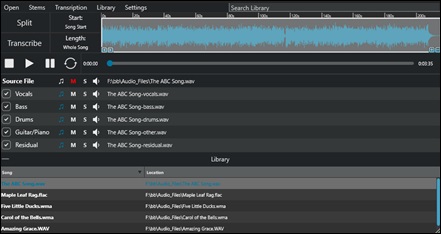
MIDI Transcription
Audio-to-MIDI Transcription: Transform any audio file into editable MIDI notation. The powerful new transcription engine can convert pitched instruments or drums into MIDI format, opening endless possibilities for remixing, learning, and music production.
Individual Track Transcription: Transcribe the source file or specific stems independently without processing the entire mix. Each track has a dedicated transcription button (eighth note icon) that turns blue when a transcription is available, allowing you to drag the generated MIDI file directly to your desired location.
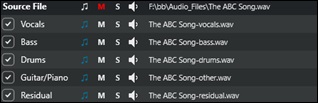
Flexible Transcription Workflows: Combine operations seamlessly—split an audio file into stems, then transcribe everything at once or selectively transcribe only the stems you need. The transcription feature integrates fully with the stem splitting workflow for maximum flexibility.
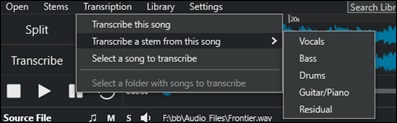
Intelligent Source Transcription Options: When transcribing the source file directly, the application prompts whether to transcribe as drums or pitched notes, ensuring optimal results based on your content.
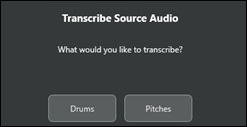
Multi-Stem Combined Transcription: Transcribe all stems simultaneously to create individual MIDI files for each stem plus a combined "source transcription" file that merges all parts. This approach produces superior results compared to transcribing the mixed source file directly, while still providing separate MIDI files for each stem.
Load an audio file by using the File menu or by dragging a file to the track table, adjust the settings (start position, length, and stem selection), and click on the [Split] button to separate the file into stems. Then click on the [Transcribe] button to convert all stems into MIDI. Whenever all stems are transcribed, the program also generates a multi-stem combined transcription, which merges all individual stem transcriptions into a single master transcription.
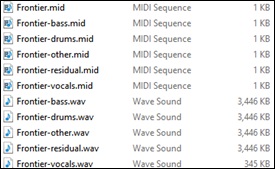
Transcription Menu: A new dedicated Transcription menu provides quick access to all transcription settings and options.
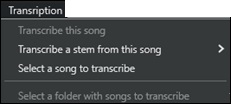
Waveform Timeline and Region Selection
Visual Waveform Timeline: A new interactive waveform displays your source audio file with precise time references. The timeline provides a visual representation of your audio and links directly to the Start and Length parameters.

Region Selection Tool: Select specific regions of your audio file directly in the waveform timeline by clicking and dragging. The Start and Length values automatically update to match your selection, making it easy to process only the parts you need.

Timeline Zoom and Scroll: Navigate large audio files effortlessly with zoom and scroll capabilities in the waveform timeline, allowing you to focus on precise sections or view the entire song at a glance.

Start Time Parameter: A new "Start Time" parameter lets you specify exactly where in the audio file to begin processing, giving you precise control over which portions of your audio to split or transcribe.

Enhanced Time Precision: Time values now display in seconds with decimal fractions when selecting regions and setting start positions for improved accuracy.
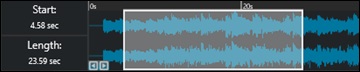
Library Management
Batch Stem Split from Folder: The "Select a folder with songs to split" option in the Stems menu performs a batch operation on all songs in the selected folder. Each song will be split into stems and automatically added to the library, streamlining the process of handling multiple songs at once.
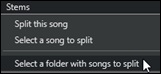
Batch Add to Library: Quickly add multiple songs to your library at once instead of one at a time, making it easier to build your collection. To do this, select "Add New Song to Library" from the Library menu, then highlight the songs in the Open dialog. You can also drag multiple songs from Explorer and drop them onto the Library panel.
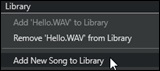
Drag-and-Drop Library Management: Drag and drop one or multiple songs directly onto the Library panel to instantly add them to your collection - no need to use the Add Song dialog.
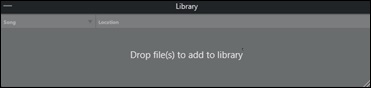
Drag-and-Drop Song Loading: Drag and drop a song onto the track table to load it instantly, providing a faster, more intuitive workflow.
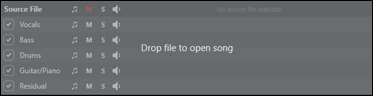
Library Search: A new search bar allows you to quickly find songs in your library by name, essential for navigating large collections.

Workflow Automation
Auto-Split After Open: Enable this setting to automatically begin splitting a file into stems immediately after opening it, removing the need for an extra click in your regular workflow.
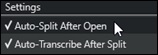
Auto-Transcribe After Split: When enabled, all stems are automatically transcribed after the splitting process completes, creating a fully automated workflow from audio file to MIDI output.
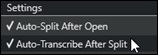
Interface Improvements
Comprehensive Tooltips: Every component in the application now includes helpful tooltips that appear on hover, making it easier to understand each control's function.
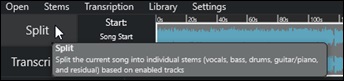
Settings Menu: A new dedicated Settings menu consolidates all application preferences in one convenient location, including automation options, output formats, and mixer controls.
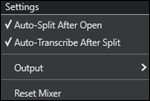
Option to Transcribe Residual Stem: An option has been added to the Settings menu to transcribe residual stem. (By default, the residual stem is not transcribed,)
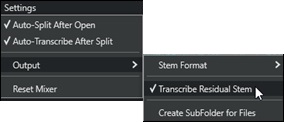
Reset Mixer Option: A "Reset Mixer" option in the Settings menu allows you to quickly return all mixer tracks to their default state, useful when starting fresh with a new song.
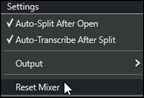
Streamlined Transport Controls: The Count-in and Sync buttons have been removed to simplify the transport section, focusing on core playback controls for stem and transcription workflows.

Auto-Stop During Processing: Playback now automatically stops when splitting or transcribing operations begin, preventing conflicts and ensuring clean processing.

File Management
Organized Output Folders: A new "Create Subfolder for Files" option in the Settings menu organizes generated stem and transcription files into dedicated subfolders, keeping the source file's directory uncluttered.
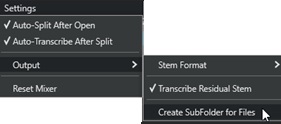
Stem Format Options: Moved to the Settings | Output | Stem Format submenu, these options let you choose your preferred output file format (.wav, .mp3, .ogg, etc.) for generated stem files.
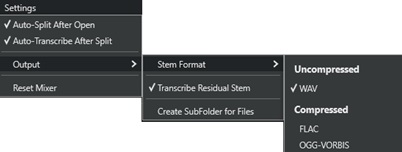
Support for M4A/MP4 Files: You can now import and process M4A and MP4 files.

Thank you for taking time to read this introduction to Band-in-a-Box 2026!
Unconditional 30-Day Money Back Guarantee on all PG Music products purchased from PG Music Inc.
PG Music Inc.
29 Cadillac Ave Victoria BC Canada V8Z 1T3
Sales: 800-268-6272, 250-475-2874,+ 800-4746-8742*
* Outside USA & Canada where International Freephone service is available.
Access Codes
Tech Support: Live Chat, support@pgmusic.com
 Online now
Need Help?
Customer Sales & Support
|
Phones (Pacific Time) 1-800-268-6272 1-250-475-2874 |
||
| Live Chat | ||
| OPEN | Online Ordering 24/7 |
|
| OPEN | Forums, email, web support |