
Search Manual
Band-in-a-Box® 2026 for Windows® User's Guide
Chapter 4: The Main Screen
Main Screen Overview
Band-in-a-Box supports Windows® themes. It uses the current theme that you have selected in the Windows® Control Panel to use for windows and dialogs.
The main screen gives direct access to the major features and program settings of Band-in-a-Box for ease and convenience during a session.
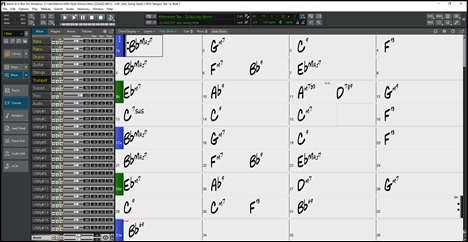
At the top of the screen is the Status Bar, which shows program running status and path names of the currently loaded song.
Immediately below it is the Menu Bar, featuring standard Windows® menus for accessing program settings.
The Top Toolbar has buttons for direct access to important program features and menus. It is organized into groups of buttons for related features such as Export, File, Transport, Song Overview, Song/Style, and more.
The Side Toolbar provides quick access to track selection, the MultiPicker Library window, and other windows.
The Mixer provides live control of tracks with Volume, Pan, Reverb, and Tone settings. It also supports the assignment of plugins and patches to individual tracks and has a piano keyboard display.
The Chord Sheet is the default window, where you enter chords, rests/shots/holds, and part markers (a, b, through x).
The Band-in-a-Box screen is resizable. To resize, first unmaximize it, then use the sizing control at the bottom right. The screen size is remembered between sessions.
Yellow Alert messages and green Action messages
Many Band-in-a-Box messages appear as yellow alerts at the bottom-right of the screen, so you can see them without interrupting your workflow. If the message box is green instead of yellow, it indicates an “action” message—you can click on it to perform the described action, such as loading a substitute style. Green action messages also include a close button, allowing you to dismiss the message without taking the action.

[Note: You can chang the flash message colors in the Display and Chord Sheet Settingsdialog (Options | Preferences | [Display].]
Descriptive Hints
The pop-up hints are comprehensive fly-by hints that appear when you move over an item, including hints for the dialog boxes and various windows.
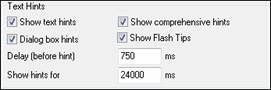
You can set the hint type, delay, and duration in the Preferences dialog, accessible via the gear icon on the top toolbar, Ctrl+E, or the menu item Options | Preferences.
Increase the delay if you find that hints appear too frequently.
Status Bar

The name of the open song is identified in the status bar at the top of the screen. The full file name and path name are shown, as well as audio track information if present, the length of the song in minutes and seconds, and the current position of the highlight cell. Other “running status” messages such as Soloist Generation and Song Generation display in the status bar.
The status bar changes during playback to show additional information like the current bar and chorus location and the current style. The on-screen file name includes “*” when a file has been changed.

Top Toolbar

The toolbar buttons give quick access to program features. They are grouped according to function.
The top toolbar gives quick access to program features and uses logical groups of related controls, arranged from left to right:
- Export: Drop Station and export buttons.
- File: New, Open, Save, and related commands.
- Transport Control: Play, Generate+Play, Pause, Stop, Record and Loop buttons.
- Song Overview: Timeline for the song.
- Song & Style Group: Current song information, style details, and properties.
- Additional Tools: Buttons for additional functions.
Buttons in the File, Song Settings, and Additional Tools groups can be added or removed based on your preferences, and all buttons can display either an image or a caption; caption mode uses larger buttons, so fewer fit on the screen. You can also adjust the font size of button captions. Configure these settings in the Toolbar Settings dialog, accessible via the gear icon on the far right of the toolbar, the menu item Options | Toolbar Settings or the [Toolbar] button in the Preferences dialog (Ctrl+E or Options | Preferences).
Export Group
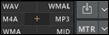
 The area that shows six different file types is called the Drop Station. This is used to drag and drop tracks from Band-in-a-Box to Digital Audio Workstations (DAWs) that don’t support direct drag and drop. Many DAWs will allow you to do this directly, but if your DAW does not support the direct drop of a track that is not yet generated, you can drag a track label (Master, Bass, Piano, etc.) from the Mixer and drop it onto the Drop Station.
Your file will be rendered to the format of the target you drop it onto, and the button will turn orange to indicate that the file has been accepted and is being prepared. When it turns green, the track has been generated and is ready to be dragged from the Drop Station into your DAW. When you drop the track label to the [+] in the center, you are presented with a dialog, where you can choose a file format and other render options.
 The [Drop] button is a split button. The main button on the left toggles Drag and Drop mode, while the down arrow on the right shows a drop-down menu with additional drag-and-drop options. When Drag and Drop mode is enabled, the main button turns red and Band-in-a-Box becomes an always-on-top small window, making it easy to drag buttons from the Drop Station to your DAW. You can also use the hotkey Ctrl+Shift+S to enable Drag and Drop mode.
 The [Master] button is also a split button. You can drag the main button on the left and drop it onto the Drop Station to render the Master track. The down arrow on the right shows a drop-down menu with additional export options.
File Group
 This area is for file functions like Open, Save, etc.
 The [New] button lets you start a new song. Band-in-a-Box reminds you to save your work before it clears the chords from the Chord Sheet.
 The [Open] button lets you open a Band-in-a-Box song file. The hotkeys are F3 or S S 4 Enter.
 The [Open+] button lets you open various types of files. including Band-in-a-Box songs, MIDI files, Karaoke files, audio files, MusicXML files, and more.
 The [Import] button lets you import MIDI files, audio files, MusicXML files, and others into the current song.
 The [Save] button saves the current song as a Band-in-a-Box song file (.SGU or .MGU). The hotkeys are F2 or Ctrl+S.
 The [Save+] button lets you save the current song using various methods.
 Use [Prev] button to immediately open the previous song in the same folder (in alphabetical order) without going through the usual file opening process. The hotkey is Ctrl+Shift+F8.
 Use the [Next] button to instantly open the next song in the same folder (in alphabetical order) without going through the usual file opening process. The hotkeys is Shift+F8.
Transport Groupe
 This area is for standard play and record controls.
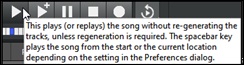
 The [Play] button plays the song from the beginning without creating a new arrangement, unless regenerating is required.
 Press the [Generate+Play] button to generate a new arrangement and then play the song.
 The [Pause] button pauses song playback, and you can press it again to continue playing from the paused location.
 Press the [Stop] to stop song playback or recording.
 The [Record] button lets you record audio and/or MIDI to your song.
 The [Loop] button opens a menu to play the highlighted section in a loop, toggle the looping feature, or open the Loop Sections Settings dialog.
These buttons display an active state. For example, the [Play] button turns green during playback, and the [Generate+Play] button turns blue during track generation, before playback starts.
Song Overview

This area displays a timeline for the current song. The current time is marked with a gray vertical line. You can click on the bar to move the current time to that point. Part markers are marked with colored (blue, green, etc.) vertical lines and the beginning of each chorus is marked with outlines. You can double-click on the bar to start playback from that point.
Hovering over the Song Overview shows bar and chorus numbers.
It indicates Bar Settings changes (e.g., volume changes, beats/bar change) with a red line.
The Song Overview can be set to small (under Transport), full width, or hidden completely. This is done in the Toolbar Settings, which can open with the gear icon at the far right of the top toolbar.
Song & Style Group

This area is for information related to the current song, such as current style, tempo, key, form, etc.
 The [Song] button is for loading a song. Clicking the main button on the left performs the default action, while clicking on the arrow button shows a drop-down menu that lets you open a song sing alternate methods and set the default action for the main button.
 The [Style] button is for loading a style. Clicking the main button on the left performs the default action, while clicking on the arrow button shows a drop-down menu that lets you load a style sing alternate methods and set the default action for the main button.
 The song title is displayed, and you can type one in this box.
 Directly below the song title, the style display shows the style name and more information about the style. Hovering over the style name shows full short and long style names, useful when the toolbar is narrow. Clicking on the name of the style shows a menu with options for choosing a style for your song. Change style at any bar inserts a style change at the currently highlighted bar on the Chord Sheet. Open Style from disk is for selecting styles from file folders. Choose Favorite Style opens either a list of pre-selected favorites, or a list of recently played styles. Load Song Demo loads a song demo for the current style.
[Tip: To adjust the font size of the song title and style name, open the Toolbar Settings dialog from the gear icon on the top right of the toolbar.]
 The song length is displayed in minutes and seconds.
 This shows the song's feel (swing or even, and 8th or 16th), as determined by the current style.
 This opens the Song Memo dialog, where you can enter notes and information about the song.
 This displays information about the currently loaded style.
 This shows the bar where the chorus begins. Click on it, then click on a bar number or enter one in the dialog to set the first bar of the chorus.
 This displays the bar where the chorus ends. Click on it and then click on a bar number or enter one in the dialog to set the last bar of the chorus. By default, the end bar for new songs is 32, but you can change this default in the Arrangement Options dialog.
This shows the number of choruses. Click on it and choose the number of choruses (up to 40). By default, new songs default to 1 chorus, but you can change this default in the Arrangement Options dialog.
 Use this button to configure overall song replay.
 This displays the time signature of the current style. You can click on it to change the time signature for the entire song or for a selection region. An asterisk appears if there are any time signature changes in the song.
 Use this to set the key or to change it and transpose the song. When you press it, you see 2 columns of keys. The first column lets you set the key and transpose the song; the second lets you set just the key signature. The Visual Transpose setting is displayed in a small font next to the key. You can click on it to show a menu for selecting the setting.
 The current song tempo is shown. Left-click on the up/down arrows to change the tempo by +/- 5 beats per minute. Right-click to change it by +/- 1 bpm. Tempos can also be typed in directly.
 This button allows you to set the relative tempo. Click on it and choose a percentage or use the Custom Tempo % menu item to set any value between 1% and 800%. 1% would be 1/100 of the original tempo and 800% would be 8 times the original tempo. Hotkeys are available: Ctrl - (minus key) for half speed and Ctrl = for normal speed.
 Use these buttons to count and set a tempo. Tap the left button in tempo four times to set the tempo. It will appear in the tempo box. Tap the right button to count-in the song and start playback at the tapped tempo. As you tap more than 4 times, the accuracy will improve (through averaging) and you can continue to tap until the target tempo has been reached. For example, in a 4/4/ style, once you tap 4 times a tempo will be set. But you can keep tapping and the tempo will change every beat, based on the average tempo that you have typed.
 The [Song Settings] button lets you set options such as endings, tags, style variations, pushes, rests, and chord embellishments to make your song interesting and varied.
 The [Chord Options] button lets you add pushes, rests, shots, and holds to chords in any bar. The hotkey is Alt+F.
 The [Bar Settings] button allows you to enter changes to the arrangement at any bar. The hotkey is F5.
 The [Chord Builder] button lets you enter chords by ear without needing to know the actual chord names or any music theory. The hotkey is Ctrl+Shift+B.
 The [AI] button provides access to the various AI features, including AI Notes, AI Stems and AI Lyrics.
 The [Song Form] button lets you control the form of your song, create a medley, auto-generate an intro, add repeats and 1st/2nd endings, reduce/expand, or fold/unfold the song.
Additional Tools Group

This group has buttons for many more features.
 The [Soloist] button lets you select a RealTracks Soloist from a list of best Soloists, or choose a MIDI or RealTracks Soloist from the Select Soloist dialog with configurable settings.
 The [Melodist] button opens the Select Melodist dialog, which generates a new song with chord changes, melody, a solo, and an original song title.
 Use the [Harmony] button to add MIDI harmonies to the Melody or the Thru/Soloist track, providing harmonies for live playing on the Thru channel or QWERTY wizard.
 The [StyleMaker] buttons displays a menu for creating styles.
 The [Practice] button provides access to various practice features.
 The [MIDI] button shows a menu with various MIDI options, including setting MIDI/Audio drivers, launching the MIDI Monitor, and enabling the MIDI Keyboard Wizard.
 The [Video] button lets you open either the Video window or the Generate Video dialog.
 The [Jukebox] button opens the Jukebox Options dialog. The Jukebox playa all songs in a selected folder.
 The [Embellish] button lets you enable the melody embellisher or open a dialog for customizing the melody embellisher.
 The [Conductor] button opens the Conductor window, allowing live QWERTY keyboard or MIDI control while the song is playing.
 The [Sequencer] button opens the Sequencer window, which provides control of multi-channel Melody or Soloist track.
 The [Tuner] button launches the Guitar Tuner so you can tune a guitar or other instrument connected to the sound card.
 The [Lyrics] button provides access to lyrics-related functions.
 The [Print] button opens the Print Options dialog for printing notation.
 The [Chord Solo] button opens the Select Guitarist dialog, which generates a guitar chord solo based on the existing Melody track.
 The [RealTracks] button provides access to RealTracks selection, RealTracks preferences, tempo-optimized RealTracks, or replacement of MIDI styles with RealStyles
 The [RealDrums] button provides access to RealDrums selection and RealDrums preferences.
 The [UserTracks] button lets you choose UserTracks, which are like RealTracks but are made by you or third parties.
 The [MIDI Tracks] button shows a menu for selecting MIDI SuperTracks or Custom MIDI Tracks.
 The [Loops] button allows you to select audio loops (e.g., nature sound, drum loop, etc.).
 The [Title Generator] button automatically generates a song title or multiple song tiles for you.
 The [Sound] button launches Windows Volume Mixer (for speaker volume), or Windows Recording Control (to enable microphone, input level, etc.)
 The [New Features] button launches your internet browser and opens the new feature tutorial page.
 The [Chord Display] button shows a menu to select the chord font, chord color, and type of chord display (standard, Roman numeral, Nashville, etc.) and a list for visually transposing the Chord Sheet for non-concert instruments.
 The [Plugins] button shows a menu to set VST/DX plugins options, open the default VSTi/DXi software synthesizer, and adjust the reverb parameters.
 The [Feature Browser] button opens the Feature Browser, which lists many features in Band-in-a-Box and allows you to browse them.
 The gear icon opens a menu for configuring toolbar preferences and various program settings. Toolbar preferences include font size selection for top and side toolbar button captions, track selectors on the side toolbar, song tile and style names on the top toolbar, and more.
Side Toolbar
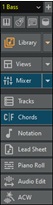 |
The side toolbar provides a quick access to track selection, the MultiPicker Library window, and various windows. It can be positioned on either the left or right side of the screen. This is done with the “Side toolbar location” option in the Toolbar Settings dialog, accessible from the gear icon on the top toolbar. You can resize the side toolbar by dragging its edge, and its width is remembered between sessions. |
Track Selector
 The track selector with a [+] button provides a central place to choose the active track and access track-related settings and commands.
[Tip: To adjust the font size of the track selector, open the Toolbar Settings dialog from the gear icon on the top right of the toolbar.]
View Buttons
Logical groups of view buttons on the side toolbar allow switching the main window (e.g., Chords, Tracks, Notation, etc.) and also opening secondary windows (Big Piano, Guitar, Lyrics, Drums).
[Note: Secondary windows are optional add-on displays. When docked, they always appear at the top and do not replace the main windows. This design is intentional and makes it easy to keep instrument views visible while switching among the main windows.]
Each window can be shown either docked in the main workspace or as a floating window.
- Ctrl+click on a view button to force the window to float.
- Shift+click on a view button to add the window as docked in the main workspace. For example, to create a Chords-and-Notation top/bottom layout, click on [Chords], then Shift+click on [Notation]. You can also add Lyrics, Guitar, or Piano windows to a multi-view by clicking on their respective buttons.
- All view buttons show an active state when their window is docked.
- All docked windows include splitters, allowing you to adjust their vertical size.
 The piano icon opens the Big Piano window, which displays the notes as the music is playing.
 The guitar icon opens the Guitar window, which displays guitar notes as music is playing.
 The lyrics icon opens the Big Lyrics window for full screen karaoke-style scrolling lyrics.
 The drum icon opens the animated Drum Kit window.
 The [Library] button opens the MultiPick Library, a central hub for various pickers (e.g., SongPicker, StylePicker, RealTracks Picker, Melodist Picker, etc.) and AI/Assistant features. The down arrow button displays a menu with options to open the Library as a floating window or embedded panel, close the Library, or jump directly to a specific picker or AI/Assistant features in the Library. To open a standalone picker dialog instead of the Library, hold down the Shift key while clicking on an item in the drop-down menu; for example, Shift+clicking on RealTracks opens the standalone RealTracks Picker.
 The [Views] button loads the default multi-view layout (combination of embedded and/or floating windows). Use the drop-down menu to create a default view, load the the most recently used view, or set options for this button.
 The [Mixer] button opens the Mixer window. The down arrow button opens a drop-down menu that lets you show the Mixer on left or right, open the floating Mixer, or hide the Mixer.
 The [Tracks] button opens the Tracks window, which displays all track data and allows you to adjust the volume, pan, reverb, and tone; quickly solo or mute tracks; assign DX/VST plugins; select a region for loop playback; and more.
 The [Chords] button opens the Chord Sheet window. This is the default window in Band-in-a-Box, where you enter chords.
 The [Notation] button opens the Notation window, which displays notation for the individual track.
 The [Lead Sheet] button opens the Lead Sheet window, which displays notation for one or more tracks.
 The [Piano Roll] button opens the Piano Roll window, which allows editing MIDI tacks in a piano roll format.
 The [Audio Edit] button opens the Audio Edit window, which displays graphical waveforms and allows editing.
 The [ACW] button sets a special multi-view layout, with the Chord Sheet window on top and the Audio Edit window on the bottom, and runs the Audio Chord Wizard, which will automatically figure out the chords in an audio file.
[+] Button’s Drop-Down Menu for Individual Tracks
Multi Picker Library opens a floating window that serves as a one-stop shop for various pickers and AI/Assistant features.
Use MultiPicker instead of dialogs (Ctrl=yes, Shift=no): When this is enabled, for the picker features the MultiPicker Library will open instead of individual picker dialogs. For example, selecting Load Style from StylePicker from the File menu or pressing Ctrl+F9 will open the MultiPicker Library, displaying the StylePicker. You can override this setting by holding the Shift or Ctrl key while selecting a menu command. For example, Shift+clicking on the Load Style from StylePicker menu item opens the modal StylePicker, while Ctrl+clicking on the same menu item opens the MultiPicker Library, displaying the StylePicker.
Track Settings and Actions Dialog opens a dialog where you can select RealTracks, Loops, MIDI SuperTracks, etc., set volume/ reverb/panning/tone, mute, solo, freeze, and do many other things for all 24 tracks.
Arm Track for Audio Input Monitoring allows live audio input monitoring. When the track is armed, blue borders are drawn around the VU meters on the Mixer and you can monitor audio input along with the effects that you select on that track. For example, if you want to add a tremolo effect to your recording, right-click on the first slot in the Mixer, select Choose Plugin from the context menu and select a tremolo effect. Now, when you sing or play an instrument through the microphone, you will see it on the VU meters and hear it along with the tremolo effects.
Select RealTracks shows menu options to generate RealTracks.
Select RealTracks allows you to generate the track as a RealTrack using any available RealTracks instrument. Find Best Sub allows you to find a replacement that is similar to the currently selected RealTracks. Select Best “All” RealTracks shows all RealTracks, sorted by best to worst for the current style. Select Best “Chording” RealTracks allows you to select comping or background RealTracks. Select Best “Soloist” RealTracks is to add a best Soloist to any track. Choose RealTracks from Favorites opens a dialog that shows recently used and favorite RealTracks. Choose RealTracks from Recently Chosen shows a list of recently used RealTracks. Choose No RealTracks for this track will remove the current selection from the track. Generate seven variations of WAVs (for whole/part of song) will generate 7 variations of WAVs from the same RealTracks for either a portion of the song or the whole song. Once the files are generated, they can be accessed from the Drop Station. Add extra bar before and after the WAVs (for pickup notes) adds an extra bar before the WAV begins to ensure that the “pickup” (early) notes will be heard. It does not add an extra bar at the end of the WAV unless there are trailing notes. |
Select a UserTracks for this track lets you assign a track from the list in your UserTracks folder. UserTracks work like RealTracks but are created from the user’s own audio recordings.
You can play an audio loop (your own or third party) on any track with the Select a Loop for this track command.
Choose RealDrums allows you to add RealDrums to any track, not just the Drums track.
Select Guitar/Bass Amp Plugin will list all available TGS files for guitar/bass amp plugins. (Note: This menu item will be shown on an audio track.)
Select MIDI Instrument (Patch) is used to assign an instrument to a MIDI track from the Hi-Q patch list, the General MIDI patch list, the General MIDI 2 patch list, the higher bank patches on your particular synthesizer, or from a preselected list of favorite patches. Use the Select
Hi-Q MIDI Patch Plugin command to select a preset of a Hi-Q instrument and a VST plugin (e.g., sforzando). (Note: This menu item will be shown on a MIDI track only.)
Select MIDI SuperTrack for this track opens a list of available MIDI SuperTracks. They can be used in the same way as RealTracks.
Select Custom MIDI Style for this track lets you play your favorite MIDI track from any style on any track of your current style, including the Melody and Soloist tracks. The track you assign doesn’t have to be the same instrument, i.e., you could assign a Guitar to the Strings track.
Track Settings
XXX track is enabled. This command is the easy way to disable/enable a track, even during song playback. When a track is disabled, the color of the track name is dark gray. You can Mute or Solo the individual part. Solo mutes all but the soloed part. Un-Mute All is useful to restore all other parts after a track has been soloed. Freeze the track if you do not want the track regenerated on each play. Tracks can be unfrozen. Force Track to simple arrangement makes the track play a simpler (less busy or embellished) arrangement. Set track to avoid transpositions allows the track to avoid transposition. This will produce higher quality sound but less variation. Set Track offset allows the track to be moved ahead or behind by +/- 1000 ticks (at a resolution of 120 PPQ). Track Timebase allows you to select a timebase (normal/half/double/triple) for RealTracks or RealDrums tracks. Set Natural Arrangement allows re-interpretation of chords for the selected track of the current song. Duplicate RealTracks (to thicken sound) duplicates the currently selected RealTracks on the track. You can then set the stereo panning for each sub-track to achieve a fuller sound. Rename track title allows you to change the track label for the selected track. Change track description allows you to change the track description. Display dB instead of MIDI volume allows you to see the Volume and Panning levels in the Mixer as decibels instead of MIDI levels. (Note: If you cannot change this setting, you need to enable the “Display dB setting for individual tracks” option in the Global Song Override dialog.) MIDI Channel allows you to re-route MIDI events to the selected channel. Auto-Fix “Sour” Notes is a feature that auto-fixes out-of-tune notes in polyphonic audio, either for the generated RealTracks or any audio track. This means that if a chord is played with multiple notes at once, this feature can fix certain notes within that chord so that the note won’t clash with the chord progression or other tracks. You can choose one of the following rules. "Song Chords: Any note outside of the current chord will be corrected to a closest chord tone. For example, if a G# note is played on a CMaj7 chord (C, E, G, B), that note will be pitch shifted to a G note. "Song Key Signature": Any note outside of the key signature of the song will be corrected to a closest key tone. For example, an Eb note played on a C major key (C, D, E, F, G, A, B) will be pitch shifted to an E note. "Song Key Signatures and Chords": Notes will be restricted to the key tones unless the current chord is outside of the current key, in which case notes will be restricted to the chord tones. For example, on a C major key (C, D, E, F, G, A, B), an E note played on a Dm7 chord (D, F, A, C) won’t be corrected, but an E note played on an F7 chord (F, A, C, Eb) will be pitch shifted to the closest chord tone F. Specific Scale or Chord: Notes will be corrected based on a specific scale or chord that might not have anything to do with the current song. This option will use the scale or chord that are selected in a dialog which opens with the next menu item. "Choose specific Parameters": This allows you to customize the rules. Following menu items are available for the tracks that contain audio. |
Edit MIDI shows submenus to let you edit the MIDI track.
Track Actions
(Re)Generate this RealTrack (re)generates the track with the selected RealTrack. (Re)Generate RealTrack on Selected Region (re)generates the highlighted region of the RealTrack. This generates a different part each time, so you can keep regenerating to find the best replacement. Regenerate Window opens a floatingwindow which allows you to customize the regeneration. MultiRiff Dialog (Choose from Multiple Variations) allows you to interactively create sections of RealTracks by choosing from multiple candidates (up to 20). Revert Track to Style Instrument removes any custom instrument you have chosen for the track and revert to the instrument in the style. Cut Riff removes a range of RealTracks riff and copies it to the clipboard. Copy Riff copies a range of RealTracks riff to the clipboard. Paste Riff pastes the RealTracks riff on the clipboard to the current location, overwriting the existing riff. Paste Riff - Relative to Copy Point pastes the riff on the clipboard to the same relative location in the bar as the copied portion. For example, if the copied range started at beat 2, the relative paste will start at beat 2. Paste N copies of Riff pastes the copied riff to the current location and repeats the paste by the specified number of time Paste Riff - Merge with underlying audio pastes the riff on the clipboard to the current location and merges with the existing riff so you will hear both riffs. Erase Riff (MIDI and RealTracks) erases a region of RealTracks and related MIDI notation. Erase Track remove either the MIDI data or RealTracks audio from the track. Unassign stem will remove a RealDrums stem from the track. (Note: This menu item is grayed out for track that are not showing the stems icon on the Mixer.) Copy/Move Tracks allows copying or moving data (audio and/or MIDI) from one track to another. Save MIDI/Real Track as WAV File allows you to save RealTracks or MIDI tracks to any drive or folder you choose as WAV files, e.g., “Untitled Song BBGuitar_MIDI_SingleRender.WAV” Save track as Performance File (wav/wma) renders the track to your choice of a WAV file or a WMA file. When you choose, the track will be rendered to C:\bb\<Song Title><track name>(e.g. Bass).WAV or .WMA. Render Video(s) allows you to make a video of RealTracks that are selected for your song, optionally with the chord sheet or the corresponding notation. |
[+] Button’s Drop-Down Menu for Master Track
Mute and Un-Mute All will mute or unmute all parts.
Export Song as Audio File will render the tracks together into one audio file or render them as individual audio files.
Song has changed, needs regeneration will regenerate a new arrangement for all parts.
You can Render Song to Audio Track, which mutes the individual tracks and plays the rendered audio wave, or you can Un-Render Song from Audio Track, which will erase the audio track and play the individual tracks again.
The Freeze and Un-freeze commands apply to all tracks.
If you like the current mix (of volumes, panning, reverb), and you want this applied as a default for all songs, choose Save Current Mix as Default. Load Default Mix restores the default mix you have saved, and Reset Mix sets the mix back to “factory defaults.”
Set Mix to Flat, Dry and Center sets the song to Flat (all volumes=90), Dry (no Reverb) and Center panning. This is useful when rendering individual tracks and transferring to a DAW.
The Set Song to Simple Arrangement checkbox makes the RealTracks play a simpler (less busy or embellished) arrangement.
This Song Volume Boost (range -36 to +36dB) opens a dialog where a dB value can be entered that will affect only the current song. For reference, 6dB is generally considered to be double the volume; -6dB would be half the volume.
All Songs Volume Boost (range -36 to +36dB) opens a dialog where a dB value can be entered to adjust the overall volume of all songs. A setting of 6dB is twice as loud, -6dB half as loud.
Render Video(s) allows you to make a video of RealTracks that are selected for your song, optionally with the chord sheet or the corresponding notation.
Chord Sheet
This is the default window in Band-in-a-Box, where hords, rests, shots, holds, and part markers are entered.
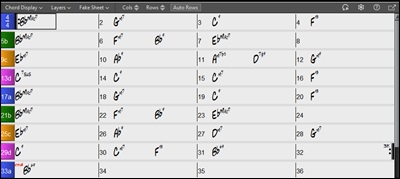
The Chord Sheet can be viewed in the full linear view showing all bars, or optionally in fake sheet view that shows 1st and 2nd endings and repeat signs. Another option shows bars past the end of the song in gray.

The toolbar on top of the Chord Sheet provides easy access to control for setting chord display options, opening Layers, and setting the number of rows and columns displayed.
![[Cols] [Rows] [Auto Rows]](images/4/Chord_Sheet_row_col.jpg) With the [Cols] and [Rows] buttons, you can change the number of rows and columns displayed on the Chord Sheet. The [Auto Rows] button automatically sets the number of rows depending on the number of bars in the song.
With the [Cols] and [Rows] buttons, you can change the number of rows and columns displayed on the Chord Sheet. The [Auto Rows] button automatically sets the number of rows depending on the number of bars in the song.
You can also use the mouse wheel to change the number of rows and columns instantly.
- Moving the mouse wheel while holding the Ctrl key changes the number of rows.
- Moving the mouse wheel while holding the Shift key changes the number of columns.
You can use the Tab and Shift+Tab keys to navigate through the Chord Sheet.
[Tip: Time signature changes will be displayed on the Chord Sheet if the "Show time signature changes" option is enabled in the Display and Chord Sheet Settings dialog.]
Chord Display
 The [Chord Display] button shows a menu to select the chord font, chord color, and type of chord display (standard, Roman numeral, Nashville, etc.) and a list for visually transposing the Chord Sheet for non-concert instruments.
 With the [Layers] button, you can see optional rows of information above each bar.

[Note: When there is no additional information within a row, that row will not show to maximize space on the Chord Sheet.]
“Section Text” layer is for editable text (up to 255 characters per bar) that is loaded and saved with the song.

“Bar Lyrics” layer is for editable bar-based lyrics (up to 255 characters per bar) that are loaded and saved with the song. This layer also displays MicroChords (including Motifs and Rests), if you have set this in the Set MicroChords dialog.

““Section Text” and “Bar Lyrics” layers will attempt to intelligently separate your lyrics into different bars. For example, if you have a whole song of lyrics in Notepad and the lyrics for every bar are on separate lines, you can simply highlight the entire block of text and paste it into Band-in-a-Box using Ctrl+V. Every line of text will occupy a separate bar. If the lyrics have not been distributed into the correct bars, you can move your text cursor to the beginning of a bar and press Backspace to move the lyrics to the previous bar. This will shuffle the text in the following bars one bar backward as well. Hitting Enter will move all of the text after the text cursor to the next bar and shuffle the text in the following bars one bar forward. If you wish to see more than one line within a bar, you can hold down Ctrl while using the Enter key, which forces a line break (second line) within the bar.
“Bar Settings” layer shows information about any changes that occur for that bar, as set in the Bar Settings dialog (e.g. tempo changes, key changes, etc.).

“Additional Chord Display” layer shows the chords using the normal display or an alternative mode of showing root notes. There are 4 alternative modes: Roman Numeral, Nashville Notation, Solfeggio Notation, and Fixed Do (Italy/Europe).

The height of this layer can be set as a percentage of the main chord using the “Height % of Additional Chord Display layer” setting in the Display Options dialog. For example, you might want to see Nashville Notation as big as the main chord display below it.
The “Concert Key” option allows you to display an additional chord display of the same chords transposed to a different key. So, for example, you can see two layers, one with concert chords, and the other for Bb instruments.

All the layers can be customized with font and color in the Display Options dialog.
Right-clicking in a layer has a menu with options to change height of the layer, close layer(s), copy/cut/paste, etc.
Fake Sheet Mode
Open the demo song “Repeats Tutorial example 2 with 1st-2nd and DC al Fine” from the C:\bb\Documentation\Tutorials\Tutorial - Repeats and Endings folder.
 To view the Chord Sheet in Fake Sheet mode, press the [Fake Sheet] button and enable Display Chord Sheet in Fake Sheet Mode in the drop-down menu.
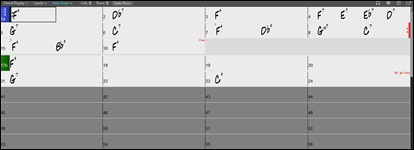
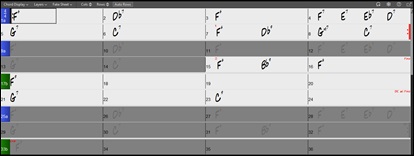
 If you disable Display Chord Sheet in Fakesheet Mode in the Fake Sheet button's drop-down menu, the Chord Sheet switches to full linear mode, showing all bars in the order that they will be played.
Display and Chord Sheet Settings
You can set up the Chord Sheet with your own preferences.
Click on the geat icon on the Chord Sheet toolbar to open the Display and Chord Sheet Settings dialog. You can also right-click on the Chord Sheet and select Display Options from the context menu.
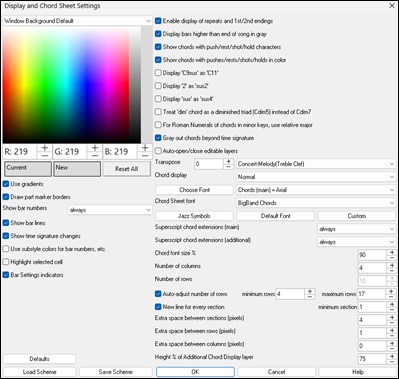
Use the color picker to customize the colors of various elements, including the Chord Sheet and Audio Edit window. A position indicator dot shows where you clicked in the palette. The [Current] and [New] swatches let you compare the color difference and revert to the current color if needed. The [Reset All] button restores all colors to the state they were in when the dialog was opened
Use gradients: This option gives the part markers with a gradient look. This also makes smoother seams between layers.
Draw part marker borders: This option lets you choose whether a border around the part markers is drawn or not.
Show bar numbers: This determines how often bar numbers appear. Choices are: never, always, only at part markers, or only at new rows.
Show bar lines: Check this option if you want to see a bar line to left of bar numbers.
Use substyle colors for bar numbers, etc.: This option controls the color of bar lines, bar numbers, and section letters. If this is enabled, bars without part markers will use the color of the current style. If this is disabled, everything will be displayed using a single color which is set for “Non-Part Marker (text)” in the color picker.
Highlight selected cell: If this option is selected, the currently selected cell will be highlighted instead of just out-lined. You can change the highlighting color by selecting “Cell highlighting” in the color picker. This feature is useful for JAWS Screen Reader users.
Bar Settings indicators: If you enable this, a line will be drawn below the bar number whenever there are Bar Settings (F5) changes for that bar. The color of this line can be chosen with the “Bar Settings indicator” in the color selection above.
Enable display of repeats and 1st/2nd endings allows repeats signs and 1st/2nd ending markers to be shown on the Chord Sheet.
Display bars higher than end of song in gray will “gray out” the bars on the Chord Sheet after the end of the song.
Show chords with push/rest character: The push character is the caret symbol (^). So, a C chord with a push is displayed as ^C. The rest character is a period (.) so a C chord with a rest is displayed as C. (C period). If you prefer to not see these characters displayed, then set this to false. These characters won’t show up on the printout regardless of this setting.
Show chords with pushes/rests in color: If this is enabled, pushes will be displayed in GREEN and rests are displayed in RED. This only applies to the Chord Sheet, not the notation.
Display ‘C9sus’ as ‘C11’: This option allows display of “9sus” chords as “11” (e.g., Bb11 instead of Bb9sus). This only affects how the chord is displayed, not how it is stored. And you can type either C11 or C9sus to enter the same chord.
Display ‘2’ as ‘sus2’ / Display ‘sus’ as ‘sus4’ - These options will show suspended chords more explicitly. “sus” implies “sus4,” and “2” implies “sus2,” but you might want to see the full extension name.
Treat ‘dim’ chord as a diminished triad (Cdim5) instead of Cdim7 controls if Cdim will represent Cdim5 or Cdim7. When set, Cdim means the diminished triad (Cdim5) and the diminished 7th is entered as Cdim7.
For Roman Numerals of chords in minor keys, use relative major: For minor keys, base roman numerals on the relative major. For example, in key of Am, Am is either the Im chord or the VIm chord.
Gray out chords beyond time signature: This setting grays out chords that won’t play in the song. For example, if you switch a song of 4/4 time signature to a waltz style, the chords on beat 4 will be grayed out.
Auto-open/close editable layers: If this is enabled, any editable layers (Bar Lyrics and Section Text layers) will automatically open or close when you open a song.
Transpose - This will visually transpose the chord sheet and notation display by a number of semi-tones for concert or non-concert instruments, either by typing in a number or choosing a preset. If a Chord Sheet or Notation window transpose setting is in effect, a yellow hint message opens on boot up as a reminder.
Chord display: This setting allows you to choose a chord display for the main layer.
[Choose Font]: This button allows you to choose a font, style, and size for the selected item in the combo box to the right.
Chord Sheet font: This allows you to choose a font for the chords on the main layer. If you click on the [Jazz Symbols] button, then “Jazz Chord Symbols” will be selected and you will see shorthand Jazz chord symbols on the Chord Sheet. The [Default font] button selects BigBand Chords. The [Custom] button allows you to choose the size as well.
Superscript chord extensions (main) / Superscript chord extensions (additional): The superscript feature shows the chord extensions using smaller raised text. This makes the root of the chord more distinguishable, and also helps maximize space on the Chord Sheet. “Superscript chord extensions (main)” is for extensions of the chords on the main layer, and “Superscript chord extensions (additional)” is for extension of the chords on the additional layer.
Chord font size %: The chord font size can be adjusted as a percentage. 100% means that the chords will be as large as possible, while fitting into each chord cell.
Number of columns: You can select the number of columns displayed on the Chord Sheet screen.
Number of rows: The number of rows displayed on the Chord Sheet screen can be selected manually to best match your screen size and resolution. This only applies if Auto-adjust number of rows” is disabled.
Auto-adjust number of rows: If this is set, when songs are loaded, the number of rows will change depending on the number of bars in the song, and the number of rows will vary within the supplied range between “min rows” and “max rows.”
New line for every section: When this is set, most part markers will start a new line on the Chord Sheet. This makes the sections more readable. It can be disabled for a song using Edit | Settings (for This Song). The “minimum section” setting is the minimum number of bars that is required for a section to automatically start a new line.<
Extra space between sections (pixels) is the amount of space to add on a new line when there is a part marker.
Extra space between rows (pixels): This allows you to set a border thickness between rows.
Extra space between columns (pixels): This allows you to set a border thickness between columns.
Height % of Additional Chord Display layer: This sets the percentage of additional chord display layer. For example, if you want to see Nashville Notation on the additional chord display layer as big as the main chord display below it, set this option to 100%.
[Load Scheme]: This lets you select saved schemes, including dark and light modes. Schemes are stored as .csc files in the C:\bb\Data\Scheme folder
[Save Scheme]: This saves the current settings and colors so you can restore them later.
Part Markers
Part Markers (a, b, c, d, etc.) are placed on the Chord Sheet to indicate a new part of the song, to insert a substyle change, or to insert drum fills. They typically occur every 8 bars or so but may be placed at the beginning of any bar.
Section Paragraphs
When you’re reading a book, a new section begins on a new line, with space between. Band-in-a-Box does that for chords too. Whenever a new section (a part marker) occurs, we start the new section on a new line and draw a grey line above to clearly mark the new section. A section can be as short as 2 bars. You will see each section on a new line so that the form of the song is easier to see. The feature is configurable with the “New line for every section” option in the Display and Chord Sheet Settings dialog.
Chord Entry
The basic way of entering a song into Band-in-a-Box is to type in the chords to the song on the Chord Sheet. The arrow keys move the highlighted cell around in the Chord Sheet. The Enter key advances to the next ½ bar. Chords can be entered from the QWERTY keyboard.
Chords are typed in using any of the supported chord symbol displays:
- Standard chord symbols (C, Fm7, Bb7, Bb13#9/E).
- Roman numerals (Imaj7).
- Nashville Notation (1Maj7).
- Solfeggio (DoMaj7).
- Fixed Do. In Italy and other parts of Europe, chords like C7 are always referred to by the Solfeggio name (Do7 for C7) regardless of the key signature.
[Note: It is not necessary to type upper or lower case. The program will sort this out for you. Any chord may be entered with an alternate root ("Slash Chord") e.g. C7/E = C7 with E bass. Separate chords with commas to enter 2 chords in a 2-beat cell, e.g., Dm, G7.]
Chord Sheet Editing Features
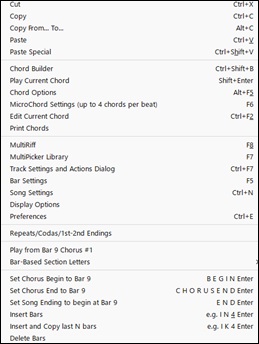
The Chord Sheet has a context menu that opens with a right-click on the Chord Sheet. This menu is a very convenient way to access the features for editing song arrangements.
|
Chords can be copied, pasted, cut, or erased and new chords can be entered from the Chord Builder. |
Mixer Window
The Mixer window shows the current state of the tracks and allows easy changes or adjustments.
The [Mixer] button on the left toolbar shows/hides the Mixer window. The down arrow button on its left allows you to show the Mixer on left or right, open the floating Mixer, or hide the Mixer.
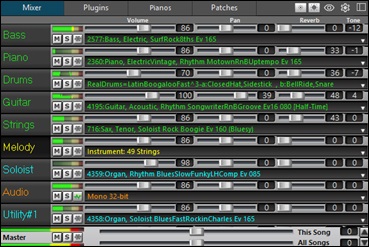
The four tabs on the top toggle between screens – Mixer, Plugins, Piano, and Patches. The default screen is Mixer.
The button in the top-right corner switches between floating and docking mode.
In the floating mode, opacity buttons are shown. Clicking on them changes the window’s opacity by a significant amount; right-clicking changes by a small amount.
The gear icon at the top right lets you configure settings.
Click on the "eye" button to choose which tracks are displayed in the Mixer. You can show all tracks, only active tracks, or select individual tracks. Tracks set as visible with this button remain visible for the current song, and this setting is saved with the song. The Mixer automatically shows active tracks and hides unused tracks when playback starts. You can set this with the "Auto show/hide tracks when starting playback" option in the Mixer Settings.
You can change the track panel height by moving the mouse wheel while holding down the Ctrl key.When resizing the window, the track panel height is restricted to the customized settings. For example, if the maximum panel height is set to a low value, then when you expand the window, there will be black portion below the track panels, but if it's set to a higher value, then when you expand the window, each track panel will be stretched to fill the window.
You can drag track labels from the Mixer and drop them onto the Drop Station to render audio or MIDI files.
You can double-click on the track label to rename it.
There are many tracks to use in Band-in-a-Box, including:
- The Melody track, where you can record your own MIDI melody. Or just use it as a sequencer track to record any MIDI track.
- The Soloist track, for solos generated by the Band-in-a-Box Soloist. This track can also be used as a MIDI sequencer track if not needed for a solo.
- The Thru track for play-along on an outboard MIDI device or with the Band-in-a-Box Wizard feature.
- The Audio track for your recorded vocal or instrumental part, or an imported audio file.
- Sixteen Utility tracks, which can be used to generate RealTracks, RealDrums, Loops, MIDI SuperTracks, and more. Audio can be recorded or imported for playback, editing, or harmonization. MIDI can also be recorded or imported for playback, notation display, or editing. Audio, MIDI, or both can be copied or moved from other tracks to Utility tracks.
The color of the track name indicates its type or state.
- White indicates that the track is empty and is not in use.
- Yellow indicates a MIDI track playing a Band-in-a-Box MIDI part.
- Green indicates a RealTrack. The track name is underlined with a short line if the track has RealChart notation, and with a long line if it includes RealChart notation with accurate guitar or bass tab.
- Orange is an audio track.
- Red means that the track has been muted. When one of the tracks is being soloed, all other tracks will change color to red.
The track names match the styles, and if the 2 tracks have the same name, numbers will follow. For example, if you load in the Slow Bluegrass Waltz style, you will see these names: Bass, Guitar 1, Mandolin, Guitar 2, Banjo.
[Note: If you like the fixed track names (Bass/Piano/Drums/Guitar/Strings/Melody/Soloist), uncheck the “Auto-Generate Track Labels” option in the Preferences dialog (Options | Preferences or Ctrl+E) or Mixer Settings dialog
RealDrums can be added to any track, not just the Drums track, so you can have more than one drums track. To do this, right-click on the track button and select Choose RealDrums from the menu. When there are multiple drums tracks, they will be automatically called Drums 1, Drums 2 etc.
Right-click on a track label for a menu of settings and actions for the selected track. The menu is organized into groups allowing easier selection of track types: audio (RealTracks, UserTracks, Loops) or MIDI (MIDI SuperTracks, classic MIDI tracks) and track settings/actions.
On the [Mixer] screen, each track has settings for Volume, Pan, Reverb, and Tone that can be adjusted as the song is playing.
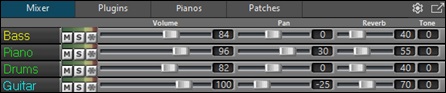
To adjust settings, click on a slider and move it horizontally. They can also be controlled by right-clicking on a number and typing in a new number. You can also adjust them with the mouse wheel while the mouse cursor is over the sliders or number dials. Hold the Ctrl key down as you click on the slider or drag the thumb of the slider. This will force all tracks to move to the same absolute location as the original track. Hold the Shift key and it will move all tracks relative to the move of the original track. Double-clicking on the slider sets the value to a default value.
You can set Volume and Pan to display as decibels instead of MIDI values. This makes sense when you are mostly dealing with RealTracks, RealDrums, and audio tracks. To display as decibels for all tracks, enable the "Display dB Instead of MIDI Volume" option in the Settings tab. To set for each track, right-click on a track and select Track Settings | Display dB Instead of MIDI volume.
|
Each track has its own VU meter to show the sound level, and buttons to Mute, Solo and Freeze the track. The Mute and Solo states of each track will be saved in the songs and will be loaded the next time you open them. |

lRight-clicking on the VU meter shows you a menu with options for audio input monitoring. This is like “Audio Thru” and it routes incoming audio to Audio Out.
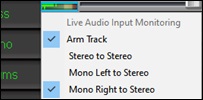
When the Arm Track menu item is checked, blue borders are drawn around its VU meters and you can monitor your recording along with the effects that you select on that track. For example, if you want to add a tremolo effect to your recording, right-click on the first slot in the Mixer, select Choose Plugin from the menu, and select a tremolo effect.
The menu also has options to select an audio input. For example, if your audio interface has two inputs (right/left) and you want to record from a microphone plugged into the right input, select the Mono Right to Stereo menu item.
 For an audio track, a waveform button displays.
 A stem button indicates that the track has a RealTracks/RealDrums stem loaded.
There is also a Master section with a Mute button, VU meters, and Master Volume controls.

The Master Volume is a true Master Volume, in that it applies a decibel (dB) boost to the master signal, independent of the tracks volumes. So, for example, if you want all Band-in-a-Box songs to be louder, you can simply set the “All Songs” Master volume slider (e.g. to +6 dB) and this boost will apply to audio output from all instruments (MIDI and audio) for all songs.
The [Plugins] screen allows you to assign up to four DX or VST plugins to each track.
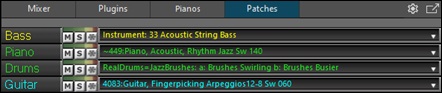
MIDI tracks have 4 slots. The first slot can take a synthesizer (e.g. Sforzando, Coyote GM, Garritan Aria, and HyperCanvas) and the other 3 can take audio effects (e.g. reverb, compression etc.)
Audio tracks have 4 slots. There is no synthesizer slot, so they have 4 for audio effects.
Click on a plugin name, and use the menu to choose a VST2/VST3 plugin, load or save a preset or a group of presets, select options for VST2 plugins, and more.
[Note: A "group" includes presets for all four plugins on the track. This is saved in a .tgs (Transform Group Settings) file.]
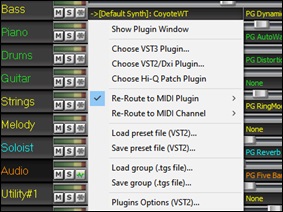
Band-in-a-Box supports VST3 plugins, allowing you to use them alongside VST2 and DXi plugins for MIDI or audio tracks. To use a VST plugin, select Choose VST3 Plugin from the right-click menu. This will open the VST3 Selector window. When you first open this window, the plugin list will be empty, and it will ask you to scan for VST3 plugins. Answer “Yes” to begin the scan. Once the scan is complete, you will have a list of VST3 plugins to choose from.
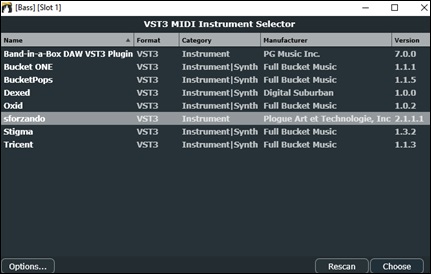
The plugin list is displayed with columns, and clicking on a column heading allows you to sort by name, format, category, manufacturer, or version number.
The [Options] button provides functions such as adding a scan directory, removing the selected VST3 plugin, showing the folder of the selected VST3 plugin, and more.
- Add VST3 Search Directory lets you specify additional folder locations to scan if you have VST3 plugins not installed in the default location (C:\Program Files\Common Files\VST3). If you accidentally add an incorrect folder, selecting Reset to defaults will remove any custom folders.
- Scan for VST3 in a Specific Directory is useful if you have a folder of VST3 plugins that you want to add to Band-in-a-Box once but do not want them scanned every time.
- Look for VST3 Plugins allows you to add individual VST3 files without adding the entire folder.
- If you’re having trouble with a plugin, select Show folder containing selected VST Plugins to locate the VST3 file for the selected plugin.
To load a VST3 plugin, double-click on it in the list or press the [Choose] button.
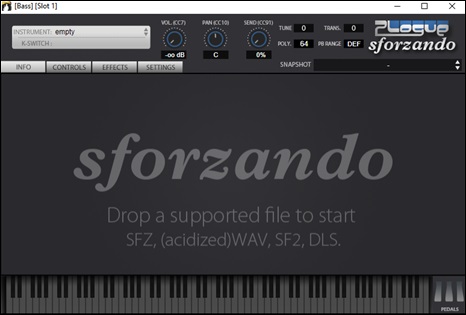
Here is the VST3 of Sforzando loaded. Now you can use the VST3 plugin just like other plugin types such as VST2 or DXi.
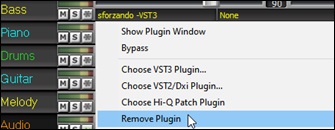
To remove the loaded VST3 plugin from the track, right-click on it in the Mixer and choose Remove Plugin from the menu.
The Plugins Options (VST2) menu item provides settings for VST2 plugins.
- Scan for VST2 plugins on bootup: Enable this option if you want Band-in-a-Box to scan for new VST2 plugins every time it boots up. This only includes plugins that have not been found previously.
- Scan for DX plugins on bootup: Enable this option if you want Band-in-a-Box to scan for new DX plugins every time it boots up.
- Automatically open plugin window when assigning: If this is checked, a plugin’s window will open automatically when you assign to a track. This only applies if the Plugins dialog is open.
Do not allow keyboard input to plugin windows: Enabling this will prevent plugin windows from taking focus away from Band-in-a-Box, so keyboard input always goes directly to the main program. Disable this if you are using plugins that use keyboard input. - Allow jBridge for loading 32-bit VST2 plugins: If this is enabled, Band-in-a-Box will attempt to use jBridge to load 32-bit VST2 plugins. Disable this option for troubleshooting or speeding up the plugin scans.
- Automatically arrange plugin windows: Plugin windows can be arranged automatically according to the assigned track, and the position in the plugin chain. It this option is disabled, then each plugin window will open at its previous position.
- [Exclude MIDI Plugins]: You can choose MIDI plugins to exclude. Excluded plugins will not show up in the lists and will never be loaded by Band-in-a-Box.
- [Exclude Audio Plugins]: This allows you to choose audio plugins to exclude. Excluded plugins will not show up in the lists and will never be loaded by Band-in-a-Box.
- [Exclude Plugins]: You can choose specific VST plugin files that you do not want Band-in-a-Box to attempt to load when scanning for new plugins.
- [Add Plugins] allows you to select VST plugins individually, add/remove VST scan folders, or scan for VST plugins in a specific folder.
[Note: The list of VST2/DX locations are stored in text files in the C:\bb\DX Settings folder. For example, plugin_list_VSTdirectories_x64.txt is for 64-bit VST2, and plugin_list_MIDI_x64.txt for 64-bit DX/DXi.] - [Choose / Scan VST3 Plugins] opens a window where you can choose or scan VST3 plugins.
Multiple plugins GUI windows can be used simultaneously. These can be accessed from the Plugins section of the Mixer. Right-click on a plugin button to automatically show or hide the plugin’s GUI, or left-click and choose Show Plugin Window from the menu.
Each MIDI track can send its MIDI output to another track. By default, all accompaniment tracks route to the default synth, but now you can choose a plugin on another track. This is accessed from the Plugin’s context menu on the Mixer.
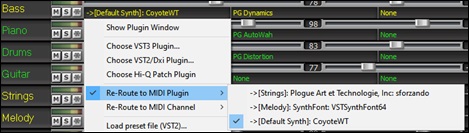
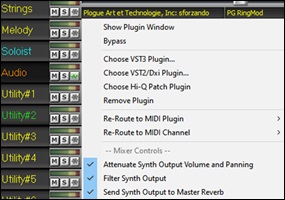
MIDI plugin’s audio output can be controlled in the Mixer with 3 new settings. This allows MIDI plugin’s sound to be controlled the same way as audio tracks (RealTracks, RealDrums, etc.). These settings are accessed from the Plugin’s context menu on the Mixer.
|
Attenuate Synth Output Volume and Panning: This will change the gain of the plugin’s audio output based on the Volume and Panning controls on the Mixer. When this is enabled, MIDI controllers for volume will not be sent to the plugin. This setting is useful for plugins that do not respond to MIDI controllers. |
|
The [Piano] screen shows the notes that are playing on each track on a piano keyboard.
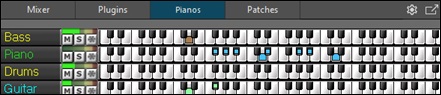
The [Patches] screen shows full instrument names.
Clicking on any instrument name opens the menu for selecting or changing the instrument.
The gear icon at the top right of the window lets you configure Mixer settings.
- Undoable mixer changes: Changing Volume, Panning, Reverb, or Tone can be cancelled with the Edit | Undo menu item.
- Load mute and solo states with songs: If this is enabled, the mute and solo states of each track will be saved in the songs and will be loaded the next time you open the songs.
- Display dB instead of MIDI volume: With this option, you can see Volume and Panning in decibels instead of MIDI values. This option can also be set manually for each track with the right-click menu on the track name.
- New plugins default to mixer control: When adding a new MIDI plugin, “Attenuate Synth Output Volume and Panning,” “Filter Synth Output,” and Send Synth Output to Master Reverb” settings will be enabled. These allow the Mixer to control the plugin’s volume/panning/reverb/tone.
- Allow mouse wheel to control sliders/dials: If this is enabled, you can control the sliders and dials with the mouse wheel while the mouse cursor is over them.
- Auto show/hide tracks when starting playback: If this is checked, then when playback starts, active tracks will be shown but unused tracks will be hidden.
- Auto minimize floating Mixer when starting playback: If this is enabled, starting playback will reposition the Mixer to the minimal size and position, and stopping playback will reposition back to the custom size and position.
- Auto-generate track labels: If this option is enabled, the Mixer will display auto-generated labels (e.g. Banjo, Harmonica, etc.) instead of the default track labels (Bass, Piano, Melody, etc.)
- Show RealCharts/notation indicator (underline) on track labels: Enable this to see an underline on the track label if notation is available for the selected RealTrack.
- Minimum panel height / Maximum panel height: With these options, the track panels will be restricted to a certain height when resizing the Mixer.
- Tempo/Pitch stretching quality: This allows you to select quality of the tempo and pitch stretching. You can select “High” if you have a fast computer, but you should select “Low” if you have a slower computer and are hearing stuttering during playback.
Tracks Window
This is similar to a tracks window seen in many DAWs. It displays all track data and allows you to adjust the volume, pan, reverb, and tone; quickly solo or mute tracks; assign DX/VST plugins; select a region for loop playback; and more.
To open the Tracks window, press the [Tracks] button on the side toolbar, or select the menu item Window | Tracks Window.
The Tracks window can be shown either docked in the main workspace or as a floating window.
- Ctrl+click on the [Tracks] button to force the window to float.
- Shift+click on the [Tracks] button to add the window as docked in the main workspace. For example, to create a Chords-and-Tracks top/bottom layout, click on [Chords], then Shift+click on [Tracks].
- The mode button in the top-right corner of the window lets you toggle between the floating and docking modes.
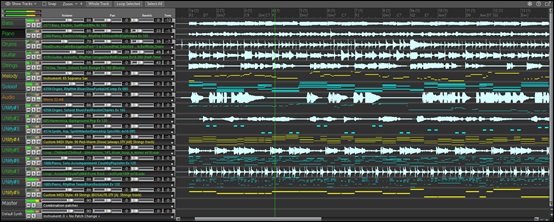
The ruler below the toolbar indicates bars and beats, with a full height vertical division for each bar and a short vertical line for each beat or quarter note. Bars with part markers also include the A or B part marker letter with the bar number (1a, 9b).
The toolbar provides buttons for controlling the display and settings of the window.
- The toolbar shows the [Standard] and [Edit Phrases] buttons if the “Enable ‘Edit Phrases and Loops’ Mode in Tracks Window” option is enabled in the settings dialog. Standard mode is the normal mode. When Edit Phrases mode is enabled, boxes are drawn for RealTracks phrase segments, and these phrases can be edited.
- Use the [Show Tracks] button to select which tracks are displayed.
- When the Snapcheckbox is enabled, selecting a region aligns it to the nearest beat.
- The [-] button zooms out horizontally to display a larger area; the [+] button zooms in to display a smaller area.
- The [Whole Track] button zooms out as far as possible, displaying the entire track.
- The [Loop Selected] button plays and loops the selected region.
- The [Select All] button selects the whole track.
- The gear icon opens the settings dialog, allowing you to customize the waveform’s appearance.
- The icon at the far right lets you toggle between floating and docking modes.
Each track has its own VU meters to show the sound level, along with buttons to mute, solo, freeze, manage plugins, and show piano keyboard. Ctrl+clicking on a [Fx] button shows plugins for all tracks, and Ctrl+clicking on a [P] displays the piano keyboard for all tracks.
Use the vertically stacked [+] and [–] buttons at the bottom right to adjust all track heights. Holding down the Ctrl key while clicking on these buttons will expand or reduce the track height at 5 times the normal rate. If you hold down the Shift key, the track height will expand or reduce at 10 times the normal rate.
Individual track height can be adjusted by dragging a track divider. To set all tracks to the same height, drag a track divider while holding Ctrl, then release the mouse button.
You can use the mouse wheel to adjust display. It functions differently depending on where you use it.
- Scrolling on the left side of the window scrolls vertically.
- Scrolling on theright side zooms horizontally.
- Scrolling over the Volume, Pan, Reverb, or Tone controls adjusts those settings.
- Scrolling while holding down the Ctrl key changes the height of all tracks.
- Scrolling while holding down the Shift key scrolls the window vertically.
On the left of the window, there are mixer settings for each track that can be adjusted as the song is playing. To adjust volume, pan, reverb and tone, click on a slider and move it horizontally. They can also be controlled by right-clicking on a number dial and typing in a new number. You can also adjust them with the mouse wheel while the mouse cursor is over the sliders or number dials. Ctrl+dragging the slider forces all tracks to move to the same absolute location as the original track, while Shift+dragging it moves all tracks relative to the move of the original track.
You can double-click on the track label to rename it.
Right-click on a track label to open a menu for track settings and actions for that track.
You can drag a track label and drop it to the Drop Station on the top toolbar to render an audio or MIDI file.
In Edit Phrases and Loops mode, the boxes are drawn for phrase segments.

A phrase can be sekected by clicking on a box. Shift+clicking on multiple boxes selects multiple phrases.

You can press Ctrl+C to copy the selected phrase, then place the cursor at a different location, and press Ctrl+V to paste it to that location.

To erase a phrase, click on the box and press the Delete key.

You can shorten a phrase so that you will hear just the first note on the downbeat at a certain bar on a track. Click on the box, hover the mouse cursor over the right of the box, and when the left-right curser appears, drag it to left to shorten the phrase.

To start a phrase earlier, click on the box, hover the mouse cursor over the left of the box, and when the left-right curser appears, drag it to left.

You can also turn a whole or a portion of a phrase into a loop. For example, if you want to use just a 2-bar segment of a 6-bar phrase as a loop, drag the right of the phrase box to left until you will have 2-bar segment of the phrase.

[Tip: If you want an exactly 2-bar segment of the phrase, enable the Snapmode on the toolbar.>]
Now, if you hover the mouse cursor over the top right corner of the phrase box, a loop icon appears, and you can drag it as long as you want. You will then see dotted lines within the segment. This means that the 2-bar segment was turned into a loop with the dotted lines indicating the loop starting points.

Unconditional 30-Day Money Back Guarantee on all PG Music products purchased from PG Music Inc.
PG Music Inc.
29 Cadillac Ave Victoria BC Canada V8Z 1T3
Sales: 800-268-6272, 250-475-2874,+ 800-4746-8742*
* Outside USA & Canada where International Freephone service is available.
Access Codes
Tech Support: Live Chat, support@pgmusic.com
 Online now
Need Help?
Customer Sales & Support
|
Phones (Pacific Time) 1-800-268-6272 1-250-475-2874 |
||
| Live Chat | ||
| OPEN | Online Ordering 24/7 |
|
| OPEN | Forums, email, web support |